Give your screens a programme.
Design the screen. Keep the data in context.
Design screens on a real canvas, connect live information from your modules and schedule programmes across every Site, from front-door posters to kitchen boards. Play them on Samsung TVs or in a browser, and players keep the last authorised programme running through a connection outage.
Available in preview
Preview access to the design studio, starting layouts, uploads, live data sources, playlists, programmes, scheduling, Group distribution and player management, with the web player and a Samsung TV app pilot. Screen compatibility and installation are confirmed as part of each pilot rollout.
See what’s nextMore of the work, connected.
See what you can get done.
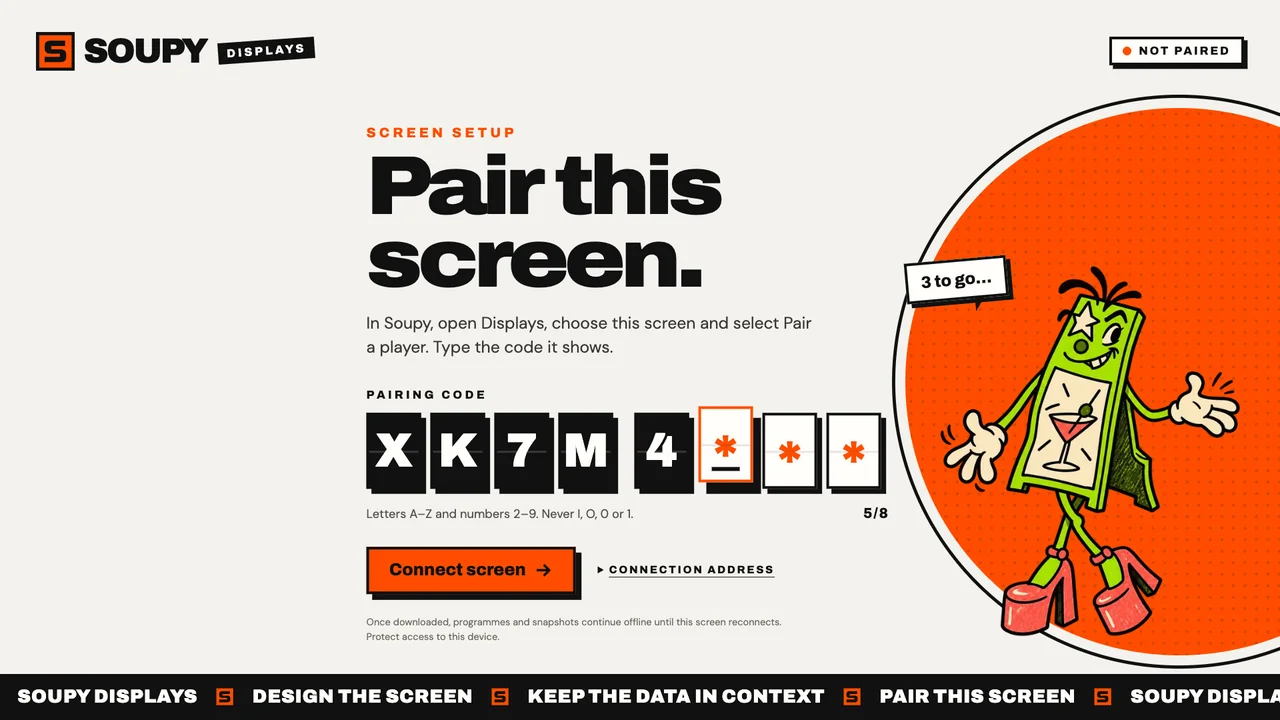
Samsung TV appTizen 6.0 and later
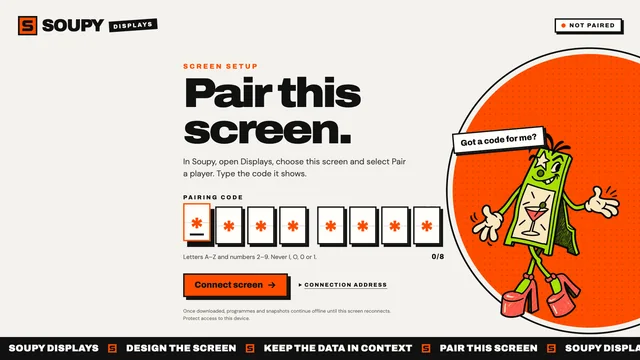
Web playerIn a browser
PortraitSamsung panels
More playersTo follow
- Text
- Image
- Video
- Shape
- QR code
- Clock
- Data
Archivo
GradientSnap to grid- TicketingUpcoming Events and sales
- BookingsToday’s arrivals and menus
- SportScreenings on today
- TalentTonight’s performers
- EPOSPrices, offers and kitchen
- RotasShifts and attendance
- MaintenanceNotices and open work
- PurchasingDeliveries due
Also Loyalty rewards, CRM promotions, Production allergens, Stock, Tasks, team notices and Group comparison, each with its own access.
- OverrideTonight 19:00–23:00 · Match day
- Dated1–24 Dec · Christmas parties
- RecurringMon–Fri 11:30–15:00 · Lunch menu
- DefaultHouse programme
- Covers tonight
- 148
- On shift now
- 12
- Open faults
- 2
- Tasks due today
- 5
- 18:00 Private dining · 32 covers · set menu
- 19:30 Comedy doors · 140 tickets
- Allergens Short rib contains celery and mustard
- PublicAdverts, menus and what’s on
- StaffShift, kitchen and operations boards
- ManagementMetrics and Site comparisons
- Bar · landscapeOnline · revision 12 · reported 2 minutes ago
- Front door · portraitOffline 3 hours · last programme and media cached
- Function roomWaiting to pairXK7M4RTP
- Cached schedule
- Up to 35 days
- Switches over
- At a slide boundary
- Revoked access
- Purged on reconnect
Explore fictional screen programmes and fleet reports from the Displays workspace.
Current workspace layouts with sample data. Nothing is saved or sent.
Displays
Design screen content, schedule programmes and review each player's reported state.
- Screens
- 2
- Recently connected
- 1
- Published
- 2
- Paused
- 0
Your screens
Each screen has its own site, audience and playback history.
Main bar
Demo venue · Public
1920 × 1080 · 0° · Europe/LondonPlaying · Cache: complete
Kitchen
Demo venue · Staff
1920 × 1080 · 0° · Europe/LondonPlaying · Cache: complete · last contact 16:20
Explore the current Displays layout with fictional records. Search, switch views and try both themes. Nothing is saved, sent or charged.
On the other side of the shift
Less friction. More getting on with it.
- 01
Keep adverts and daily schedules current.
- 02
Build operational dashboards with controlled access.
- 03
Keep the last authorised programme playing offline.
What’s included
Made for the job.
The practical details behind the promise. Built around the people doing the work, and connected to the information they need.
- 01
A real design studio
Text, images, video, shapes, QR codes, clocks and data widgets on a canvas with layers, grid snapping, alignment, gradients and bundled fonts, in up to eight orientations.
- 02
Starting layouts
Begin from Event covers, what’s-on cards, menus and listings, or operations, shift, kitchen and management boards.
- 03
Live data from your modules
Show upcoming Events, screenings, performers, menus, prices, shifts, open work and more as covers, cards, lists, calendars, menus or metrics.
- 04
Playlists, programmes and schedules
Set slide durations, then schedule programmes by default, recurring days, dated campaigns and overrides in each Site’s timezone. Every publication is a revision you can roll back.
- 05
Public and private screens
Keep public adverts, staff screens and management dashboards behind their own publication permissions.
- 06
Group distribution
Share designs and publish across a Group, with every destination reviewed against its own sources, scope and audience.
- 07
Samsung and web players
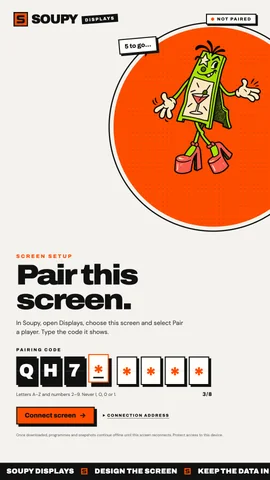
Pair a Samsung TV app or the web player with a one-use code on Soupy’s branded pairing screen, then inspect reported playback. Players retain their last downloaded programme, media and authorised snapshots through a connection outage. More players will follow.
More of the working product
What you can do with Displays.
Explore the tools behind the overview, then open a workflow for the steps, settings and availability that apply. Product access, rollout and connected providers determine what your workspace can use.
Screen fleet
- Record each screen’s dimensions, orientation and timezone.
- Pair a Samsung TV app or web player with a one-use code and its own device credentials.
- Revoke a device and inspect playback diagnostics.
Design library
- Organise designs for Customer screens or Back of house.
- Start from Event covers, menus and listings, or staff and management boards.
- Review media classification and retire assets explicitly.
Canvas authoring
- Build with text, media, shapes, QR codes, clocks and permitted data.
- Snap to a grid, align layers and fill with multi-stop gradients.
- Preview, undo, redo and save a draft in up to eight orientations.
Live sources
- Connect approved data from Ticketing, Bookings, Sport, Talent, EPOS and more.
- Present it as covers, image cards, lists, calendars, menus or metrics.
- Keep missing data visibly missing rather than showing zero.
Programme composition
- Order designs and set slide durations.
- Choose a playlist and fallback.
- Publish separately and roll back where needed.
Scheduling/distribution
- Set default, recurring, dated and override schedule rules.
- Review campaign windows in calendar previews.
- Share approved designs across groups with controlled local overrides.
Trusted playback
- Approve or withdraw source records for publication.
- Inspect the player’s reported download and cache state.
- Continue offline with the last authorised downloaded bundle.
Preview. A published programme and a player’s reported playback are different states; device acceptance and source approval remain required.
Explore every workflow in the guides.
Choose a guide to see all its topics. The detailed guides include setup requirements, preview features and supported limits.
Displays3 workflow topics
Design and schedule screen content, with preview and device availability boundaries.
Read the complete guidePart of the bigger picture
The context comes with it.
The guest, the venue, the team. Useful information should follow the work. Displays connects to shared records, with access controlled for your organisation and your people.
A clear picture
Today. And what’s next.
Preview access to the design studio, starting layouts, uploads, live data sources, playlists, programmes, scheduling, Group distribution and player management, with the web player and a Samsung TV app pilot. Screen compatibility and installation are confirmed as part of each pilot rollout.
External feeds, embedded websites, streams and advertising billing are outside this release.
Good questions
Displays FAQs.
Which screens can play Displays?
The web player runs in a current browser, installed as an app on a dedicated kiosk profile. The Samsung TV app runs on Tizen 6.0 and later; during the pilot Soupy registers each Samsung panel, and there is no Samsung store listing yet. More players will follow.
Does Displays require another module?
No. Authored content and uploads work independently. Other active modules can contribute approved data.
What happens offline?
The last authorised programme, media and private snapshots continue until authenticated reconnection. Offline devices cannot receive revocations or source changes.
Can a Group publish to every Site automatically?
Every destination is reviewed against its own source modules, scope and audience. Group membership alone never grants sibling data access.
Does a player report prove an advert was seen?
No. Reports describe player activity; they are not audience impressions or proof the panel was powered on.
Start with the pressure point