How access is decided
Effective access combines the signed-in identity, active membership, current module entitlement, assigned user types/direct permissions, explicit personal blocks, the record's scope and business policy guards. Navigation is filtered by that result; the server checks it again for reads and changes.
Resource screens resolve each action and optional module contribution at the stored record's scope. In legacy and shadow mode, management at one Site does not turn a viewer's Event at another Site into an editor; permitted readers retain their read-only controls. The server's source command remains the final authorization check.
For protected views such as Inbox conversation context, My Work and sales reports, background refresh pauses while the browser page is hidden or after five minutes with no click, key press, scroll, touch or pointer movement on it (web and desktop app). A streaming camera scanner counts as use for up to 15 minutes. Returning to the page, or the next interaction, refreshes access before guarded actions can continue. On Add-on collection, booking email conversations and Maintenance, the first tap or key press after an idle pause may only wake the page; repeat it once the page has refreshed. Previously admitted content and same-source drafts stay in place while refreshing; views that already hide private content in a hidden tab also hide it while idle. Changing identity or scope, or receiving an access refusal, retires them. An idle page does not update live until someone uses it again, though its times and dates stay current. These browser pauses do not change customer loyalty wallets or the server's permission checks; the native apps' own pauses follow.
Native idle pause, iOS build 17 and Android build 22 or later: the iOS and Android apps apply the same five-minute pause to a screen nobody is using. Use is a touch anywhere on the screen (including the start of a scroll and a screen-reader activation), typing, moving to another screen or returning to the app. Screen-reader swipes that only move focus never reach the app, so they do not count. Door ticket, asset tag and product barcode scanning count as use while the camera is open, for up to 15 minutes. As on the web, the first tap after an idle pause may only wake the screen: actions that check current access, such as opening a My Work item or deciding an Automation approval, ignore it, and buttons that need current access stay unavailable until the refresh finishes. Contract documents and channel stories, which hide private content in a backgrounded app, also hide it while idle. Content and drafts otherwise stay in place, and times and dates stay current.
Native covered-screen pause, iOS build 17 and Android build 22 or later: Home, My Work and Messaging stay open behind other tabs and screens, and every other screen, such as EPOS, a training assignment or an Inbox conversation, stays open under the screens opened on top of it. Protected views (for example Home's team work, the My Work queue, channel stories and EPOS recommendations) refresh only while their screen is the one showing and the app is in front. Switching tabs or opening a screen on top stops the refresh; coming back refreshes access first. As after an idle pause, actions that need current access wait for that refresh: a My Work item tapped before it finishes needs a second tap, and channel stories reappear once it finishes. Other content and drafts stay in place. Browse and Profile have no protected views.
Event and Series sales reports load when Reports is selected; the Event's customer summary loads in Customer context. Overview metrics keep their existing readers and permissions.
Automation, Interested and Resale content loads only in its selected Event view. Waitlist remains available in Overview for its count and in Waitlist. Switching views preserves the same Event's unsaved Details draft. Unavailable or unknown views use the existing authorized fallback; every server read retains its permission checks.
Global administration: Platform access has a separate Business and Group administrators section. A platform access manager requests an explicit policy and a finite assignment to an exact registered identity. A different platform approver approves each request; the assignment's recipient cannot approve it. Administration and permanent-transfer review are separate responsibilities. Existing Platform owner access does not activate either. The web assignment form offers one, seven or thirty days; server policy permits five minutes through 366 days. Revocation targets the current activation and also requires independent approval.
An activated administrator opens /global-administration from the expiry banner
in business, Group and workspace chooser screens. Businesses and Groups have
separate ten-record directory pages, with current permissions checked per entry.
Disabled products, expired or ambiguous entitlements, personal restrictions and
customer privacy rules still apply. No customer membership is created. People &
access labels global permission separately; removing a local assignment does not
remove global authority. New invitations relying on global access must end within
its lifetime and are refused if that source changes before acceptance. Accepted
customer grants retain their recorded lifetime.
Permanent Group transfers use Prepare transfer request after selecting a business and destination. A new standalone Group can instead be selected in the form. Choose an existing permanent customer administrator and, when moving a Group's primary business, another existing business as replacement primary. Type the displayed business-specific confirmation. Saving produces an independent review link and changes no ownership. A separately activated transfer reviewer opens that exact link, reviews customer identity, destination access sources, permissions, work areas and primary changes, then approves with the displayed confirmation. Review-only access does not open customer directories.
Approval is atomic and refuses changed ownership, permissions, source authority, missing permanent customer continuity, incompatible Group-funded entitlements or an incomplete/oversized inventory. Neither acting administrator may acquire permanent destination customer authority through the transfer. Completed ownership persists after their temporary access ends. Existing customer linking retains its ordinary direct-authority checks. Provider consent, independent financial approval, private mailbox ownership, actual staff self-service and retained publisher authority remain separate. No production assignment or customer transfer is activated by shipping this feature. Native has no global governance or transfer-authoring screen. Sport feed selection and saved screenings are unchanged by this feature.
| Control | What it changes |
|---|---|
| Product switch | Whether a business has a work area enabled. It does not grant a person permission. |
| Membership | Whether a person is active in the business or Group. Suspending membership removes that reach even if grants remain recorded. |
| User type | A reusable, versioned set of capabilities and allowed scopes. Several types can contribute to one person. |
| Direct permission | An explicit positive grant for an operation and place/time scope. |
| Personal block | A restriction that wins over positive direct or inherited grants in its scope. |
| Delegation | Whether the administrator may pass on that authority. Holding a permission does not always make it delegable. |
| Policy guard | Additional checks such as consent, approved spending, source freshness or a second approver. |
Full access is a summary of standard administrator coverage across the currently enabled work areas in that business without active personal restrictions. It does not mean platform operator access, every specialist capability, or automatic access to future products. Custom access and No current access describe narrower effective results. Removing one grant may leave another positive source; the effective view and winning blocks explain that outcome.
Scopes include Group (portfolio), legal entity (organization), Brand, Site
(venue), Space, Series, Event, own record and assigned record. A permission
catalogue's allowed scopes are not a grant to every record at those scopes.
Sensitive seller operations may additionally require direct seller membership.
Invite or change a person's access
The permission switches, user types, invitations and Wallet request form below require an activated capability access model. Businesses still using legacy or shadow access retain their current role authority. Edit access opens a separate legacy role review for an existing active business member: choose a role, supported enabled work areas and the whole business, one Site or one Series. Review the mapped permissions, acknowledge sensitive permissions and give a reason before assigning. A Viewer role can include an operational action such as reporting Maintenance; its review lists the actual permissions. Business administrator roles retain core administration and delegation powers even when work areas are selected narrowly. Legacy assignments continue until explicitly removed, with no scheduled expiry. Review removal removes only that assignment and its matching grants; other sources may still provide access. Current actor authority, member identity, scope, module availability and the reviewed access revision are checked on the server. Stale reviews must be discarded and prepared again. This workflow does not activate secure access.
An older shadow business may need an explicitly reviewed administrator migration reconciliation before normal secure-access activation. The support procedure preserves historical responsibilities, lists newly adopted permissions and repeats the normal parity and continuity checks. It does not activate secure access or grant Soupy Studio. The approved account operation requires its own evidence; no new self-service repair control is added to this screen.
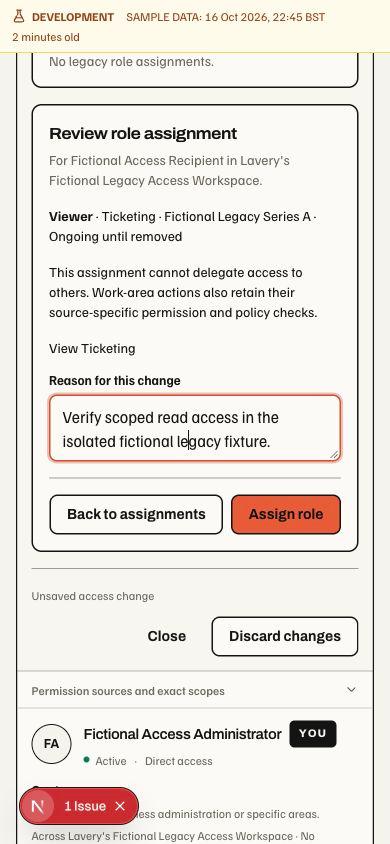
Fictional development example, with numbered reading points: 1. Scope and lifetime names the exact Series, ongoing duration and no delegation. 2. Permissions lists only View Ticketing for this selected Viewer assignment. 3. Confirmation retains the required reason beside Assign role; Back and Discard remain separate from applying the change. The development diagnostics badge is not a production access result.
- Open Settings → People & access (the Team & access page). Search the person and review their effective access, place, duration, contributing user types and restrictions.
- For existing people, edit the work-area switches and expand individual permission switches where needed. Advanced controls retain exact scopes, dates, user types, delegation and explicit blocks.
- Review the draft additions, restorations and removals. A work-area switch changes that person's access in this business; it does not buy/enable the product or rewrite the Group responsibility.
- Acknowledge sensitive changes, give the required reason and save. Current authority and the reviewed state are rechecked before the batch applies.
- For a new recipient, use Add member to choose the role, work areas, scope, access end date and reason. The recipient-bound invitation has no authority until accepted at its access link. Withdraw an unused invitation explicitly when it is no longer needed.
Employee account linking. In an active capability business, open Settings → People & access → Edit access for a direct active member. Employee account link lets an administrator with both whole-business access management and People management choose an eligible employee, give a reason, review the exact account/employee/business and confirm its first link. The chooser shows names and employee numbers, with explicit loading and further pages; it does not reveal private contact, pay or contract fields. A current Employment and workplace Assignment are required. Ineligible, already claimed or conflicting historical identities are refused. One login keeps one Person within a Group, including across employers; separate Groups retain separate People records. Existing links cannot be replaced in this form.
Linking changes only the membership's employee association and records an audit reason. It adds no permissions, changes no employment, sends no invitation and preserves access expiry. Personal work still checks current membership, assignment and permissions. A changed review must be prepared again; a failed save retains the selection and reason. This administration screen is on the web; native consumes the saved association for personal work and has no linking form.
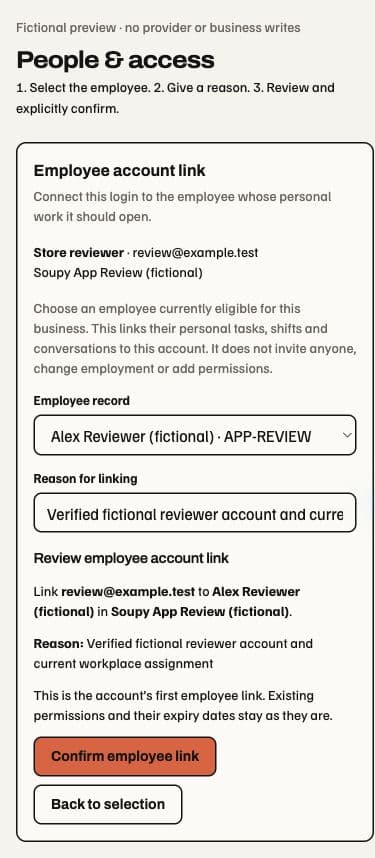
Local fictional example: the numbered introduction explains selection, reason and confirmation. This preview cannot link an account and is not live acceptance.
Invitation email. Group, business and Series/Event invitation forms offer Send invitation, which saves the recipient-bound pending invitation and queues a transactional email. The invitation history distinguishes queued email, provider acceptance, known failure and uncertain delivery. Provider acceptance proves neither inbox delivery nor acceptance of access. A failed email preserves the invitation and its secure copy link. Unused invitations can still be withdrawn. Work-area changes retain an incompatible selected role visibly; Use this role’s covered areas restores only its enabled areas and requires fresh sensitive approval. Permission refusals show the reviewed server explanation while retaining the draft.
Full-access invitations. Administrator invitations covering all supported work areas also handle overlapping direct and Group responsibilities within one request. Every selected permission still requires current delegation authority, the chosen scope and a valid access lifetime; restrictions continue to apply.
Existing administrator responsibilities keep their immutable permission profiles. An owner may therefore need the separately reviewed owner invitation repair before delegating permissions introduced after their original grant. This is a production-data operation, separate from delivering the invitation UI/email code; email text alone never confers owner authority. A separate owner specialist adoption requires a reviewed production-data apply. It explicitly adopts named specialist operations within existing memberships and enabled work areas; the standard Full access summary and ordinary delegation rules remain the same. Customer Wallet, Event-only and platform authority retain their own scopes.
Owner full access. The built-in administrator does not include QR, Studio or several specialist permissions, and work areas switched on later are missing from older administrator grants. An owner cannot pass on what they do not hold, so those switches stay unavailable in People & access. A reviewed owner full-access procedure gives the recorded Group owner every business-scoped permission, with delegation, in each switched-on work area of the businesses they already administer. It needs a reviewed production plan and the owner's authorization to apply, one business at a time. It never switches products on, changes other people or restores access removed by any route. Group-level work areas and place-specific permissions keep their own procedures.
Shared user-type picker. Group and business invitations, the person's Advanced Add work area access, and Event/Series Team & access invitation and assignment forms use the same searchable picker. The Group and business user-type builders reuse it for their starting profile, and legacy/shadow person review uses it for Role. It changes selection presentation; ordinary product, place, permission and date selectors retain their existing controls.
Choose By owner to see Group-owned types first, followed by other owners in the source's order, or By level to compare permission sets. Within an owner, stronger advisory levels lead, then types with more declared permissions; By level starts with Group administration and ends with read-only/custom sets. Search matches the type's name, owner, description and level. Each signed-in person's grouping choice is remembered in that browser; it is not an access setting. Built-in types are identified as built-in rather than assigned to an invented business. New selections offer the current built-in template in each versioned family; older immutable snapshots and existing assignments remain recorded unchanged.
The five-bar level is an advisory description of the type's actual permissions: Read only contains recognized viewing permissions, Member includes actions beyond viewing, and Event administrator uses two-and-a-half bars for the complete standard administration set with an Event-only scope blueprint. It sits above narrower Event Accounts/Scanner responsibilities and below whole-work-area administration. Work area administrator contains a complete current work-area permission set including its sensitive permissions, and Business administrator / Group administrator require the corresponding complete standard core administration set. A name such as “administrator”, one management permission or a Sensitive tag cannot establish an administrator level. Missing, unknown or inconsistent permission details show Custom access. Read-only permissions can still be sensitive. The meter never proves effective access, delegation, entitlement, allowed place or platform authority.
In Event Team & access, the equivalent old system Ticket Scanner is omitted from new choices when the current Event-only Scanner is offered. Custom or changed profiles remain distinct; existing legacy assignments and their wider allowed scopes remain untouched. An already selected old profile is retained in its draft.
Invitation refusals retain the email, selected type, reason and acknowledgement. A current finance-delegation refusal is shown beside the form with a request for an access administrator who can delegate that permission; choosing a type never grants the actor new authority. No invitation is created after a refused command.
Assignment errors. The person's Advanced Grant access and Event/Series Add user type actions explain reviewed permission refusals in their error notification, including missing delegation for Event feedback results. An unrecognised failure keeps generic recovery copy. A failed assignment retains the selected type, place, reason, end time and delegation choice; the notification never grants authority or confirms success.
Types that do not cover the invitation's selected work areas or administration remain visible, disabled and labelled with the missing coverage. Choose another type or review those work areas; an unavailable selection cannot prepare access. Selecting a type resets the form's sensitive acknowledgement. The selected type stays selected when changed work areas are still covered. Otherwise it clears with an explanation; another type is never chosen automatically. Work-area changes reset sensitive acknowledgement, and a retained business type rechecks its permitted scope before keeping the selected place. The selected description, coverage and sensitive actions stay available before the existing explicit review, publish, invitation or assignment command. Keyboard users can open the picker, search, move between eligible options with arrow keys, select with Enter and close with Escape. Narrow layouts keep the list within the viewport and scroll its options separately.
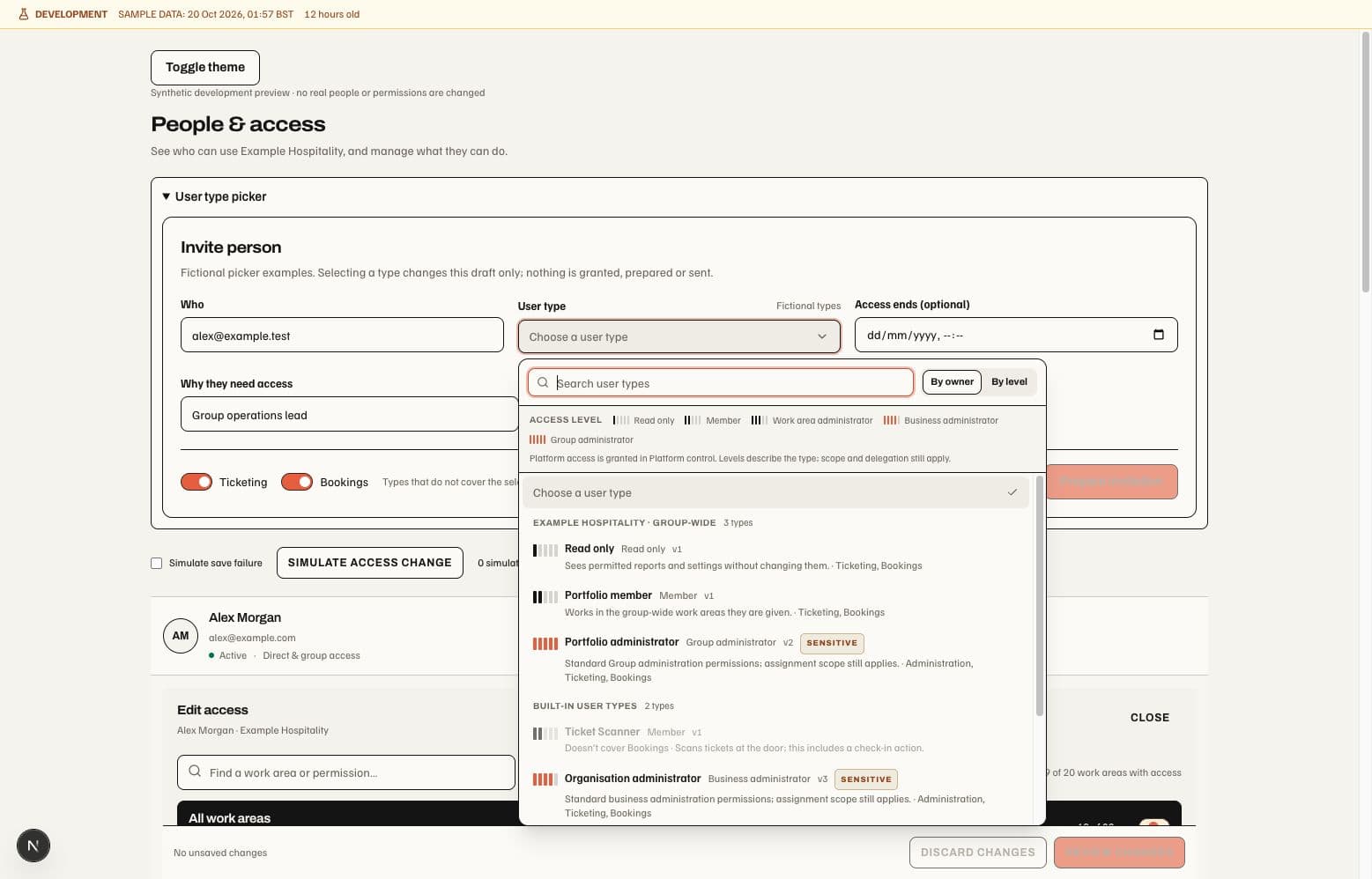
Fictional local preview in the User type picker disclosure of the existing person-access preview. Reading points: the search and grouping controls sit above the access-level legend; each owner section keeps the type's description, level and sensitivity together; unavailable rows explain missing coverage. This fixture creates no invitation or grant and does not certify production access. Prepared-change validation includes dark and narrow examples. Native mobile retains its existing controls and web handoffs.
Access levels. The business User types list and the Group's Group user types list group saved types from Group administrator down to Read only, with a separate Custom access section when details cannot establish a level. Select an access-level chip to filter; select it again to restore every section. Rows retain their name, description, work-area coverage, permission count and version. Group-owned types show Group-wide; known sensitive permissions show Sensitive. Names do not establish Frozen or Temporary status. A row opens revision editing only where the current source allows it; Build a new user type / New Group user type opens that scope's existing builder.
Both builders show This user type will be above the permission panes. The level, sensitive count, coverage and complete-area summary update with the local draft, including individual and master selections or a changed starting point. An empty draft says No access yet. The panel uses the same conservative permission classifier as the picker and saved list: a single administration permission cannot promote the draft to Business or Group administrator. The scale and next-level guidance describe the draft without selecting permissions, saving it or changing anyone's access.
The business builder presents allowed assignment scopes as labelled checkbox chips, widest to narrowest. Every selected permission must support an enabled scope; unsupported existing selections remain removable. Default scope offers only selected, supported scopes and clears when its scope is removed or becomes unsupported. Required fields, sensitive acknowledgement, delegation, reason and the explicit create/revise command still govern publication.
Shared-permission bindings. In the business user-type builder, choose a work area to find Shared permissions for that area. Select payment, order and other supported shared permissions individually to restrict that permission to the chosen work area. Their Business administration equivalents stay separate; neither selection adds the other. The Everything and work-area master switches retain their standard permission sets and leave these individual shared choices unchanged. Source scope limits, sensitive acknowledgement and current server authorization still apply. Unavailable selections remain visible and must be removed before saving; a user type supports at most 300 permissions. This changes the web/desktop business builder only; Group authoring, direct grants and native controls retain their existing behavior. Creating the type does not assign it to anyone.
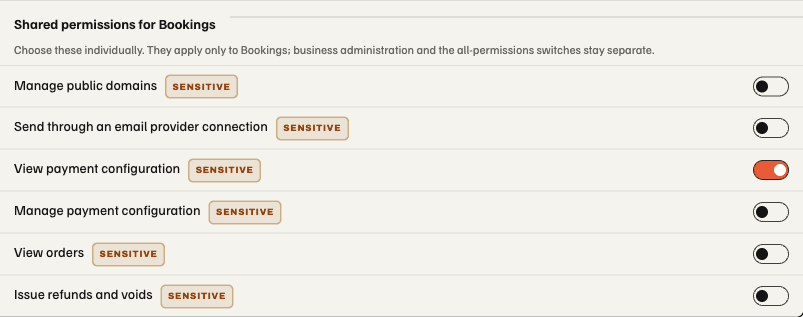
Fictional local preview: Shared permissions for Bookings identifies the binding; the orange switch selects only View payment configuration, with its Sensitive label retained. The separate core choice stays unchanged. The same controls wrap at narrow width in the dark theme. This is UI evidence, not a production grant or acceptance result.
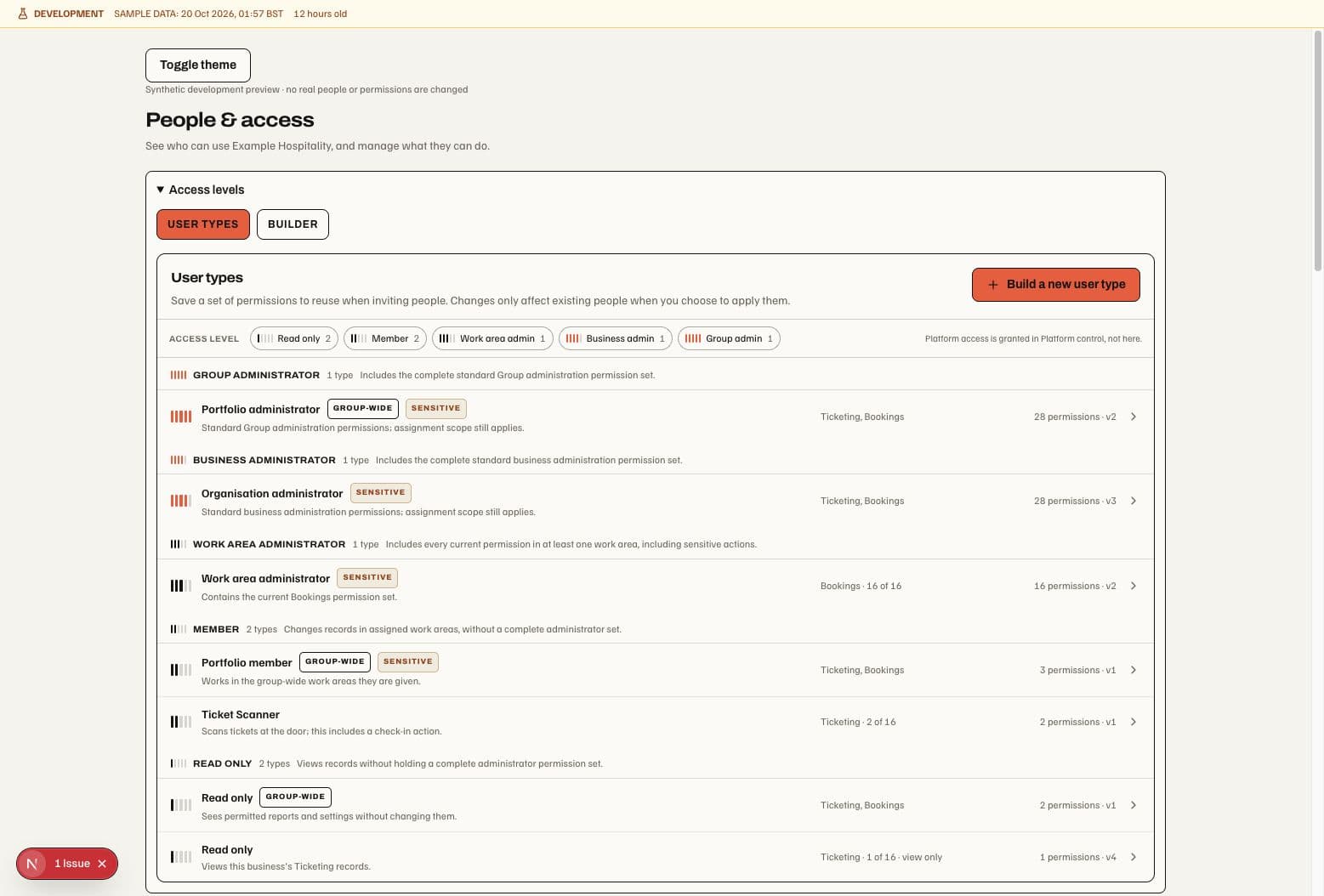
Fictional local UI, not a production result. Reading points: the legend filters the list, section headings describe complete permission sets, and each row keeps coverage separate from permission count. The same layout wraps at narrow width in the dark theme.
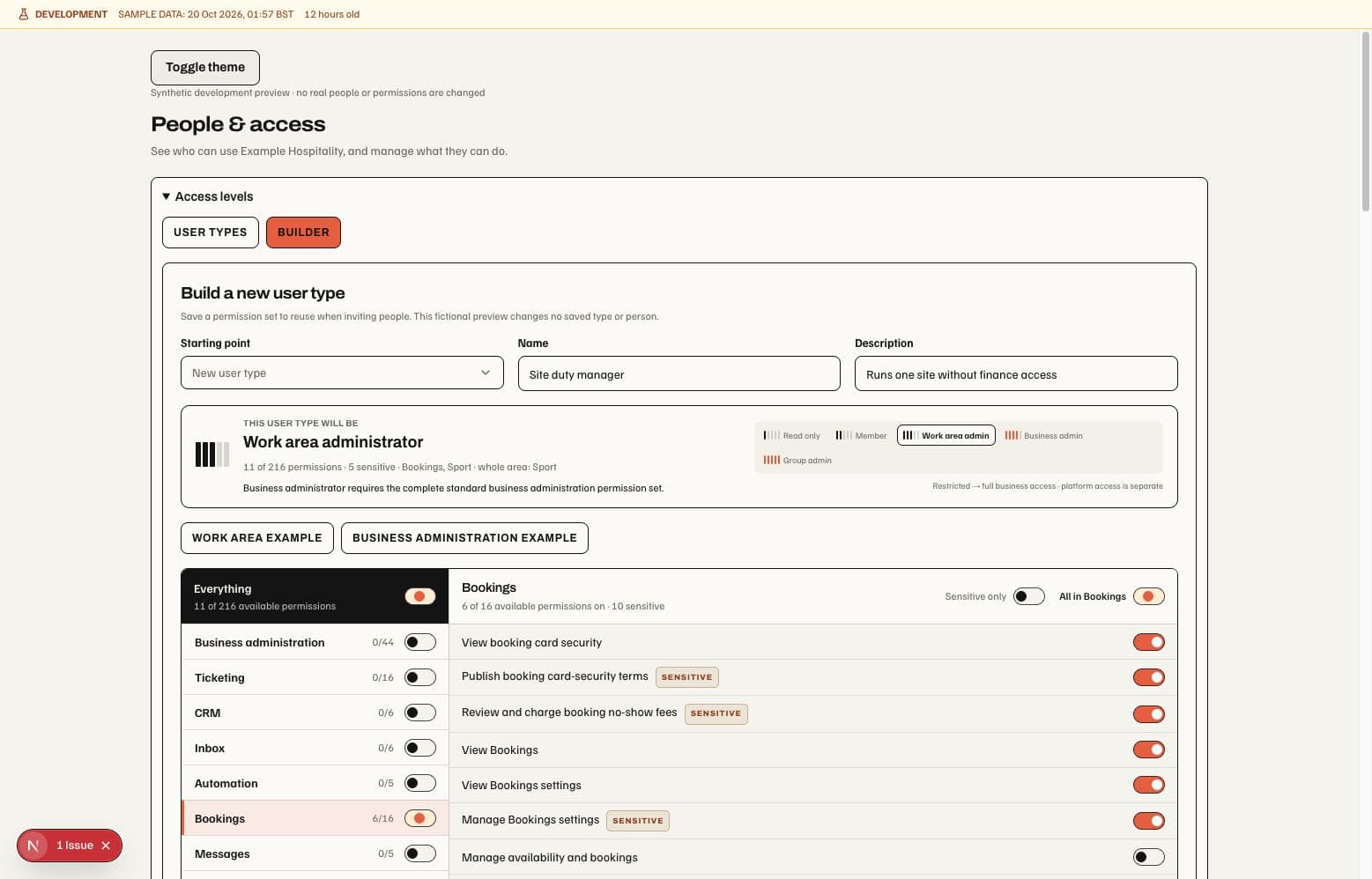
Fictional local UI. The live summary describes the draft; the separate permission controls and publication action retain their original authority. See prepared-change validation. This is a web update; native permission controls retain their existing behaviour.
Turning a person's work area off creates a local restriction over their direct and inherited reach. Restoring it preserves the editor's existing scope and expiry where applicable; it does not invent broader permission. Suspended memberships must be restored before new responsibilities can take effect. Changes remain drafts until review/save; a stale or denied save is not success.
The web Team tab opens one selected person below its searchable directory. In that editor, All work areas changes only enabled work areas; Business administration has its own row and is excluded. A partial master selection is shown as mixed. Switching it on restores previous access where available, otherwise it selects the work area's minimum viewing permission. All permissions inside an expanded area selects the eligible individual permissions. Disabled permissions retain their explanation. Search expands matching areas, and exact source, scope and expiry evidence stays available. Core administration uses the same review and reason flow; removing the last administrator is refused atomically. Optional module-bound administrative variants and narrower assignments remain in Advanced.
The User types builder places the work areas beside their permission switches, with an Everything master, per-area masters and Sensitive only filter. Masters operate on eligible permissions in the complete area even while filtered. On the Group builder, each permission is checked against the signed-in person's current Group delegation. Unavailable permissions explain why; a previously selected permission remains visible and removable if that authority changes. Saving is blocked until unavailable selections are removed, and the server rechecks authority when publishing. Group and business user types support up to 300 explicit permissions. Existing optional module bindings remain visible in revisions and permission snapshots. Their exact module delegation is checked separately from the core permission. Allowed assignment scopes and the default scope remain explicit. Acknowledging sensitive permissions and saving a revision do not update existing assignments automatically. Team directory. Company Settings → People & access and Group People & access open the Team & access page and lead with one member table: All members, Active, Pending invites and Inactive. Search by name, email, role or place, or filter by role. Active reflects current direct or inherited access, rather than the membership status alone. Pending invitations remain separate records even for an existing member; they leave the pending count at the earlier of the link deadline or access-window deadline. No last-sign-in column is supplied because these sources do not report it.
Use Add member in the relevant company or Group. The retained side panel names that workspace before the email, searchable Role, work areas and access scope. A company invitation can narrow to an allowed Site; it cannot move someone to a different company. A Group invitation describes inheritance into attached businesses, conditional on current product availability. Selecting a role fills its covered work areas until manually refined. The role remains a required immutable user-type revision, with current delegation and sensitive acknowledgment checked separately. Send invitation saves a recipient-bound invitation and queues its email; it grants no access before acceptance. Closing the panel retains the draft. Saving blocks dismissal and competing member actions; a refused or uncertain result retains its source evidence.
Manage access opens one existing person. Read-only operators see View access and cannot add members. Group editors keep visited member drafts mounted and label unsaved changes while moving between people. Exact permission sources, review, reason, suspension and removal remain in the existing editor. Company access retains its existing navigation and pending-work guards. These are web controls; native retains its current web handoffs.
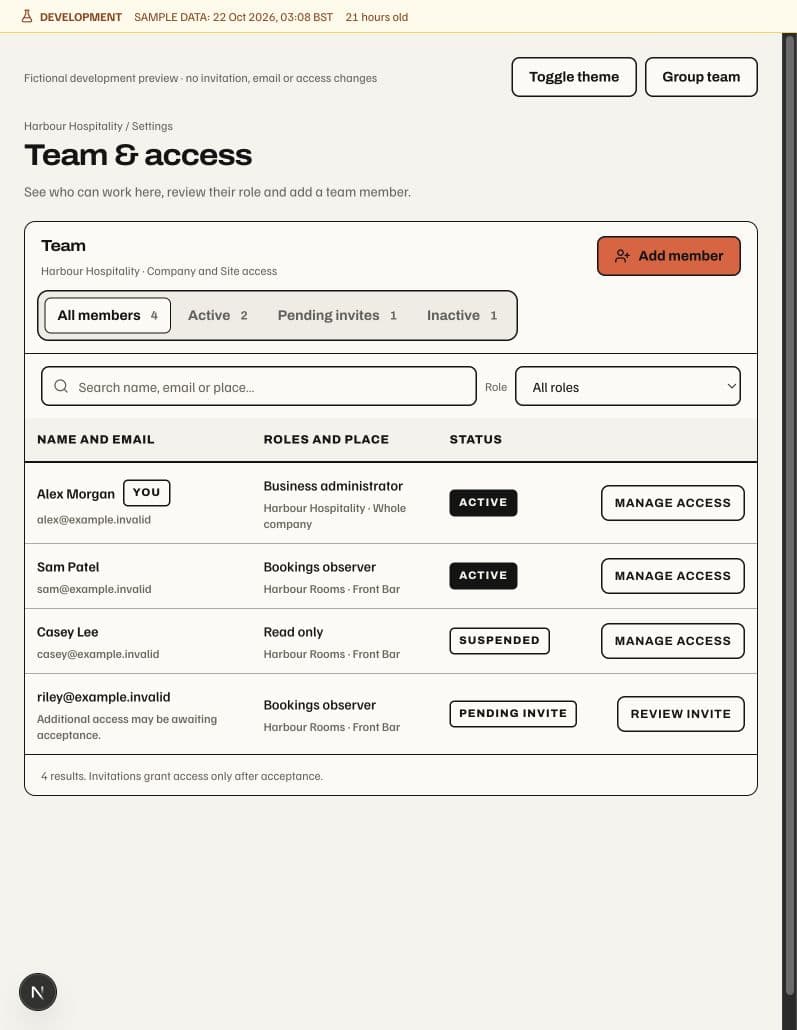
Fictional web preview. Reading points: Add member starts a scope-named invitation; status tabs separate active members from pending links; roles and place explain where each role applies before opening permission detail. This illustrates the flow, not live grants or acceptance.
Wallet administrator requests start in a compact disclosure above the tabs. Approved-request summaries describe recorded history, not proof that permission is still active. Open it for request receipts, exact scope eligibility, duration, delegation, reason and explicit consent. A used bootstrap scope cannot be requested again through this form. Wallet settings and pass publication remain separate operations.
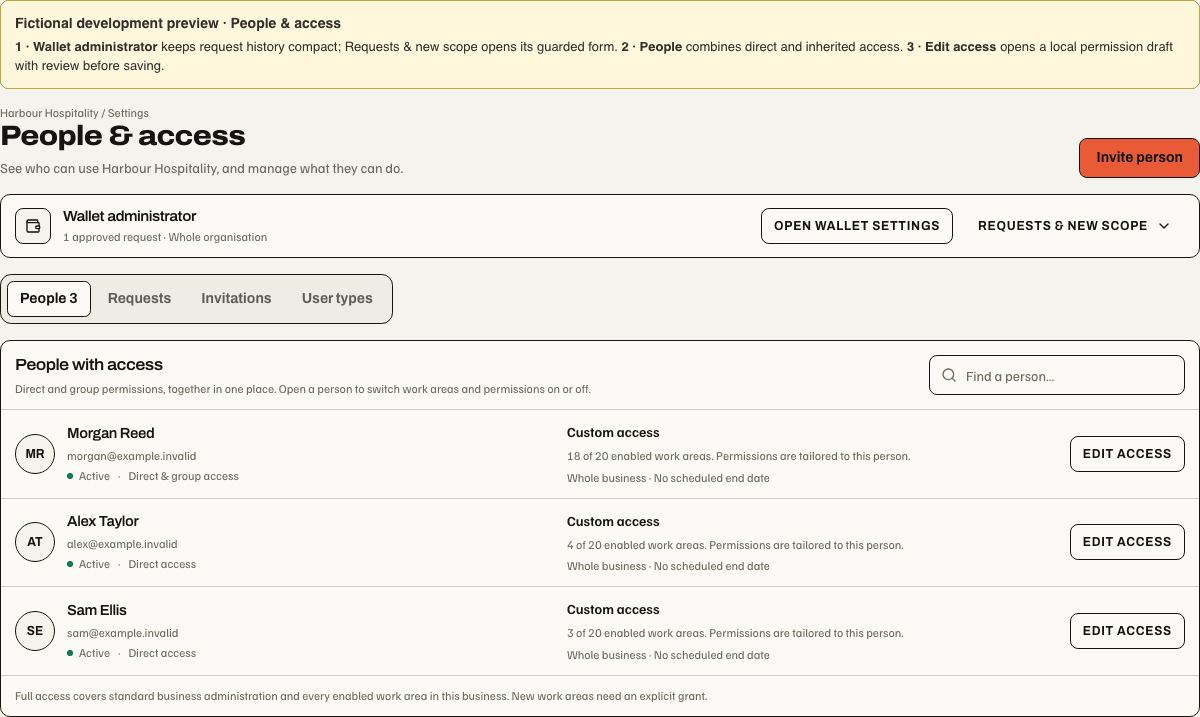
Fictional development preview of the web components. The numbered annotations identify the Wallet history disclosure, searchable people list and individual access editor. They do not certify deployed access or actual permissions.
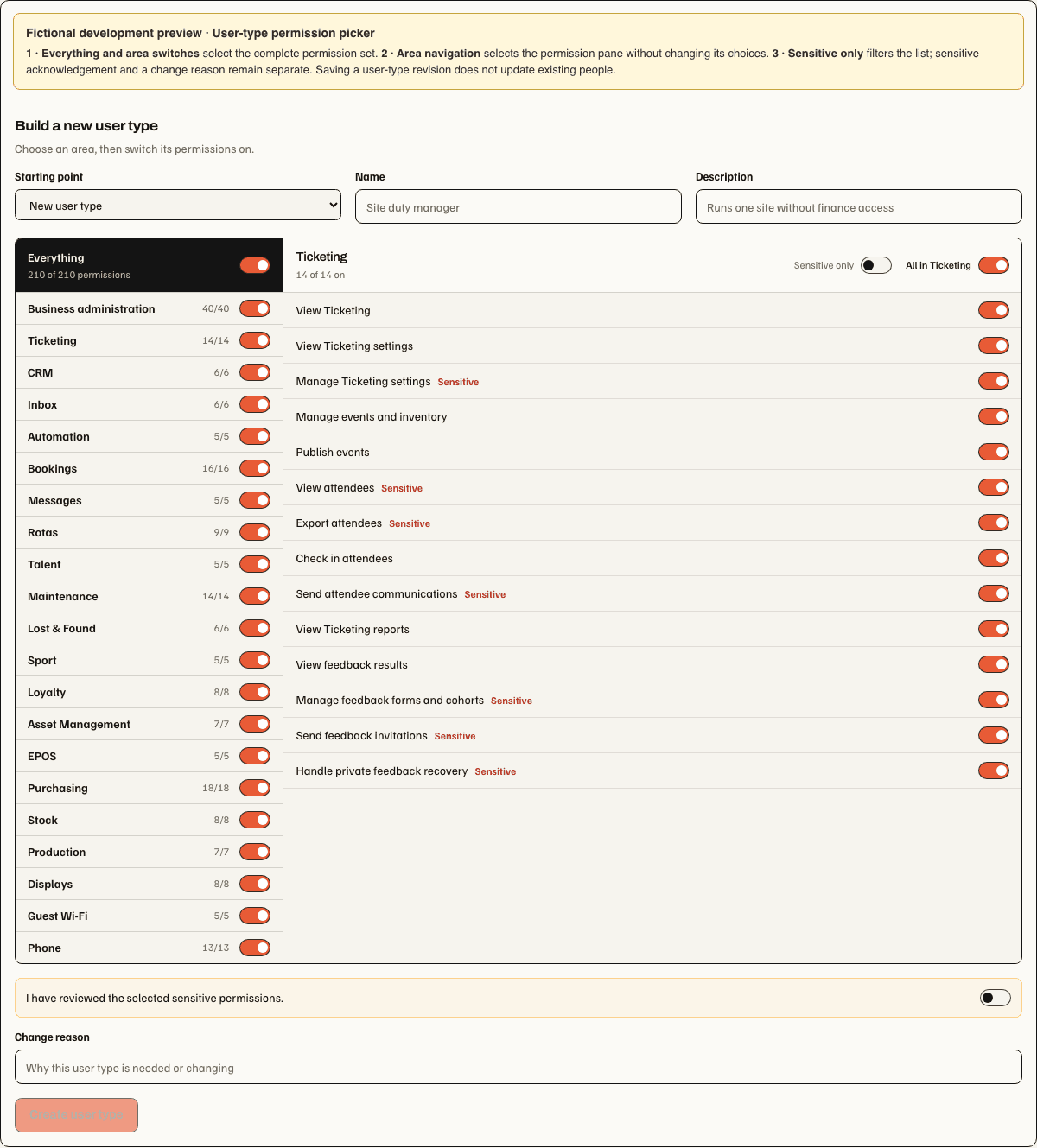
The picker edits a reusable permission snapshot. Area selection and sensitive filtering do not save a revision or change existing people.
Group Team & access uses the same switch grid for invitations and Group work areas for existing people. Reviewed changes remove current Group sources for an area or add its minimum non-delegable permission, bounded by current authority and expiry. Separate business grants stay unchanged. Sources whose removal would also remove other responsibilities remain protected and explain why; exact source records and Suspend all access remain available. Saves require a reason, reject stale reviews and retain the original request after an uncertain result. Portfolio user types stay immutable snapshots. These are web operator controls; native mobile retains its existing web handoffs.
For an existing email address, use the person's Manage access action in the business's Team & access screen. An enabled product and permission to use it are separate: a disabled switch with You do not have delegable authority for this permission means the current administrator cannot grant that permission. Creating another user type, inviting yourself or requesting platform-owner access does not remove this limit. If no current administrator can delegate a new module, its first administrator needs a separately reviewed provisioning path; this screen does not provide a general first-grant override.
Specialist feedback adoption. A deployment administrator may review one existing business administrator for explicit Ticketing or Bookings feedback authority after the tenant owner's consent. This adds a separate, fixed feedback-only responsibility in that exact business; it does not upgrade old administrator profiles. Existing delegable work-area authority may come from the business or its valid Group binding. Revoked or partial feedback history, targeted restrictions, stale evidence or an incompatible entitlement require separate review. Code delivery alone grants nothing. See the internal feedback-adoption runbook.
Phone and Guest Wi-Fi have a deployment-administrator initial-setup path for one existing, delegable business administrator. It reviews the exact email, business, current membership and enabled product before granting a separate module responsibility. Phone uses its existing administrator permission set; Guest Wi-Fi grants work-area access and settings view/manage, with reporting and export remaining separate. A changed review, an existing block or prior module grant history requires further review instead of silently restoring access. This does not activate live calls, connect a Wi-Fi controller or change another business. See the internal initial-access runbook.
On the Group page, Add another user type fills the person's email in the invitation form. It does not apply access immediately. The selected saved user type must cover every selected work area, and the grantor must be allowed to delegate those permissions. If none of the saved types covers the selection, the picker keeps those choices visible with their missing coverage; create a type or change the selection. A search with no matching types has its own empty result. Existing assignments do not silently acquire permissions added to newer built-in profiles.
Create user type beside the Group invitation selector opens a new profile without clearing the invitation draft. Publishing selects the new revision so the invitation can continue. New Group user type always targets a new profile; selecting an existing profile restores its separate revision draft. Expected publication refusals explain the problem and preserve the draft. Business permissions do not substitute for Group-wide delegation: a module's first Group administrator needs a separately reviewed Group provisioning path.
Sport and Guest Wi-Fi provide that internal initial Group setup for an existing, delegable Group administrator. The reviewed assignment grants all five module permissions, including Guest Wi-Fi reports and export, and binds inheritance to the currently enabled businesses and their entitlement versions. A disabled business product remains unavailable. Exact identity, current authority, membership and existing restrictions are checked again when applying the plan; prior grant history cannot be silently restored. This neither activates products nor connects providers. See the internal Group initial-access procedure.
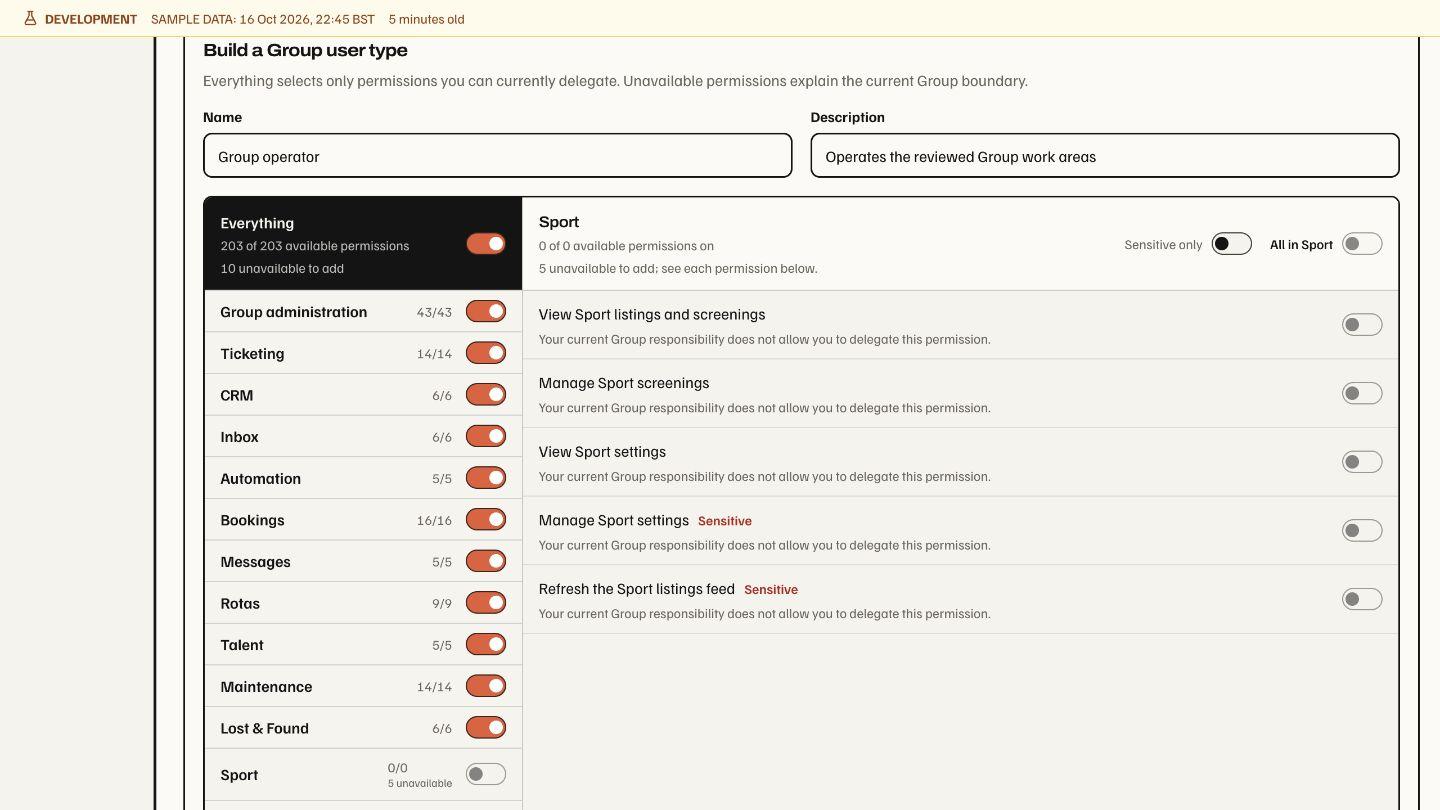
Fictional development preview: Everything selects 203 available permissions; the ten unavailable permissions remain off. Sport's individual explanations show the Group delegation boundary. This is component evidence, not a record of any person's current production permissions.
Advanced access details group Phone and Vouchers under Customer relationships, alongside CRM, Inbox, Loyalty, Studio and Guest Wi-Fi. This is presentation only: each work area retains its own entitlement, permission records, scope and dates.
The User types surface can create a profile or a new immutable revision, including starting from a person's reusable positive permissions. It excludes personal blocks and does not keep the profile synchronised with that person. Review impact before applying a new revision to selected or all assignments; publishing the revision alone does not silently update existing people.
Some existing businesses retain legacy or shadow access migration modes. Shadow mode still enforces legacy authority while recording comparisons; capability mode uses the new resolver. The access migration controls and verification are a deliberate administrative transition, not an automatic effect of creating a user type.
With administrator setup complete and no reported migration blockers, Activate secure access prepares shadow review for a legacy business before running cutover verification. An existing shadow review goes directly to that verification. A pending activation disables repeat submission; a failure keeps the current legacy or shadow role authority and shows retry guidance. Activation never runs an access backfill or creates permission grants, and the server still checks migration completeness, scopes and administrator continuity before switching.
Enable or disable a product
Open Settings → Modules, change the relevant switches, choose Review changes, inspect the enable/disable list, supply a reason, then apply. The screen requires both organisation-settings and module-management permission to change products; it prevents removing the last selected product. Existing authorised Group access can apply through valid bindings, while personal access is managed separately.
If the business's access setup is not ready, or current permission is refused, Modules shows an unavailable notice without exposing its selection. A received refusal also closes an open selection/review draft. This does not activate access setup or grant module-management permission.
Disabling removes work-area reach and retires its current entitlement incarnation. Historical evidence remains under its retention/access rules. Re-enabling does not restore retired personal assignments automatically. Review the person's effective access again. Paused providers, missing connections and rollout controls can still make individual operations unavailable within an enabled product.