Sign-in and navigation
Open /app and complete the application's sign-in flow if needed. The workspace
chooser groups accessible businesses under their Group. Each Group overview and
business link is a distinct destination. A business whose Group is not visible
remains directly reachable under Other businesses; that does not reveal its
siblings. Empty Groups may remain visible to authorised Group users.
- Choose the business you intend to work in.
- Confirm the current context in the navigation rail/header before opening a record or changing settings.
- Use the labelled work-area rail, the area menu, search or the context switcher to move through the available areas. Context-switcher search preserves Group/business nesting and distinguishes identically named businesses.
- On the business home, start with Your work and, where permitted, Team work. Open Explore work areas for available work-area cards and access requests. A locked card does not grant entry or load protected module content.
- Use My Work and Tasks for authorised cross-module attention; follow the item into its owning work area to complete the source action.
Web navigation has two columns on wider screens. The labelled work-area rail on the far left holds the business mark, the context switcher, Home and My Work where available, every work area you may open in family order, and Business settings at its foot. The rail scrolls on its own and marks the current area. Selecting an area opens its authorised home.
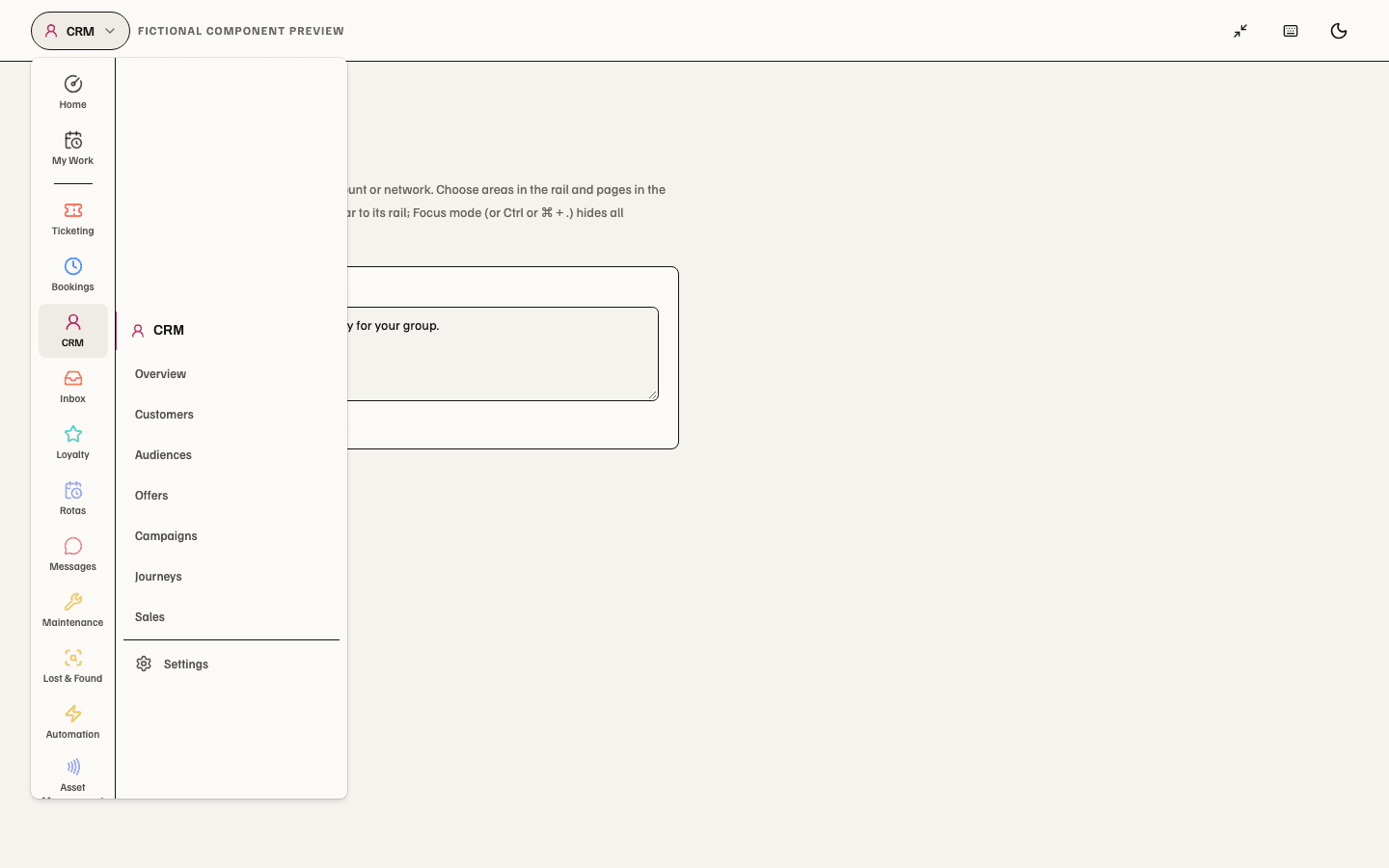
Beside the rail, the area menu lists only the current area's permitted main sections, with Overview first. It opens the existing authorised home, or reuses that area's existing Overview section. Ticketing's Overview opens the current Ticketing landing page; Programme follows it. A restricted finance- or settings-only entry does not acquire an unavailable home link. The area's Settings entries sit at the foot of the menu; Business settings stays on the rail. Home, My Work and areas without sections have no area menu. Existing page permissions still choose the content the person may see. Chapter numbers are omitted.
Main work-area section menus appear once, in the area menu. Record tabs, settings cards, Inbox filters, Messages channels, Bookings dates and view choices remain inside their working pages. Same-page section links preserve source query state and mounted editors; they do not save or publish. Displays parks an open design editor when another section is selected and restores it when returning to its original section. Product/delivery status remains available through the header's more-actions menu. Below 1024px the navigation drawer shows the rail and the area menu side by side; it holds focus, closes with Esc and closes after selecting a link. Native mobile navigation is separate.
The business Home leads with Your work: current and upcoming counts, up to five open, unsnoozed items in source order, and View all my work. Team work appears only with existing team-view authority. It shows overdue, unassigned and approval counts plus up to five source actions. Across your access describes that scope; it is not necessarily the whole business. View team work opens the authorised Team queue in My Work. Personal work precedes team work on narrow screens. Same-business work already read remains visible through a slow renewal or lost connection, labelled as the last available work. Actor/business changes or an explicit source refusal remove it. Keeping this display does not extend the read lease or authorise a source action.
Loading, unavailable scope, an empty queue and a partial projection have distinct messages.
The empty-state treatment uses one semantic icon above the existing explanation and next step, including collection panels and mobile loaded-empty screens. A supplied icon takes precedence over the work-area fallback, so a screen never adds another decorative glyph above its existing cue. Empty states load no character images and reserve no illustration height. Filters, continuation, permissions and commands remain source-owned. Loading, errors, unavailable scope and compact picker or field feedback stay distinct. Native uses the existing icon font; binary publication and installed-device acceptance remain separate from web delivery. This supersedes the 26 October character empty-state treatment. See the shared contract.
Truncated or failed projections identify counts as partial; unavailable team scope shows no invented totals. Business setup follows operational work and requires an admitted business-settings destination. Unevaluated setup checks are not incidents. Explore work areas retains the existing catalogue, enquiries and pending access requests; it starts open when My Work is unavailable. Performance reports remain in their owning work areas.
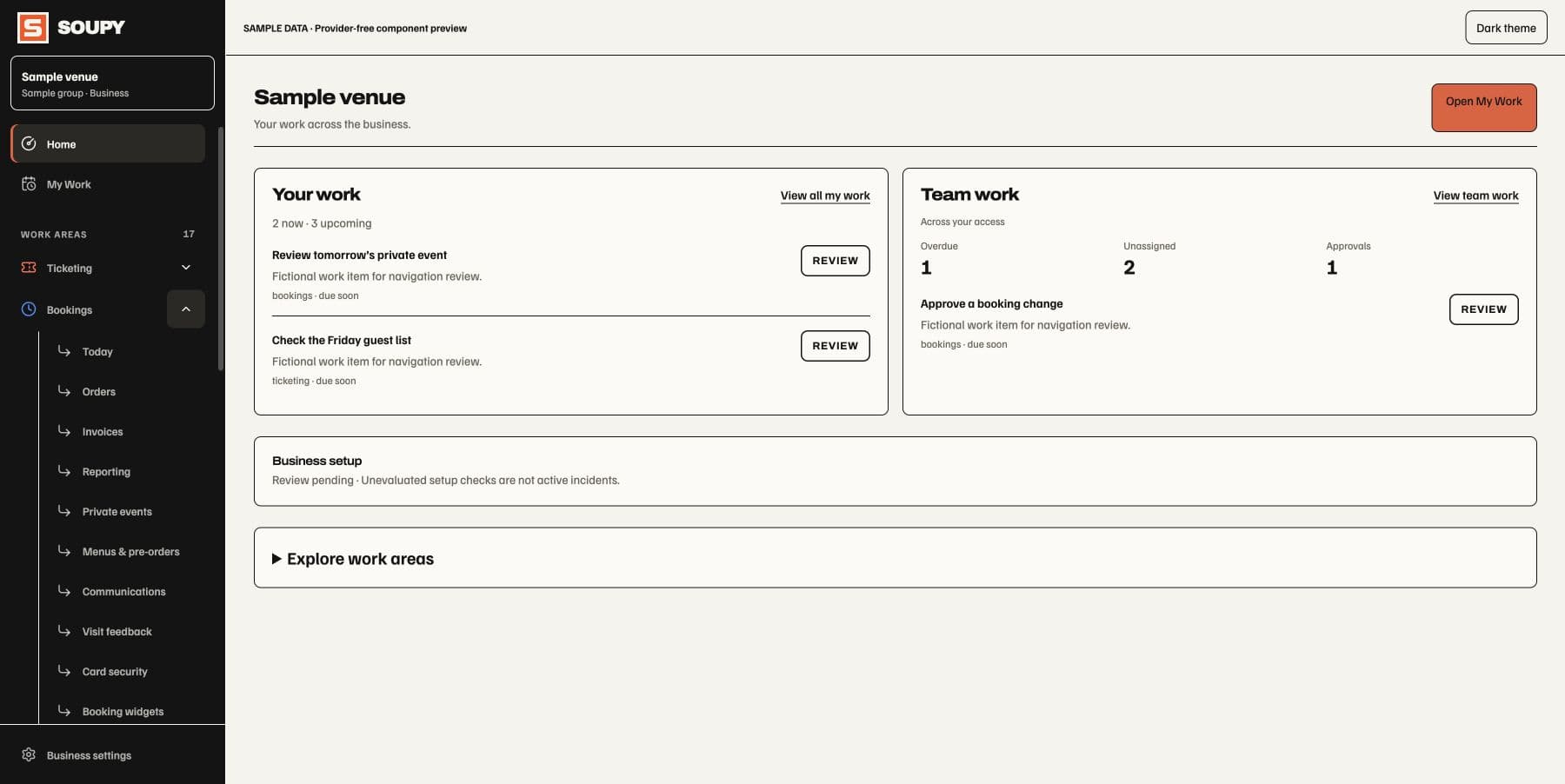
On desktop in a business workspace, one sidebar toggle at the left of the header switches between the full sidebar (rail and area menu) and the labelled rail alone: Collapse sidebar hides the area menu and Expand sidebar brings it back from the same place. Where the current page has no area menu (Home, My Work, areas without sections) the toggle's place stays empty. Focus mode, a separate control with its own expand icon on the right of the header, hides the rail and the area menu together and gives the workspace their width; Exit focus mode in the same place restores them. In focus mode the header shows the current area and page. Selecting it opens a two-column menu: every work area, with Home, My Work and Business settings, on the left, and the current area's sections and Settings on the right, level with that area when the list fits. Choosing a link closes it.
Group and platform workspaces have no rail, so their header keeps one Hide navigation / Show navigation toggle. That choice and focus mode are one shared preference; the collapsed-sidebar choice applies in business workspaces. Both are remembered in the current browser or desktop installation. Navigation starts open until you choose otherwise; collapsing or hiding it retains the open content and unsaved fields. Narrow screens keep their separate navigation drawer. Native mobile navigation is unchanged.
The shared header places the page return link above the icon and title on narrow web screens. It keeps long headings readable without changing the return destination, editor state or save/send boundary.
In a business workspace, open Keyboard shortcuts in the header to see the work areas you can access. Press G, release it, then the area's key to go there: for example G then I opens Inbox, G then B Bookings, G then T Ticketing and G then M Messages. The guide shows the complete available mapping. These links retain the current business and any Group context; they do not grant access to a locked work area. Shortcuts do not run while typing, using an editable control or working in an open modal. A pause or a context change cancels an unfinished sequence. Turn off Enable quick navigation in the guide if you prefer; that choice is remembered in this browser or installation. Ordinary links, the guide and search remain available. Group and platform workspaces do not expose business work-area shortcuts.
On wider screens in a business workspace, [ collapses the sidebar to its rail or expands it, and Ctrl or ⌘ + . enters or leaves focus mode. Both pause while typing, using an editable control or working in an open modal, and the guide lists them. [ does nothing where the current page has no area menu, and turning off quick navigation also turns it off. If the browser blocks local storage, both navigation preferences remain usable but reset on reload.
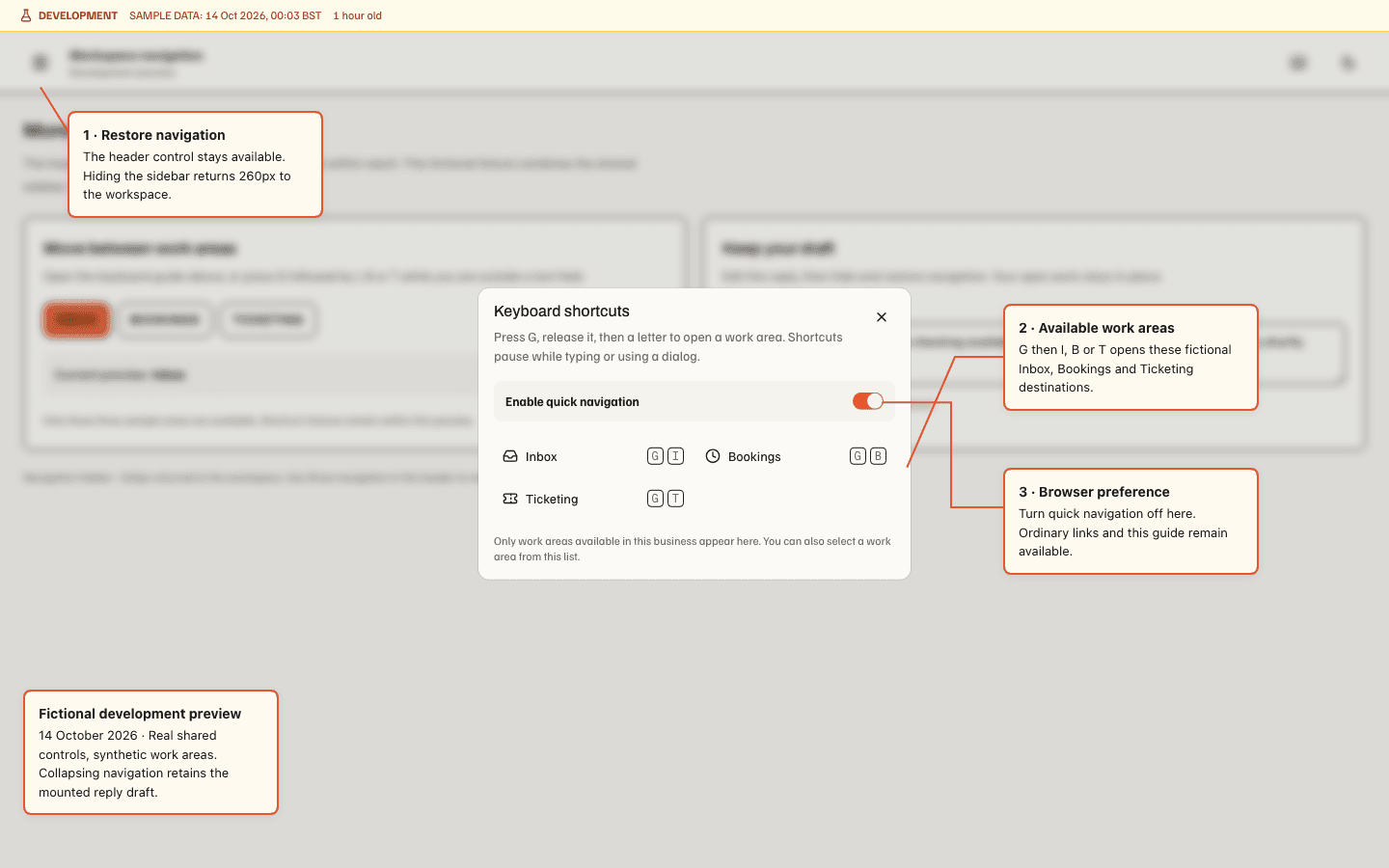
The preview illustrates the shared controls with fictional destinations; it is not an authenticated business or installed-desktop acceptance record.
Workspace links include the legal entity's slug. Entry from a Group can preserve Group navigation provenance without widening business access. A pending lookup shows loading; a missing or inaccessible business resolves to an unavailable state and a way back to authorised workspaces. Do not keep retrying a denied deep link as if it were a loading screen.
The header's Appearance menu selects System, Light or Dark. Where My Work is available, the bell opens the notification tray on web, and the Assistant button opens its work area. Account controls expose the signed-in account and sign-out; desktop applies its pending-work guard to signing out.
Workspace search
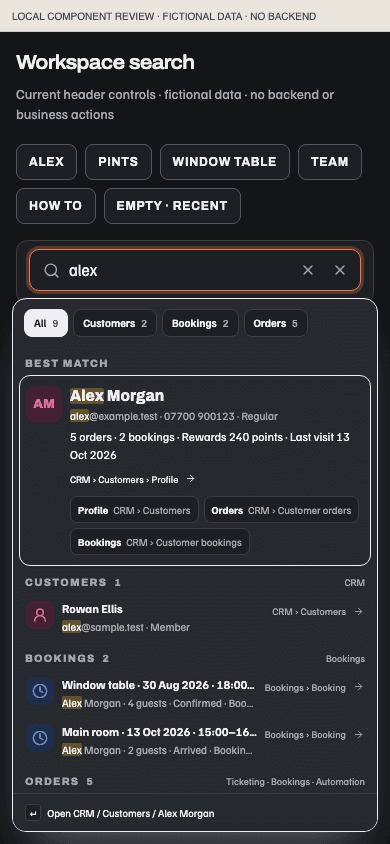
Focus the header search, use Command/Ctrl+K, or press / outside an editor. On a narrow screen, open it from the search button. Search stays in the current business and includes only permitted work-area destinations and source records. Record lookup starts at two characters and waits briefly while you type. On the web, a search read does not wait behind the page's routine access renewals: it is sent on its own, as the same signed-in, server-checked read. If that route fails to deliver a result, the read falls back to the ordinary queue, which search keeps using for a minute. Customers name or email search and ResDiary customer linking use the same route. Native Search sends the same read over the app's ordinary connection instead.
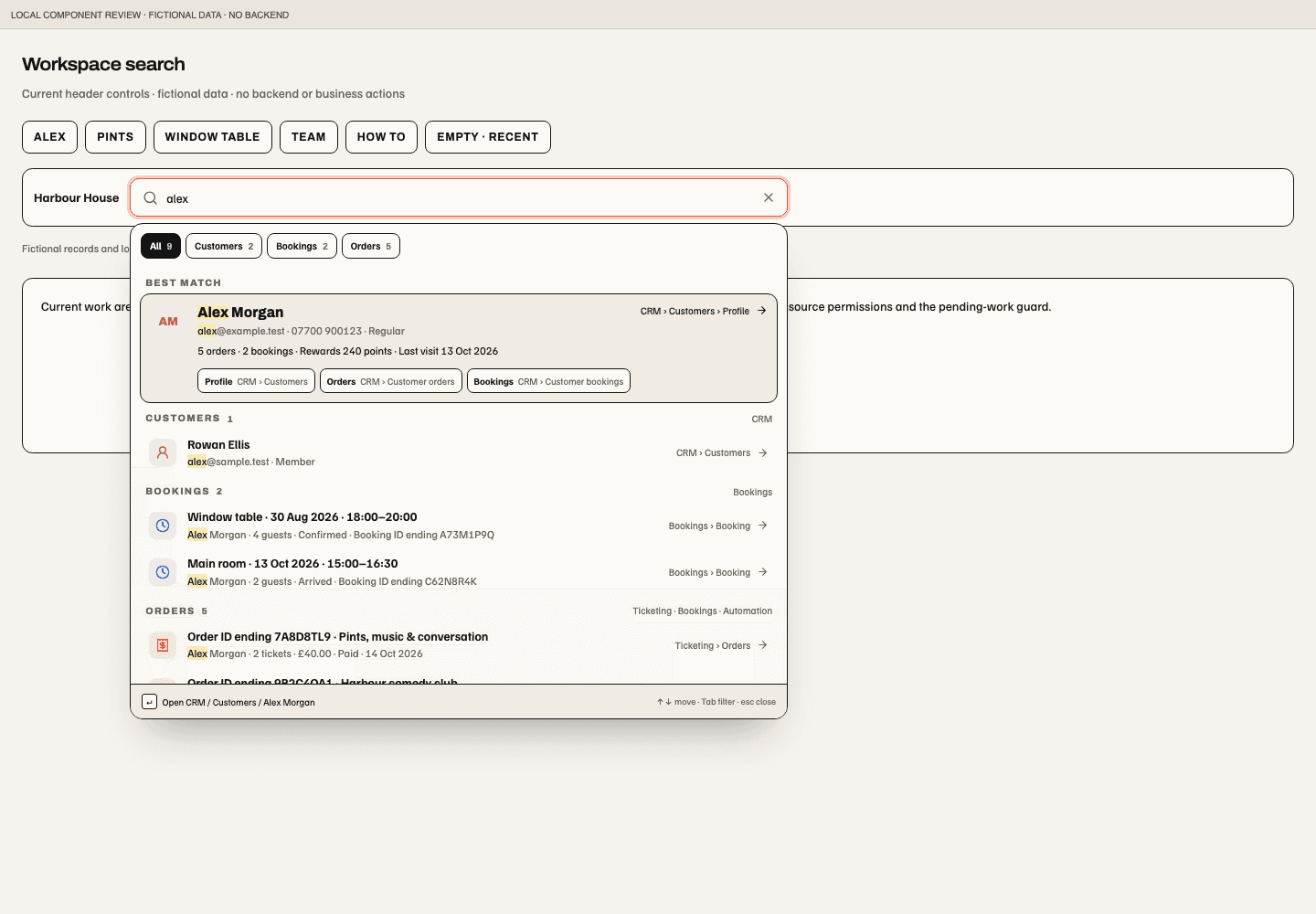
Results group Customers, Bookings, Orders, Events & series, Venues, Places, Loyalty, Maintenance, Rotas, Assets and Automation when available. Places are navigation destinations. Bookings are reservations; Orders retain their owning Ticketing, Bookings or Automation area. Each result shows a type icon, identifying details and the destination path. Asset, Shift, Maintenance job and Automation recipe selections reopen the exact record under its current source admission, including records outside the list’s default date range or loaded window. Matched wording is highlighted. Records with repeated names retain distinguishing ID endings, dates, status and permitted context. Full record IDs can be searched; the displayed ID ending is a disambiguator, not a separately indexed shortcode.
Choose a category chip to narrow results. The initial grouped view shows a short selection per category. More… expands the category inside search; a supported filtered source list can open directly when its search contract matches. Next matches and Previous matches retrieve fresh pages where the category has more matches. Counts describe returned permitted results; partial discovery is not presented as a complete total or a complete no-match result. Indexed discovery searches the source rather than only the most recently loaded records. Narrowly scoped searches use a fixed read budget and can require a more specific phrase before a later permitted match is reached. A Next link appears only when another permitted page is established; its absence is not a claim that every record was searched.
A matching customer name can lead with a Best match card. Its facts and shortcuts appear only where their current source access permits them. A customer profile does not grant access to every related Order, Booking or loyalty record; unavailable facts are omitted rather than shown as zero. Orders and Bookings shortcuts open the exact customer’s admitted profile sections; Loyalty opens an exact admitted member account when its complete source admission is available. They do not infer identity from similar names or email addresses. Source list searches preserve their own matching rules.
Customer-profile section links use explicit manifest sections for Relationship, Activity, Orders, Bookings, recent purchased Events, Consents and Till bills. Unknown sections stay unavailable. Every admitted section still waits for the exact customer's current resource authorization.
Order discovery is aligned with its existing detail route. A finance-only reader can search a source-readable Order by full ID or permitted item wording without gaining the wider Bookings, Event or Automation recipe search provider. Each result still checks the exact Site, business and every owning module. Masked customer details stay hidden and cannot be used to find the Order; access withdrawal also retires its recent reference and continuation.
With no text, Recent offers the last three records opened through search and Jump to offers reachable destinations. This browser stores only typed record references per person and business; displayed record details are read again under current permissions. Changing account or business retires prior search state. Access or continuation refusal clears private results; change or clear the phrase to refresh the search. Web search keeps the same displayed rows and categories during routine renewal, with its scroll position retained and Refreshing results… in the footer. Opening a result or changing result pages waits for a current access check; a slow response does not extend that short navigation receipt. A refused read, changed search or source lifetime, disconnected transport or changed foreground lifetime retires those displayed results. Search pauses while closed. Loading, unavailable access and disconnected results remain distinct from no matches; private results are never converted into generic fallback links after refusal.
When no records match, Keep looking can open permitted staff Knowledge with the phrase, prepare an Assistant prompt, or browse work areas. Knowledge searches its available published collection under Messages access; it is separate from the public website knowledge base. The Assistant prompt remains editable and is not submitted automatically. These handoffs never read an otherwise inaccessible record or perform a business action.
The server's current Search route receipt includes admitted core work areas, so Assistant and permitted Tasks and People routes appear in Jump to and the no-match handoff. It uses the current manifest and retains fresh access checks before navigation.
Use ↑/↓ to move through results and Enter to open the selected destination. The selected path also appears in the footer, and the list follows keyboard selection. Tab/Shift+Tab cycle categories only while search is open with multiple category chips; otherwise normal focus movement remains. Escape closes search. Navigation keeps the existing unsaved-work guard and Group provenance. This richer presentation is web-specific; native Search shows the same permitted results on a compact screen. Availability requires the matching web/backend release and indexed source deployment.
Fictional local component preview: the selected category sits above the admitted customer card, exact profile-section links and distinct source records. The footer tracks the selected destination; the result list scrolls independently. These images demonstrate presentation, not deployed data or provider acceptance.
Legacy
paths such as /events, /bookings and /team are compatibility entry points;
canonical business links carry /app/{orgSlug}. Query-selected sections are
subscreens, not necessarily separate page files.
Group workspace
/portfolio/{groupSlug} provides an authorised Group overview, business links,
cross-business intelligence, exceptions/comparisons and policy candidates.
Related screens manage legal entities, Sites, People, Contracts, access,
Group Loyalty, email, embeds and Group identity.
Group settings'
Manage embeds link opens the existing Group embed studio for a Group manager.
In capability mode, Group entry still requires portfolio.view and embed
management requires portfolio.manage; Group read-only or email access alone
does not admit that studio. Unknown settings routes remain unavailable. Web and
desktop share this route guard; native behaviour is unchanged.
The Sites view is an aggregate launchpad: open a Site or Space to enter its owning business's Places workspace. Group settings edit name, URL slug and logo. Linking or detaching a legal entity is a governed ownership/access change; ordinary Group reporting does not perform it. A Group can publish a policy candidate with a metric, threshold and explanation. Each organisation separately reviews it, records a local reason and activates its own copy. Later local threshold edits or pause/reactivation do not silently rewrite the original candidate or other organisations.
Group logo controls. Group settings show Upload logo and an image drop target, alongside authorised Original uploads. Availability comes from the server's provider configuration and upload rollout mode. The availability policy supports normal artwork for every authorised Group and business once the shared service is activated, with specific owner pauses for incidents. Restricted rollout still admits exact owners. Neither mode grants Group management or another tenant's artwork access. When unavailable, the screen shows that uploads are disabled and retains the secure image URL option for Groups without an uploaded logo. It does not activate the media provider or create a second upload path. Production readback on 4 November found the media provider settings absent; activation remains pending. The released controls and availability policy alone do not enable real uploads.
An available upload shows progress and recoverable retry/cancel controls. Uploading, choosing an original or removing a logo changes the preview and draft; Save publishes the Group settings. A saved uploaded logo must be removed and saved before replacing it with a URL. Changing Group or signed-in session discards the old editor's draft and late callbacks; a conflicting saved revision still requires review. These controls share the web and desktop editor; native behaviour is unchanged.