The native Task detail groups checkbox rows with required/optional and evidence indicators, collapses Notes and evidence, and places a completed count and progress bar directly above Complete task. Completion still requires every required item and its evidence, current permissions/revision and the existing pending/offline command checks. Optional items remain optional. The fictional 1/3 example shows the disabled completion action.
Core Tasks
Tasks at /app/<orgSlug>/tasks is core functionality, independent of a paid module.
tasks.view, tasks.manage and tasks.complete are separate scoped capabilities.
Access to another module does not silently confer task-management rights.
Use Mine to see assigned work; authorized managers can use Team. A Place selector limits the context to an authorized venue or organization. A manager limited to some places opens on All places, where Team lists work from every place they manage and nothing from other places or the whole business. Choose one place to assign work, use checklist templates or manage schedules. Business-wide managers keep Organisation. Open a task to read instructions, current state, checklist progress and required evidence. Required evidence must be attached before checking its item. Eligible uploads include JPEG, PNG, WebP, PDF and plain text within server limits.
Managers use Assign work to enter a title, assignee, instructions and required checklist lines, optionally requiring private evidence for every item. Detail controls support Start, Complete, Cancel, Reopen and delegation. Managers must provide a reason for cancellation/reopening or reassignment. Stale revisions or changed assignment require a refresh; another person's old assignment cannot be used to sign off current work.
Published checklist templates are immutable versions. Repeat a checklist creates scheduled occurrences using a stable schedule and local date. Editing a template does not create a second occurrence for the same scheduled opening. Ambiguous or nonexistent local schedule times pause for explicit resolution. The schedule list provides the corresponding pause/resume and resolution controls.
Messages and Automation can link work to Tasks only after the organization's explicitly reviewed Tasks adoption. Existing legacy tasks and published recipe versions can retain their previous owner/lifecycle. Deployment or enabling Tasks does not silently migrate them. Historical adoption is a separately reviewed operation, available to the appropriate organization task manager.
My Work queue
/app/<orgSlug>/my-work collects permission-checked work from its owning products.
It is a view of source records, not a second completion database.
Use Mine or an authorized Team view, then Now, Later or Done.
Now includes open current work; Later includes future-due work and personal
snoozes; Done includes completed/cancelled items. Urgent, critical and overdue
badges help prioritize but do not alter source authority.
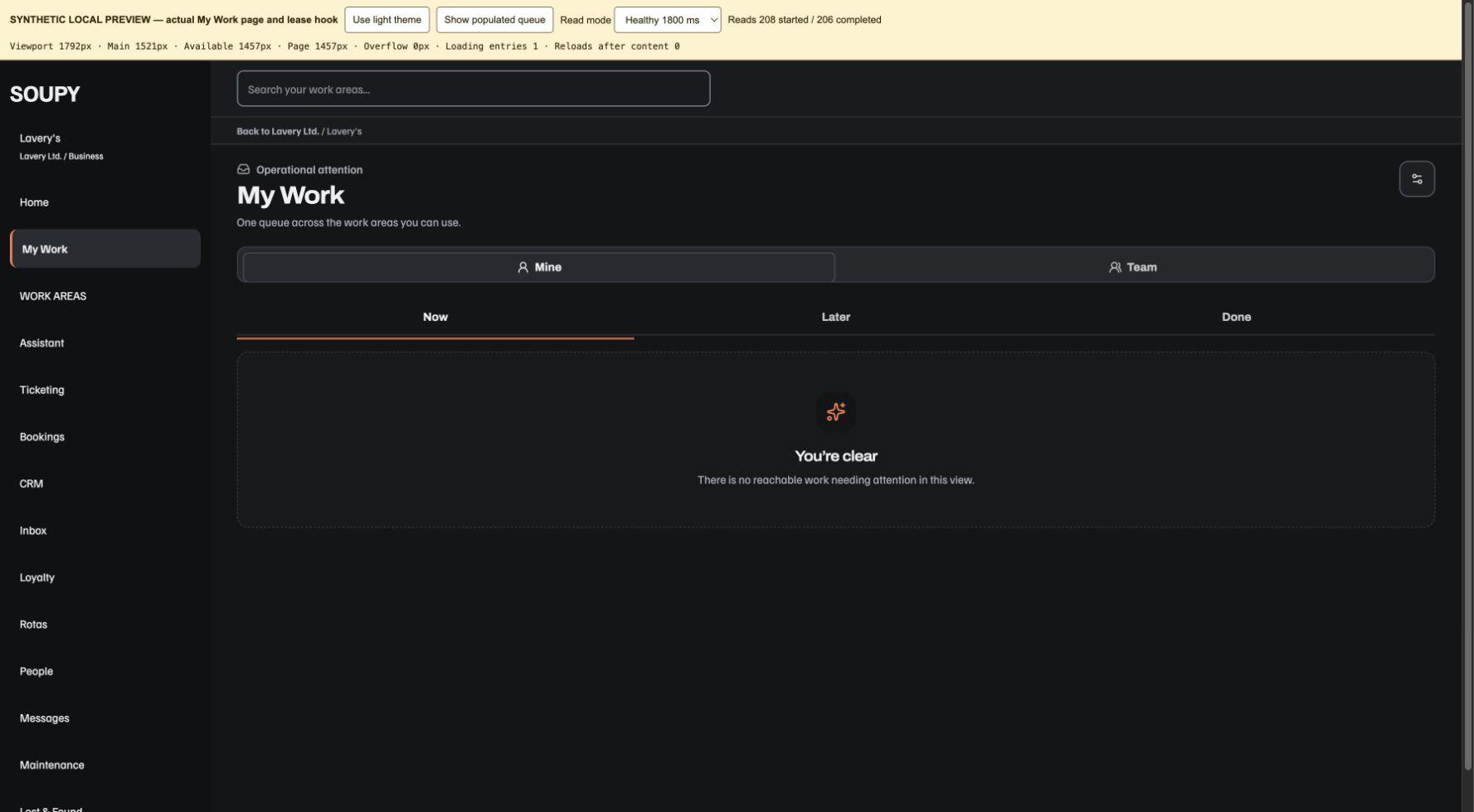
The web queue has Previous, Next and Refresh queue controls. Each selected Mine/Team and Now/Later/Done view continues through the complete permission-checked queue; the dashboard summary's 250-record bound does not cap this screen. Work keeps urgency order across pages. An empty scan window with more records to check offers Check remaining work, not an all-clear. You’re clear for now appears only on a fresh, completely checked empty first page of Now. Later and Done have their own empty states; an empty final page points back to earlier pages. Offline, expired, loading or failed checks cannot assert that the queue is clear.
Work that belongs in its source area appears as a named Open link, including the specific record and portfolio context where supported. An independently authorized source whose detail cannot be projected uses the same fallback; denied source records expose no title, area link or raw cursor keys. If access configuration prevents a complete check, the screen keeps its warning and links to available work areas. Scope-fragmentation safeguards remain in force. These web controls do not change the native screen or the bounded Home summary. The illustration below is a fictional local component preview.
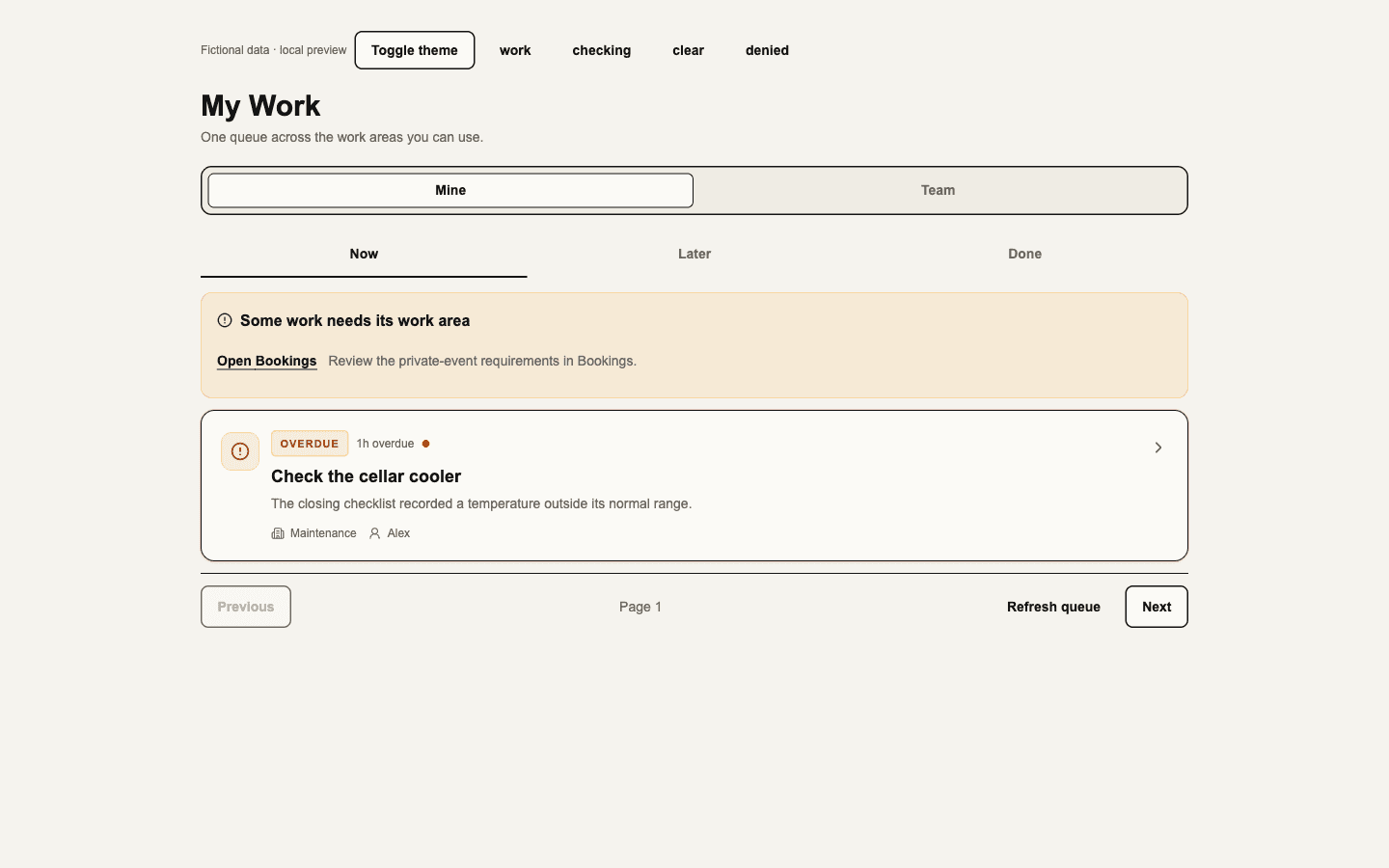
On web, the queue controls, loading placeholders and work list use the available workspace width. Normal connected refreshes retain the selected views and open handover or notification-preference drafts.
Open a card to see its owning work area, available source action, evidence trail and any approval information. Detail is checked independently of its list page, so newly arriving urgent work cannot close an unchanged authorized detail or discard its handover note. A received source refusal still clears protected detail; opening it first shows a current-access check. Where offered, snooze attention or hand it over to an eligible person with a reason. Delegating attention does not silently reassign the underlying business record. Inbox follow-ups retain their Inbox assignee and must be resolved in Inbox.
Approvals record a decision about the frozen source/version. The owning work area still performs and records the effect. Generic completion cannot post stock, return property, execute payroll, send an email or move money. If the Team queue cannot safely evaluate the person's complete reach, it reports that limitation rather than showing a false empty queue; Mine remains separate.
My Work and the workplace dashboard refresh protected source views while connected. In the native app, Home and My Work refresh only while their tab is on screen (how access is decided). My Work does not list delivered notification updates; the web header notification tray and native Notifications do, and notification preferences still govern their delivery. An open detail sheet follows the currently authorised item: losing that source closes the sheet and discards copied private context. A stalled refresh or changed account/workplace makes protected content unavailable until a fresh check succeeds. A normal acknowledgement refresh preserves an in-progress handover note; changing the source or its private projection clears it.
Notification preferences
My Work and native Notifications settings expose workplace-specific timezone, quiet-hours start/end, urgent override, instant/daily/weekly/off cadence and digest hour. Both quiet-hour endpoints must be present or both blank. Notification delivery rechecks current recipient authority. Seen or snoozed state is separate from resolving the work. Device push text stays generic; protected detail is fetched after the app opens.
Notification tray
On web, the header bell opens a tray of the 20 most recent in-app notifications delivered to you in the current workplace, newest first. The bell shows how many arrived since you last opened the tray, as 9+ above nine. Opening the tray clears that count for the workplace, across your tabs and devices; it does not mark anything read.
Each unread notification keeps a dot until you open it. Opening one marks only that notification read and follows its source link, or opens My Work when the work has no source destination. The desktop pending-work guard applies. Mark all as read, shown while any listed notification is unread, clears every dot without opening anything; it covers your 100 newest notifications in the workplace. Reading a notification does not acknowledge, snooze or resolve the work. Open My Work at the foot of the tray opens the full queue.
Titles load only while the tray is open and are rechecked against your current access, like My Work. A notification for work you can no longer see is left out of the list, although it may still have counted towards the badge. While the tray is reconnecting it shows a notice instead of earlier titles, and rows cannot be opened.
Native app (next native update; not yet released): the Home header carries a bell beside the workplace switcher. A tomato dot on the bell means notifications arrived in the workplace since Notifications was last opened, on any device; the bell's spoken name gives the count (more than 9 above nine). The dot is only on Home and follows the count only while Home is on screen and the app is in use. Tapping the bell opens Notifications: the same 20 newest notifications, read state and access recheck as the web tray. Opening the screen clears the bell and the web badge for that workplace, but marks nothing read. Unread rows have a dot and say "Unread" to screen readers; the screen shows how many are unread, and the Recent heading carries Mark all as read, which covers the same 100 newest notifications. Opening a row marks only that row read, then opens its work inside the selected workplace: the native screen where the app has one and the area is enabled, otherwise that work's web page in the in-app browser. Work with no destination, or a link outside the selected workplace, opens My Work instead; such a link never opens. Titles refresh every two seconds, only while Notifications is on screen. Switching workplace starts the list empty until that workplace's own titles load. Offline or reconnecting, the screen shows a notice instead of earlier titles, and rows cannot be opened. It is part of Home: pausing Home for the app hides the bell and pauses the screen. Opening a push notification does not yet mark its row read or clear the dot.