Contracts provides complete versioned agreements, comparison and two-party
signing. General Group agreements appear at
/portfolio/[groupSlug]/contracts; platform customer agreements have a separate
Commercial control surface. Employment and Event settlement documents retain
People/Ticketing ownership and their own permissions. A general Group agreement
can instead be a final PDF signed as-is (see
Sign an uploaded PDF as-is).
Author and issue an agreement
- Open the Agreement library and select New contract.
- Choose its responsible Legal Entity and reference; enter title, each party's legal name/role/signing email, effective date and structured key terms.
- Write the complete Markdown agreement, optionally starting from a published template and inserting reusable clauses. Review the rendered document. For a Group agreement, Agreement wording can instead take an uploaded PDF.
- Save, inspect the complete snapshot and select Issue for both signatures. Choose the signing deadline and any reminders (see Signing deadlines and reminders), then Issue and email both parties.
- Inspect each invitation's delivery state. Retry eligible failed/not-configured delivery through the retained invitation rather than inventing another grant.
Issuing freezes wording, terms, parties, clause versions and document hash.
Template/library updates affect future drafts only. contracts.view reads
permitted general contracts; contracts.manage authors/issues them. Platform,
Employment and settlement authority remain separate.
Recipient reading, signing and amendments
The recipient opens /contracts/[accessId], requests a verification code at the
invited email, verifies it and reads the private frozen document. Codes last ten
minutes with five attempts; the invitation session lasts eight hours. Resending
a code uses a sixty-second cooldown, including consumed or superseded requests,
so an ordinary successful retry does not trigger a ten-minute lockout. The code
entry form remains available while the page checks for a verified session;
requesting another code too soon shows a one-minute wait message. Reading
can remain available after the signing deadline; signing cannot.
Revocation invalidates the grant on subsequent reads.
Employment and settlement signing invitations record the first successful document open by the email-verified recipient. Opening the public link, requesting a code or verifying the email alone does not create a receipt. The timestamp belongs to that invitation and frozen version, survives signing and repeated opens, and does not prove that every clause was read. The recipient reader discloses this recording. Earlier opens that were not recorded cannot be reconstructed.
What changed compares the issued replacement with the recipient's last signed version, including wording, structured fields, tables and link targets. The recipient consents and signs the exact hash under their verified role. Both required signatures and the effective date are needed before activation.
The web signing form offers Sign by hand with a mouse, finger or pen and Sign by typing with a handwriting-style preview. Switching methods keeps both drafts; only the selected mark is submitted when the recipient explicitly signs. The saved evidence records the method and typed name or drawn strokes, alongside the existing signer, consent, time and exact document version. Empty or oversized drawings must be corrected before signing. These options also appear when a manager records an employment or Private Event signature; those remain manager-recorded evidence rather than email-verified recipient signing. Earlier signatures keep their original evidence. Mobile browsers use the same web form; native apps do not provide a separate signature capture screen.
To amend, select Propose amendment, edit a complete replacement, save and issue it. Only one outstanding amendment exists. The previous agreement remains current until the successor activates. Withdraw proposal removes remaining signing authority while retaining evidence and existing signers' reading access. Stale revisions require reload rather than overwriting concurrent work.
Event settlement managers must retain both Event editing and payments management for that exact Event. If current access cannot be verified, Checking agreement access… replaces the agreement pane and removes copied document, draft and signing-link state. Reopening after access returns starts a fresh editor; a healthy refresh retains an unsaved draft. The pane uses the web manager workflow; private recipient reading and signing retain their separate invitation session. An action already sent is still governed by its server outcome; losing the pane does not cancel it or approve a payout.
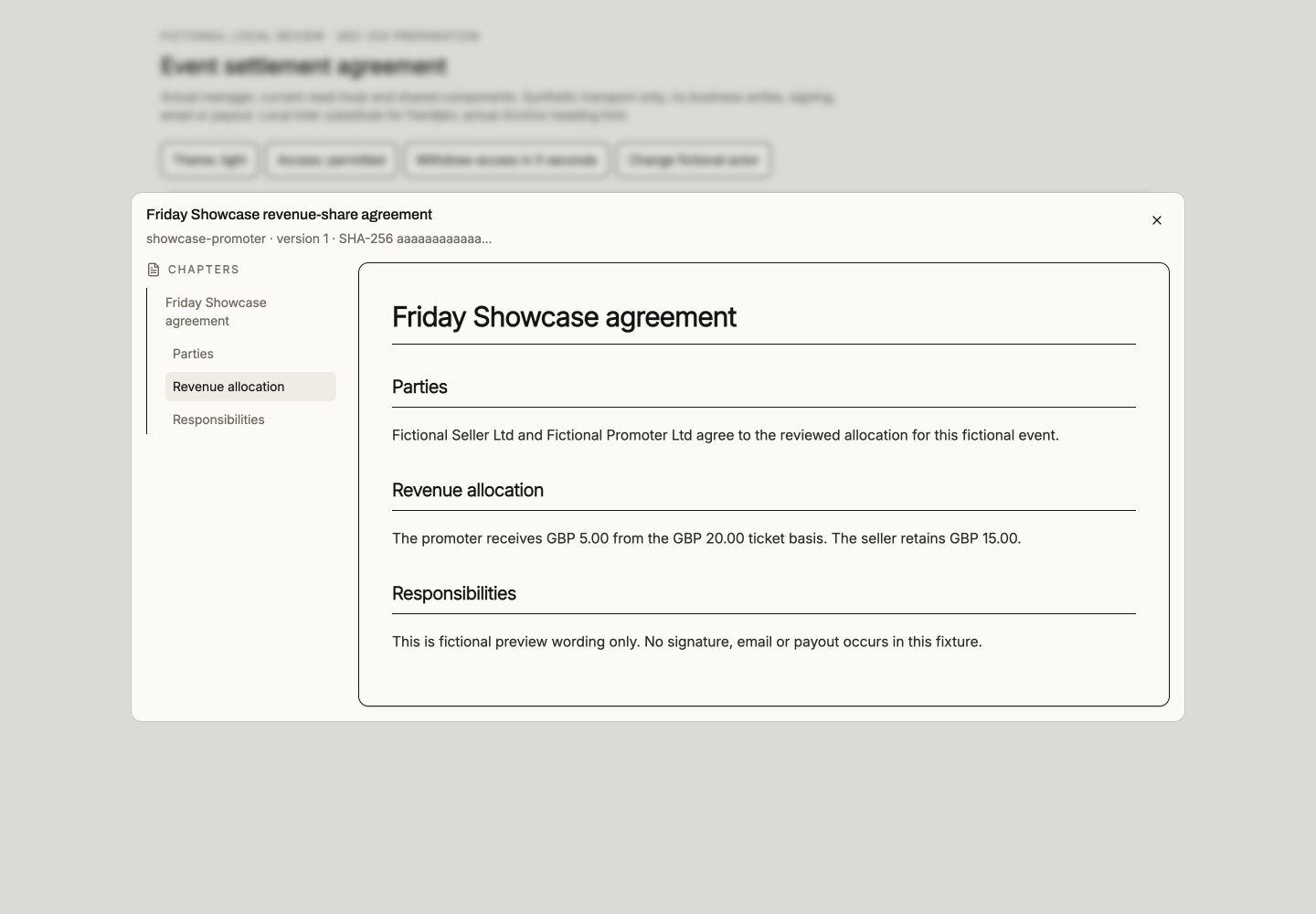
A signed customer commercial agreement does not independently activate platform fees; commercial approval and seller acceptance remain separate. An Event settlement successor does not rewrite an already-approved plan's evidence.
Sign an uploaded PDF as-is
A general Group agreement can be another party's final PDF instead of wording written in Soupy. In New contract or Propose amendment, choose Upload a PDF to sign as-is under Agreement wording. Platform customer, Employment and Event settlement agreements always use Soupy wording. A PDF agreement has no key terms, template or clauses, and Soupy cannot edit its wording.
- Under PDF and signing fields, drop the PDF or select Choose PDF. It must be at most 8 MB and 300 pages. Password-protected or encrypted PDFs, fillable forms and PDFs that already contain a digital signature or signature field are refused, because stamping marks onto them would hide or break them. PDFs with scripts, launch actions or attached files are refused too; print such a file to PDF and upload that. Soupy saves an accepted PDF once, so every PDF reader shows the same pages, and keeps only that copy. The editor, both signers and the signed copy all use it, and the SHA-256 shown is the saved copy's; the SHA-256 of the file as uploaded is recorded with it.
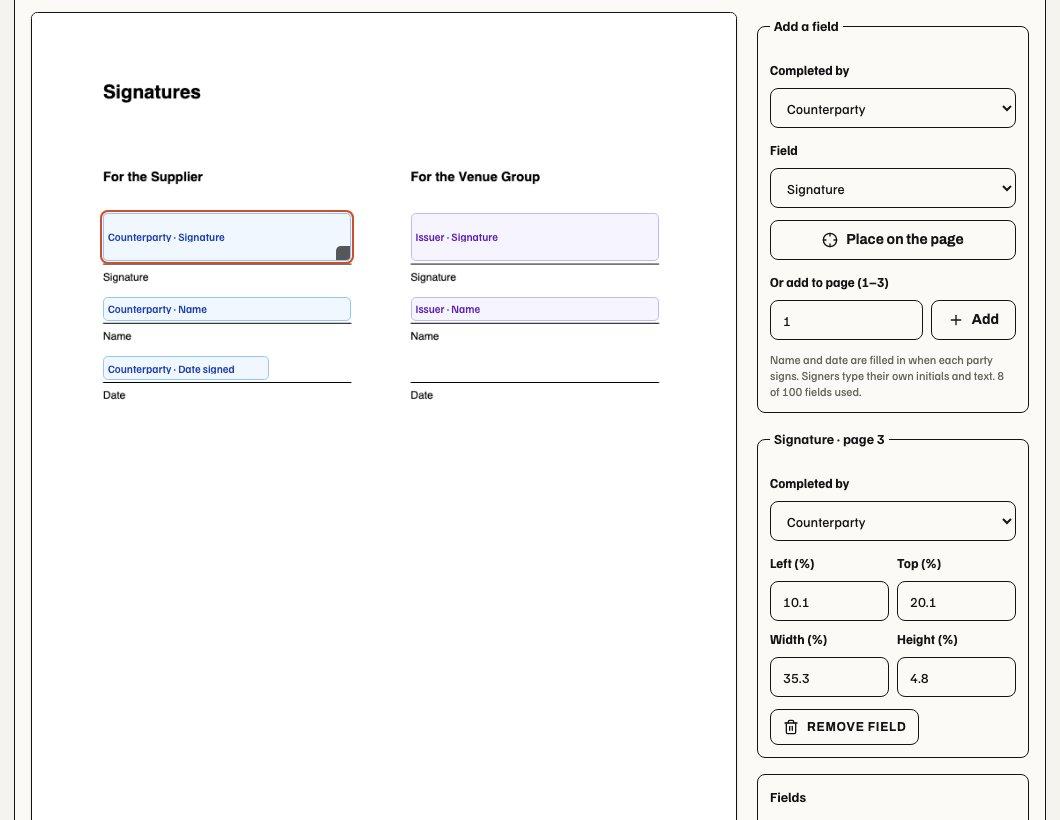
- Add fields. Choose Completed by (Counterparty or Issuer) and Field (Signature, Initials, Date signed, Name or Text), then Place on the page and click the page, or add it to a page number. Drag a field to move it and its corner to resize it; arrow keys nudge it (Shift for larger steps) and Delete removes it. The selected field's panel also takes exact positions. A Text field needs a label of up to 60 characters and can be optional; every other field is required.
- Give each party at least one Signature field, with at most 100 fields in all, then save the draft. An upload that no draft saves within 24 hours is deleted; a saved original is kept with the agreement history.
- Issue it as usual. The agreement hash covers the parties and dates, the original's SHA-256, size and page layout, and every field, so changing the file or a field needs an amendment.
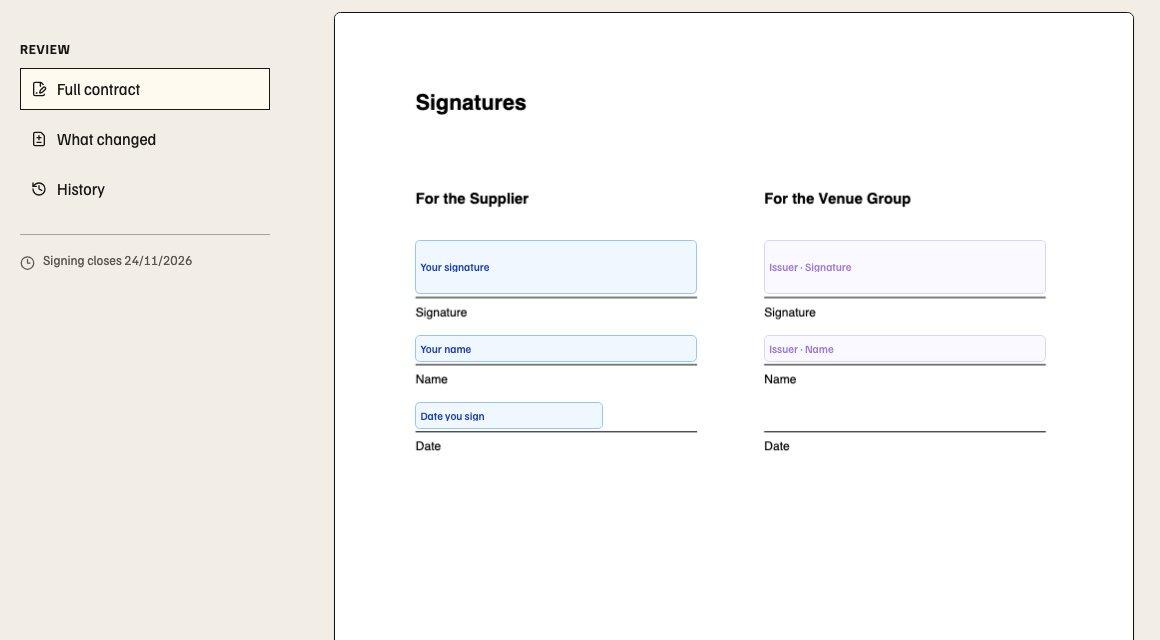
Recipients sign through the same verified reader. Their browser downloads the PDF and checks it against the frozen SHA-256 before showing it; a mismatch is never shown. Each page marks the signer's own fields (Your signature, Your name, Date you sign) and the other party's by role. The signer types only their own initials (up to six characters) and text entries (up to 200), then signs by hand or by typing. Soupy fills their name and the UK signing date into their Name and Date signed fields and draws their mark into each of their Signature fields. Names, typed signatures and entries print in Latin (including accented and extended letters such as ł, ș and ŵ), Greek or Cyrillic, with common punctuation and symbols; signing names any other character, such as an emoji or a letter from another script, with its code point and is refused. Download original replaces Print / save PDF, and Download signed copy appears once the signed copy is ready. What changed does not compare PDF wording and asks the signer to read the complete version; managers see under Changes from version N whether the original or its fields changed.
contracts.manage uploads PDFs and places fields. Download original in the
agreement detail needs contracts.view; an unsaved upload is available only to
its uploader. Original downloads, and a recipient's signed-copy download, use
a single-use link valid for 60 seconds; a recipient's also needs their current
verified session. PDF agreements are prepared and signed on the web, including mobile
browsers; the native apps have no Group agreement screens.
Signing deadlines and reminders
The sender chooses how long signing stays open: 1 to 30 days after sending, seven unless changed. The choice appears when issuing a Group or platform customer agreement, when emailing an Event settlement signer (Seller or Recipient, then Email signature link), when emailing one Employment contract from the Person's Contracts tab, and in Employment completion settings. Invitation emails state the deadline as a UK date and time. Afterwards the document can still be read but not signed; nothing extends the deadline.
Group, customer and settlement senders also choose up to six reminders from 1, 2, 3, 5, 7, 10, 14 or 21 days after sending. Reminders after 1, 3 and 5 days are selected to start with and can be cleared. A reminder at or after the chosen deadline is greyed out and not sent; it is selected again if the deadline is lengthened. The deadline and reminders are frozen on each invitation when it is sent. Group and customer delivery tiles show them; the settlement pane does not. A reminder goes only to a signer who has not signed, only after the email provider accepted that signer's invitation, to the same address with the same link and deadline. Reminders stop when the signer signs, the proposal is withdrawn, the request is cancelled, the settlement agreement is voided or the deadline passes. A Group or customer issuer can sign only after the counterparty, so the issuer's reminders count from the counterparty's signature; any that would fall on or after the deadline are not sent. When a failed invitation is accepted on a later retry, reminders whose time has passed are skipped, not sent together. Retry is offered only while an invitation's email has not been accepted, and an accepted invitation is never sent again. If sending a settlement invitation reported an error, sending it again keeps the original deadline and reminders; changing either is refused. A reminder with an unknown provider outcome is never resent. Reminder results have no separate status view.
Employment reminders follow the version's approved completion settings, which include the signing deadline (see Employment templates and bulk preparation). A batch send uses that deadline. A single send starts from it and can change it for that invitation; the dialog names approved reminders that would fall on or after a shorter deadline, and those are not sent. Completion settings with a deadline outside 1 to 30 days, more than six reminders, or a reminder at or after the deadline are refused. As with Group, customer and settlement reminders, when a failed Employment invitation is accepted on a later retry, reminders whose time has passed are skipped, not sent together. These choices are on the web manager screens; the native mobile apps do not send contracts for signature.
Signed copies
Once both signing roles have signed the same frozen version of a general Group agreement, a platform customer agreement or an Event settlement agreement, Soupy prepares one signed PDF. It contains the parties, effective date, key terms and complete wording, the document hash and each recorded signature with its method and email verification. Its text is set in an embedded font covering Latin (including accented and extended letters), Greek and Cyrillic, so it looks the same in any PDF viewer; Employment signed PDFs use the same font. Soupy keeps it privately (there is no public link) and emails it only to the two signing addresses on the invitations. Employment contracts keep their own approved completion settings in People.
For an uploaded PDF, the signed copy is the original with each party's entries drawn into their fields, on rotated and cropped pages too, followed by a signature certificate page with the parties, hashes, each signer's evidence and every entry. The certificate gives the SHA-256 of the file as uploaded and of the copy Soupy saved from it, which both parties read and signed. Soupy checks the stored original against its SHA-256 before drawing anything; a mismatch stops the copy with Needs attention for administrator review.
The agreement detail, and the Read pane of a completed Event settlement
agreement, shows Signed copy with its state (Preparing, Sent, Needs
attention, Needs review, Email not configured, Outcome unknown or Not prepared)
and each recipient's result. Accepted by email provider is not proof of
delivery. Download signed PDF rechecks current access on every download:
contracts.view or contracts.manage for Group agreements, platform legal or
commercial-assignment access for customer agreements, and Event editing plus
payments management for settlement agreements. Retry (contracts.manage,
platform legal authoring, or the settlement access above) resends only to
recipients without accepted email after a provider rejection, review stop or
missing email configuration. A network or provider error may still have
delivered the email, so it shows Outcome unknown and Soupy never sends it
again; if the recipient did not receive it, download the PDF and send it
yourself. A copy that has not started is restarted by a check every fifteen
minutes; one that stops part-way shows Needs attention (or Outcome
unknown) within about 25 minutes and can then be retried.
Wording the PDF cannot represent, such as raw HTML, images or characters outside its fonts (emoji or scripts other than Latin, Greek and Cyrillic), stops the copy with Needs attention and the reason, naming the character; the signed agreement itself is unaffected. A version withdrawn before its copy is prepared is not copied. Agreements completed before signed copies were introduced are not backfilled; their panel says no signed copy was prepared.