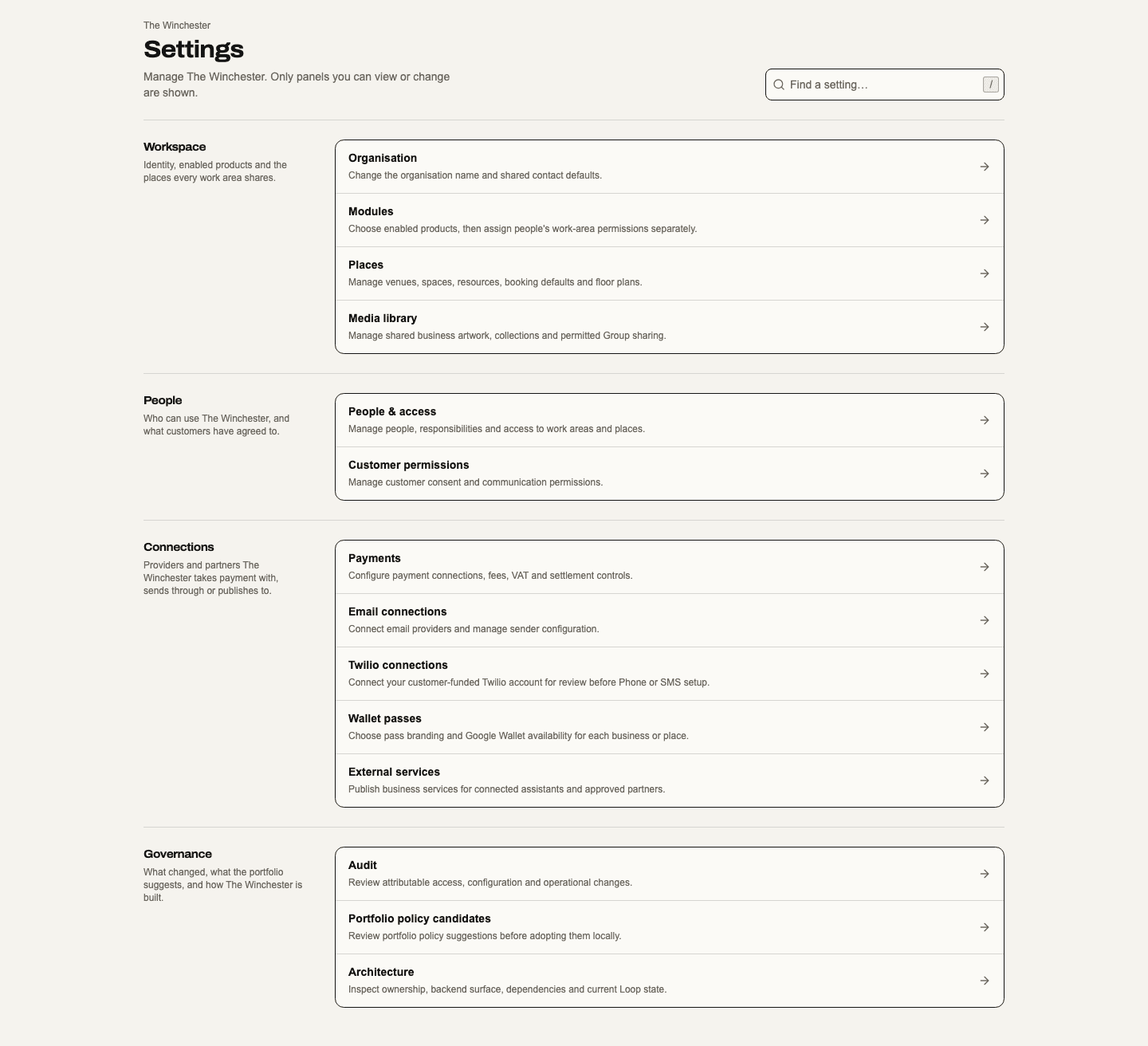
The Settings index lists only panels the current user can view or change. Product-specific settings live in each work area; their chapters describe the actual controls. A settings category description is not proof that a provider or workflow is activated.
The web and hosted desktop index groups shared controls into Workspace, People, Connections and Governance. Each group has one list of links; on narrow screens its heading sits above that list. Find a setting searches the permitted settings by name, description and group. Press / outside an editor to focus search; Escape in the search field clears it. An unmatched search offers Clear search. Empty groups and hidden destinations stay out of the index. Opening a row uses its existing settings route and saves nothing. The index does not infer provider readiness or display illustrative counts. Native settings screens are unchanged. This layout is implemented in source; production rollout has not been verified.
Shared choice controls. Segmented choices such as Mine / Team fit their selected control inside the outer frame. Long rows remain horizontally reachable, with keyboard focus visible at either end. Bookings area pills retain their complete selected and focus borders at the scroll edges. These are shared web/desktop control changes; native controls keep their separate implementation and verification.
| Shared setting | Path relative to the business workspace | What it contains; principal gate |
|---|---|---|
| Branding & domains | /settings/branding | Discover inactive white-label setup with business settings authority; paid branding writes require branding.manage, with separate domains.manage and provider readiness. |
| Organisation | /settings/general | Business name, default phone country and versioned seller legal disclosures; organization.settings.manage. |
| Media library | /settings/media | Business artwork and videos, collections, metadata, usage review and explicit Group sharing; media.view, media.manage, media.share. Provider and business rollout conditions apply; videos need their own rollout. |
| Modules | /settings/modules | Reviewed product switches; module.entitlements.manage plus organisation settings to mutate. |
| People & access → Team & access | /settings/access | Member directory, scoped Add member panel, invitation history, user types, permissions and migration controls; existing permission editors and delegation limits remain authoritative. access.view / access.manage, plus sensitive/delegation checks. |
| Venues & inventory | /settings/places; standalone /bookings/venue-setup in Bookings navigation | Venue identity, Spaces, resource defaults, inventory and floor plans; Places and Bookings retain separate scoped authority. Places-only users keep physical settings. |
| Payments | /settings/payments | Seller payment connections, profiles, taxes/fees, organisation sales categories and settlement controls; payments.view / payments.manage. |
| Wallet passes | /settings/wallet | Issuer presentation and Wallet availability; credentials.issuer.configure. |
| Email connections | /settings/communications/email | What each customer email type sends and who from, one choice between the level above (or Soupy's sender) and the business's own Resend account, and a numbered setup checklist; separate view/configure/test/rotate/revoke permissions. Series have scoped screens. Staff Gmail mailboxes and signatures are in Inbox settings. |
| Twilio connection | /settings/communications/twilio | Customer-owned account onboarding for review; direct business organization.settings.manage. Unavailable until legal, server and provider prerequisites are verified; no live service activation. |
| Customer permissions | /settings/customer-permissions | Customer consent and communication permission records and individual detail; customer.consent.manage. |
| External services | /settings/external-services | Published services and controls for customer-facing connected assistants; organization.settings.manage plus service-specific authority. |
| Portfolio policy candidates | /settings/portfolio-policies | Review and activate locally owned policies; organization.settings.manage. |
| Audit | /settings/audit | Attributable access and operational changes; audit.view. |
| Architecture | /settings/architecture | Product ownership, backend dependencies and Loop delivery state; audit.view. |
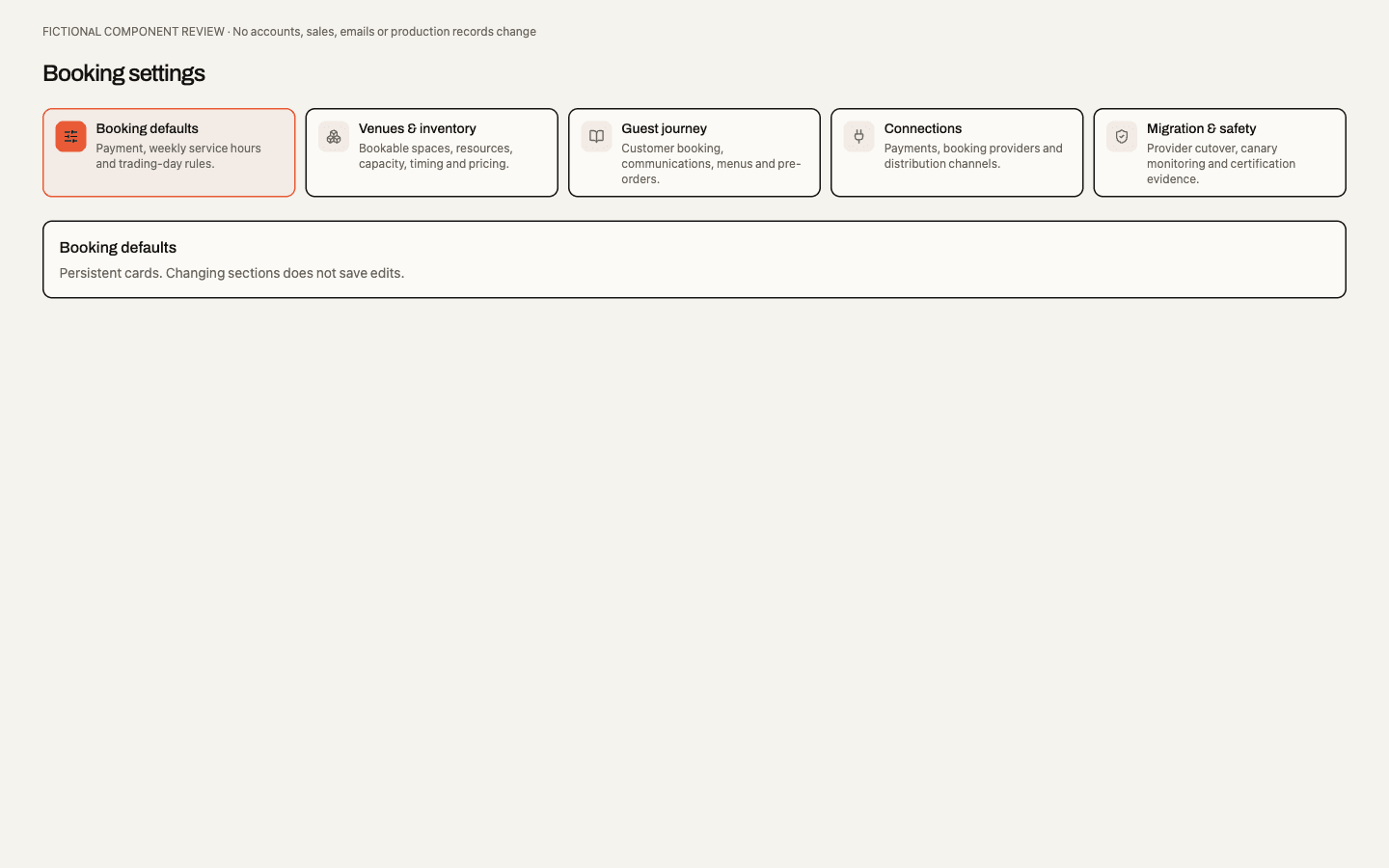
Compact settings cards. Shared web settings keep the icon on the left and the title and description together on its right. The shorter cards retain keyboard navigation, horizontal access on narrow screens and the stationary header above the independently scrolling panel. Changing a section preserves drafts and never saves or publishes.
Media library
The shared media library is provider-gated: uploads work only where the media provider is configured and enabled for the business. It is separate from physical Asset Management. A business owns its artwork; explicit sharing permits selected businesses in its current Group to reuse approved library artwork. Private operational evidence and represented Talent material keep their source workflows. Library permission never grants access to those records.
With the provider disabled, existing Convex artwork still uses its verified business or Talent ownership and current source permissions. Private image uploads first recheck the original source, actor or guest proof, and file metadata; only an authorised nonpilot response selects the existing Convex transport. A failed admission or provider upload does not silently retry through another provider. Library metadata remains governed by its own capabilities, so a disabled upload pilot is not a claim that the whole library is hidden.
On web and desktop, authorised users can search artwork by name, tag or credit,
organise collections, preview dimensions, edit default alt text and credits, and
review permitted usages. Restricted usages appear as counts. media.share is
separate from viewing and management; new capabilities do not silently widen
existing user types. A source editor can upload and select its own source artwork
without a library grant; browsing or newly selecting reusable business/shared
artwork requires media.view or media.manage. Previously adopted versions stay
readable under current source authority. Availability policy, subject to
provider activation: normal artwork can be available to all
authorised businesses, Groups and Talent owners without per-tenant setup. The
provider must be configured and enabled, and owners can be paused individually.
Restricted rollout retains exact admission lists. Private operational uploads and
legacy migration remain separately admitted; normal artwork availability does not
change their provider or grant anyone library/source permissions. Web, desktop and
native use the same server policy and retain their existing Save/Publish boundaries.
The web/desktop library keeps a visible Upload artwork button for keyboard and touch users on wide and narrow screens. The button is disabled while uploading.
The picker supports JPEG, PNG, WebP and HEIC up to 20,000,000 bytes. Server checks also limit decoded images to 100 megapixels and 12,000 pixels per edge. Upload progress, verification failures and interrupted connections leave the previous source image intact. Selecting an image or crop changes only the source draft; Save and Publish remain distinct. Crop presets and labelled percentage controls change the placement, preserving the original file. Existing Convex images stay readable alongside new provider-neutral references. Replacing an original creates a new immutable version; existing placements remain pinned. Default alt text and credits currently describe the library item; published source text has its own save boundary.
Library videos. Where video uploads are enabled for the business (their own rollout, on top of media uploads), the web and desktop library's Upload image or video also accepts MP4 (H.264 video, AAC audio) and WebM (VP8 or VP9 video, Opus or Vorbis audio) up to 95,000,000 bytes, 10 minutes and 4,096 pixels per edge. The media service reads the file's header before keeping it, and refuses a MOV, another codec, a live recording with no recorded length or a video over the limits, naming the reason. A Type filter (All media, Images, Videos) appears with video uploads. Video tiles show the frame at one second (the first frame of shorter videos), or a film icon while that poster is made or if it cannot be, with a duration badge. Video details show duration, size and dimensions. Play video downloads the original to that browser only when pressed; the media service rechecks access, and the copy is discarded when the details close. A video's original can be replaced only by another video, and an image's only by an image. Videos can be placed only in a customer screen's video block (Displays). Native apps and every source picker (Event, Series, Talent, Studio and others) list and upload images only. Without video uploads the button stays Upload artwork with no Type filter; videos uploaded earlier stay listed.
Event artwork-only saves advance the media draft revision without invalidating the published checkout. Explicit Event publication freezes the exact version, crop and usage grant; an unrelated payment-profile refresh retains the previously published artwork. A legacy live Event retains its previous public image across its first Media draft save until explicit publication, including an explicit removal. Publishing that removal clears the selected slot and its fallback; a separately selected hero image remains intact. Email confirmations use the frozen JPEG preset; Google Wallet uses the frozen PNG preset. Event publication still requires its existing publishable configuration, including Payment Profile readiness.
Choosing unique artwork for an occurrence preserves its Event override during Series image sync. Use series banner/image explicitly restores that slot's Series inheritance. Recurring checkout updates retain already-published artwork; they do not publish a newer Event artwork draft.
New Event uploads remain private to their creator at the selected business, Site or Series scope. Create adopts them into the Event draft in the same transaction; the existing publication action still controls when they become public. Changing the creation scope requires artwork authorised for that scope. Unfinished uploads do not create Events or grant colleagues access to draft photo metadata.
The gated web source editors also support business, Brand and Site artwork through their existing Presentation Profile Save draft and Publish commands. Group logos use Group settings Save under current Group administrator authority. Group and Talent originals belong to those owners, with separate explicit rollout allowlists; no business ownership is invented. Active Series artwork Save publishes its native profile, while draft Series artwork remains private. Propagation edits same-Series Event drafts; generated occurrences pin the approved grants captured by their recurrence and keep those crops when later artwork changes.
Menu item Save and reviewed PDF-menu imports stage artwork; menu Publish freezes the exact item versions. Add-on Publish likewise pins an immutable image grant. Verified migration of an Add-on image waits for explicit native Publish. Talent representatives upload originals in the web profile editor and publish an approved profile; an Event explicitly chooses photos from that version and publishes its lineup separately. Revoking current promotional permission stops online photo delivery. A Payment Profile refresh retains the published lineup and creates no new photo permission; a newer lineup draft still requires explicit publication. Native has no promotional profile authoring screen. Freeform email image blocks still use external image URLs and are not uploaded into Media.
Venue-managed provisional profiles retain business-scoped legacy uploads; representative-owned provider uploads require the separate owner rollout. In a mixed profile, the first legacy photo remains its default hero. Its missing preview does not choose another photo automatically. A profile with no legacy photos uses its first provider photo.
The web library and Group/Talent Original uploads controls offer retirement and withdrawal. The owner lists include replaced and unattached originals; choosing one changes only the source draft. Verified legacy Talent imports await native profile Publish. Retirement prevents new selection while preserving existing usages. Withdrawal requires a review tied to the current artwork/usage revision and disables subsequent online delivery. A changed usage invalidates the confirmation. Usages include each Display screen whose current publication shows the image, named Screen: ; retiring the screen releases it. Eligible unreferenced library artwork can be scheduled for deletion with a 30-day cancellation window. A changed image, reference or manager permission puts it on hold. Scheduling and the deletion journal are separate from verified provider cleanup; the UI does not claim that bytes have already been erased. Downloaded copies and authenticated offline Display bundles have their existing revocation limitations. Permanent byte deletion and source-specific migration require separate retention, reference and recovery acceptance.
Native provides a gated Event artwork screen with camera/file upload, search, selection and crop controls, followed by an explicit source Save. Full library organisation, sharing and lifecycle management remain on web/desktop. The native feature flag is off by default; installed iOS and Android acceptance is separate from local tests. Existing guest/device/private file flows retain their current clients and policies until their individual adapters are accepted.
Organisation identity and seller disclosure
The name and phone-country default save separately. New phone inputs start with the configured country but allow a different country per record. Concurrent updates are checked against the version/value the user edited. Save name stays unavailable until the name has 2–120 characters. If someone else changed the name or default while you were editing, the save is refused with a notification that says so and asks you to refresh, instead of a generic server error, and your edit stays in the form.
Seller legal disclosure has a reviewable draft and published version. Its fields cover legal/trading name, registered/service addresses, company/charity registrations, legal contacts, VAT evidence and versioned terms/refund-policy documents. Saving a draft and publishing it are distinct actions; downstream sales use the qualified published seller evidence, not whatever happens to be in an unsaved form.
Site and Space configuration
- Open Settings → Venues & inventory and select the Site. Details contains name, address/city, timezone and description. Archive venue requires a typed confirmation; Restore venue explicitly reactivates an archived venue. Opening hours manages local operating hours.
- Use Space defaults for default capacity, standing/seated/mixed setup, description and accessibility notes. Spaces opens or adds individual Spaces within that Site.
- Open a Space. Details has its identity and local physical overrides; Opening hours supports inherited weekdays or explicit local values. Clearing an override reconnects the Space to the current Site default.
- Where Bookings access permits, Resources manages tables/resources and Areas. Resource defaults sets the Space-wide booking defaults; Areas and sub-areas may override or reset each group. The Site’s Space defaults tab continues to control physical defaults such as room capacity. Floor plan manages their layout. Those inventory actions still require Bookings authority even when reached through Places.
Physical safe capacity and bookable resource availability are different facts. Site defaults do not overwrite local tables, joins or floor plans. Group Sites navigation opens these same owner-scoped screens instead of creating a second copy of settings. Show archived sites in Places includes inactive Sites within the same access scope, so Places-only staff can reopen their details and use Restore venue without needing Bookings access.
White-label web — managed pilot preparation
White-label web is a separate paid capability, white_label_web, that can be
assigned through a versioned add-on, tier inclusion or managed contract. This
implementation is pilot preparation, not evidence that a tenant or custom domain
has been commissioned. Automated subscription collection and native app branding
are outside this package.
Platform tenant detail exposes audited commercial source assignments, effective UTC dates, pilot rollout and immediate security suspension under platform tenant-management authority. Any valid source retains coverage; the organisation's legacy plan label and Group membership do not grant it. Group contracts name each covered business explicitly through the backend assignment interface.
Business Settings → Branding & domains is discoverable to existing business
settings administrators, including when white-labelling is off. The inactive
screen explains that setup can wait; opening it creates no paid grant, rollout,
publication or provider attachment. In the capability model, reading requires
organization.settings.manage or branding.manage; paid branding writes still
require branding.manage and domain operations retain domains.manage. Existing
frozen administrator roles are preserved. Business administrators retain their
legacy compatibility before cutover. With active coverage and authority, save a
brand draft with display name, light/dark logo URLs, favicon, accent and support
contact; preview it, then publish with a reason. Publication and restoration use
saved revisions and reject concurrent edits. Assets must be public HTTPS URLs;
semantic status colours, legal seller identity and frozen financial records
retain their own authority. Rollout, commercial coverage and publication are
independent. Existing public branding, public domains and sender settings remain
available under their existing rules.
domains.manage independently admits one staff host and one organisation
public/checkout host. DNS TXT ownership, the configured production hosting
project, actual HTTPS and Clerk satellite DNS are checked before serving paid
routes. Provider writes require explicit platform configuration. Ownership
readiness expires after 24 hours and a bounded hourly job renews due evidence;
failed or expired proof blocks affected routes. Retired hosts remain reserved.
Tenant hosts select content, never membership. Other businesses and Group views
navigate to an appropriate business or shared Soupy origin. Shared primary login
uses a signed ten-minute context and rechecks the host on completion. Global
account security, aggregate Wallet and provider identities remain Soupy/provider
surfaces.
New copyable business-access invitations use the verified staff origin. Their branded entry admits only a live token belonging to that business and preserves the invited-email check through shared sign-in. Group invitations retain the shared origin; no new invitation-email sender is introduced.
Ticket confirmation/holder and Booking confirmation builders resolve verified business web destinations before freezing new jobs. Their paid presentation uses the published profile while preserving Event/seller identity. Existing verified sender routing is reused; paid branded messages do not silently use a platform fallback sender. Transactional sender readiness is displayed separately. Marketing, identity-security messages and previously frozen jobs are unchanged.
After the last commercial source ends, published presentation remains for 30 days and administrators see an in-app transition notice. Editing/publication pauses. Renewal preserves the saved publication. At transition end, new URLs use shared origins and standard presentation resumes; business access is retained. Verified original hosts continue scoped aftercare routes. Staff navigations can move to the shared workspace; submitted actions and credential-bearing URLs are never blindly redirected. Domain loss, retirement and security suspension apply immediately rather than receiving commercial grace.
A pilot still requires configured domains, shared-login secrets, provider
readbacks, signed-in login/logout/switching, payment-return and email acceptance.
The data-free /white-label-preview demonstrates the real settings editor with
fictional records and local callbacks; it is unavailable in production. Web
completion does not publish separately branded mobile or desktop applications.
See implementation and commissioning notes.
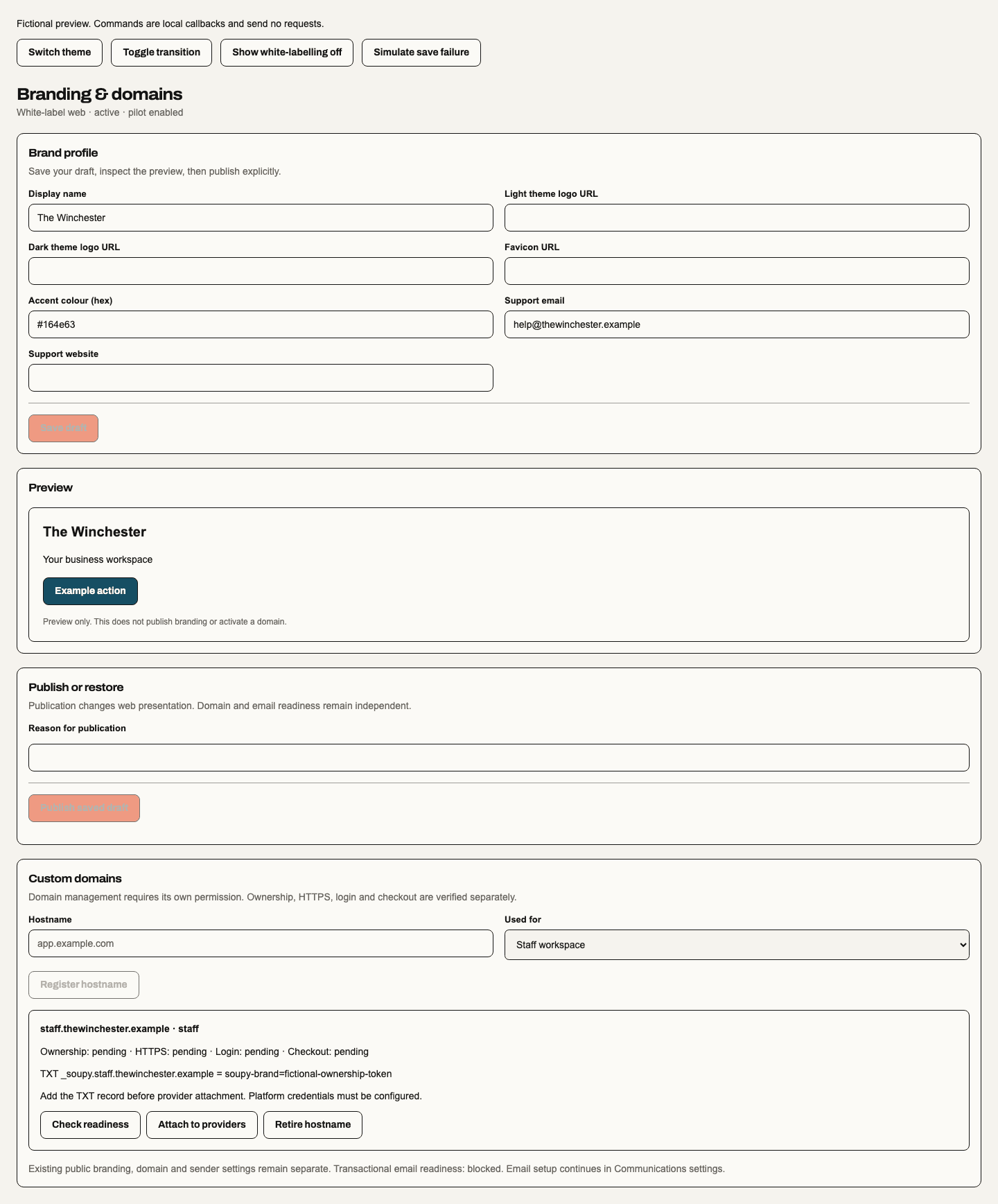
Actual editor with fictional records, 24 October 2026. Saving the brand draft, publishing its saved revision and checking a host are separate actions. This is visual evidence; it does not demonstrate tenant or provider activation.

Actual 390px editor fixture, 24 October 2026. Controls stack and long host/TXT values wrap; pending DNS, HTTPS, login and checkout remain visible independently.