Orders are the shared commercial record behind admission, Bookings and optional purchases. A product owns its fulfilment; the Order owns its reservation, confirmation, collection and refund lifecycle. Read Orders from the product's own workspace so the list preserves its source context.
Open orders and attendees in place
Selecting an Order or Attendee name, or clicking the non-action area of its row, opens a detail panel inside the current page. Business, Event and Series lists retain their tab, search, sorting, pagination and scroll position. View order uses the same panel. The shared Bookings and Automation Orders lists also use this panel; saved order URLs and modified-click links still open the full detail route.
Order details place status beside the purchaser, service actions in the header, and Event, totals, fees, VAT and placement time in a compact summary. Zero platform fees are omitted. Tickets list holders and admission state; an empty purchase says no tickets were issued. History groups by day, newest first. Only exact repeated evidence condenses; Show all restores every entry. Grouped purchases keep seller totals, component refunds and access restrictions.
Notification history opens recorded messages explicitly linked to the selected Order. Message jobs and their recipient deliveries page separately. Opening the disclosure sends nothing. Current Order and source communication permissions apply to every read; campaigns sent to a buyer are not automatically messages about that Order. The customer notification history explains status meanings and coverage.
Order status badges share colours and icons across workspace, Event and Series lists, Order details and CRM Order history. Completed is green with a check; Refunded / Partially refunded are blue with a return arrow; Payment due is amber with a payment-card icon; Pending / Reserved use purple clock/hourglass icons; Expired is muted grey with a stopped-timer icon; Cancelled / Void use soft red cancellation icons. The written status remains visible in both themes. These are financial Order states, not a claim that Tickets are valid or guests attended. Native status displays are unchanged.
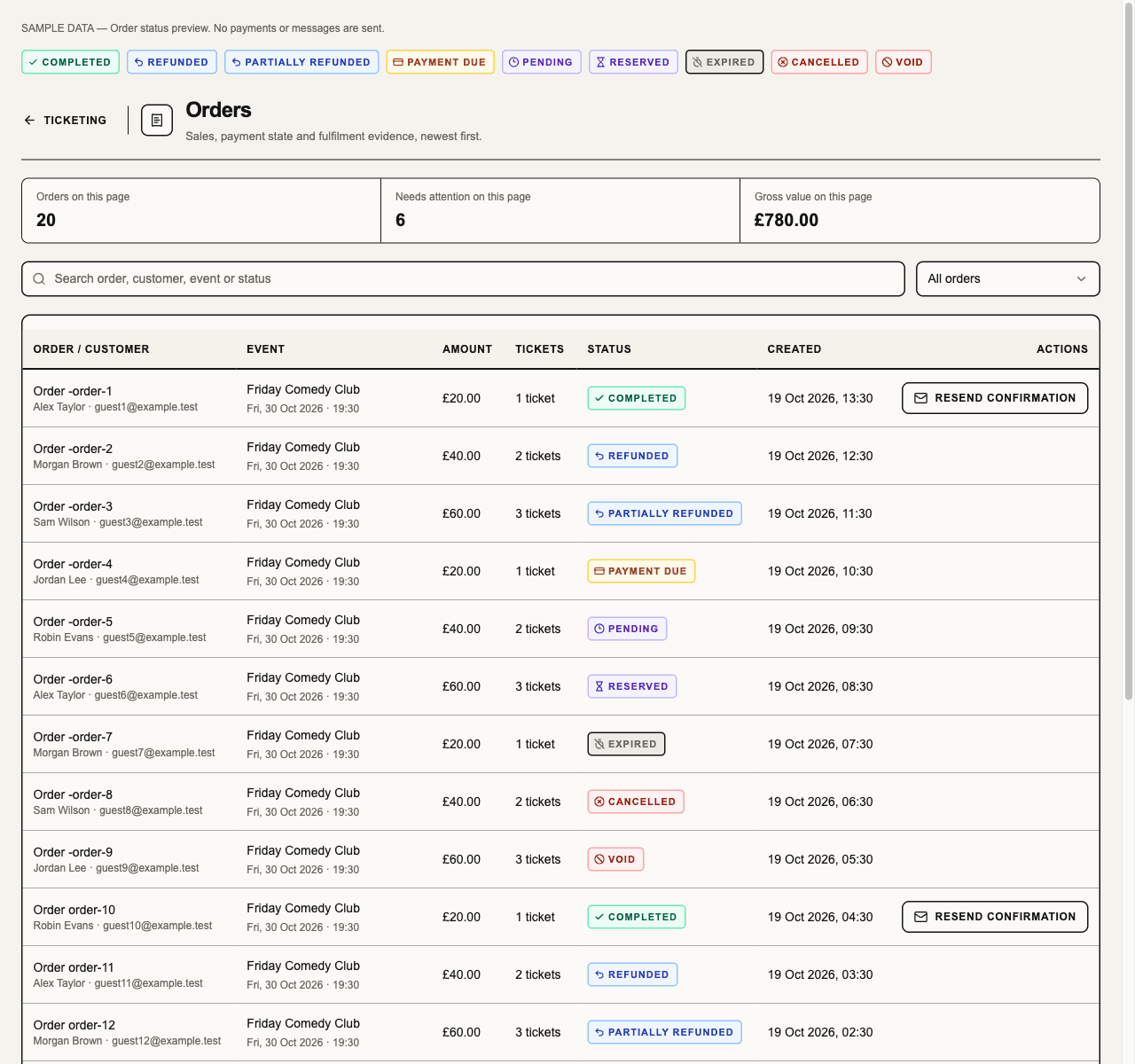
Local web preview with fictional orders. The top row shows every status; the table uses the same badges. This preview does not establish production rollout.
An attendee panel shows the current permitted Ticket and offers Edit attendee where existing management authority and Ticket state allow it. Save and send ticket explicitly saves the change and queues the holder’s Ticket email; opening or closing the editor does neither. Opening the related Order stays in the same panel; Back to attendee returns to the holder. Customer profile navigation remains an explicit link in the detail. Closing and reopening, or reviewing another record in the same source view, retains unsaved fields and uncertain retry identity. Changed saved holder details require a reload before another edit; lost source access removes the editor. Changing signed-in session, workspace or source resource retires these local drafts.
Edit customer in the Order header corrects a purchaser's mistyped name or email. It appears on completed and partially refunded Ticketing Orders when the operator can see the Order's customer details and manage its current fulfilment Event, the authority Swap date uses. Save and send tickets updates the Order and every valid or checked-in Ticket still addressed to the purchaser's email, then queues those Tickets to the saved address in the same step. Guest-held Tickets keep their holders. Tickets named for the purchaser take the corrected name; another holder name is kept. A changed email replaces those Tickets' private links, QR codes and Wallet credentials, so copies sent to the mistyped address stop working. If the Tickets can't be queued, because the sender is unavailable or the address can't receive email, nothing is saved. When the purchaser holds no Tickets, Save details saves the contact and sends nothing. Order history records Order customer details corrected with the changed fields and the number of Tickets sent, not the earlier address.
The editor says why a correction is unavailable: official resale, table-booking, grouped-basket, add-on and durable-pass Orders, or a refund in progress. A Ticket listed for resale blocks any correction; one with a used or invited meal blocks an email change. A purchaser verified at checkout keeps their email; their name can still be corrected, and Edit attendee can send a single Ticket elsewhere. A purchaser matched only by the typed email follows a corrected email: the Order and its CRM spend move to the customer with the corrected address. If Loyalty points were already awarded for the Order, its email can't be changed here. A receipt or VAT invoice already issued to the earlier address stays with it and can't be resent from the Order. Opening or closing the editor saves and sends nothing; unsaved fields and an uncertain retry are kept, as in the attendee editor. Web only; native Order screens are unchanged.
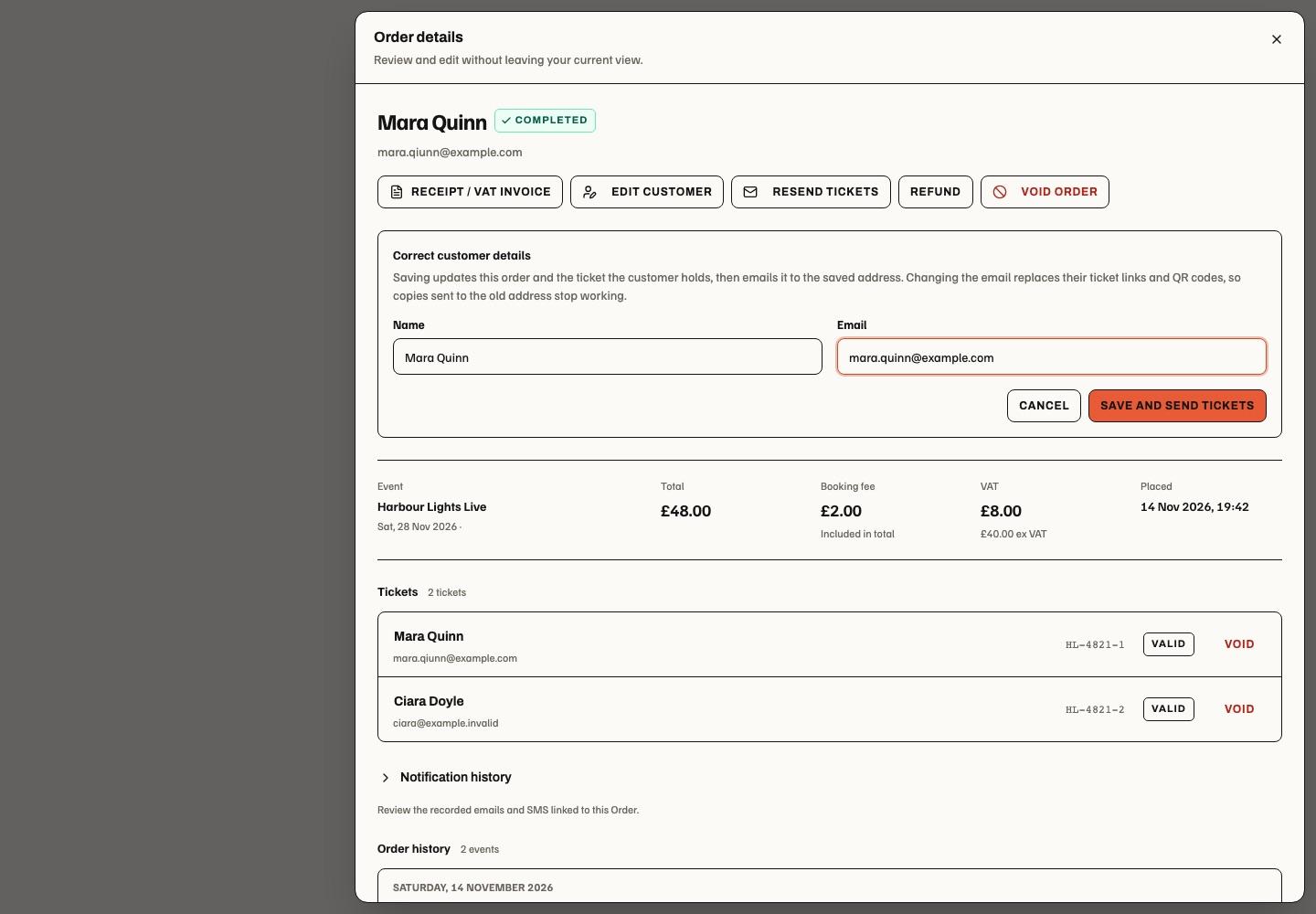
Bounced customer emails
When the email provider reports that a ticket email to an Order's buyer bounced or was suppressed, Soupy flags the Order. Ticketing → Orders shows Email bounced under the customer, and Order details adds the badge beside the email with a notice giving the bounce time and the next step: check the address with the buyer, then correct it with Edit customer. A My Work item, Ticket email bounced, links to Orders. Only readers who can see that Order's customer see the flag or the item; view-only Order access does not.
People with seller-wide Order access who chose My Work notifications under Get checkout alerts are also notified, following their notification preferences. Bounces send no email alert.
Correcting the customer email clears the flag and completes the work item. A later bounce for the earlier address does not reopen it. Only live Ticketing Orders in the Completed or Partially refunded status are flagged, and only for mail to the Order's current customer email. Attendee and guest emails, test Orders, and messages Soupy never sent because the address was already suppressed are not flagged; Customer notification history still shows those delivery states. Web only; native Order screens are unchanged.
Refund, void, swap and email controls keep their existing permissions and review steps. Recovery email eligibility still comes from confirmed failure evidence; ordinary refunds do not qualify. Reads that fail show an in-panel retry without replacing the parent list. These web changes do not change native navigation or prove a refund, delivered message or production availability.
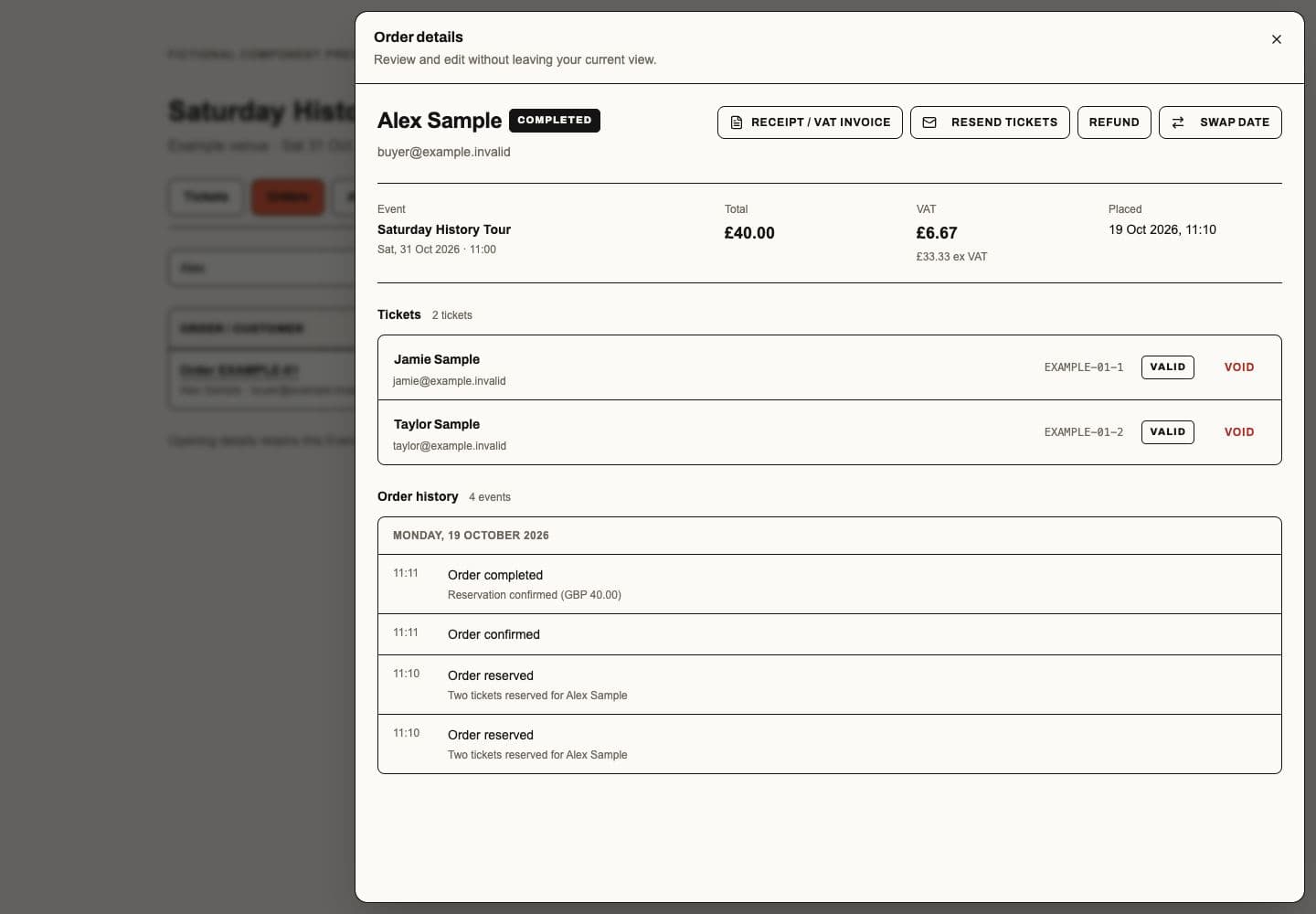
Desktop component preview, 19 October 2026, with fictional data: the background retains the source list and its search. Header actions open their existing review controls; Ticket holders open attendee details within the panel. Closing returns focus to the source row.
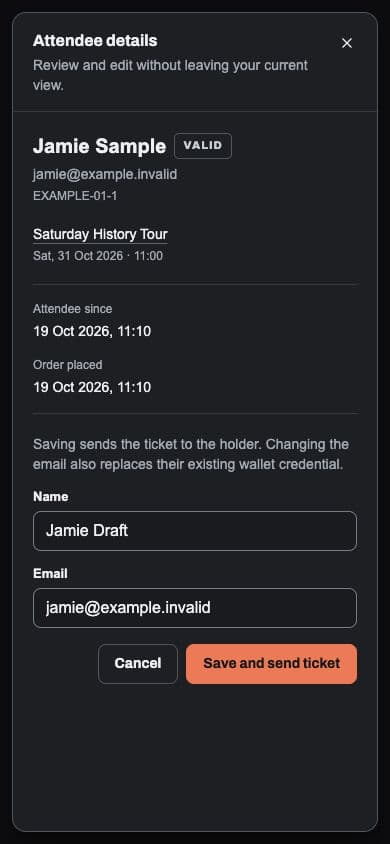
Phone-width component preview, 19 October 2026, with fictional data: the editor names the email and credential consequences before Save and send ticket. These rendered examples verify layout, not authenticated production or message delivery.
Order service and payment state
Ticketing Orders defaults to All orders, including closed and refunded purchases, ordered newest first. Previous and Next show pages of 20 matching permitted purchases (the final page can be shorter). Search and status filters reset to the first page and continue across the source records; page metrics describe the displayed page. Bookings and Automation keep their existing Active-orders default.
An Order detail shows original purchase context, purchaser where authorised, line items, total, customer and platform fees, VAT, ticket/booking fulfilment, payment/refund state and history. A later ticket date swap retains original sale identity and separately labels its current fulfilment event.
In Ticketing → Orders, each eligible row has a labelled Refund button beside its other actions. This opens the refund review; it does not immediately return money. Review the amount and reason, then confirm. Grouped purchases retain their individual seller parts and refund permissions; Review refunds remains available for supported refunded grouped records. Partial monetary refunds keep tickets valid under the existing refund rules.
Swap date appears when the operator can read that Order and manage its current Event, the Order is in a supported state, and its Series allows ticket swaps. Opening it checks current eligibility and lists matching dates and capacity. Select a date, review it, then Confirm swap. This moves all the Order's tickets together; it is not a single-ticket exchange. An unavailable or full date cannot be confirmed. The server rechecks permissions, policy and inventory before making the change. No eligible dates or a refused read stays inside the review with an explanation. A failed command keeps the review open.
Order detail uses the same swap review. Other row-menu actions remain available; Event/Series lists retain service menus alongside in-place details. In-place details keep each opened Order or attendee; only the record shown in the open panel renews private sections, and a retained record rechecks them when shown. These are web changes; native service flows are unchanged. Code checks do not establish live refunds, delivered emails, or production acceptance.
A quote is not a reservation. A reservation is not a completed sale. Stripe's browser success is not Soupy fulfilment. Only canonical confirmation can issue usable tickets or confirm paid inventory; late incompatible payments enter reconciliation/refund instead of reviving released capacity. Reload/retry uses the existing operation identity where supported.
For pay-on-arrival visits, payment_due records the outstanding obligation
without paid-sales evidence. Partial collection retains the total and balance.
A refund request or provider attempt is not proof that the customer received money.
Ticketing confirmation validates each reserved recipient against that ticket's business and delivery subject. Unassigned tickets stay in buyer custody; a valid named guest need not have the buyer's name or email. Payment amount/account, reservation expiry, source publication, inventory and credential checks remain required. Invalid fulfilment still follows protected refund/reconciliation. The correction does not revive expired Orders or reverse historical refunds, and requires production release before it protects new sales.
Organisation sales categories
Settings → Payments & fees → Sales categories defines one organisation
catalogue of reporting labels, such as Food, Drink, Pool, Darts and Karaoke.
Create a unique fixed reporting code and editable name, or archive/restore a
category. Up to 100 categories are supported. Category administration requires
direct organisation payments.manage; source editors can select categories
within their existing item/pricing permissions. Authorised managers can also
expand Manage sales categories beside a source selector; those category
changes save separately from the item draft and do not submit its form.
No new permission is introduced.
An archived category offers
Delete in this manager and the Booking invoice Product bank manager.
Confirm the named category to remove it permanently from the catalogue, including
archived entries. Archive an active category first; canceling deletion makes no
change. Failed requests retain the review, and a changed revision requires fresh
review. Deletion uses the same direct organisation payments.manage authority;
the invoice route also requires its current Booking source. Deleted categories
cannot be restored and do not count towards the 100-category catalogue limit.
Their reporting codes remain reserved. Earlier sales, invoice lines and reports
keep their saved labels. Items and settings already assigned the category may keep
using it, including for future sales, until reassigned; new selections cannot
choose it. No sales, invoices or product records are deleted. This adds web
controls, including narrow layouts, rather than a new native settings screen.
Sales category is required when creating or revising sellable prices. Its selector shows Choose a sales category until a named category is chosen, with no selectable Uncategorised option. Existing Payments managers can use Create a sales category in the same form; a successful creation selects that category in the item draft. Category creation saves only the category; the item's explicit save/publish action is still required. Operators without that authority can select existing categories and are directed to a Payments manager when one is missing. Save/publication rejects missing, foreign or newly selected archived categories without discarding the draft.
The shared selection appears beside the relevant prices: Product bank/custom invoice lines; resource, Space and Area defaults; Booking options, Extras and shared Add-ons; ticket/pass products, included items and recurring templates; menu items, fixed-price packages and priced modifiers; private-event proposal lines; Lost & Found recovery and postage; and seller customer fees in Payment Profiles. Each source keeps its existing save/publish boundary. Display categories, menu courses and tax rates remain separate choices. Where inheritance is supported, Use … category follows a named parent category; an empty parent cannot satisfy the requirement for a priced definition. Unpriced hierarchy/default drafts may remain incomplete until a sellable price is defined. Archived selections remain visible on existing items and frozen sales, and are unavailable for new assignments. Existing unclassified payment history remains labelled Uncategorised in reports; it is not backfilled or silently assigned to another category. This requirement changes authoring, not collection or retry of an already frozen obligation.

Local fictional preview, 19 October 2026. Choose a sales category: a blank is a prompt, not an Uncategorised selection. Create a sales category: opens the permission-checked creator in the item form; creation selects the category without publishing the Add-on.
Original sale snapshots keep category identity, code and name. Later renames, archives, changed defaults and same-price Booking moves do not rewrite history. Included item allocations divide the original ticket/package price; they do not create extra revenue. Resale retains the original sold component categories.
New online payments carry frozen category totals into the existing Stripe account that owns the payment. Booking invoices retain product/price and line metadata; other checkouts send category totals on the payment. Deposits and partial collections carry proportional attribution where required. Categories never select an account or change VAT, prices, fees or settlement. Manual/on-arrival collections remain in Soupy; they do not create Stripe payments.
Sigma must be available in the account that owns those Stripe objects and its report configured and validated separately. Direct charges belong to the seller account; legacy destination charges retain the platform-account payment record. Gross collected amounts include VAT; refunds, credits, recognised revenue and net sales need separate treatment. Existing Stripe history is not backfilled. See the reporting contract and setup. This is web authoring; native authoring is unchanged. Independent Talent/Act invoices and imported external till sales are outside this organisation-sales feature. Source/mock and fictional browser validation do not establish live Stripe or account-specific Sigma acceptance.

The screenshot uses the real resource editor with fictional local data. Its category selection is independent of price and payment timing.
Checkout health and alerts
Average checkout time appears at the top of Checkout health and below the
Reports → Activity on Series and Event dashboards for operators with current
commerce.orders.view access at that source. It shows approximate mean elapsed
time and the measured checkout count. No usable samples displays a dash and an
explanation, not zero seconds. Loading, disconnection and unavailable access keep
their separate states; a refused source clears the previous metric.
The calculation starts when Soupy receives a checkout_loaded report and ends
at the server-recorded canonical order.confirmed fact. It includes payment
waiting and time away from the tab, not just active typing. Browser clocks and a
reopened confirmation page cannot establish either boundary. A later partial or
full refund retains the time of a genuinely completed checkout; a protective
refund without canonical confirmation is excluded.
Each Order counts once. The report examines up to the latest 100 Orders created in the last 30 days in that scope, and states when this bound is reached. Only live, single-event Ticketing Orders with retained, exactly bound start and completion evidence contribute. Bookings-only, grouped baskets, test/native and missing/unusable reports are excluded; it is not an average for every customer. Durations must be nonnegative and within the diagnostic's 24-hour collection window. Series scope follows the Order's purchase-time Series, independently of later Event moves. Every contributing Order retains its own current permissions; combined Ticketing/Bookings sources require their existing contributing authority. How this is measured discloses this method beside the compact statistic. No customer identity, payment detail or CRM linkage is added to the summary.
The single-event browser coverage and 30-day retention below remain unchanged; no new collection, data backfill, provider job or native protocol is introduced. Validation and actual component previews.
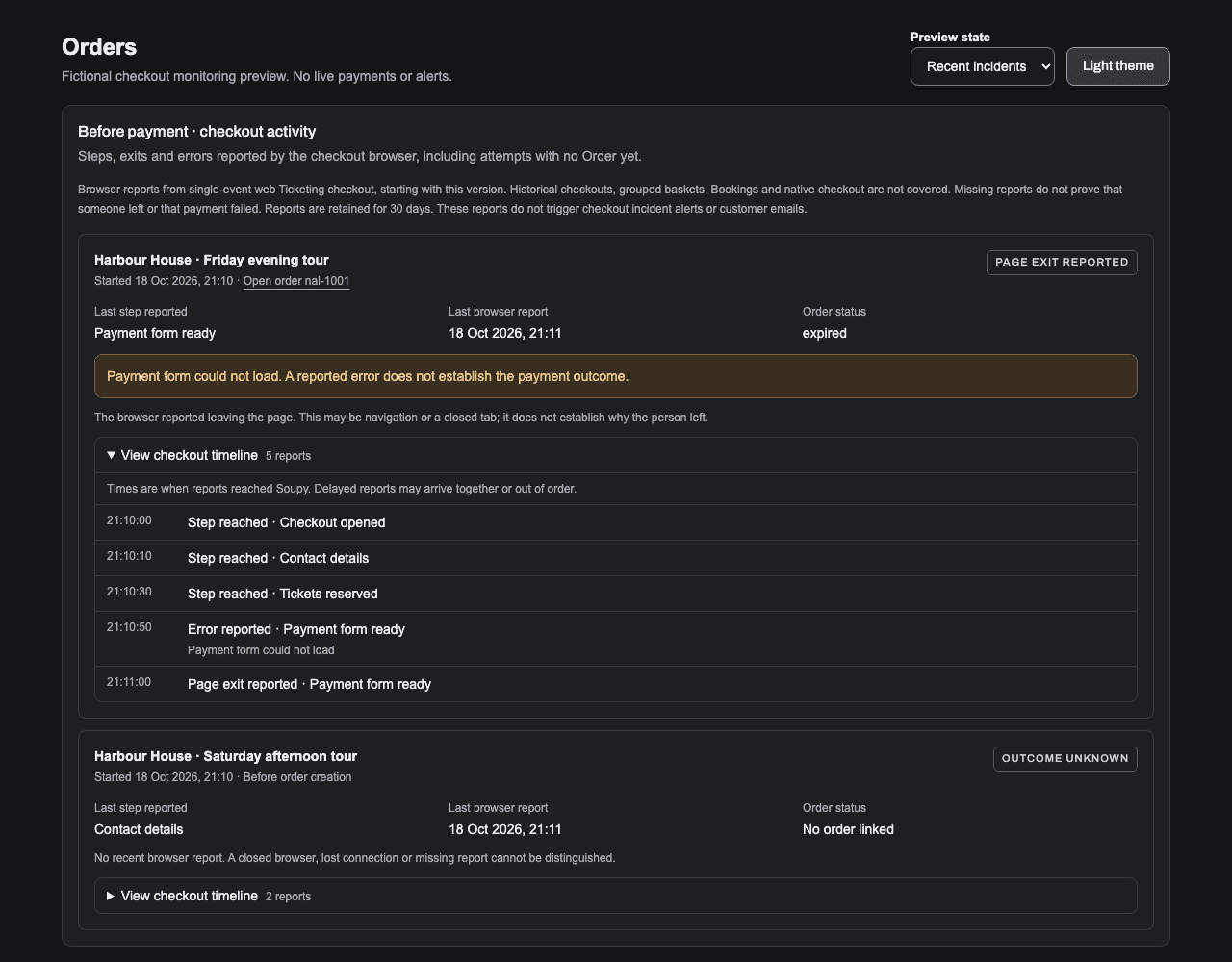
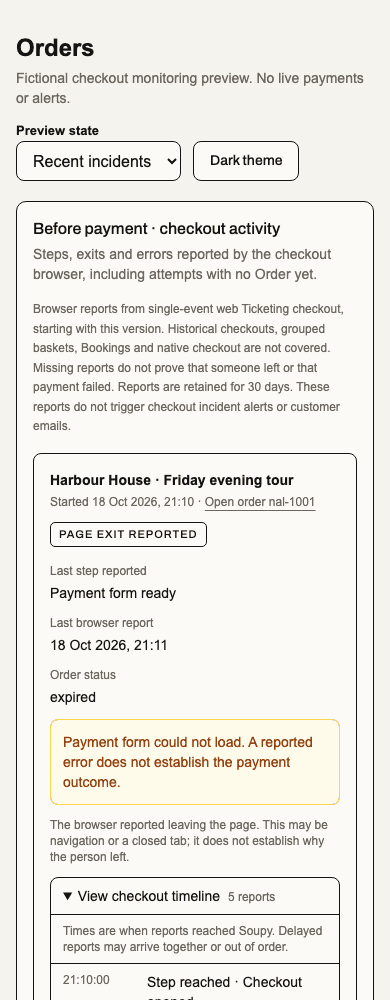
Checkout activity adds browser reports before payment to this screen and the Ticketing Order detail. It covers new single-event web checkouts made after its release; grouped baskets, Bookings, native and historical attempts have no coverage.
The report shows the last step reached, reported errors, observed page exits and the separate canonical Order status. Steps include ticket choice, contact details, reservation, payment form readiness, payment submission and the confirmation screen. Error categories distinguish invalid details, reservation failure, a payment form that failed to load, card decline, authentication, connection and unexpected browser errors. These are browser observations, not proof of money capture or a failed Order. A completed Order takes precedence while earlier errors remain visible. An expired hold alone still cannot explain the cause.
View checkout timeline opens the bounded event trail. A hidden tab is not an exit; leaving while payment is pending is labelled separately because it may be a payment-provider redirect. An exit report can mean navigation or a closed tab. Missing reports, blocked collection and connectivity loss leave the outcome unknown. Attempts before Order creation appear in the recent report without a customer identity or Order link. Older/untracked Orders say tracking is unavailable rather than inferring abandonment. Bounded recent results are not complete abandonment or conversion totals.
Diagnostics reuse the existing private checkout recovery capability; stored diagnostics contain a hash, fixed categories and report times, not card details, typed contact fields, raw error text, full URLs or marketing identifiers. This Order-linked operational data is not anonymous. It is retained for 30 days with bounded cleanup and has no CRM or marketing export. Purchasing still needs no analytics choice; existing consented attribution is unchanged. Diagnostics are best effort and cannot block payment, send emails or create paid-checkout alerts. Order detail uses exact Order-read permission; the recent report additionally requires seller-wide Ticketing Order access and rechecks every Event/Order.
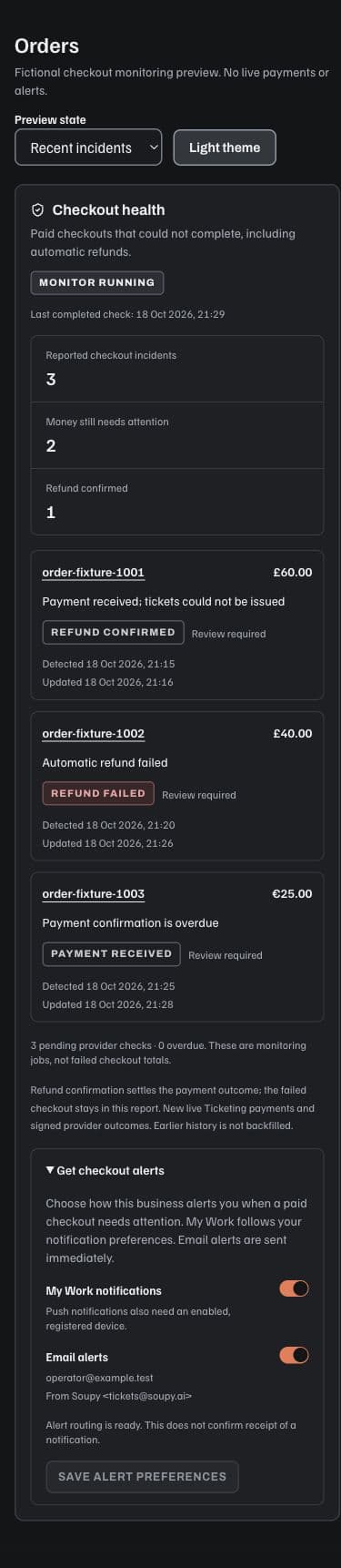
Ticketing → Settings → Checkout health reports live paid checkouts that could not complete, including protective refunds. The incident remains in the report after a confirmed refund: returning the money does not turn the failed purchase into a successful checkout. Open its Order for the canonical payment and fulfilment evidence. Recovered fulfilment is labelled resolved and retained in history.
Verified payment callbacks record captured-payment confirmation errors and protected-refund outcomes. A separate provider-read-only monitor checks newly enrolled live Ticketing payment attempts every minute and allows two minutes after first observing capture before reporting a missing confirmation. Provider delays, bounded processing and retries can extend detection time. Ordinary card declines, abandoned unpaid baskets and test payments do not create these urgent incidents. Earlier history is not backfilled; browser-only failures and failures before payment preparation are outside this coverage. The existing public embed health check samples earlier buyer screens separately.
The report shows the last completed check, pending/overdue checks and incomplete
or stale monitoring. An empty list is not proof that every checkout works.
Bounded recent results are explicitly labelled; their counts are lower bounds,
not complete business totals. Access needs direct organisation-level Ticketing
commerce.orders.view, followed by the existing exact Order and contributing
module checks. Access to another Event, seller or a mixed Booking component is
never inferred from the incident.
Expand Get checkout alerts, choose My Work notifications and/or Email
alerts, then Save alert preferences for this business. Choices apply only
to the signed-in person. My Work notifications also cover
bounced customer emails; email alerts do not. Email uses their verified account address and the
business's existing governed operational sender when available. When no tenant
connection is configured, these account-service alerts permit Soupy's existing
tickets@soupy.ai sender with replies to support@soupy.ai. From shows the
resolved sender. Configured operational-route failures remain blocked. This does
not enable platform sending for general operational mail or marketing. Existing
operational recipient suppression and alert rate limits remain in force;
unavailable routing is shown explicitly.
My Work follows existing quiet/digest preferences; email alerts dispatch
immediately. Push also requires an enabled, registered device. Saving preferences
or queueing an alert does not prove delivery. Provider acceptance, delivery
failure and suppression remain distinct states. Current source authority,
subscription and entitlement are rechecked before dispatch; duplicate callbacks
do not send duplicate alerts for the same incident transition.
These are web workspace controls; native clients retain their existing My Work and notification surfaces. The monitor and alert pipeline never capture, refund, confirm an Order or issue tickets. Alert delivery failure cannot undo the financial safety decision.

Email a customer after a failed checkout
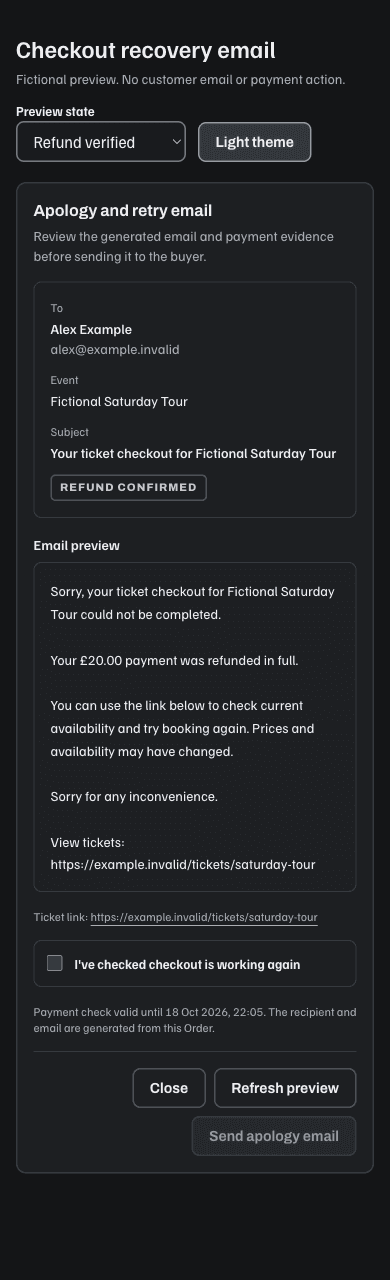
Recovery actions. Email about failed order appears directly on a confirmed failed Order row, beside its other service actions. The same action is available on that Order's detail and eligible Checkout health incident. It requires the current Order and communication permissions for that seller. Opening it reviews the email; it sends nothing.
This first version supports ordinary live Ticketing Orders that are expired or cancelled after a recorded checkout failure, with no completed sale or issued Tickets. Expired or Cancelled status alone does not qualify. Completed purchases, ordinary refunds, voided purchases and unpaid abandonment do not show this action. Combined baskets, resale and test payments require separate review and do not show it. Existing list filters still determine which Order rows are displayed.
The button identifies a failed checkout that can be reviewed. Current payment, Ticket availability, recipient and sender checks can still block a retry email inside the review, and run again before sending. A change after the row loaded can remove the action or require a fresh review.
Soupy checks the current payment outcome and prepares an apology, the recorded buyer's email address and a fresh link to the relevant tickets. Historical protective-refund Orders can use this review without creating monitoring incidents or replaying old alerts. A local refund reference alone does not prove that the full payment was returned; the review checks the exact provider evidence.
Review the From sender and fixed recipient, then edit Subject and Message inline if needed. Subject is a single line of up to 200 characters; Message is up to 5,000 characters of plain text. Other links cannot be inserted. Verified payment wording, availability caution and the canonical ticket link remain fixed and appear in the complete email preview. Review edits creates a new reviewed snapshot and clears the checkout-ready confirmation; it sends nothing and does not extend the five-minute payment check. Confirm I've checked checkout is working again, then choose Send failed-order email. Opening a review sends nothing. The message apologises without guessing a failure cause, includes the confirmed payment outcome, and invites the buyer to check ticket availability. It does not promise reserved inventory, reuse an earlier payment or create a new Order. The recorded buyer and destination cannot be replaced with arbitrary addresses or links.
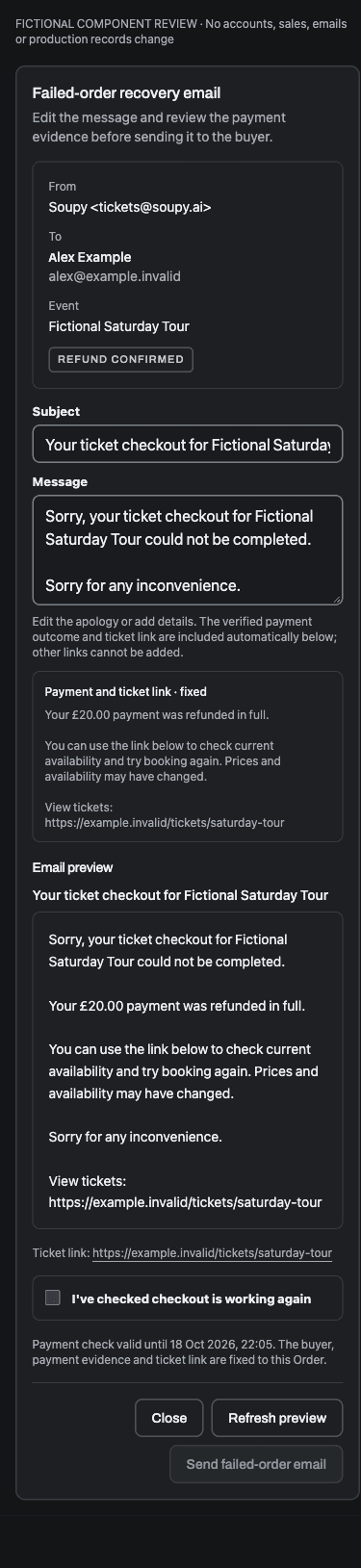
Pending, uncertain or incomplete payment recovery blocks a retry invitation. Current source authority, recipient, public ticket destination and any later successful purchase or checkout in progress are checked again before delivery. The original Event must have public tickets available. A bounded history check that cannot establish eligibility blocks sending and explains why. A changed or expired preview needs a fresh review. Ordinary unpaid abandonment and successful sales later refunded do not become failed-checkout recovery messages automatically. Unpaid abandonment can instead receive opted-in marketing reminders; see Remind buyers after an expired checkout.
One durable email request per Order prevents repeated clicks from creating
extra copies. Queued, provider-accepted, delivered, blocked and uncertain delivery
are different outcomes. An accepted email is not proof of inbox delivery. The
business's governed transactional email route, recipient suppression and current
operator authority still apply. With no business connection, the recovery message
can use Soupy <tickets@soupy.ai> and support@soupy.ai for replies. Existing
configured sender failures keep their explicit fallback rules. A sender change
after review requires a fresh preview; a queued email never silently changes
its frozen sender. These routes require a functioning platform email service
and do not establish inbox delivery. A temporary payment-provider check outage retries
the same request; an unknown email-send outcome keeps its original delivery key
and is never replaced with a second email request. This web action does not send automatically when
an incident appears, and it never charges, refunds or issues tickets.

Remind buyers after an expired checkout
Checkout reminders email people whose ticket checkout expired before they paid, with a Get tickets link back to the Event page for a fresh checkout. They are marketing emails. A buyer is included when, as their checkout expires, they hold current CRM email-marketing consent for the business or that Series, or the checkout soft opt-in for the business or that Series without having opted out. A Series answer decides for that Series' Events; otherwise the business answer applies. Any CRM withdrawal or unsubscribe overrides a soft opt-in. Reminders never create consent or soft opt-ins.
Open a Series or Event's Communications tab. The panel is web-only and
requires ticketing.communications.send on that Series or Event. Turning it on
or saving it while on also requires crm.campaign.send for the business;
without it the panel explains why On is unavailable. Turning reminders off
needs only the Ticketing permission.
- Series: Off or On for every Event in the Series.
- Event in a Series: Series setting (showing what it resolves to, such as On, 3 emails), Custom for this Event or Off for this Event. An Event setting, including Off, replaces the Series setting.
- Event without a Series: Off or On.
Each setting holds 1–4 emails. Each email is sent a number of hours or days
after the checkout expired (1 hour to 30 days), or a number of days before the
Event (1–60) at 10:00 Event-local time. Subject is one line of up to 200
characters; Message is up to 2,000 characters of plain text. Copy can use
{{first_name}}, {{event_name}}, {{event_date}} and {{event_time}}; other
placeholders and links are refused. Each email uses the Ticketing email design:
the Event's public logo and name (when its page has them), the Subject as the
heading, the Message, the Event image, an On sale Event card with date,
time and venue, and a Get tickets button to the Event page. A line says the
buyer started buying tickets from the business, and an unsubscribe footer with one-click
List-Unsubscribe headers is added at send. Branding and the image come from the
Event page when each email is queued; if they cannot be read, the email still
sends without them. A plain-text version goes with every email. Example
email renders the designed email for a sample buyer, with this Event's brand
and image on an Event (a Series shows a sample Event without them); its links
open in a new tab. The suggested starting set is 1 day and 8 days after expiry, then
7 days and 1 day before the Event (Last chance).
Timing rules apply to each person:
- Nothing is sent in the first hour after the checkout expired or in the hour before the Event starts.
- Emails are at least 18 hours apart. When two fall due within 18 hours, only the later one is sent.
- An email that cannot go out within 12 hours of falling due is skipped.
- At most 4 emails per person per Event. One sequence exists per email address per Event, however many checkouts that address abandoned.
Before queueing each email, and again immediately before it is sent, Soupy stops the sequence when the person has bought tickets for the Event (a valid Ticket under their email, or a paid Order on their customer record), no longer has marketing consent or a soft opt-in, unsubscribed, hard-bounced or complained; or when the Event sold out, has no ticket on public sale, was cancelled, is no longer live or has started; or when reminders were turned off or the person who last saved them no longer holds both permissions. A purchase confirmation also stops the sequence at once. Another checkout in progress waits an hour. Test-mode, paid, refunded and combined-basket Orders are never reminded. Any unclear purchase history stops the sequence rather than risk emailing a customer.
Reminders use the business's marketing sender for the Series or business; Soupy's platform sender is never used. Without a usable marketing sender, the panel says so and due emails wait. The marketing email rate limits, frequency cap and suppressions still apply. Sent emails appear in notification history as Checkout reminder.
Turning reminders on also picks up checkouts that expired in the last 7 days (from each Event's 200 most recent Orders), for up to 25 upcoming live Events in a Series. Afterwards each expired checkout is considered as it expires. Due reminders are swept every 15 minutes. Reminder records are deleted 30 days after the Event; no record is kept for people who were never eligible.
On an Event, Preview people (also needing commerce.orders.view) lists
everyone already in reminders and checkouts that expired in the last 14 days,
up to 100 people, with the outcome for each: Scheduled with the next send
time, Eligible, Finished, Stopped with the reason, Not emailed
(no marketing consent or soft opt-in, unsubscribed or bounced, already has
tickets, invalid address) or Waiting. The preview is read once when asked; it does not update
by itself. The panel footer counts people waiting, finished and stopped, and
emails queued. A queued email is not proof of delivery.
Saving keeps a draft with the version it started from. If someone else saved in the meantime, Save says so and keeps the draft. Native apps do not show this panel; reminders apply to expired web and app checkouts alike.
Configure Payments & fees
The organisation's Settings → Payments & fees contains connections and versioned Payment Profiles. A Stripe connection alone is not a published seller policy. For each Live or Test profile:
- Select the connected account and profile identity.
- Choose Workspace Legal Entity or Independent seller account, then supply the required seller/legal/tax evidence.
- Review VAT treatment and customer fees: none, fixed per Order, fixed per ticket or percentage; determine itemised versus included display.
- Review customer policies and any invoice policy intent, then publish.
- Set the main Ticketing profile or an explicit Series/Event override.
In Ticketing's Payments & fees settings, Configure for Ticketing moves to and focuses Seller accounts & payment policy, including repeated clicks. It does not select that Stripe account, save a policy or publish checkout. The connection's Ready badge describes Stripe readiness only; a published Payment Profile and the Event's published checkout configuration remain required.
On the web, Stripe Connect shows Live paid checkout closed when Ticketing is switched off for the business or buyer checkout is running in test mode. The banner gives the reason. The same warning appears beside Live policy in the seller account settings. In other cases, check the individual Event’s Payments tab for its published checkout configuration.
Inheritance runs Legal Entity → Series → Event unless an exact override is published. Resetting an override restores inheritance while retaining history. Current Orders keep frozen seller, tax, fee, terms and account evidence. Invoice policy intent does not by itself enable invoice checkout.
Soupy platform fee authoring belongs to Platform Control, not the tenant payment form. Authorised tenant finance users can inspect accepted commercial terms and posted fee activity. Seller customer fees and Soupy platform fees are different commercial decisions.
What Soupy's percentage uses. Each Soupy fee version chooses Ticket sales or Ticket sales and booking fees under What the percentage uses. Both exclude retail VAT and donations and apply after discounts. A first version starts with Ticket sales; a new version starts from the current version's choice. Ticket sales use the choice frozen in the fee version their seller accepted, so publishing a new version never reprices accepted terms or past Orders. Payment Profile, Series and Event fee exceptions keep the contract's choice. With booking fees included, Soupy's fee also covers the seller's booking fee excluding its VAT, so an Order of donations plus a booking fee pays Soupy's fee on that booking fee. Multi-seller checkout without an accepted assignment keeps charging on ticket sales. Bookings and Lost & Found payments keep their own fee basis; the choice does not change them. The tenant's accepted commercial terms show the choice under What the percentage uses.
Ticket booking fees. The customer fee on the Event's published Payment Profile is the only booking fee in Ticket checkout. Checkout prices the basket with the same server quote that later charges it. Before payment, the order summary lists the exact Booking fee and the total, then the VAT inside that total: one line when only one part carries VAT, otherwise Includes VAT (20%) with what Tickets, Add-ons and Booking fee each contribute beneath it. Ticket and fee VAT come from that quote, so a ticket priced under the Event's VAT treatment shows its VAT without a per-ticket rate. Each part's VAT is rounded once per Order, so a £16.00 ticket and a £1.00 fee at 20% show £2.67 + £0.17 = £2.84. A basket without a booking fee requests no quote and shows VAT only for tickets with a legacy per-ticket rate. During payment the summary keeps the reserved amount even if the fee settings change. The Order records the fee for Refund less booking fee. A Taxable fee carries the same VAT as its tickets, at the seller's published rate and inclusive or exclusive treatment. A fee that is not taxable, or a seller without VAT, adds none. For example, two £1.00 fees under 20% inclusive VAT include 33p VAT, and a VAT invoice lists the Booking fee at 20%. A fixed per-ticket fee applies to each purchased ticket or package, including a free ticket in a paid basket. A percentage applies to ticket prices excluding VAT, after discounts, and never to donations. VAT is rounded once per Order. Soupy's platform fee includes the booking fee, excluding its VAT, only when the seller's accepted fee version uses Ticket sales and booking fees. In the ticket list, included display adds a per-ticket fee to each priced ticket; otherwise priced tickets carry a note such as + £1.00 booking fee, and a per-Order fee appears only in the summary. While the fee is being calculated, the summary's total reads Total before booking fee. A basket that is free before the fee completes free, with no fee. If the price changes after the buyer saw it, checkout stops before payment with The payment total changed…, shows the new total and charges nothing. Ordinary test checkout neither shows nor charges customer fees. Connected-assistant checkout still refuses Events whose profile has a customer fee. The older Booking fee card in organisation Settings is retired: it now links to Settings → Payments & fees, and values saved there no longer price Tickets.
A package with items routed to another seller's Payment Profile charges the booking fee in the Event seller's payment; a routed seller's payment carries no fee and must equal its included amount. Its order summary shows the same Booking fee and total: the tickets step prices it without storing anything, and the details step uses the seller payment quote that checkout reserves from. The tickets step can only reuse payment evidence that an earlier checkout stored for every seller in the basket. Without it, the tickets step says the fee is added before payment: before each seller's first checkout in the Group, after a seller republishes their Payment Profile, and for baskets with another seller's add-ons. The basket payment page then lists each seller's exact charge. A checkout for a different combination of sellers keeps the other sellers' evidence, for up to 50 seller Payment Profiles per Group, so that evidence does not lapse and a buyer who has already reached the details step can still reserve and pay.
Payment account limit. Each payment account in a seller-routed checkout is a separate card charge: the Event seller's own account, plus each other account the selected tickets' included items are routed to. One checkout may charge at most the enabled platform's seller limit (three in production), counting the Event's own account. A selection that needs more stops before payment with a reason the buyer can act on instead of Seller payments could not be prepared…. A single ticket over the limit is named as not available to buy online, with the advice to choose another ticket or contact the Event organiser; tickets that exceed the limit only together are to be bought in separate checkouts. The tickets step shows this message without Try again, and nothing is charged. Checkout health's Checkout activity records an attempt that reached checkout as Selection needs more seller payments than one checkout allows. Sellers meet the same limit earlier, in the ticket editor, ticket saves and Go Live (see the ticket editor). The limit itself is a Platform Control setting and is not changed by these checks.
A ticket whose own included items need more accounts than the limit is withheld from buyers, as a paused ticket is, without changing the ticket. The Event page, checkout ticket list, Series and Group catalogues and phone answers leave it out, including through a secret-ticket link, and Event cards' From prices skip it. Like a paused ticket, it neither closes interest registration nor counts as available for a checkout-recovery retry email. Venue displays and Studio packs can still count it in a From price. The checkout refusal above remains for a selection made before the ticket was withheld and for tickets that exceed the limit only together.
Separate seller charges and refunds
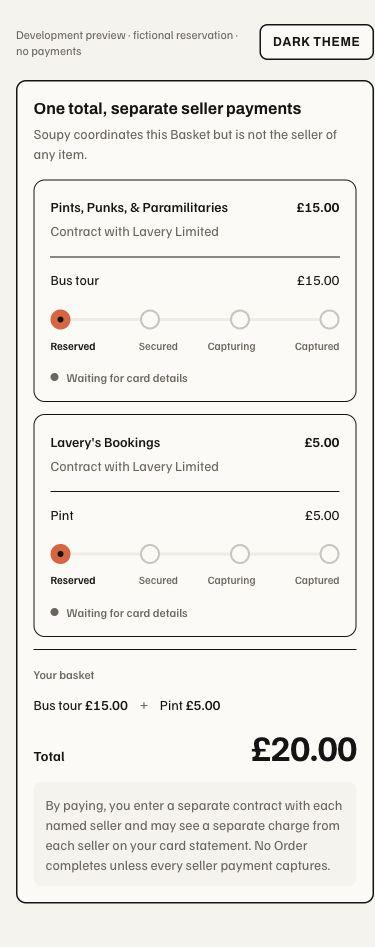
A qualifying basket may contain several published seller Payment Profiles in one Group, country and currency. Buyers see each paid business before payment. Each seller receives its own direct charge and seller Order. The source Ticket Order reserves admission; a zero-residual source Order is internal fulfilment and creates no extra seller charge. All required seller legs must succeed. A partial capture follows compensation/reconciliation before held capacity is released or the purchase is presented as complete.
Combined confirmation recovery. A completed Basket sends one combined confirmation to the buyer. A failed attempt, including invalid purchase evidence, is retried automatically and listed under Multi-seller checkout operational findings on Platform Control's Commercial screen. After 12 failed attempts, about two hours, retries stop and the finding asks for review; there is no resend control yet. If every seller Order was refunded, voided, cancelled, expired or held for a late-payment refund before sending, the confirmation is withdrawn: no email and no retries. A partly refunded Basket is not withdrawn; it follows the retry limit and review above. See confirmation state.
Combined confirmation rebuild. A ticket's wallet save links can become available while the first combined confirmation renders. Delivery then rebuilds the email from the current ticket evidence and rechecks it before sending, instead of failing that attempt and leaving the buyer to wait for a retry. Evidence that keeps changing still fails the attempt and follows the retries above; a refund or void during sending fails the attempt rather than being rebuilt. See confirmation delivery.
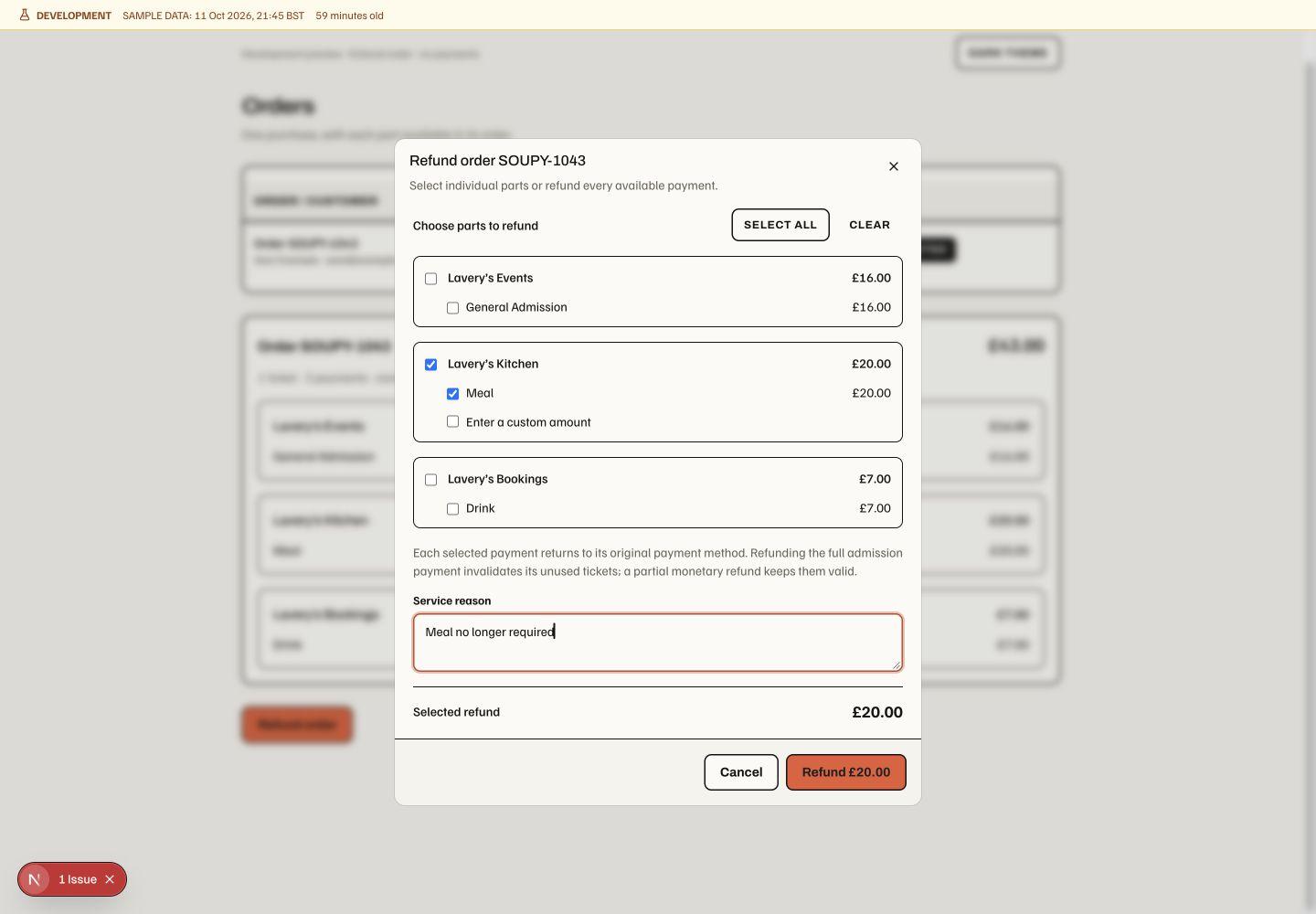
Operator Orders group those seller records into one purchase, including existing purchases with retained Basket links. For example, £16 admission, £20 meal and £7 drink appear as one £43 Order with one admission, even when three different Stripe accounts receive the money. Open the Order to inspect its purchased parts and seller charges. The list total and refund state cover the visible purchase; separate seller records retain their payment history.
Grouping respects the current workspace and each Order's source permissions. If only part of a purchase is accessible, the view identifies that limitation and totals only those visible parts. A Basket reference never grants access to another business's payment or customer details.
On the public web payment screen, each seller card lists its purchased items and payable amounts alongside the seller's charge, with quantities for multiple units. An item + item summary sits above the Basket total. These amounts use the frozen purchase: included items allocate the existing ticket price, optional purchases add to it, and any buyer fees appear once. Historical purchases with incomplete or inconsistent item evidence keep their transaction title and total without guessed item prices. Buyer access retains those purchased facts after a source is withdrawn. A linked Event contributes its current title only while that Event remains public and Ticketing is enabled for its organisation; otherwise the seller card uses neutral context without exposing a newly private Event title. See Basket receipt source.
An included item assigned to the Event's own effective Payment Profile stays on the Event's charge. Quote and reservation compare that same published Event configuration: only included items routed away from the Event reduce its residual amount. Changing the published configuration between quote and reservation requires a fresh checkout.
To refund an eligible Order, open Refund order, review refundable lines, amount, fee policy and source account, record a reason, then confirm the governed action. Provider confirmation completes money effects.
For an ordinary Ticketing Order or one eligible Ticket, the web refund dialog separates the money amount from admission and resale. Review the full, fee-exclusive or custom amount, choose what happens to the Tickets, record a service reason, then confirm the refund:
- Guest still attending keeps the affected Tickets and QR credentials valid. Their places remain allocated and cannot be sold again, even for a full refund.
- Cancel tickets and return places to sale invalidates the affected unused Tickets after the provider confirms success and returns their capacity to the Event and Ticket Type. Normal sale dates, publication and availability rules still apply; this does not reopen a closed sale. For an Order refund this affects all its eligible unused Tickets, even when the money amount is partial.
- Cancel tickets and keep places off sale invalidates the same unused Tickets after success but keeps their places allocated against capacity. The refund records this decision; cancelled Tickets no longer admit the guest or count as attending. Included Activity benefits are cancelled normally. Unlimited Ticket Types remain unlimited. There is no later release control for these retained places in this change.
The explicit outcome selector replaces the two competing refund buttons. This three-choice web presentation and the sold-out recovery fix are implemented locally and await production release. When released capacity makes a sold-out Ticket Type available again, its sale status is restored; a deliberately paused Ticket Type stays paused. Native mobile has no new refund controls. Grouped multi-seller purchases retain their separate review.
The financial Order can become fully refunded while retained Tickets remain valid. Financial-state restrictions in other aftercare remain independent. Reopening the original web checkout shows a recorded full or partial refund without assuming the Tickets were voided or remain valid; open the private Ticket links to check their current admission status. A separate purchase requires the explicit Start another purchase action after checking the existing Order. An uncertain attempt keeps its reviewed amount, reason, admission and capacity effects, and request identity for retry; it cannot switch outcomes while its result is unknown. Permission, source ownership, refund balances and pending-operation checks still apply on the server. Whole-Order monetary adjustments consume the remaining Order balance without inventing a per-Ticket allocation. These web controls do not add native refund controls or change grouped multi-seller purchase reviews. Provider processing and successful refund completion remain separate states.
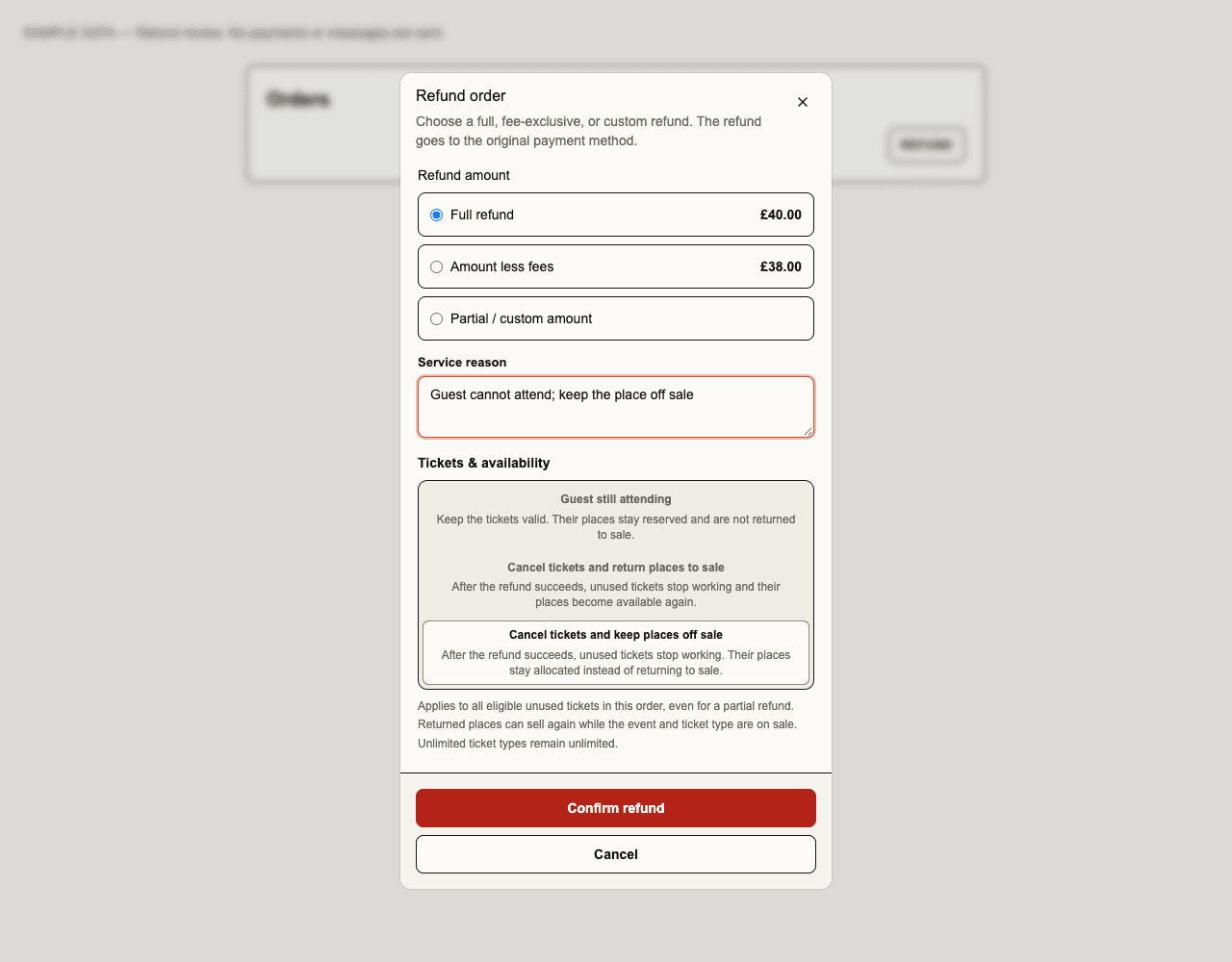
From the web Orders or Attendees list, refund review opens directly in one dialog. When an Order or attendee panel is already open, refund review uses that panel and returns to the details on cancel or completion. Selecting an amount or ticket outcome does not open another panel. A pending or uncertain result stays in the review with its original selections. The fictional browser preview shows both entry points.
For a whole Ticketing Order, the fee choice follows what the guest paid. Refund less booking fee uses the Order's recorded booking fee when it has one. With no booking fee, Refund less Stripe processing fee uses the original charge's verified processing fee and shows the deduction and exact refund before confirmation. The review checks the original Stripe account and currency. A prior refund, missing fee evidence, converted currency or a payment split across sellers makes this preset unavailable. Full and custom amounts remain available under the existing refund rules. The Stripe fee applies to the charge as a whole, so the single Ticket review does not allocate a share of it.
When a sale's accepted Soupy fee uses Ticket sales and booking fees, Soupy's fee has a share on ticket value and a share on the booking fee, and refunds credit them separately under the accepted fee-credit terms. A refund that keeps the booking fee, such as Refund less booking fee, credits only the ticket share of the refunded tickets. A refund that returns the booking fee credits both shares. Amount refunds count ticket value first, so the booking-fee share is credited only by the part of a refund that reaches the booking fee. Sales on Ticket sales keep their existing fee credit.
For a multi-account purchase, select the individual parts to return or all remaining parts; the review shows the selected total and each seller's remaining balance. A meal-only refund leaves the other charges untouched; refunding the complete admission charge follows its existing ticket cancellation rules. Each selected seller refund requires its own refund permission.
Bookings with online and on-arrival amounts retain their full Order value, while the refund review offers only the collected balance. Unpaid amounts are handled by the Booking cancellation rules.
The request retains its selections and reason for retry. A pending or failed seller refund remains visible and does not mark the entire purchase refunded. Reopen the Order to check or continue a pending request with its original selections. When the source admission is free, refunding the last paid parts also cancels that admission through its existing void rules. New component refunds retain their allocations for later selections. Where an older monetary refund has no component allocation, review the remaining seller amount instead of inferred item balances. Whole Booking/Event cancellation still waits for required add-on refunds, and combined ticket-and-booking cancellation retains its dedicated workflow. Native order service opens the web refund review.
Free/provider-free voids, venue-collected money and online refunds retain their own evidence paths. Refund operations must not be replaced by editing totals or deleting tickets.
| Financial surface | Meaning and authority |
|---|---|
| Orders | commerce.orders.view reads exact source Orders; source/module restrictions still apply. |
| Checkout health, browser activity and personal alerts | Ticketing Settings access plus direct organisation Ticketing commerce.orders.view, then exact Order/contributing module authority (or exact Event for a diagnostic attempt before Order creation); verified account email and ready sender route for email. No new refund or payment authority. |
| Failed-checkout customer email | Current Order read and Ticketing communication-send authority, exact buyer/payment/source evidence and governed transactional sender. Explicit review and send; no payment authority. |
| Refunds | commerce.refunds.manage authorises governed refunds in the relevant scope. |
| Ticket date swaps | Current Order read and Event management authority plus the Series swap policy; target eligibility and capacity are rechecked by the existing swap command. No new permission. |
| Payments & fees | payments.view / payments.manage are separate from event-editing rights. |
| Receipt / VAT invoice | Review and send retained payment documents for an already-paid Ticket Order; this is not invoice checkout or a new receivable. |
| Ticketing Reports | Retained sales, commercial terms and ledger-derived statements; finance/report capabilities govern access. |
| Live settlements | Review simulation, agreement, plan approval and execution readiness. Private agreement management requires both current Event editing and payments management; configuration and approval are separate from an executed provider transfer. |
Receipt/VAT documents use the sale's frozen legal/tax evidence. Reports separate ticket revenue excluding retail VAT, seller retail VAT, gross customer sales, Soupy fee net and Soupy output VAT. A seller statement's fee basis includes the booking fee, excluding VAT, for sales whose accepted fee version charges on it; a refund that returns that booking fee reduces the basis by it. Calendar-month statements and CSVs are ledger-derived; they do not imply a new month-end bill. Currencies are not merged.
Full-refund accounting: a succeeded full seller refund reverses the original sale's exact retail and VAT pennies in the refund's UTC calendar month. Original sales and their recorded Series stay intact. A September sale refunded in October therefore remains in September's sales and reduces October's statement; all-time sales reports instead show the current retained amount against the original Order date. These are customer-sale amounts before Stripe processing fees, transfers and payouts. Report net revenue deducts Soupy fees; it is not the bank payout.
Historical missing refund postings require a separately approved, bounded append-only reconciliation against fresh Stripe payment, charge and refund records. Its preview changes nothing. Applying an exact reviewed plan adds only the missing ledger entries; it cannot create a payment/refund, change an Order, or rewrite an original journal. Partial/component allocations and application-fee credits retain their dedicated workflows and are never guessed by this full-refund path. Deployment and historical reconciliation remain separate acceptance steps.