Bookings owns availability, customer reservations and operational visits. Site and Space identity belongs to shared Places; Bookings supplies the inventory and commercial policy used to reserve them.
Card security and reviewed fees
Preview; provider acceptance outstanding. The Card security workspace at
/app/[orgSlug]/bookings/security separates policy publication from fee review.
A policy freezes fee basis/limit, which events the fee covers, cancellation
terms, grace period, currency and original seller. Policy access does not grant
general guest or booking access. Live card-guarantee publication, new card setup
and new fee charges remain disabled until separate provider acceptance. The editor explains the unavailable
state; withdrawing a policy to No card guarantee remains possible. Publishing
a guarantee also requires a ready original-seller Payment Profile, published legal
details and a configured secure continuation. Existing provider outcomes can
still reconcile after activation is paused.
Each Site policy has Default terms and optional Scheduled periods. A period gives bookings arriving between its first and last dates, both included, different terms in the Site's local calendar: for example £20 per booking normally and £20 per guest over Christmas. A period sets its own requirement, fee basis and limit, what the fee covers, notice, grace period, guest wording and original seller; currency follows the default terms. Periods cannot overlap, and a Site holds at most 24; remove ended periods to add more. Each period card shows Ended, In effect today or Upcoming. Dates outside every period use the default terms. A scheduled guarantee passes the same publication gate as the default terms; a No card guarantee period does not need provider readiness.

The booking's arrival date selects its terms when the guest is offered them; a multi-part journey uses its first part. Publishing changes only future offers; accepted terms and seller stay frozen. Phone, published website booking and operator booking entry points enforce the same policy. The secure continuation collects a card through Stripe-hosted Checkout on the seller account and preserves exact acceptance evidence. An operator sees a pending guest link while the ordinary reservation hold runs; confirmation waits for successful setup. A saved card holds no money and does not guarantee later collection. Late setup cannot revive expired capacity.
Waitlist replacement offers cannot collect a card guarantee yet. When the terms for the offer's date require one and no payment is collected online, Soupy creates no new waitlist hold or offer message and blocks acceptance of an existing offer. Guests use the current booking widget or a staff-issued secure continuation. Waitlist offers with an online payment remain supported. Bookable experience gifts cannot collect a card either: a default guarantee keeps the gift unavailable to book online, and a scheduled guarantee closes its dates to gift bookings and moves.
Marking a visit as a no-show creates no payment. Authorised staff review the current visit, original agreement and amount, then approve a fee or waive it. Dispatch is separate from approval and idempotent. Decline, additional authentication and uncertain responses retain recoverable states; a refund follows the original seller/charge and requires its own recorded reason. The governed payment route still requires valid seller/platform fee evidence; missing tax evidence cannot be invented from the no-show or cancellation label.
Late cancellations. Fee covers, in the default terms and in each scheduled period, offers No-shows only (the default) or Late cancellations and no-shows. The second reuses the same capped fee, per booking or per guest, for a cancellation inside the policy's cancellation notice, which must then be at least 1 hour. A booking has one fee decision, never one of each. The guest page names the late-cancellation fee and its deadline in the venue's time zone, and the guest must accept that exact wording; an older guest page cannot accept it. Guarantees accepted before a policy covered late cancellations stay no-show-only after the venue republishes.
Cancelling creates no payment. The cancellation time is the server time Soupy committed it, whether the guest cancelled online, staff cancelled or the order was released; nobody can enter or backdate it. A cancellation is late when it was committed after the deadline (booking start minus the notice hours, as elapsed time) and before the booking start. Exactly at the deadline is on time; at or after the start is a no-show question. The guest must not have arrived, and the card must have been secured before the cancellation. The review panel shows the recorded time, deadline and booking start in the venue's time zone with Soupy's verdict. Staff may record a cancellation the guest asked for earlier, so approval requires the reviewer to confirm that the guest asked to cancel; a cancellation the venue made is never charged. Decline the fee if the guest asked before the deadline. Dispatch re-checks the reviewed cancellation and uses the same original-seller payment path; waive and refund work as for no-show fees.
Permissions are bookings.security.view, bookings.security.manage and
bookings.security.charge. These controls do not grant a caller private booking
access, and Phone permission does not substitute for Bookings authority. See
Phone for verification and implementation evidence
for the shared-policy integration and remaining provider acceptance.
Operational screens and service workflow
The workspace at /app/[orgSlug]/bookings opens on the current trading date.
Running order, Timeline and Table plan are three views of the same
Bookings and allocations. Filter by venue, area, status, guest, resource or note.
All venues remains a complete projection; it does not require choosing one venue.
The compact web header has three wrapping rows: title and actions; service date, daily totals and view choices; then search, venue/status filters and area chips. The selected area keeps its colour and an outer selection ring. Changing the date resets the area; Clear restores the default filters.
Running order uses continuous full-width rows with a coloured area rail, time, guest/covers, area/resources and the existing service action. Outer gutters, gaps and rounded row corners are removed; the internal grouping and linked plan remain. A joined Booking appears at each saved part's time; two tables assigned to the same part still produce one entry. Each entry's Visit plan shows the authorised, place-filtered chain and highlights This entry. Parts from another trading day remain dated context in the chain, without creating another arrival on the selected day. Legacy records without complete part identities keep their single Booking entry.
Daily totals, Service brief and the footer count each Booking once. Payment, invoice, readiness and Service Visit state still belong to the whole Booking; the rows label the shared scope and disable both copies during an update. Each amount retains its status, currency and count. Booking Notes remain visible; imported guest comments and booked-at attribution stay in permissioned details. Guest and Site restrictions apply to every row and chain.
Ordinary row or keyboard activation opens the existing inline Booking detail; its canonical link, retained drafts and nested actions keep their current behaviour. Narrow screens stack the chain vertically. Timeline, Table plan and native layouts are unchanged. Annotated local views and validation use fictional data; production rollout and signed-in acceptance remain pending.
In Table plan, choose the floor snapshot time, then click a table to open the existing Add booking panel with that Site, Space, table and start time. A snapshot labelled 02:00 +1 day opens the following calendar date at 02:00. Keyboard activation works on the same table controls. This entry point requires the same reservation-creation access as Add booking; fixtures do not open a booking.
The selected table and time remain the requested allocation. If occupancy, opening hours, party size or another availability rule prevents it, the panel explains that the selection is unavailable rather than silently choosing another table or time. Review the duration and guest details, then explicitly create the booking. Opening the panel reserves nothing. Dragging still previews a move and requires separate confirmation. This web change is implemented in source; production rollout and browser acceptance are not yet verified. Native booking screens are unchanged.
In the web Running order, Value identifies attached invoices with an invoice icon, their tax-inclusive amount and a status such as Paid or Awaiting payment. A paid £150 invoice on a £0 Booking therefore shows £150 · Invoice · Paid, rather than a misleading £0 value. Multiple invoices are grouped by status and currency, with their counts; draft, issuing, void, uncollectible and needs-attention states remain explicit. These are invoice face values, not a combined collected balance. Any separate nonzero Booking charge is labelled Booking and is not added to the invoices. The compact layout preserves every status/currency group, including a £0 draft beside a paid invoice, and keeps Review invoice totals when evidence is incomplete. It adds no new finance or guest access.
Invoice summaries use the invoice workspace's existing finance permissions and require access to the whole Booking's Sites. Restricted summaries expose no invoice amounts, counts or status. More than 50 attached invoices show Review invoice totals instead of partial values. Opening the row still opens Booking details. The same indicators appear in the fluid rows at narrow web widths and on hosted desktop; native, Timeline and Table plan displays are unchanged. This diary enhancement is implemented in source; production rollout is not yet verified.
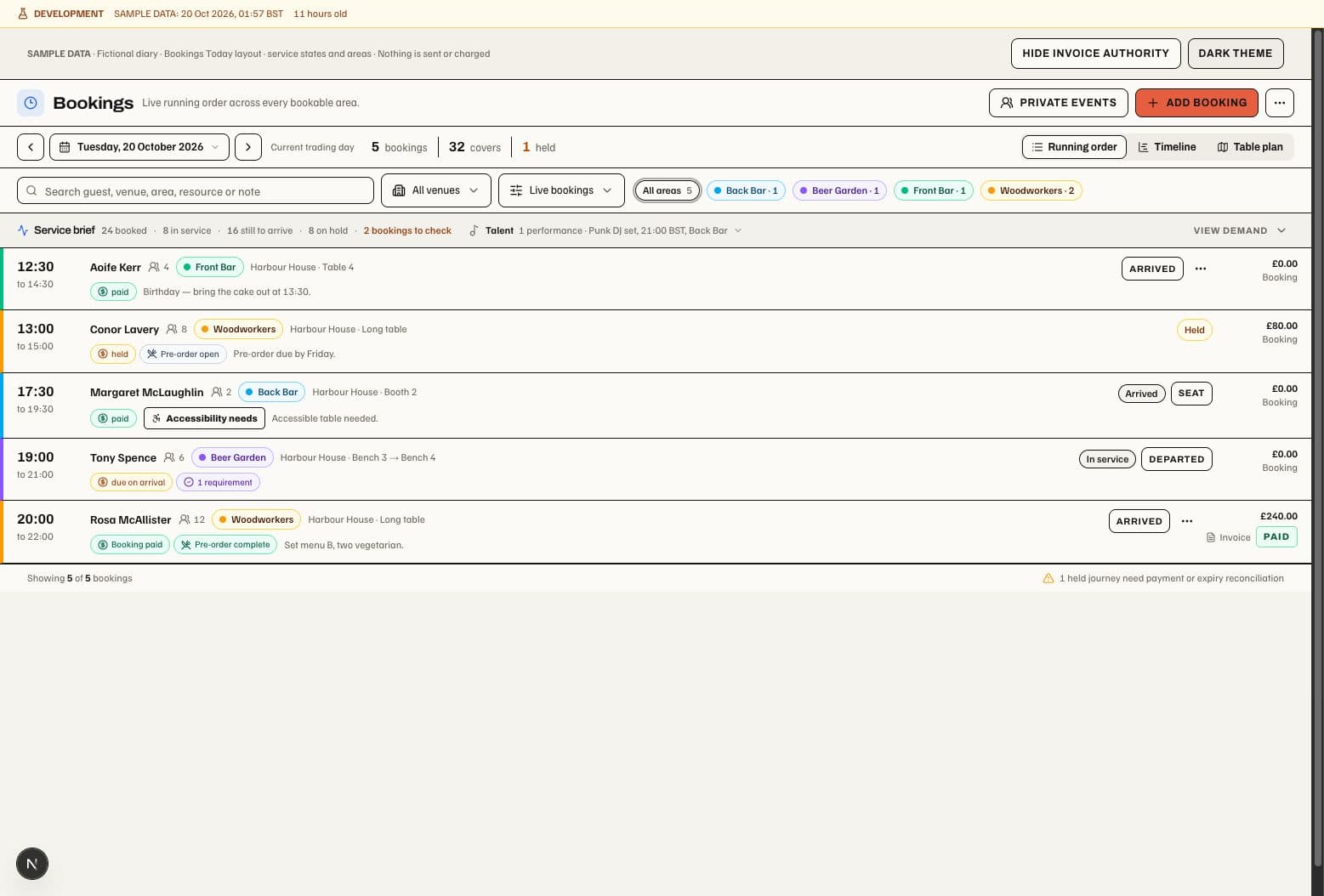
- Select the service date and venue/area filter, then inspect booking, cover and held counts and the expandable Service brief.
- Use Add booking to choose date/time, party size, available resources or a staged journey, then enter guest details and notes.
- Open a booking to review its whole itinerary, resource allocations, service state, payments, pre-order, communications and audit evidence.
- During service, progress the explicit states: arrived, seated, in service and departed. No-show remains a separate service choice.
- For a move, preview the new resource/time in the timeline or table plan and confirm the named old and new allocation. A drag preview does not save itself.
In the web Timeline, staff with booking creation access can select an empty table time slot to open Add booking with that venue, Space, table, date and start time already selected. Starts are spaced at 15-minute intervals. Tab focuses a table's available starts; Left/Right and Home/End move through them, and Enter or Space opens the draft. Closed, blocked and occupied intervals are not creation targets. A time after midnight uses its actual next calendar date. The dialog checks the selected table and time against current availability; an unavailable selection asks for another choice instead of silently changing the table. Opening a slot creates no reservation. Review the guest, party size and duration before the existing explicit booking submission. This interaction is implemented in source; authenticated production acceptance is outstanding. Native booking screens are unchanged.
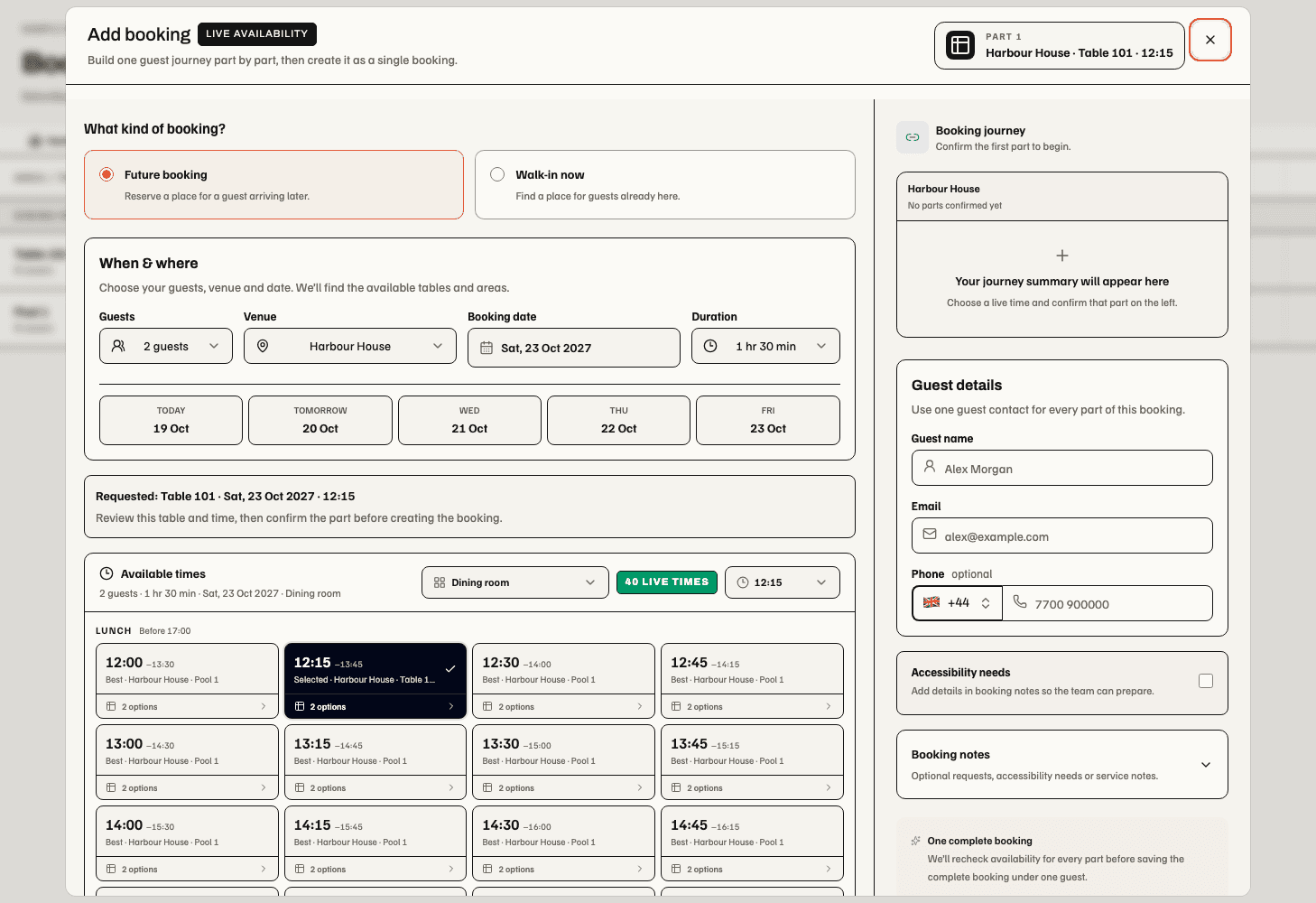
The compact Booking detail layout and inset invoice drawer below are implemented in source and validated locally; production rollout is not yet verified. Native booking screens are unchanged. See the local validation and annotated screenshots.
Opening a Booking from the web Running order or Service brief now opens Booking details in an inset panel within the same workspace. The selected day, venue/area/status filters, search and list scroll stay in place. Close or Escape returns focus to the opening control. Closing and reopening the same Booking retains its draft fields within the current signed-in workspace and day; opening another Booking starts a new detail buffer. Changing the source retires the panel. Current Booking access is checked before details appear, and an unavailable or failed read stays inside the panel. Open full page and modified link clicks retain the standalone detail route. This interaction is implemented locally and awaits production release; native screens and Timeline/Table plan creation and drag behaviour are unchanged.
The Booking details screen starts with venue, service, party and total facts. Its main column groups Itinerary, Guest, Till and Audit; invoices, collection and pre-orders sit alongside. Replan opens the replacement search inside the itinerary. Email guest opens the existing Inbox conversation or composer inside the guest card, retaining its separate review/send step. Closing either disclosure retains its current fields; changing Booking starts a new replan buffer. Guest facts still require the separate guest-read responsibility. The locally validated restricted-read correction keeps a denied or failed invoice read inside Invoices & payments, with an unavailable message and no invoice controls. An admitted Booking remains readable without invoice access; finance permissions are unchanged. The same correction gives unavailable Site, Space and direct Space floor-plan links a local message and Back to Sites & spaces action instead of a whole-page error. This correction awaits release; native screens are unchanged. See the focused validation.

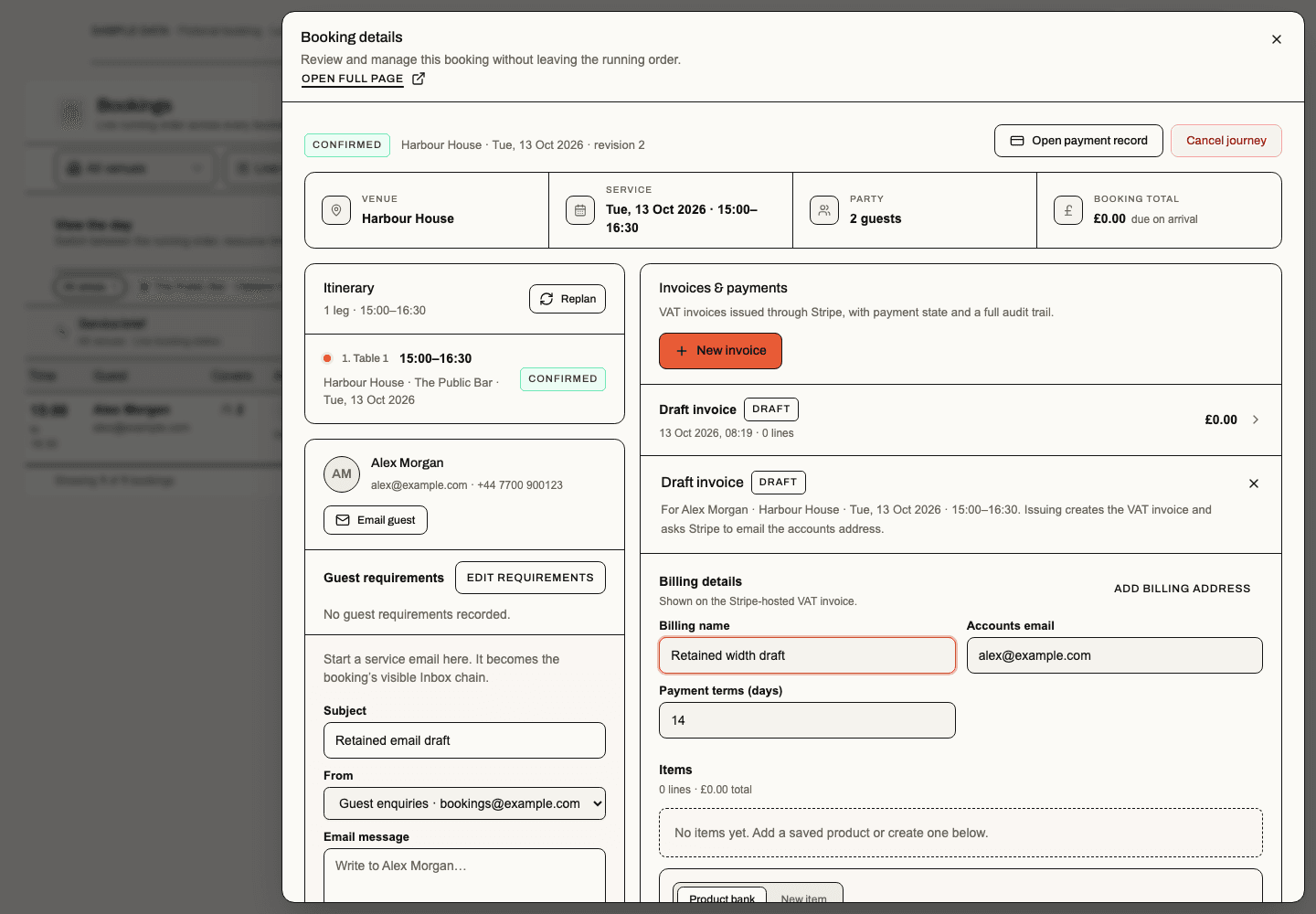
Till groups Tevalis handoff and received bill evidence. Setup blockers and per-part site/table/price-group mappings expand on demand. Preparing parts still only saves a review snapshot; sending is a separate provider operation. Accepted or uncertain deliveries are not automatically sent again. The audit initially shows three events, with Show full history revealing the remainder.
Closed hours, closeouts and overlaps block invalid moves. The final server check also protects against availability changing while a form is open. Journey replanning searches whole replacements, preserves the supported commercial constraints and replaces allocations atomically. Cancellation and paid refund remain distinct actions with separate permissions.
The service brief separates current booking states and manager checks from a saved arrival forecast. The business's trading-day boundary determines the operating day; actual calendar dates and local times remain visible for overnight bookings and arrival estimates. View demand and Hide demand expand and collapse the existing arrivals, checks and forecast beneath one service strip. When Talent is connected and available, the same strip includes a separate performance disclosure with venue-local timing, Awaiting acceptance, Confirmed, Completed and Cancelled states, plus any changes awaiting acceptance. A failed Talent read shows an unavailable message; Talent links still require their own current authority. Performances add no Booking covers or reservations.
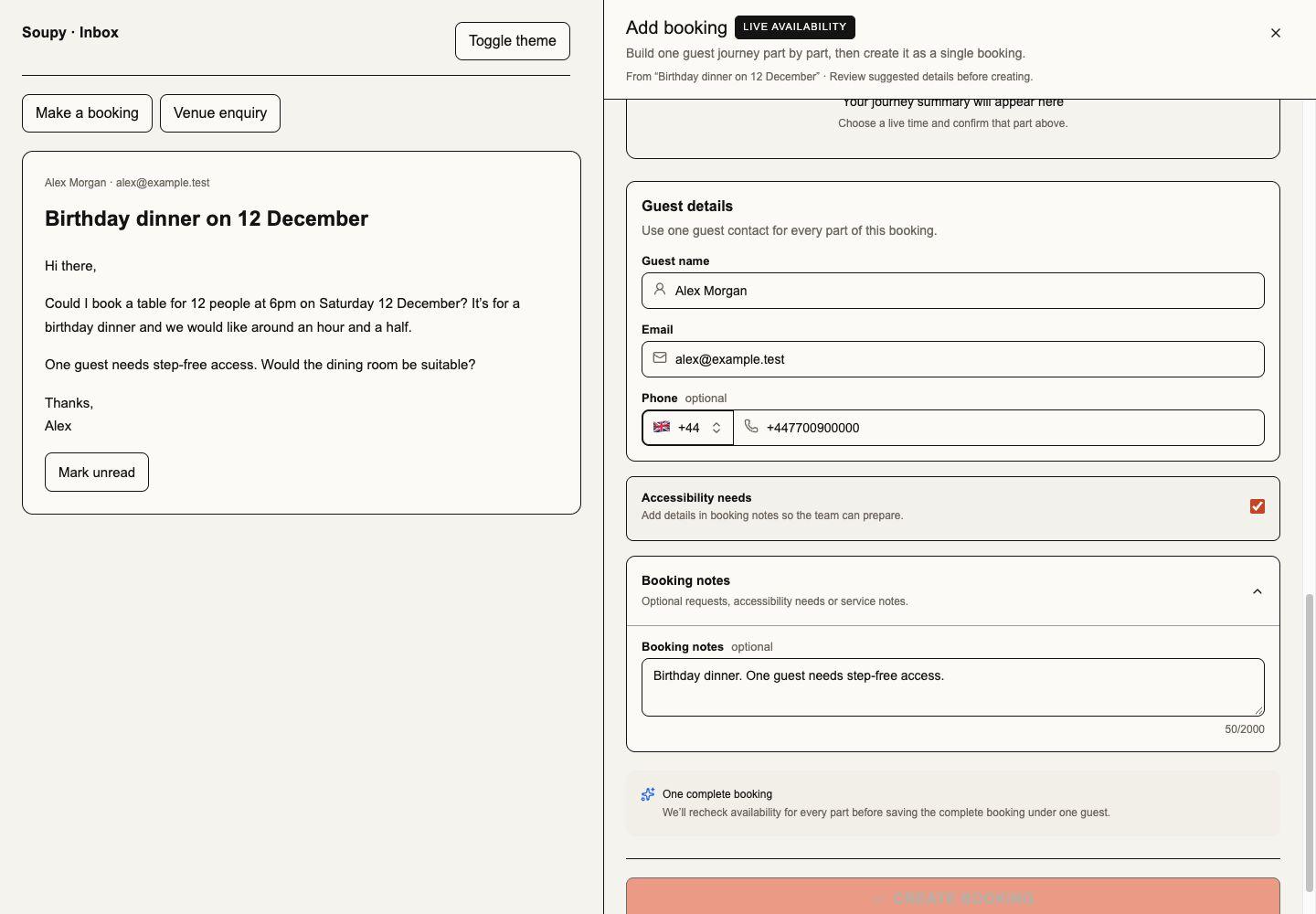
Accessibility needs and booking notes
Booking entry forms have an optional Accessibility needs checkbox alongside free-text notes. The flag is saved separately: checking or clearing it never removes notes, and notes remain available for requests unrelated to accessibility. The flag asks the team to review the guest's needs; it does not certify a Space or replace the resource-feature filters used during availability search.
The shared operator form covers Add booking, walk-ins and the Inbox booking and venue-enquiry panels. Customer booking widgets, venue booking and waitlist forms, private-event enquiries and ticket checkouts that include a table carry the same choice. Ticket-only checkout does not ask for Booking requirements. Secure customer self-service shows the saved details and permits changes under its existing amendment rules. Clearing notes is an explicit edit; omitting them from an update preserves their saved value.
Staff with guest-read access see Accessibility needs on running-order rows, Booking details, private-event details and newly created function sheets. Older frozen function sheets retain their original content. Edit requirements in Booking and private-event details requires current source management and guest permissions. Save checks the original revision; a conflicting edit keeps the local draft and requires reloading the saved details. Closing an editor preserves its current draft, while changing Booking, source or signed-in person retires it.
Native booking creation and Inbox proposals use the same explicit checkbox and notes. Native running order, Booking detail and private-event detail display the saved flag; Booking detail permits authorized edits. Assistant booking review can show a supplied flag. Email extraction may prefill it from explicit source facts for review; ordinary notes and historical imported text do not set it by keyword matching. Guests without the flag retain their existing Booking behavior.
This addition is implemented and tested locally; production deployment and installed-device acceptance are not established by that evidence. No provider is needed to record the flag; Inbox extraction retains its separate configured-AI requirement. See validation.
Venue setup
Open Bookings → Venues & inventory to manage venues, Spaces, Resources and floor plans in a dedicated workspace. The workspace uses the available page height beneath its compact venue and section navigation; the Bookings settings heading and cards no longer sit above it. The sidebar entry uses the existing Bookings inventory route and its existing scoped read authority. It grants no inventory, pricing or Places editing rights.
The workspace has Resources & spaces, Floor plans & layouts,
Hours & booking rules and Venue details. Shared Settings → Venues & inventory
and existing venue links remain available. Old Bookings settings links with
section=inventory open the admitted standalone destination, retaining venue,
Space, view and portfolio context. A missing destination shows an access message
without mounting inventory. Bookings settings keeps Booking defaults, Guest
journey, Connections and Migration & safety.
Places-only users keep physical venue details without querying Bookings. Visited editors retain drafts when switching venues and workspace sections; navigation never saves or publishes. Native screens are unchanged. Source and fictional renders do not establish production deployment or signed-in acceptance.
Standalone inventory: desktop light, desktop dark, narrow light and narrow dark.
Fictional component renders, 29 October 2026. The venue menu and section tabs sit above the working canvas without Bookings settings cards. These images exclude the application sidebar and use local authentication/navigation stubs. The quarantined development environment prevented signed-in route acceptance.
Add venue creates a site; Venue details edits its name, address, timezone and description, adds Spaces, and opens each Space's physical settings without leaving the workspace. The venue name is the Choose a venue menu in a compact header, beside Resources & spaces, Floor plans & layouts, Hours & booking rules and Venue details. The menu shows each venue's location and marks the current choice; Show archived adds archived venues. The selected section fills a bounded workspace beneath the header. This redesign is implemented locally and awaits production release; it does not change the business's saved configuration.
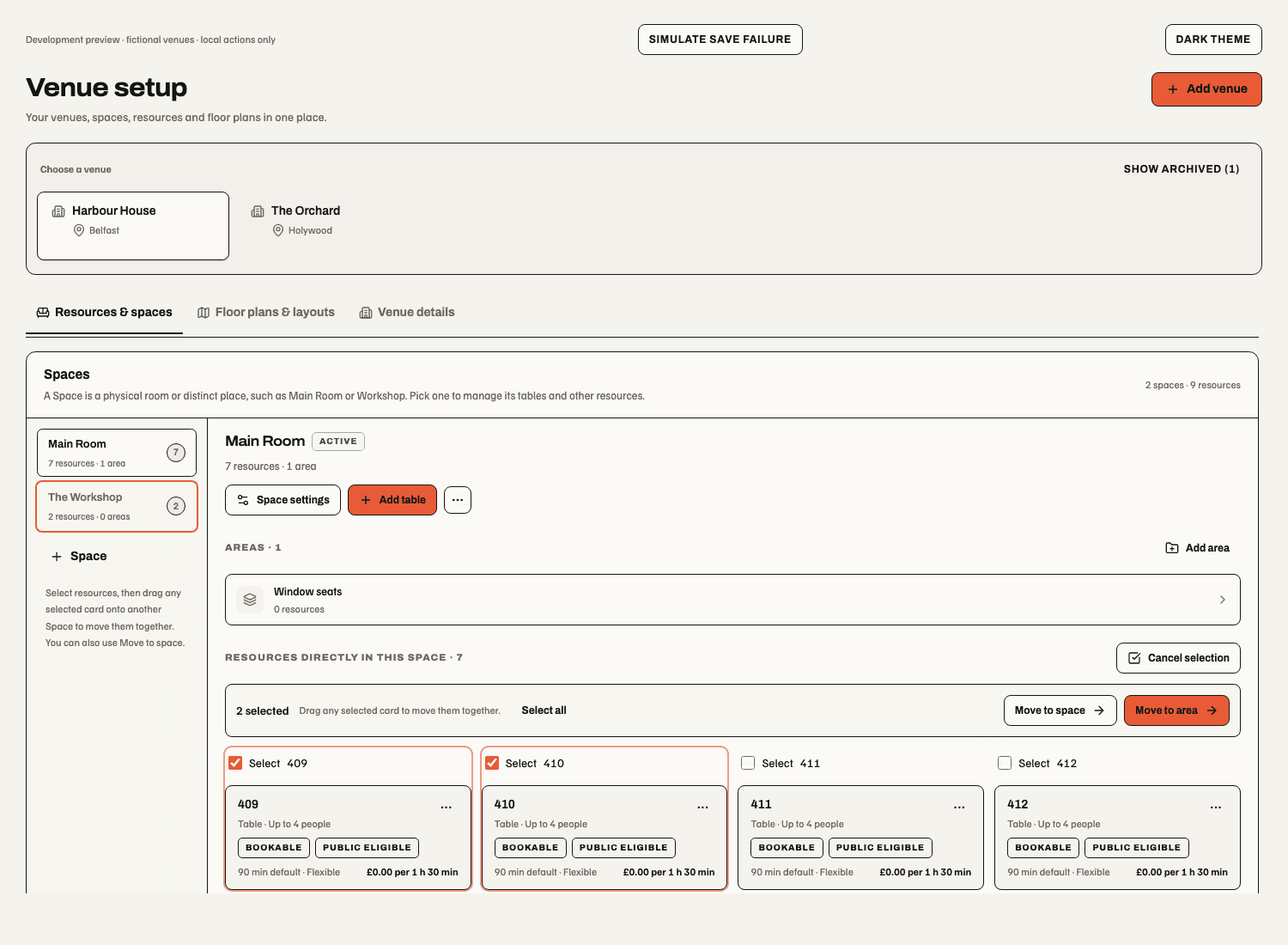
Resources & spaces reuses the Space inventory editor for individual resources, numbered table batches, nested Areas, inherited settings and moves. A horizontal Space selector shows resource counts; + Space keeps the existing creation dialog. Area chips open their nested inventory. Resources appear in a compact, locally scrolling table with Name, Type/capacity, Access, Duration and Price. Select resources exposes checkboxes and a count. Move to area is visible beside Move to space in Venue setup. Select existing tables, choose Move to area, select an Area or nested Sub-area in the same Space, then confirm Move resources. The review explains that inherited settings follow the destination; local overrides, recorded bookings and floor-plan positions stay unchanged. Cancel or a refused move retains the selection; a successful move clears it. Pricing authority is still required when the move changes inherited commercial settings. Done clears selection.
To create tables inside an Area, open its chip first, then choose Add table or Add numbered batch from the resource menu. The helper text identifies the current destination. An unfinished Area form keeps other Area navigation disabled: save or cancel it first. After switching Spaces, Resume draft restores that form and Cancel draft discards it explicitly. The retained-draft message now explains how to reopen Area navigation. This control change is web-only and awaits release; native screens and permissions are unchanged.
Local Area setup screenshot shows Move to area beside Move to space with two tables selected. The narrow dark view keeps both actions visible above the locally scrolling table. Fictional component fixtures, 24 October 2026; these are not authenticated or production evidence.
Resource menus and dragging selected rows to an authorised Space retain the same review and permissions. The selected Space is shared with Floor plans through the address, including Back/Forward. Open a Space's settings and its Resources tab to find Events & private bookings. Bookable event space explicitly admits that whole Space to new event enquiry searches; an unmarked Space is excluded. Open an Area or sub-area in the Resources editor to mark Bookable event area. Each option is marked independently: an enabled child can appear even when its parent Space or Area is not enabled. An Area option includes its descendant Resources, and shows its parent path in the enquiry picker. Save event settings persists the selection and requires Bookings inventory management or Bookings management for that exact Site and Space. Physical Places management alone does not grant this control. The setting does not mark the Space free: capacity, resources, opening hours, closures and existing reservations still determine each available time. Turning it off keeps existing enquiries and reservations. This is a web control. Whole venue. In Venue details → Space defaults, Events & private bookings → Bookable whole venue offers the entire Venue in the direct New private booking form. The shared venue list stays valid after this flag is saved, including when it is turned off again. Save this flag separately from capacity defaults. It requires Bookings inventory management or Bookings management at the Venue; Places access alone cannot save it. The saved Default maximum capacity limits guest numbers. Available times follow the Venue's effective opening hours and existing reservations, including overnight service; child Space hours cannot extend the Venue's opening window. No Resources are required. Child Space/Area opt-ins remain independent, and turning the Venue flag off keeps its existing reservations. Missing capacity, closed/unconfigured hours or insufficient access prevent an available option.
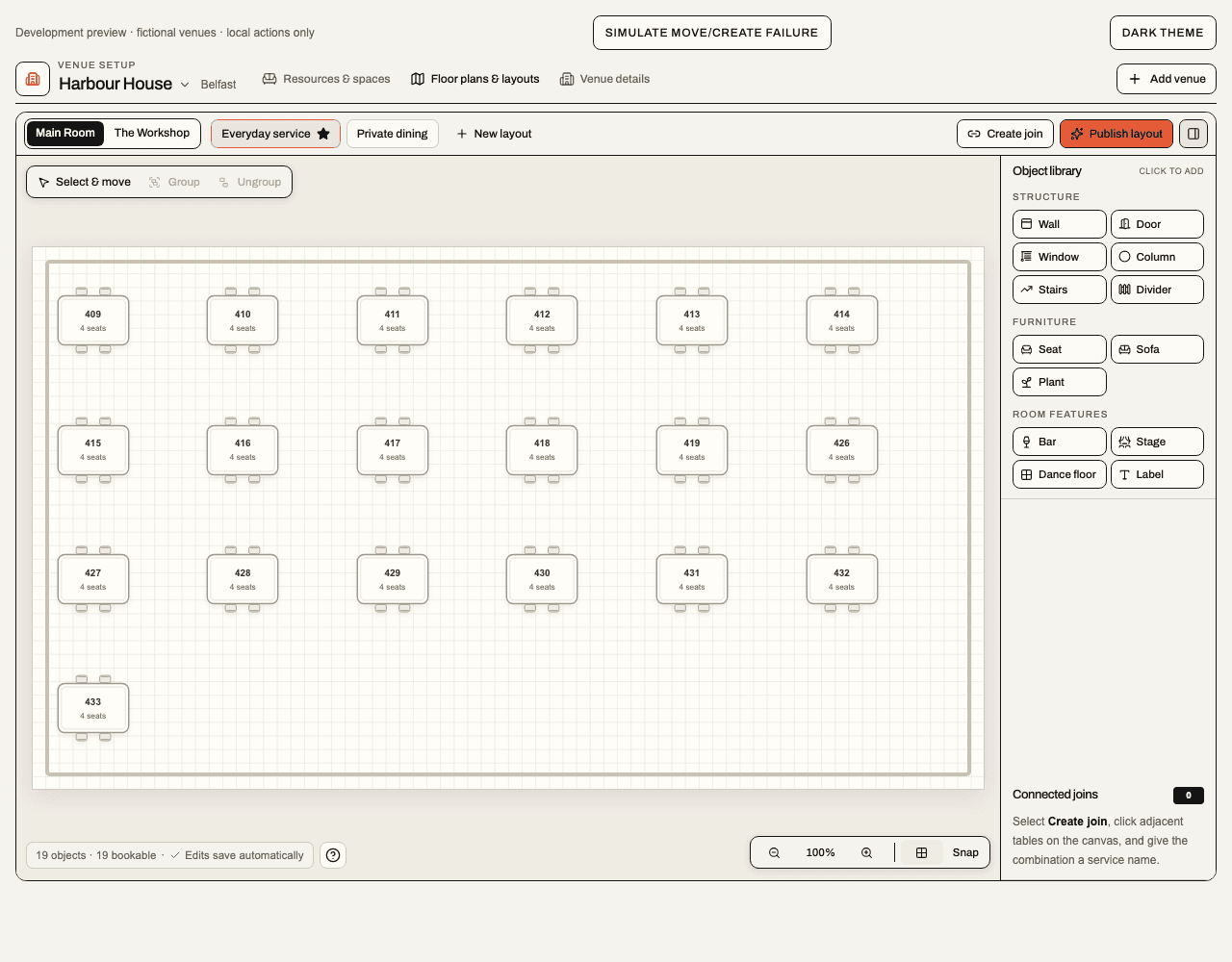
Floor plans & layouts opens the existing 2D editor in place. Switch between Spaces and named layouts, arrange tables and room fixtures, and configure permitted table joins. Space and layout choices, New layout, Make default, Create join and Publish layout share one compact toolbar. Creation and join controls open beneath it. The fitted canvas uses 100% to mean fit to the available area; larger zoom levels scroll inside the canvas. Selection tools float at the top and grid, snap, zoom, object count and save status sit below. The library toggle hides or restores the object library and selection inspector without clearing the selection; it starts closed on narrow canvases. Canvas help explains selection, groups and keyboard shortcuts. Unplaced resources and saved joins remain in the library. Status messages can be dismissed. Room shape edits the selected layout’s room outline. Start with Rectangle or L-shape, or choose Draw outline and click corners around the room. Drag a numbered corner, move its focused handle with arrow keys, or open Corner coordinates to enter its canvas X/Y coordinates. + on a wall inserts a corner; Remove corner removes the selected one. Snap applies to pointer and keyboard moves. Outlines can be concave or angled and have 3–64 corners. Crossed/overlapping walls, zero-area shapes and corners outside the canvas cannot be saved.
Canvas size opens the same editor with width/height controls. Drag the bottom-right canvas handle out to enlarge the grid or inward to shrink it; arrow keys resize it and Shift moves further. Make wider and Make taller add grid space, or enter exact dimensions. Sizes use canvas units (200–10,000), not physical room measurements. The outline and objects retain their coordinates, sizes and rotation. Shrinking stops at their outer bounds, including rotated objects; move room corners or objects inward first to make the grid smaller still. Zoom refits after a resize and does not change the saved dimensions.
Save outline saves the outline and canvas dimensions together; Cancel discards that editing session. A failed save retains the draft. If the layout changed while editing, use Discard & reload outline to load its current outline before trying again. Changing Space or layout closes the outline draft, matching the editor’s existing selection lifetime. Room shape is visual: existing tables, fixtures, capacity, joins and booking eligibility stay unchanged, including items outside the outline. Publish layout separately freezes the saved outline with the layout version; older versions keep their shape. Existing plans without an outline retain their rectangular editor border. Web service-day and native live table-plan views show saved outlines; drawing/editing is web-only. Installed native acceptance remains separate.
Canvas-size previews: desktop light, desktop dark, narrow light and narrow dark. The diagonal handle outside the bottom-right grid corner resizes the canvas; numbered circles reshape the room. These fictional local previews show the change, not production acceptance. Width/height values reflect a saved outward then inward drag; the narrow view includes a one-unit keyboard adjustment.
Source screenshots: desktop light, desktop dark, narrow light and narrow dark. Numbered handles move corners; + inserts a corner on a wall; Save outline keeps the draft shape. These are fictional development views, not live venue data.
Edits retain the editor's existing autosave behaviour;
Publish layout remains a separate explicit action. Existing published
snapshots and bookings are not rewritten by switching or editing layouts.
When creating a connected join, Join name starts with the selected table
numbers in numeric order, separated by +, such as 409 + 410 + 411.
The suggested name follows table selection until it is edited; a custom name
is preserved when tables are added or removed. Historical resources without a
numeric identity use their existing name. Save connected join is still
required, and existing saved joins keep their names. Join names allow up to
105 characters, covering all twelve six-digit table numbers; a longer custom
or historical-name combination asks for a shorter name before saving.
Automatic join naming is
implemented locally and awaits production release; native mobile is unchanged.
Venue details keeps Details, Opening hours, Space defaults and Spaces in a compact toolbar with Add space. Identity fields share one card; description and accessibility remain disclosures. Each explicit save stays with its form. The physical Spaces list remains available when a Space has private-event bookability or resource defaults configured. A backend repair fixes a response validation error that could otherwise show Site unavailable for these venues. Opening-hours rows retain inherited/custom/closed states and overnight times; edit one weekday, then Save [weekday] only or explicitly Apply to all days. Failed saves retain edits. View-only and unavailable-permission states remain visible. Space settings open inside the same workspace with a Back action. Its Resource defaults tab contains the same full booking controls as the resource editor: capacity and type, lengths, buffers, prices, sales category, access, payment, accessibility and bookability. These apply to inheriting resources across the Space. Areas and sub-areas retain group-by-group overrides and Use inherited reset controls. Physical Space capacity remains separate. Only Save defaults persists changes. Switching tabs preserves edits; failed saves retain them. A clean form follows refreshed saved defaults. A stale save can be recovered with Discard changes & reload, explicitly replacing the local draft with current saved values.
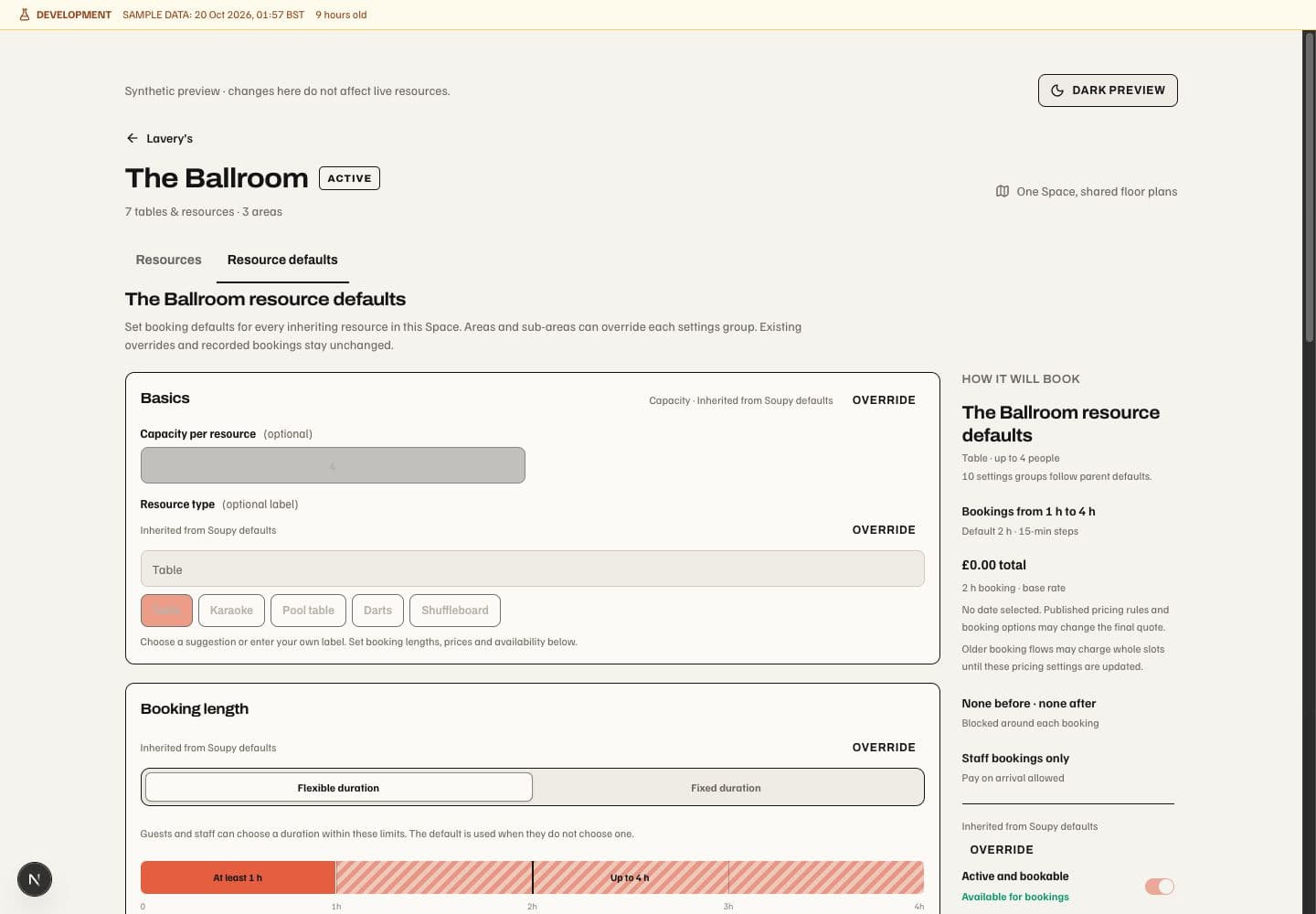
Venue and section choices are kept in the address and support Back/Forward.
Visited venue, physical-settings and resource editors retain unsaved fields
when switching venues or sections. Floor-plan Space/layout selection keeps its
existing autosave and draft-reset behaviour; changing selection never publishes. Archived venues are available through Show archived.
Archive venue, under Venue details, requires typing ARCHIVE followed by
the exact current venue name. Both the dialog and server check the phrase.
Archiving makes the venue inactive while retaining Spaces, Resources, floor
plans and booking history; it does not cancel existing bookings or permanently
delete records. Restore venue makes it active again. Failed archive attempts
keep the confirmation available for correction; closing the dialog clears it.
The Settings workspace lists the union of independently authorised Places and
Bookings venues. A Places-only venue opens its physical details without loading
its Bookings inventory; inventory-only access does not grant physical edits.
The legacy Bookings venue-setup link still requires its current Bookings scope.
Existing Portfolio-level inventory authority is admitted on legacy
venue-settings and table-plan links; pricing-only authority
opens settings without granting floor-plan editing. Exact venue validation and
separate Places permissions remain required. Creating a venue requires organisation-level places.manage; venue
identity, Space creation, archive and restore keep their existing exact Places
authority. Resource and pricing controls retain their separate Bookings
permissions. Floor-plan editing requires inventory management access for the venue or
selected Space.
The combined workspace does not grant Places or inventory permissions. It is a
web operator workflow; native booking screens are unchanged and no provider
connection is needed for these setup controls. Source and fixture validation do
not establish production deployment.

Configure Spaces, Resources, joins and Booking options
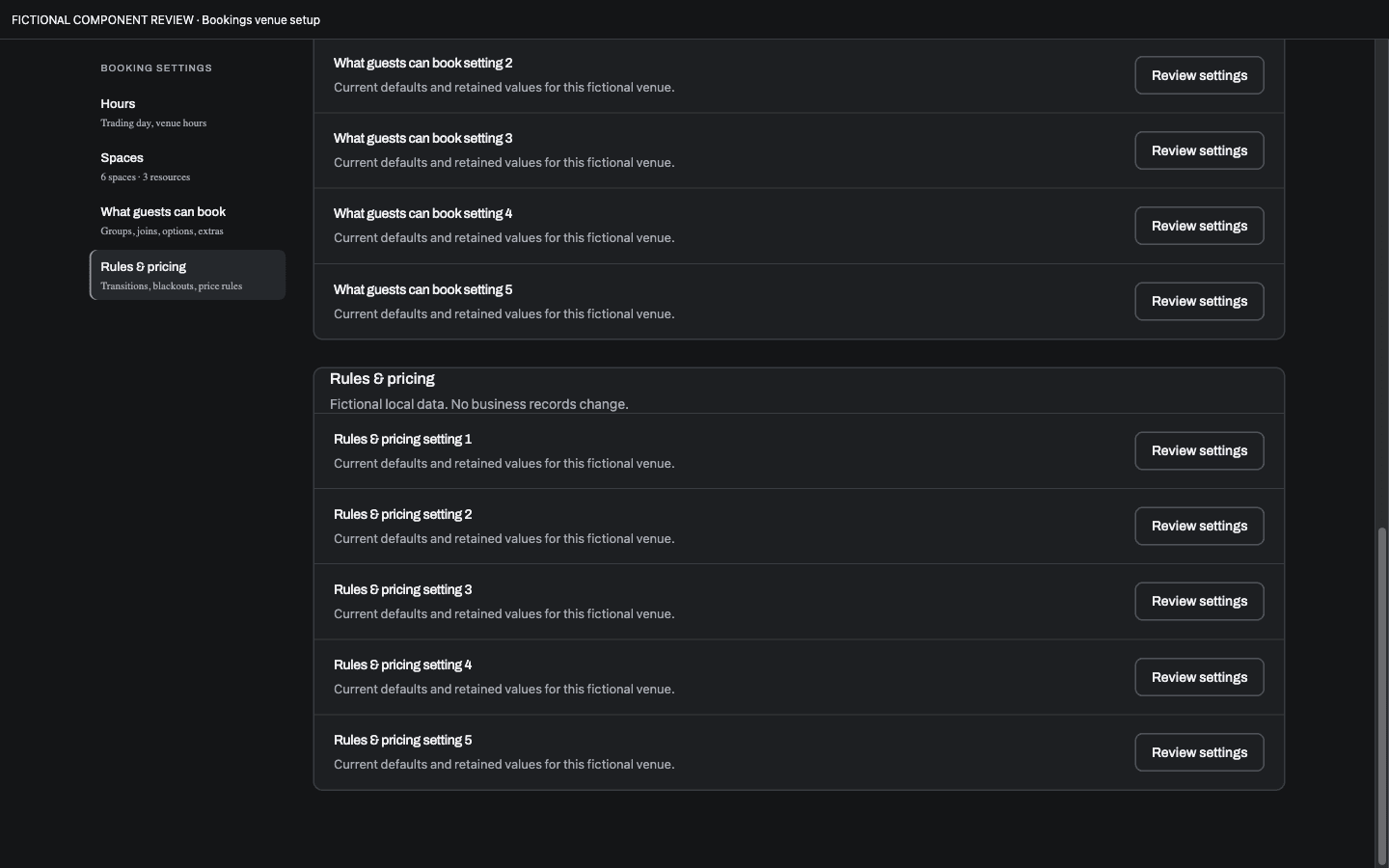
Hours & booking rules keeps venue hours, trading-day overrides,
What guests can book and Rules & pricing inside the shared venue workspace.
The Joins, options & pricing shortcut in Resources opens this section without
leaving the selected venue. Resource groups, saved joins, booking options, extras,
transitions, blocked dates and price rules retain their existing source editors.
The section navigation scrolls this pane; desktop uses a side rail and narrow
screens use a horizontally scrolling strip. Old venue URLs select their venue
and booking section, including existing section fragments; #venue-spaces
opens Resources. The consolidated web workspace is available under the existing
Places and Bookings permissions. Navigation keeps an initial or history
fragment aligned while earlier sections load, until the operator scrolls or
interacts. Its narrow destination clears the sticky section strip.
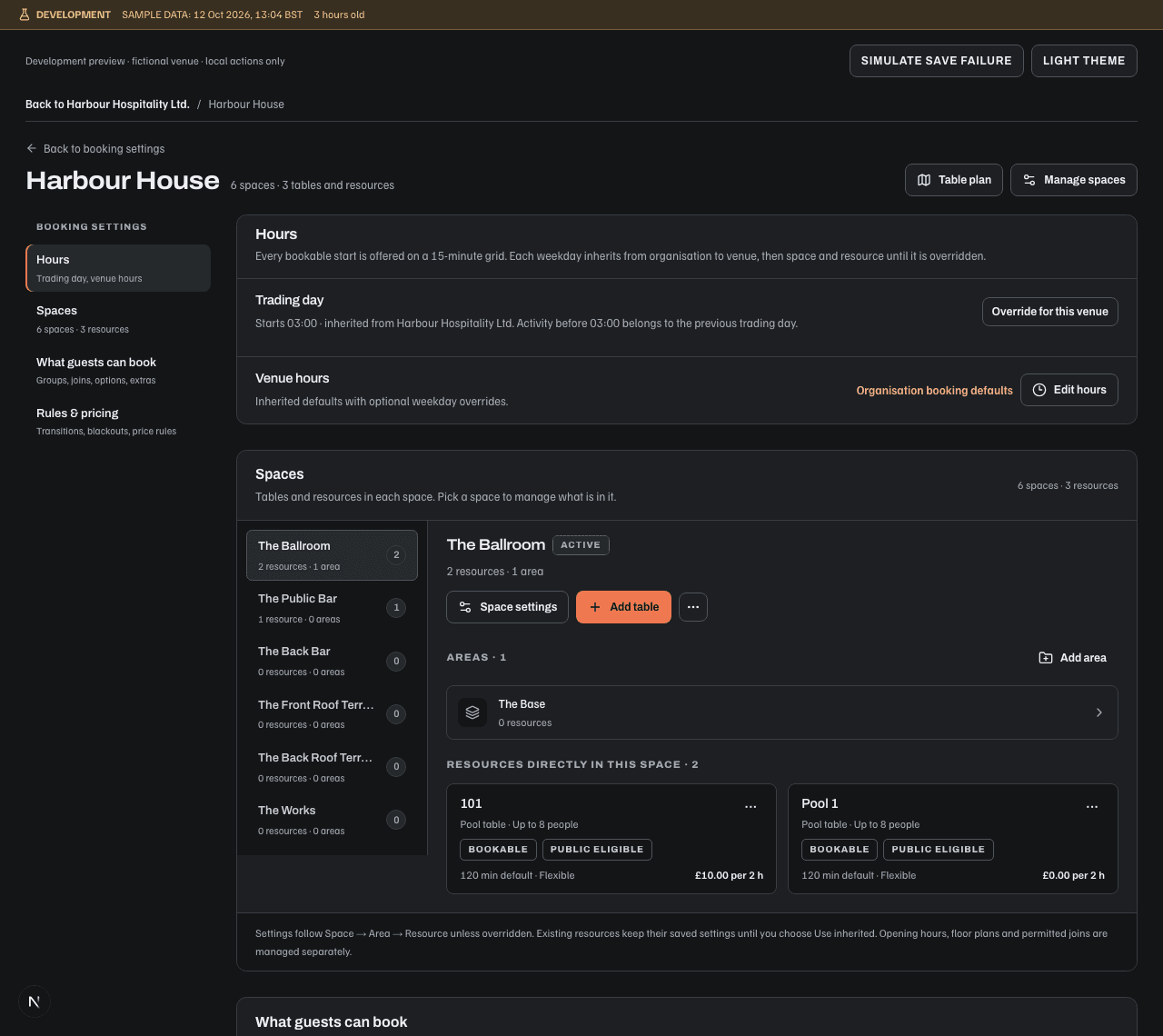
Hours shows the effective trading-day start. Override for this venue or Edit override opens its inline editor. Save closes it only after success; Cancel restores the saved values, while Close retains the draft. Failed saves keep the editor open. Organisation defaults and venue weekday hours remain separate controls.
Spaces selects one physical Space at a time, including empty and inactive
Spaces. Its Areas, Resources, settings and resource commands remain in the same
editor used by Places. Switching Spaces preserves editor drafts and never saves.
+ Space, below the Space selector, opens the shared creation form in place
for people with the venue's places.manage permission. Saving selects the new
Space; failed saves retain the draft. A Space represents a room, an Area an
optional room section, and a Sub-area a smaller section within that Area.
The menu includes numbered batches, resource selection, Space hours, booking
widgets and the permitted Places link. Inheritance is explained once below the
workspace. Counts load from current source records; unavailable totals are not
shown as zero.
Guest groups, joins, options and extras keep their existing lists and explicit create, review and publish controls. Transition rules, resource blackouts and published pricing rules sit under Rules & pricing. The blackout row does not claim a venue-wide count because the current query does not supply one. These are web operator controls; the native booking workflow is unchanged. The source implementation and development fixture do not establish deployment.
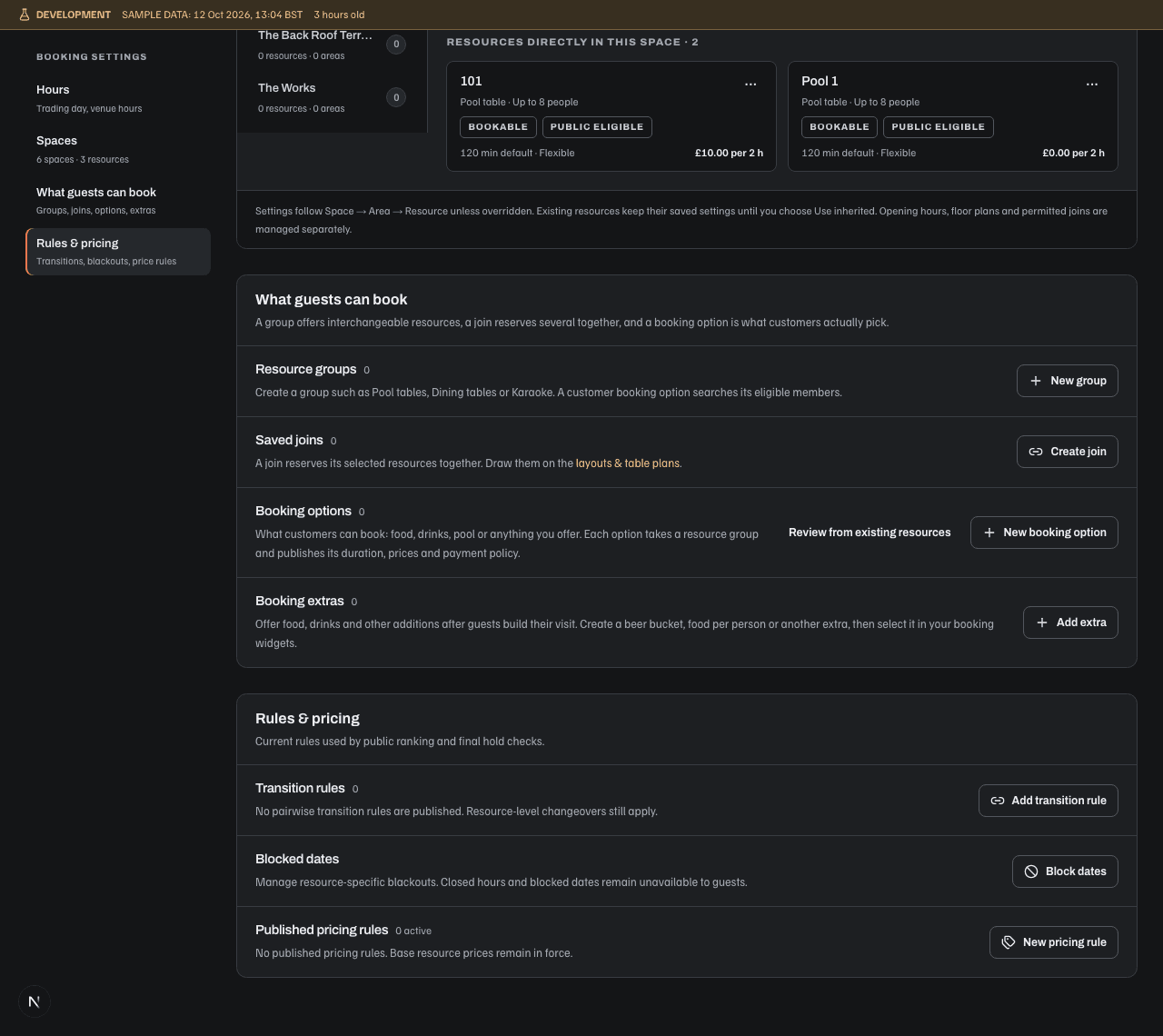
The Space's Resources editor is the main inventory surface, also reachable through Bookings → Venues & inventory → Resources & spaces. Nested Areas organise resources and provide inherited defaults. A Resource is the thing occupied; a Booking option is the published experience or activity a customer chooses.
| Configuration | Controls and behaviour |
|---|---|
| Resource basics | Identity/number, optional friendly name, type, capacity, active state, placement and accessibility. Tables have cover limits, shape and fixed/movable meaning. |
| Delete or archive resource | Delete resource reviews permanent deletion and Archive resource. Existing history blocks deletion even when there are no active bookings. Archive checks current bookings and holds, then hides the resource from the working list without removing history or releasing its number. Show archived reveals retained rows; Restore as inactive returns one without making it bookable. Both actions require exact Space inventory permission and recheck revision and access at save. An incomplete allocation check refuses archiving. Other inherited settings stay current while archived. Native has no new archive controls. |
| Numbered batch | Preview an inclusive range of up to 200 resources; numbers already used anywhere in this venue are skipped, including other Spaces, Areas and inactive resources. The server checks again when saving. |
| Booking length | Default, fixed/flexible duration, allowed bounds and increments; custom values remain supported. |
| Weekly hours | Legal Entity → Site → Space → Resource inheritance, per-day open/closed overrides and explicit restoration of inheritance. |
| Closures | Dated blackouts/closeouts and changeover after occupancy. |
| Pricing | Per booking or time unit, group or person basis, exact-duration totals and non-overlapping weekday/time bands. |
| Sales category | Organisation reporting label. Space and Area defaults, single resources and numbered batches share a separate inherited category group. Assigning a category requires pricing access; the required-category rule is described below. |
| Payment | Inherited or overridden collection requirements, distinct from pricing. On arrival, Full upfront, or Customer chooses with a per-resource checklist of allowed options. Optional separately paid usage reserves the same inventory without recording equipment payments in Soupy. |
| Resource groups | Pools of interchangeable units. |
| Saved joins | Explicit combinations occupying every member, with configured safe capacity. |
| Activities / Booking options | Bookings → Activities (/bookings/activities) opens the existing catalogue and editor. Customer-facing name, eligible resources/group/join, guests/duration, price, payment, visibility, draft and publication stay together. The page opens on All sites where the person can manage activities (inventory or Bookings management plus pricing), grouped by Site with that Site's Create activity and Manage resources. The Site filter narrows to one Site and keeps it in the page link; links that name a Site, including create and selected-resource links, still open that Site. One Site failing to load leaves the others usable. |
| Table plan | Arrange resource positions, areas and fixtures; save layout groups. This presents inventory without creating a second capacity source. |
Parent defaults affect linked resources; Override creates a local setting and Use inherited restores the parent link. Applying defaults to existing resources is explicit. Changing a price does not rewrite a held or confirmed Order. Adding a duration-specific price does not make that duration bookable. Setup/cleanup time blocks availability but is not silently charged as occupancy. Creating resources does not publish a Booking option.
The Activities entry makes the existing Booking option system easier to find. Choose eligible resources selects up to 100 interchangeable physical resources; ten Pool tables usually supply one suitable table per booking, rather than all ten. A resource can support several activities, and their reservations compete for that same inventory. Resource rows and bulk selections offer Add to activity with the existing inventory and pricing permissions. Eligibility edits save with the activity draft and change new public bookings only after Publish. The published version freezes its eligible IDs; existing allocations and prices remain historical evidence. Published · draft changes distinguishes a newer draft from the current live version. Generated activity pools are edited through the activity, rather than the generic resource-group editor.
Space details and nested Area editors label their descriptions Customer-facing booking description. Widget publication snapshots the descriptions for its chosen places and individually admitted resources. New wording becomes public only on explicit widget republishing; missing descriptions remain empty. A place choice shows Ballroom, without a whole-Space suffix. Area labels retain their Space and ancestor path so duplicate names remain distinguishable.
Interface examples and annotated controls use fictional data; they do not prove production or signed-in acceptance.
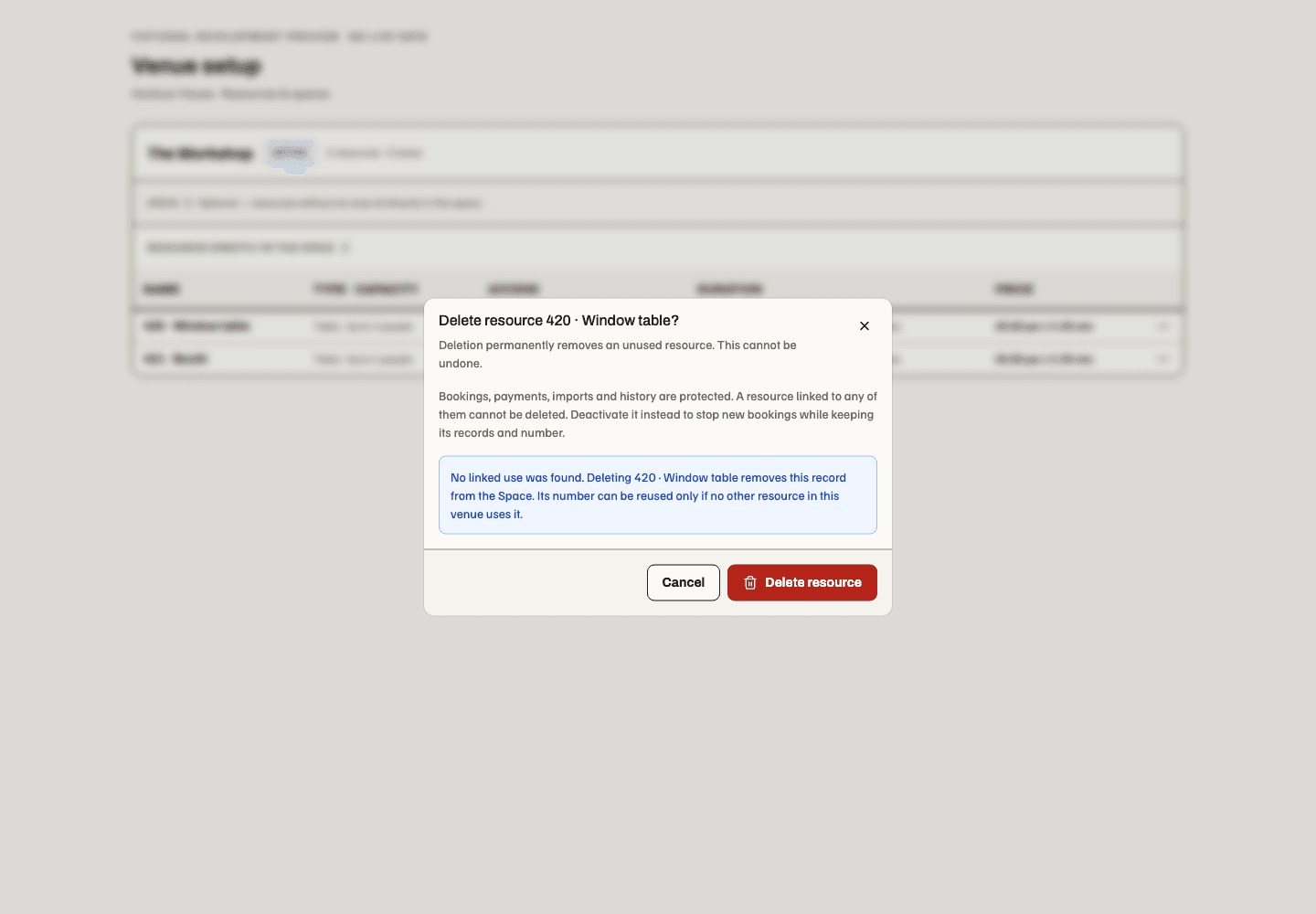
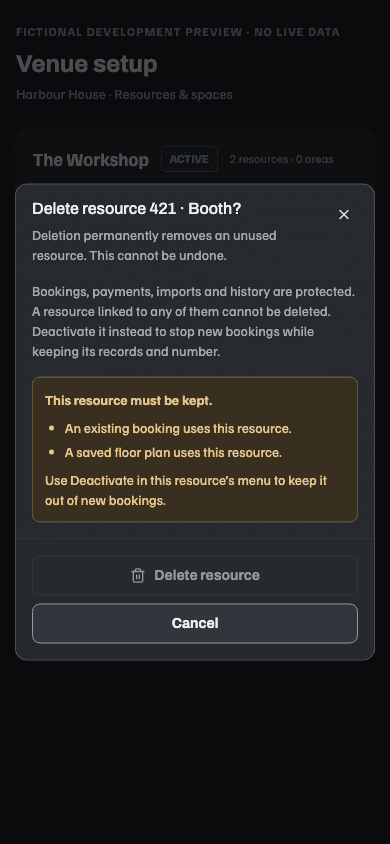
Delete resource is separate from Deactivate. The deletion review loads the current resource and explains any references that prevent removal. Loading, failed checks, changed revisions and insufficient inventory permission cannot enable deletion. Confirmation checks the references again in the same transaction as removal. It never deletes or retargets bookings, imported mappings, retained snapshots or dependent configuration. Pending, completed and declined booking moves also protect their referenced resources, including parts in another venue and retained moves whose booking is no longer present. After deletion, the number can be reused only if no other resource in the venue reserves it. Deactivation keeps the row, its number and its history and prevents new bookings. These controls are web-only and require the selected Space's inventory management authority. If the retained scope is too large to check safely or a snapshot cannot be verified, deletion stays blocked. Use Deactivate or request a reviewed cleanup; an incomplete check never establishes that a resource is unused.
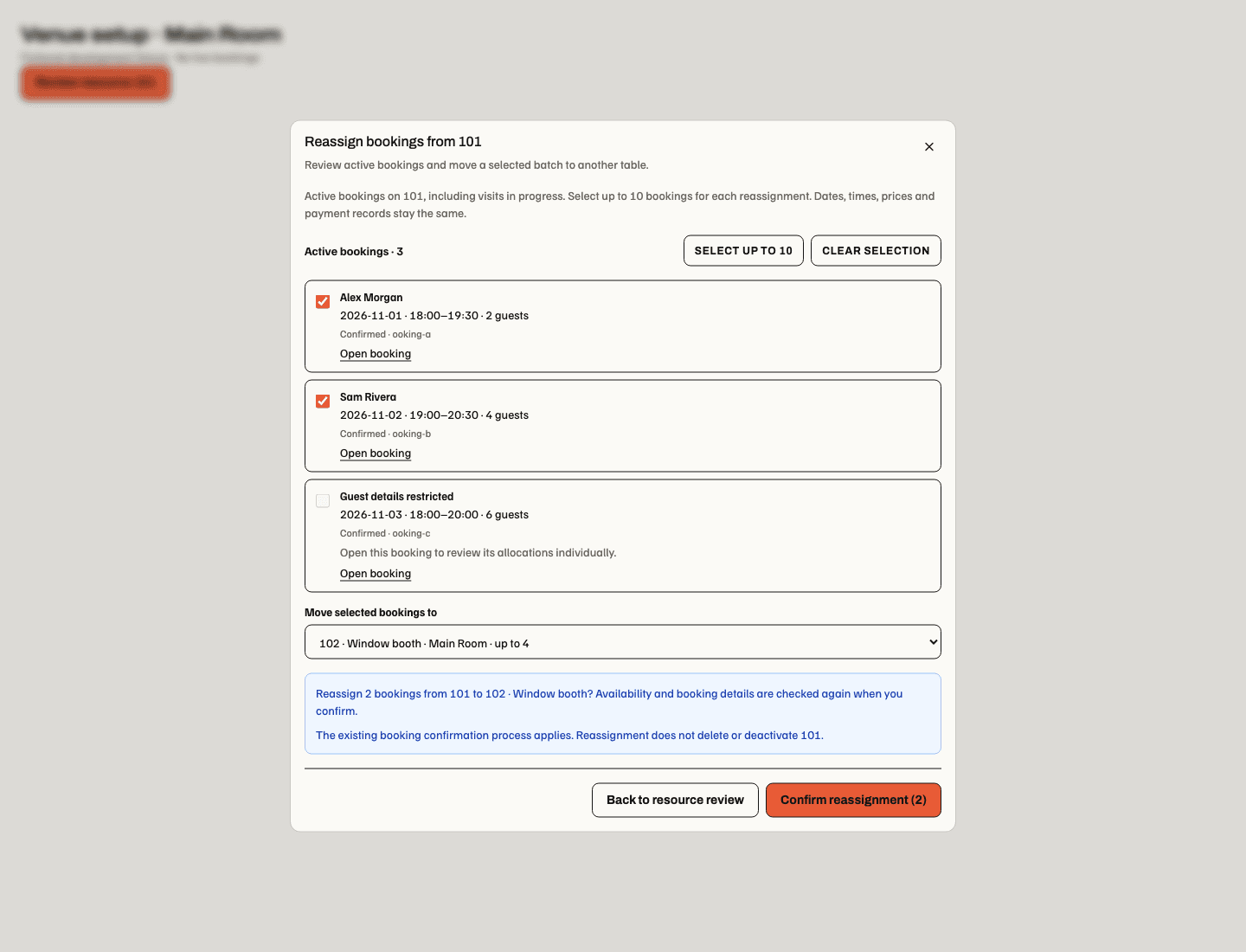
A blocked deletion review offers Review active bookings. This web flow lists current held and confirmed bookings on the resource, including visits in progress, with Load more bookings until all retained allocations have been checked. Ended, cancelled, released and expired holds are excluded; unsupported or uncertain allocations stay visible with an individual-review explanation. Guest names require the existing guest-view permission across the booking's Spaces; restricted names are labelled without exposing contact details.
Select individual bookings or Select up to 10, choose an existing active table in the same venue, then Review reassignment and Confirm reassignment. Additional tables can be loaded; only destinations within the operator's reservation authority appear. Source inventory authority and reservation authority in both source and destination Spaces are required. A batch is limited to ten bookings and commits together: capacity, timing, opening hours, changeover, conflicts, revisions, active entitlement and unchanged commercial terms are checked again on confirmation. A failed batch moves none. A definite refusal keeps selection editable; an uncertain response offers Retry same reassignment using the original request identity.
Simple future single-table bookings can move. Joined/multipart, product, frozen journey/layout, provider, accessibility, in-service and payment-review cases link to the booking for individual handling. Booking and Order identities, dates, times, prices and payment records are retained. The canonical booking move's confirmation process still applies. Moving bookings never deletes or deactivates the old resource, changes saved floor plans or removes history; deletion may remain blocked afterward. Native parity and signed-in production acceptance are not established by these source changes.
The web Resource editors and Booking option editor can assign categories such as
Food, Drink, Pool, Darts or Karaoke from the organisation's shared catalogue.
Priced definitions require an effective
named category; Uncategorised is no longer a new selection. Resource-rate
options can inherit the resource category or use an explicit option override;
an option's own price uses its selected category. Saving an option draft and publishing its version remain
separate actions. Invalid, foreign or newly selected archived categories are
rejected without saving. Existing published categories remain usable after
archive, and held Orders retain their original names and amounts. A supported
same-price resource move preserves the original category totals. Categories do
not select a seller, Stripe account or payment destination. These authoring
controls are web-only.
Resource numbers identify tables across the whole venue. 0420 and 420 reserve
the same number; a friendly name does not create another identity. Single creation
and renaming reject a number already in use. Numeric-only historical names also
reserve their number. Separate venues can reuse numbers. Existing duplicates are
retained and flagged for explicit correction in Resource settings; archiving does
not release a number. No records, bookings or imported mappings are merged or
renumbered automatically.
On desktop, drag a resource card onto another Space in the selector to review its move. Use Select resources above the cards to choose several tables, then drag any selected card to move the full selection together. An unselected card does not join that drag. The destination Space's entire tile border highlights while hovering, including over its label or count. Cancelling or a failed move retains the selection; successfully moved records leave the source selection. Move to space provides the same action without dragging for keyboard and touch users. The move requires inventory authority in both Spaces in the same venue. It keeps the resource ID, history and current booking settings, clears its old Area, and places it directly in the destination Space. Inherited booking settings become explicit local values so moving a table does not silently change its capacity, timing, price or payment policy. Destination opening-hours inheritance still applies. Retaining inherited pricing or payment settings requires pricing authority as well. Dependencies that need separate review, including current/future allocations, floor-plan placements and Space joins, produce an actionable refusal; failed moves retain the selection. These setup interactions are web controls, including the desktop web workspace; native mobile screens are unchanged.
Publish a customer booking widget
The Widget Studio brings the existing web editor into three parts: Journey chooses Start booking, Then more?, Extras, Payment or Details & confirm; the centre stage previews the draft; Setup, Design and Copy hold the settings. The widget library keeps unsaved edits when switching widgets. A changed saved revision requires reconciliation; failed saves keep the local draft. The Site stays fixed after the first save.
Start booking combines activities and places in one setup. Choose an activity starts with what the customer wants; its published resources determine eligible places and the next screen asks for guests, date, duration and times. There is no separate place question. The Choose a place flow asks for Space or Area, guests, date and duration, then searches suitable online-bookable resources there without requiring a starting activity. It can also show compatible published starting activities. Choosing Ballroom allocates a suitable resource; it does not reserve the whole room. A Space includes its descendant Areas, while an Area includes only itself and descendants. Individual exclusive resources can start directly; joined or pooled-capacity offerings retain their published Activity configuration. Publication freezes the starting resource allowlist. Current visibility, hours, capacity, accessibility, pricing, currency, provider ownership and published scope are checked again during search, quote and reservation. The additive resource payload keeps existing product-based saved visits valid. Changing the first choice replaces that part; it never silently adds another activity. Existing widgets without a mode keep their activity-first behaviour.
Conversational booking is a third widget type with an open-text starting screen. Customers describe their visit; the helper asks for missing details and searches only the widget's published activities, admitted starting resources and selected Areas/Spaces. Resource-first, activity-first and mixed sequential visits use the same canonical search and quote tools. The ordered planner checks a complete visit in one assistant tool call: its first requested time is exact, and later parts use the earliest permitted times with changeover. A missing or repeated local clock needs clarification. Each search retains current-source checks; interruption stops further planning and proposal stages. The 45-second deadline and manual fallback remain unchanged. Review suggested visit applies an editable draft to the existing visit summary, then extras, authoritative price review, customer details and checkout. Nothing is reserved or paid by the conversation. Choose activities manually is available if the customer prefers the form or the service is unavailable; restored visits remain editable. Publishing this type requires the configured assistant service. Existing publications with an optional helper keep it until the operator changes widget type or removes it; selecting a new type explicitly sets that behaviour. In a legacy place-led widget the helper retains the chosen place through its proposal.
New conversation draft copies the selected widget's saved configuration into a separate unsaved widget, enables conversational entry and retains local edits on the source widget. It never publishes or changes the current Site booking link. Finish an existing new widget draft before creating another. Review scope and Payment Profile, save, then publish through the normal commands.
The model-backed flow keeps the customer's earlier requests when availability or a quote expires, then checks the corrected visit again. Earlier prices and answers are never reused as current availability. It can build up to six sequential activities and explains each activity's cost, the amount due at checkout and the amount due at the venue from a current quote. A new message clears the previous review action until a fresh proposal is checked; cost questions recheck the same visit. Missing details, unsupported activities and unavailable times prompt a clarification. A timeout leaves the manual form available. Real-model tests on fictional inventory do not establish production rollout or signed-in acceptance.
Studio offers Create activity and Manage activities beside both the starting and Then more? selectors. These links open a separate tab so the widget's unsaved draft stays mounted. Published activities become selectable on return without publishing the widget. Follow-on activities are configured independently; an activity can be offered in either position.
What’s next? checks allowed activities after the preceding part's actual end, carrying its guest count and each activity's default duration. It allows mandatory transition time and searches the next two hours across midnight and daylight-saving changes. Available cards show the actual date/time, duration and current price; a later time is stated explicitly. Loading, failed checks and no availability are separate states. Other times and manual selection retain full-day search. Editing an earlier part immediately retires older suggestions; adding a part, quoting and checkout check availability again.
What’s next? omits activities already in the visit. Change keeps the current activity editable; Remove makes it available to choose again. Restored visits retain their existing parts. Your visit lists each admitted activity cost and, when known, its pay-today/at-venue split. A current selection is marked Selected · not added. Missing or stale amounts stay At review; a complete total appears only when all contributing estimates are current. Extras remain explicitly excluded until the canonical review includes them.
Design adds Soupy, My site and Custom presets, accent, corners, font, light/dark/ device appearance, filled/outline buttons, spacing and an optional logo. Existing widgets keep their legacy appearance until these settings are saved and published. Comfortable keeps choices close together; Compact reduces canvas/card padding and section gaps further. Both keep the same text size and at least 44px-tall buttons and ordinary fields. Density applies to the draft stage and published customer journey, without changing the surrounding studio. Archivo and Inter use bundled fonts; a custom family uses the customer's installed font with a system fallback. Website font files are not imported into the embed. Sample website style reads a public HTTPS page and up to two same-site style sheets, returning suggestions for explicit Apply suggestions to draft. Some websites provide no supported static styles; manual controls remain available. Sampling never runs website scripts, copies a logo or publishes a widget.
The logo picker reuses the media library. Save the new widget before uploading source artwork. Settings authority does not grant library access; existing organization/provider enablement still controls uploads and new selection. Logo Save binds a private placement. Publish freezes its exact image version and crop; withdrawal or disabling the widget stops that publication's public image delivery.
Draft previews appearance and configured scopes without querying availability,
creating a booking or collecting payment. Live opens the active published
customer journey and warns that completed bookings are real. Mobile/tablet/desktop
buttons change preview width only. The stable installation code, separate Site-link
activation and Disable action remain available through Embed code and
Version details. Version details shows the current saved and published revisions.
Shared add-ons retain their own immediate Publish action, separate from widget Save.
The existing bookings.settings.manage permission and the resource option editor's
inventory/pricing permissions remain unchanged; native editing is unchanged.
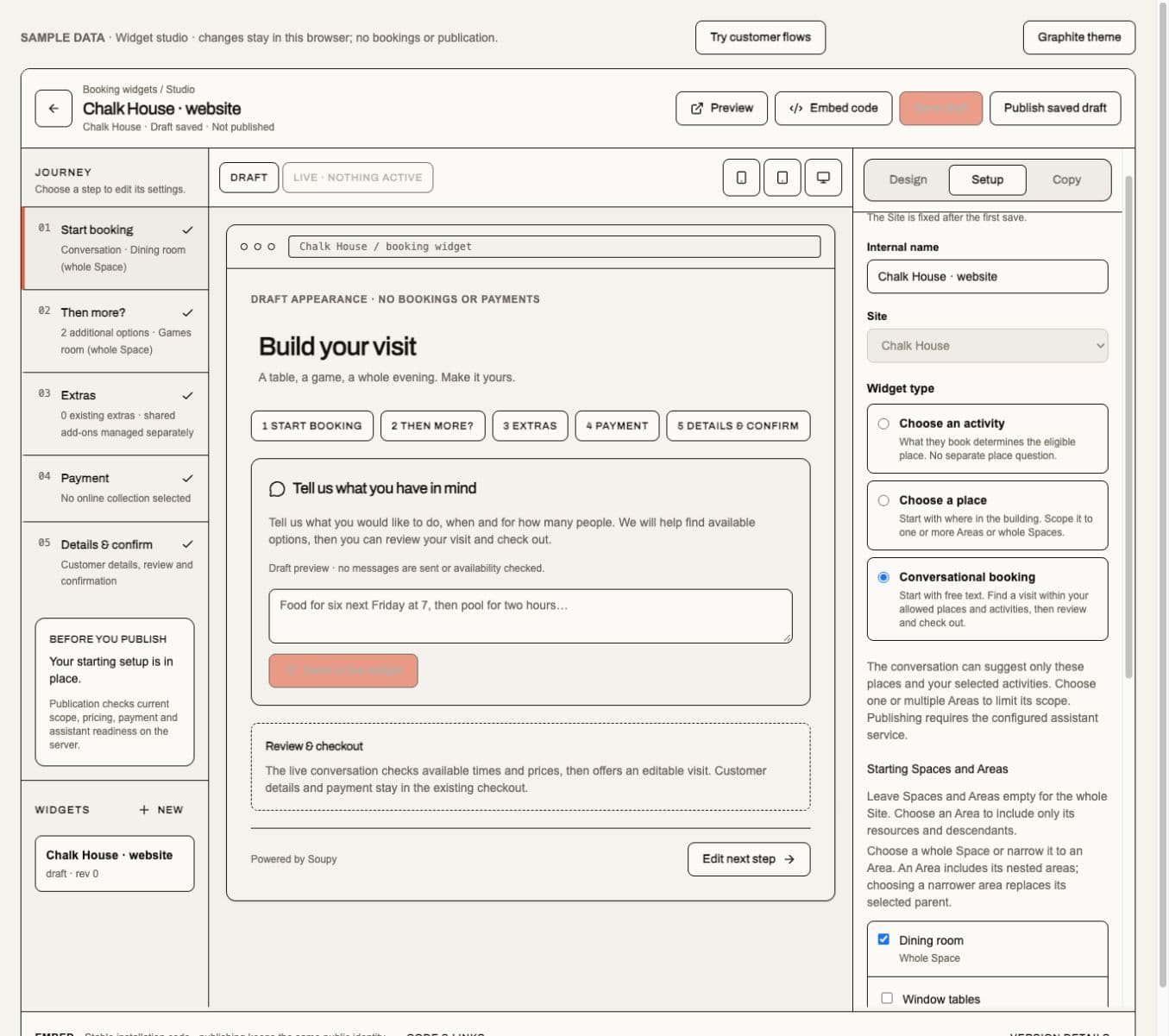
Fictional component preview, 29 October 2026. The Journey rail retains source setup; Draft previews the selected entry flow; Start booking changes the local draft. Save draft and Publish saved draft remain distinct actions. The screenshot uses sample data and does not establish authenticated or production acceptance.
Guest checkout has no upfront email-code step for ordinary public widget bookings. Guests enter their name, email and optional phone, then confirm or complete the required payment. Once the whole visit is confirmed, the confirmation email includes its private booking-management link. Keep that link private: it authorizes only that Booking and does not open customer history. A submitted email is not verified identity or marketing consent; existing customer name, phone and verification records are preserved. Invalid contact details, stale published options, unavailable capacity and required payments still block creation. Public session and checkout rate limits remain enforced. Phone bookings and card-guarantee agreements retain their separate contact verification and terms. This implementation awaits exact-source production verification.
- Open Widgets, choose a Site and name the widget. In Start booking, choose Choose an activity, Choose a place or Conversational booking, then select the allowed whole Spaces or one or multiple Areas, including nested sub-areas, and published Booking options. Each type has its own embeddable widget link.
- If customers may add activities, set the separate follow-on Space/Area and Booking option allowlists. Configure eligible extras/shared add-ons, payment collection and customer copy.
- Save draft, review its appearance and setup, then Publish saved draft. The Live preview shows the resulting active publication.
- Copy the install snippet or direct link. Replacing the existing venue booking link is a separate explicit action.
- Test the intended public journey using the appropriate mode and seller setup.
Starting scope is the whole Site only when no Space or Area is selected. Choose a whole Space to include all its resources, or an Area to include only resources in that Area and its descendants. Full paths distinguish repeated Area names. Choosing a narrower Area replaces a selected whole Space or ancestor Area; selections elsewhere remain. Follow-on scope adds to the starting scope without widening it when left empty. Scope changes remain a draft until saved and published.
Availability, quotes and new reservations enforce the published scope, including every member of a resource group allocation or saved join. A selected Area that is removed, archived or no longer belongs to the Site cannot silently become whole-Site availability; correct the scope and republish. These controls use the existing widget settings permission on web. Native configuration is unchanged; the implementation and development preview do not establish live deployment.
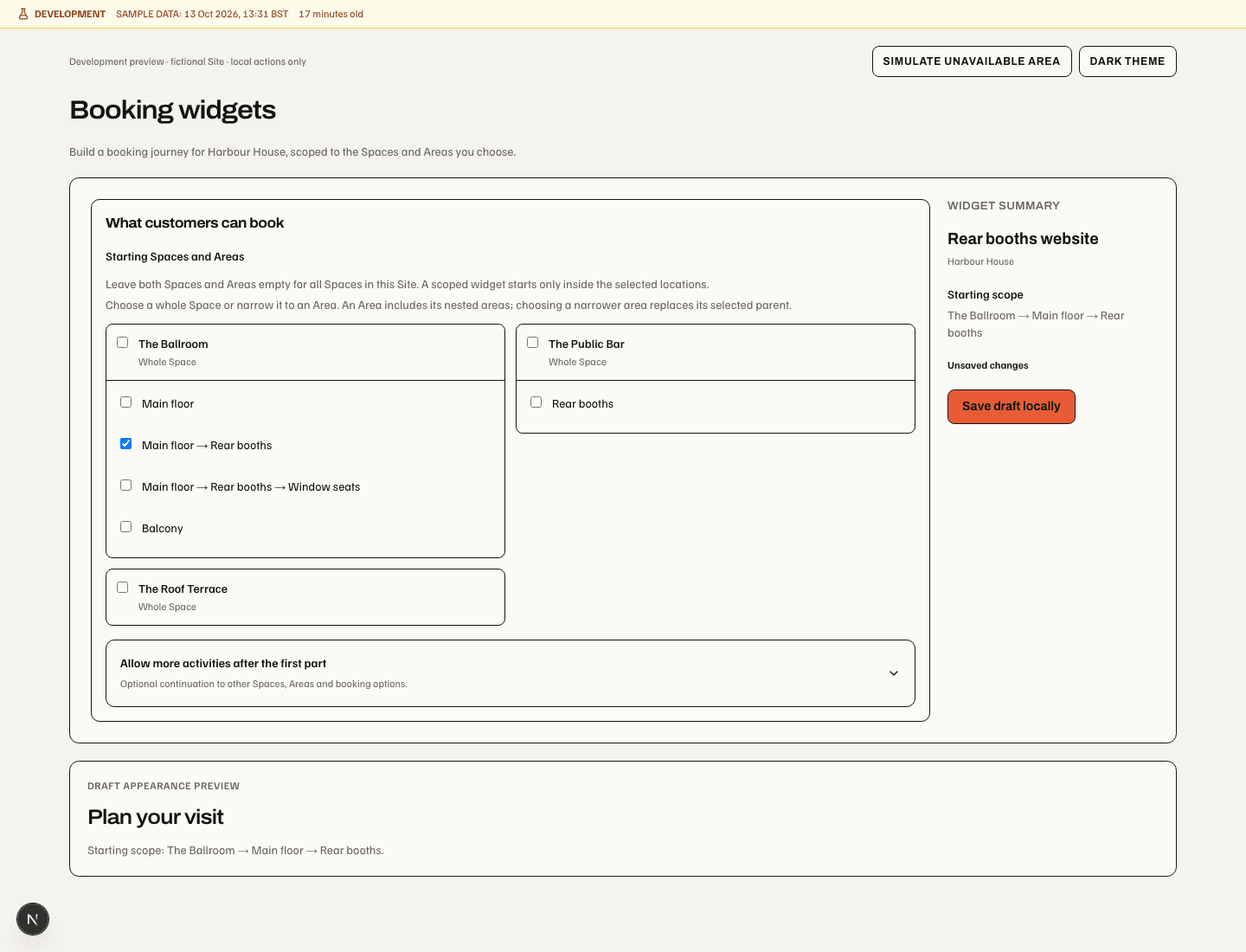
Fictional development preview, 13 October 2026. Whole Space includes all its inventory. Main floor → Rear booths narrows this draft to that subtree. Widget summary repeats the selected path; the follow-on disclosure adds separate locations. The preview uses local actions and does not publish a widget.
The web journey starts with a published table or activity option, then shows its live available times for the chosen date, party and configured duration. The horizontal time strip is the default; named icon buttons switch to a bounded grid without changing the selection. Add to visit collapses the editor into a compact itinerary row and reveals permitted next activities directly below. The next picker selects the earliest returned instant after the preceding activity ends, including its returned end date across midnight and required changeover. Repeated activities retain separate part identities. Adding a row holds no inventory.
The initial party carries forward. Fewer guests for this activity? reveals later reductions; explicit departure intent survives earlier guest-count edits, even when counts temporarily match. Incompatible capacity requires an explicit correction rather than silently reducing the party. Version2 saved drafts retain that intent, legacy drafts remain restorable, and UI-only departure metadata is excluded from canonical search, assistant and quote arguments.
Change edits one row without moving later activities or changing their identities. Later rows require a canonical recheck after an earlier edit or removal; their old prices cannot contribute to a new draft total. Cancel keeps the added visit. Changed date, duration, party, widget revision or prefix immediately retires previous slots and prices. Loading, invalid inputs, no-fit results and retryable errors have distinct states. Existing extras survive activity edits and removal; unavailable selections or missing activity attachments require explicit correction before quoting.
The sidebar shows activity estimates only when all contributing prices belong to the current prefix and currency. It withholds unknown or stale amounts. Slot prices and available pay-today estimates come from the availability service; the final quote owns the actual collection plan. Selected extras remain separate from an activity subtotal and are included in final review. Review booking (or Continue to add-ons) obtains the canonical quote. Email verification, confirmation and payment remain in the existing checkout. Paid checkout does not implicitly save a card for later penalties; the provider acceptance boundary for card security remains unchanged.
Widget settings adds Create resource booking option for operators with both inventory and pricing authority. It reuses the existing resource/group editor, duration and pricing rules. The compatibility Manage bookings permission can satisfy inventory access, but separate pricing management is still required; widget settings access alone never opens the option editor. Saving an option draft does not expose it to customers. Only successful public option publication adds it to the widget draft; saving and publishing that widget remain separate. Existing widget publications and site booking links do not change on entering this flow.
The development-only /booking-visit-preview uses the real timeline builder
with fictional responses and no reservations, emails or payments. Native
configuration and behaviour are unchanged.
Annotated timeline preview and verification
records the compact added rows and following earliest time. The original
resource-first validation
retains authoring, guest, extras and payment-source evidence; its older layout
captures do not certify the integrated presentation.
The current public composition supports one venue, lead customer, seller/currency context and up to six sequential parts; cross-seller add-ons use their separate card coordinator. Joins or eligible multi-resource activities reserve their actual members together. One unavailable part prevents the whole visit from reserving.
Quotes freeze the relevant configuration and amount; final holds recheck it. Changed availability or pricing asks the customer to review again. A lost payment response/reload recovers the existing checkout rather than creating another booking. Pending or uncertain payment warns against a second purchase.
Web checkout recovery distinguishes the current submission from a restored checkout: saving its request ID in the URL must not start recovery while that same submission is still running. A settled uncertain response or a reload still reconciles the original request. Only the server's confirmed no-booking outcome clears that request and returns the retained visit for review. This correction awaits release and browser acceptance; it changes no quote, email verification, payment authority or native workflow.
An optional public Assistant can propose an editable widget-scoped draft. It cannot reserve, pay, refund, read private workspace records or message staff. Its current session, widget publication and source access are checked again after prompt preparation, immediately before sending data to the model. The form remains usable if assistance fails. Generic widget deposits, parallel subgroup editing and customer amendments to confirmed paid visits remain outside this public composer; private-event deposits and supported payment-link instalments have their own workflows. Widget disablement closes new reservations while preserving a valid held checkout's recovery path.
Payments, guest self-service and communication
Resource Payment → Customer chooses lets an operator enable Pay now, Pay on arrival, and/or Separately paid usage for that Resource. Space/Area defaults and numbered batches use the same payment group; local overrides and Use inherited retain the existing boundary. Pricing permission is required to change these options. At least one option must remain enabled. Existing Resources without a checklist retain their previous payment choices; a public client cannot select a disabled option.
Use pool table options selects Hourly free play — pay now and Pay as you play, without offering hourly payment on arrival. Set the existing price to a per-time rate with a 60-minute unit for hourly free play. The preset changes labels and choices, not the configured rate. Both choices reserve the same Resource; customers paying as they play pay the table directly. That reservation carries no hire payment or venue balance in Soupy and is described as No reservation charge, with the separate usage instructions. Independently purchased extras still carry their own price and payment policy. Other businesses can name the priced and separately paid options and provide their own payment instructions.
Published Activities can carry separate usage terms. Their quotes respect the payment restrictions of every allocated Resource, including mandatory online collection. Compatible alternative resources are considered in their normal allocation order. Optional pay-now choices appear only when the governed seller route is ready; losing that route does not enable an operator-disabled arrival option. No remaining valid choice makes the booking unavailable. Changed choices or prices require a fresh review before a hold. A failed re-quote keeps Refresh quote and Edit visit available. Confirmations, guest management, emails and staff booking details show the accepted choice and instructions from the frozen booking; later configuration changes do not rewrite those terms.
Older public checkout routes reject priced payment timings disabled for a Resource; customers need the current booking widget to select separately paid usage. This authoring and customer-choice UI is web-only; it does not add native controls. Signed-in authoring/checkout acceptance is deferred by the owner. Provider-free desktop and narrow previews show the Resource checklist and guest choices in both themes; they do not establish production availability or payment-provider acceptance.
Online collection is the safe default. A permitted pay-on-arrival booking can
confirm inventory with an Order in payment_due; it is not paid revenue.
Mandatory online collection, previously collected amounts and the venue balance
remain separate. Record venue payment records money already collected as
card at venue, cash or bank transfer, with its receipt/transfer reference. Payment
history retains online payments, venue payments, corrections and venue refunds.
Recording a payment is not initiating a card charge or bank transfer. Staff
cannot silently bypass a required online obligation.
The secure manage-booking page at /org/[orgSlug]/booking/manage shows the
whole visit, payment state, eligible changes/cancellation, pre-order and
communication history. The frozen policy determines which actions are available.
The guest link requires its current active Bookings incarnation and an owned,
active Site before showing private visit data or accepting a change, cancellation
or host pre-order resend. Disabling Bookings or replacing its entitlement closes
the old link; re-enabling a different incarnation does not restore it. An archived
Resource or Space can still appear on an owned receipt, while live moves remain
subject to current availability. This source guard has local validation;
production acceptance is separate.
For eligible single-Site multipart customer journeys, Move your whole visit
checks all logical parts together. Nearby complete alternatives appear before
partial-change requests: a bounded 15-minute grid searches up to three hours
either side and shows the nearest three complete options. This does not prove
that no other time exists. An unresolved earlier allocation leaves later
transitions unassessed; an outdated catalogue offers venue review without
claiming availability or suggesting a cancellation.
Bookings → Settings → Guest booking moves lets an organisation settings manager allow unchanged-price online moves or require venue review. The default retains existing online-move availability. An online multipart move rechecks source authority, revision, capacity and every frozen commercial allocation inside one transaction. It retains the original quote, part snapshots, prices, payment and cancellation terms, and queues the revised confirmation. Joined resources remain part of their logical activity. Multi-Site, pooled-capacity, legacy itineraries without logical parts, provider bookings, guarantees, unfinished refunds, pre-orders and extras require venue review.
When an assessed part cannot fit, the guest may request its cancellation and a move of the remaining visit. Price or refund changes always require venue approval. Sending that request changes no allocation, price, payment, refund or cancellation. It creates source-owned venue work and appears in Guest move requests on the Booking. Existing reservation managers may review or decline; the request adds no finance authority and is not an executable partial-refund approval. Apply any amendment through the existing governed Booking/Order workflow; unsupported partial financial amendments remain unavailable. Pending requests block competing guest moves. Unknown network outcomes retain the exact request for retry. This is locally validated preparation; production signed-in acceptance remains required. See the fictional rendered review.
Waitlist offers have a separate scoped portal at
/org/[orgSlug]/booking/waitlist.
Released-capacity matching and offer access require current Bookings and the
original active incarnation, with the offer's entry, Booking, Order, Site and
checkout request bound together. A withdrawn workspace cannot create another
hold or accept/decline through its old link. An owned expired offer retains its
summary; acceptance uses server time. Internal expiry still releases unpaid
holds safely after withdrawal. These source checks have local validation;
production acceptance remains separate.
For an eligible confirmed unpaid on-arrival Booking, authorised staff can create
an expiring link requesting an instalment from the original seller. Creating the
link neither charges the guest nor sends a message. The guest opens
/booking/pay/[paymentRequestId], reviews and confirms payment; the receipt
retains the full Booking total and remaining venue balance. An already
provider-bound or mandatory-online Order must use its existing collection flow.
Guest cancellation can request the governed refund within the frozen deadline. Money collected at the venue requires staff evidence of its actual return; a guest cannot create cash-return evidence. Inventory remains protected until the required refund/cancellation operation completes.
Email Studio within Bookings (/app/[orgSlug]/bookings/communications)
requires bookings.manage. It has fourteen email
templates: confirmation, modification, cancellation, pre-order, standby, waitlist,
reminder, post-visit, payment request, marketing preferences, held-space offer,
email verification, guest reply and operator invoice copy. The original ten
journeys retain their SMS templates and separate provider-readiness display.
The editor supports copy, colours, blocks, subject, preview and immutable saved
versions; replies and invoice copies keep their workflow-owned subject.
Saving never sends an email. Each template explains its actual sending use;
modification, cancellation, standby, waitlist, reminder, post-visit, payment request
and preferences remain template-only without a separately connected schedule. A Bookings detail can mount an
Inbox-owned conversation/composer when the operator also has Inbox access;
mailbox selection, send authority and message history remain Inbox-owned.
The web confirmation follows Your visit is booked on desktop and phone. A chronological timeline keeps repeated activities separate, shows genuine gaps and calendar-day changes, and retains each activity’s guests, duration and frozen extras. The visit guest count is not the sum of repeated attendance. The payment summary separates total, payments received, any refund and the current balance; Due at venue appears only when the original collection plan supports that label. Unknown amounts are not shown as Free. A Booking that is no longer confirmed shows Check your booking. Checkout recovery, payment obligations, vouchers and meal-choice continuation keep their existing boundaries.
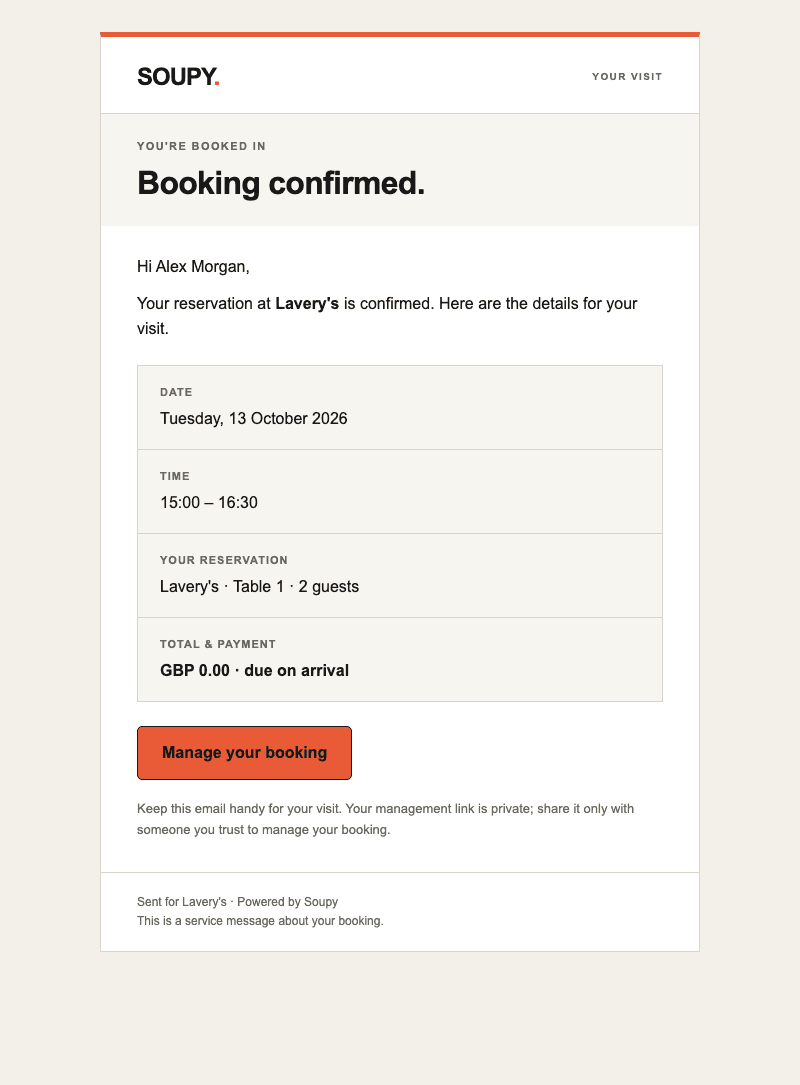
Automatic booking confirmations and held-space offers use a responsive, text-first Soupy HTML layout with a compact status heading. Confirmation shows a readable calendar date, the complete service times (including overnight endings), reservation/extras and the original payment breakdown. Manage your booking opens the private guest link when one is available; otherwise the email directs the guest to contact the venue. Newly queued held-space offers show the expiry's own calendar date, 24-hour time and timezone label in the venue's timezone, in both the email preview and Hold expires row. This keeps midnight and daylight-saving changes clear. They retain the Review held space action and explicitly remain unconfirmed until accepted under the payment policy. The confirmation email uses the supplied Graphite design: dark page and itinerary card, green confirmed badge, chronological saved activities and an orange private management action. New automatic confirmations use built-in version four. Versions two and three remain intact for frozen jobs. The payment breakdown uses original Order/Booking snapshots; editing the current catalogue cannot rewrite purchased extras. Older Bookings without structured parts retain their original summary and payment wording. Each structured email activity is identified by its saved Venue and resource, including visits across multiple Venues. Later Venue renames do not rewrite those saved destinations. Parts without a saved Venue keep their resource label; the email does not guess from the header Venue. Already frozen messages retain their HTML. Desktop and phone email evidence uses fictional data and proves presentation only; deployment and delivery remain separate.
Held-space offers retain the separate 22 October white-card presentation, outlined pending record and unconfirmed wording. Both messages keep essential facts and actions readable when images or web fonts are blocked. Email-client rendering may vary; web and native Booking sources use the same automatic email. Native booking screens and editable Studio designs are unchanged by this update.
The Email Studio connection supersedes the earlier separation between automatic messages and editable designs. Confirmation, held-space offers, verification, Booking-linked approved Inbox replies and operator invoice copies select the organization’s saved design. Pre-order invitations/reminders already use their saved template. One protected content block supplies booking facts, payment evidence, private actions, verification code, approved reply/signature or invoice attachment description. It cannot be removed, duplicated or edited as fictional facts. Only variables supplied by that workflow are offered and accepted.
Older custom designs remain stored and use the standard HTML fallback until the operator selects Connect protected booking details, reviews and saves. This preserves authored copy and colours while replacing editable facts/actions. Queued messages and invoice-copy retries keep their selected version; later edits, archiving and organization renames do not rewrite approved replies. Source access, sender/recipient checks, hold expiry and original invoice PDF checks still apply. Verification has HTML and a plain-text code fallback. Customer VAT invoice emails remain Stripe-owned. This source change awaits release and authenticated/provider acceptance; browser captures and mocked transports do not establish inbox delivery.
Built-in layouts remain the fallback. They share presentation helpers, while the Booking source supplies the actual facts and action. The updated layout applies to newly queued messages after deployment. Previously frozen jobs and saved custom designs retain their content. The existing governed provider route and source checks still determine whether a message can send; a preview does not prove delivery.
Desktop confirmation,
phone confirmation and
Graphite email
show the real presentation with fictional data. These source-only review captures
prove layout, not deployment, authentication or email delivery. The development-only
/booking-confirmation-preview performs no business reads, bookings or sends.
Booking invoices
The Invoices tab at /app/[orgSlug]/bookings/invoices lists invoices issued
from Bookings through Stripe, newest issued first, across booking dates. Each
row shows its invoice reference, issue date, linked Booking, Site, tax-inclusive
total and payment status. Paid, Awaiting payment, Void and
Uncollectible stay distinct; retained issue evidence that needs attention is
not represented as a successful payment. These are individual invoice face
values, not a combined receivables or cash total. Drafts and unsuccessful attempts
that never issued remain in the Booking editor.
An invoice with unusable retained money data stays in the list as Amount
unavailable, with its status and Booking link intact.
Use the Site filter and pagination to browse the permitted history. Selecting an invoice row or its Booking link opens that original Booking, including its Invoices & payments card. The list is independent of the diary's selected day. The Site column and filter retain the invoice's original Site, even if the Booking later moves. The register currently supports businesses with up to 100 Sites; larger businesses need support rather than receiving a truncated list. Invoice visibility requires both existing finance authority and access to the Booking's current Sites; guest names additionally require guest-view access. The browser cannot grant access by changing the Site or invoice identifier. No live Stripe fetch, send or payment action runs when browsing the tab.
This tab is available for web and hosted desktop. Native Bookings is unchanged. Loading, empty pages and read failures remain separate states, with navigation available while reading more history. See the invoice list source.

A Booking's Invoices & payments card lists saved invoices as rows. New
invoice creates a draft; selecting an existing row reopens that invoice. Inside
the running order's Booking panel, the editor expands within this card and shares
the panel's scroll area. Close invoice returns to the invoice list without
closing the Booking. On the standalone Booking page, the editor opens an inset
drawer whose actions stay visible while billing details, lines and history
scroll. These web and hosted-desktop surfaces keep the source permissions
described under operational screens.
With the current direct-seller payments.manage authority, choose
New invoice, enter billing name/email/address and payment terms, then add
saved catalogue products or new quantity/price lines through Product bank
and New item. Billing address is optional until any address detail is entered;
then line 1, city, postcode and country are required. Select inclusive or
exclusive price basis and an explicit VAT rate; optionally save a new item to
the catalogue. Review the line and invoice totals before issue. Save & close
saves billing details; closing with Escape, the backdrop or the close button keeps
the local unsaved fields available when that invoice reopens within the same
open Booking session. Refreshing or leaving the page does not persist unadded
fields. An unfinished new line must still be added explicitly. These local
fields remain pending work, not persisted invoice lines. Edit is available
on each unsent line, including lines copied into a replacement:
change its label, description, quantity, unit amount, inclusive/exclusive basis
and VAT, then Save line or Cancel. Adding and removing lines updates that
draft's totals without changing the original invoice or catalogue product.
Keeping the existing VAT selection preserves the line's historical VAT snapshot.
Changing quantity, unit amount, price basis or VAT requires a category. Choose
an active category or Create a sales category inside the line editor; this
keeps the typed changes and saves the category with the line on Save line.
Creating the category alone does not save the line. A failed save keeps the
draft; a changed saved line requires review rather than an automatic refresh.
Label and description changes alone can retain an older uncategorised line.
An already assigned category may be archived; repricing keeps its saved name
and code rather than refreshing them from the category catalogue.
An unsaved line edit, unfinished new item or failed line save must be resolved
before Issue & send through Stripe. The issue command also checks that the
saved lines still match those reviewed on screen; a changed invoice requires
another review. These corrections await deployment and signed-in acceptance.
Once an issue operation or provider invoice is retained, financial lines stay
locked, including failed issue attempts.
Sales categories are organisation-owned reporting labels such as Food,
Drink, Pool, Darts and Karaoke from the organisation catalogue.
In Product bank → Manage sales categories,
create a name and unique reporting code, rename a category, or archive/restore
it. Category deletion also removes
archived test entries while preserving reporting history. Codes remain fixed;
archived and deleted codes cannot be reused. Up to 100 categories
are supported. Changes require current direct-seller payments.manage
authority and an available Booking source.
Create a sales category is available beside each editable invoice category selector, including New item, the selected Product bank item and existing unsent lines. Enter its name and unique reporting code there. Creation selects it for a new line without adding that line or saving its product default. On an existing row, the selected category saves through the line's normal recategorisation command; inside an open line edit it stays in the draft until Save line. Failed creation keeps the entered fields for retry; a changed or unavailable source requires review. The full manager remains available in Product bank → Manage sales categories.
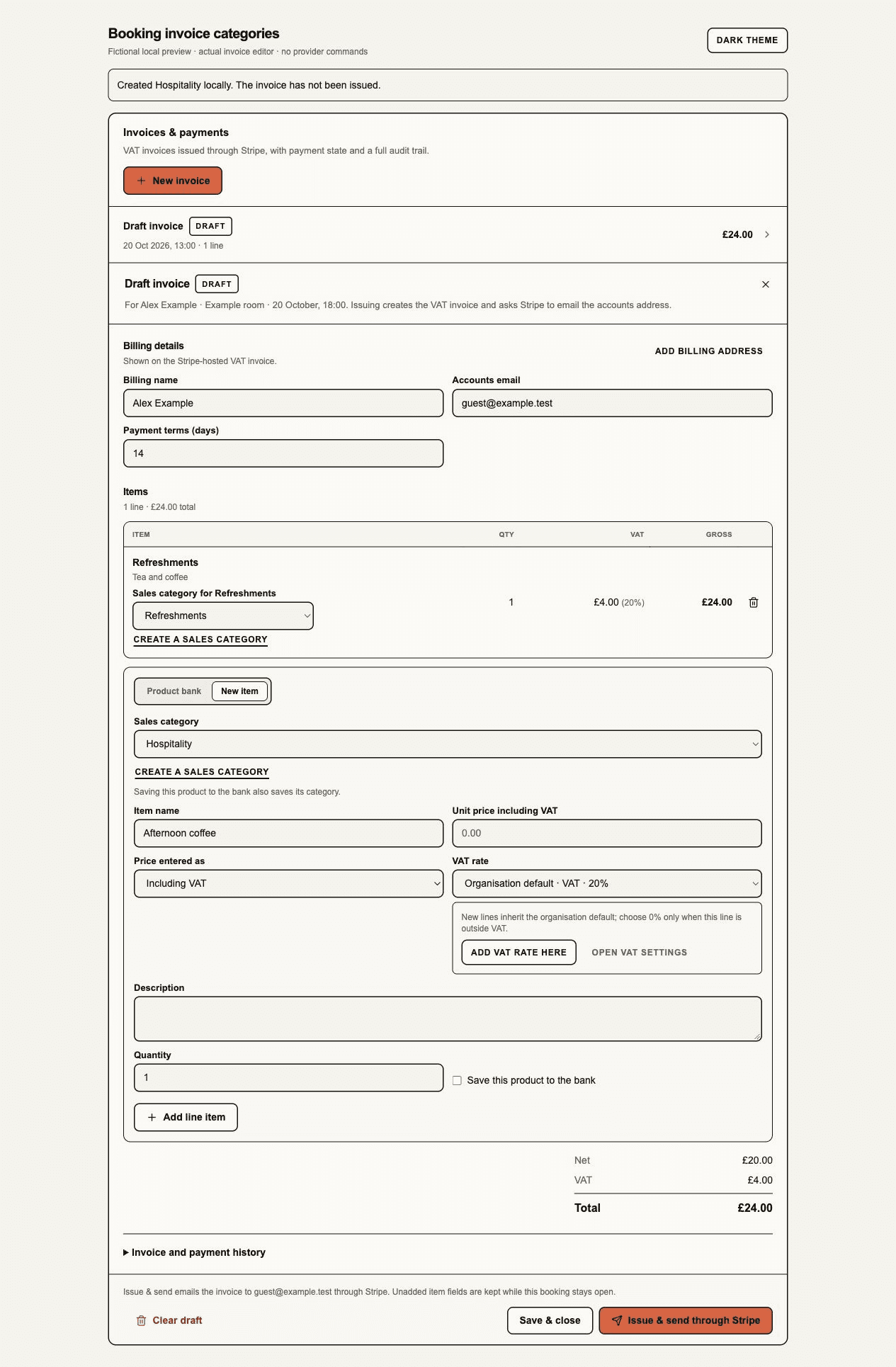
Local fictional render, 20 October 2026. Actual invoice controls, in-memory source and fallback font; no provider or signed-in acceptance. Sales category: creation selected Hospitality. Create a sales category: stays beside the selector. Item name / Add line item: the draft remains present and still needs its explicit add action.
A Product bank item supplies its default category. Choose another category for just the new line, or explicitly Save as product default. New item also offers a category, including when saving the item into the Product bank. Existing unsent lines can be recategorised. New lines, product defaults and explicit recategorisation require a named category; product inheritance requires a classified default. Uncategorised remains the reporting label for older lines without classification. Concurrent category edits or changed assignments require review before retry. Local category drafts survive closing/reopening the same Booking editor, but not leaving or refreshing the page.
Saved lines retain their category name and code independently of later renames, archives or product-default changes. Archived categories cannot be used for new lines; reassign an affected product or choose another active category. Once issue starts, line classification is locked, including failed attempts with a retained issue operation. These controls are in the web invoice drawer, including narrow layouts; this change adds no native invoice authoring screen.
New issue operations send Stripe Product/Price references and frozen category metadata per invoice item, on the same live default connected account. Changed classification produces another immutable product projection. Custom lines share a product for their category snapshot and keep individual descriptions on the invoice. Existing in-flight operations retain their original provider format; older Stripe invoices are not backfilled. Modified provider product evidence stops issue for review. The Sigma setup note defines the fields and reporting scope. Sigma access, report configuration and provider acceptance are separate from category authoring; saving categories makes no Stripe calls.
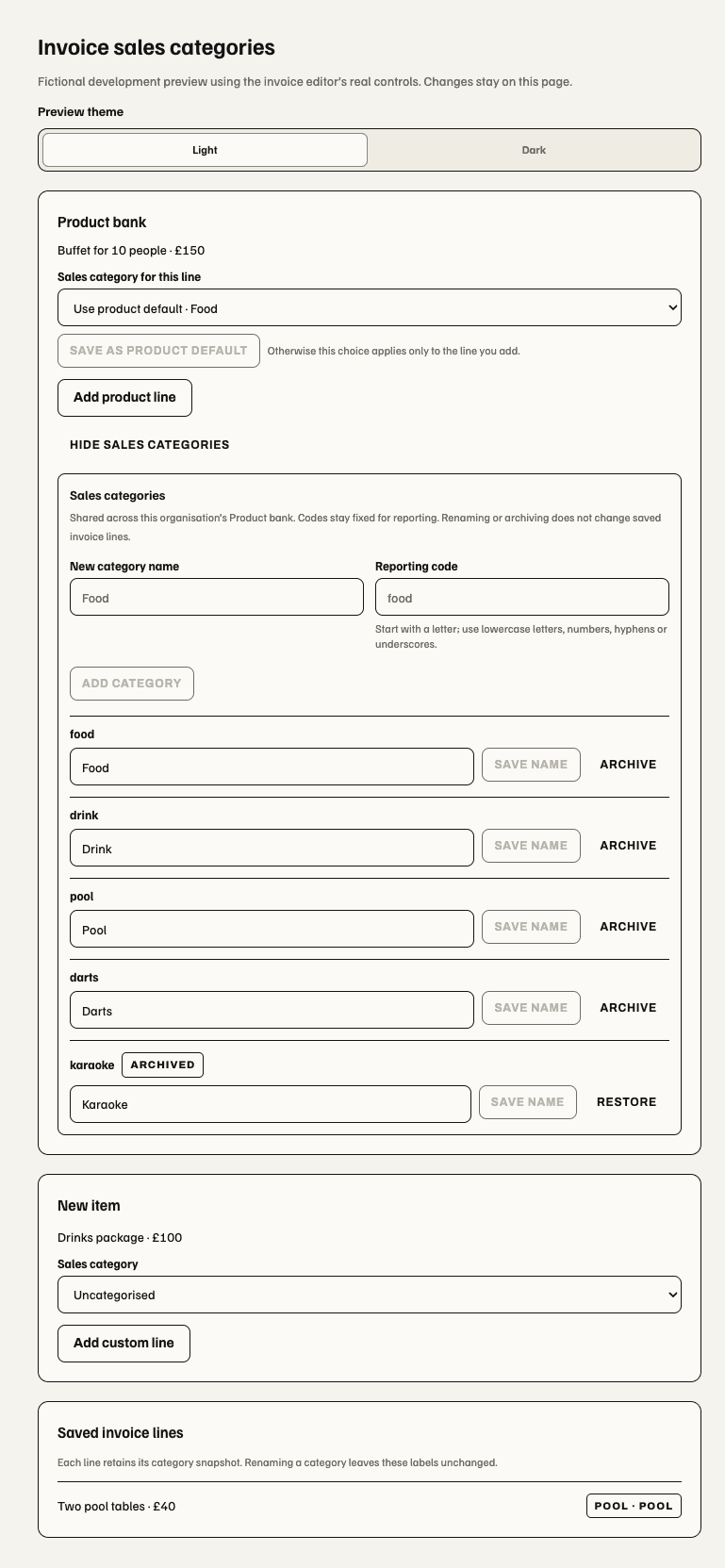
The Issue & send through Stripe action requires the configured live default Stripe connection and issues the invoice and emails it through Stripe. Review billing details and recipients before invoking that action. The invoice records draft, issuing, awaiting payment, paid, void, uncollectible or needs attention states. Once available, Open in Stripe opens the hosted invoice; the same drawer offers customer redelivery, Email me to forward, and Download the PDF. The issue result explicitly says Stripe was asked to send the customer email; the later delivery choices do not defer that first send. A successful separate delivery closes the drawer and leaves a status notice beside the invoice list. Clearing an unsent draft is a separate confirmed action. Provider-confirmed payment and delivery evidence remain distinct from issuing/downloading a file. Do not treat this invoice builder as permission to replace the Booking Order's existing collection or refund lifecycle.
Void cancels an eligible entirely unpaid issued invoice without making a replacement. This additional web command requires deployment of the standalone void capability. Its inline review names the original invoice and explains that cancelling the payment link is permanent; the operator makes the final financial confirmation. No refund or replacement draft is created. The invoice, original items, seller identity and audit remain in the Booking history. It uses the same current finance/source checks and original live Stripe account as correction; paid, partial, credited, pending or incomplete payment evidence cannot qualify. An uncertain result keeps its own operation for reconciliation. Retry that same Void request; it cannot be changed into Void and replace, or the reverse, while its outcome is unresolved. A confirmed standalone void remains read-only and cannot generate a replacement through this command. Native invoice controls are unchanged; local tests and fictional fixtures do not prove a live cancellation.
Void and replace lets a finance operator correct an unpaid issued invoice inside the same Booking view. Review the original reference and confirm the void; the server checks its current Stripe payment state on the original seller account. Paid or partially paid invoices cannot use this action. A confirmed Stripe void makes the old payment request unusable, then opens a replacement draft with copied billing details, terms and item snapshots. Edit that draft and choose Issue & send through Stripe separately; creating the replacement does not issue or email it. The original stays voided and both invoices link to one another in the invoice view and history. A linked replacement cannot be cleared like an unrelated unsent draft. If the provider response is uncertain, retry the retained operation rather than creating another invoice. Changed authority, Booking source or seller binding stops continuation for review. The replacement retains the original live seller account, even if the business has since selected a different default; an unavailable original account blocks issue rather than moving the invoice to another seller. This web workflow requires deployment of the void-and-replace capability; local tests and fictional previews do not prove a live Stripe void or delivery.
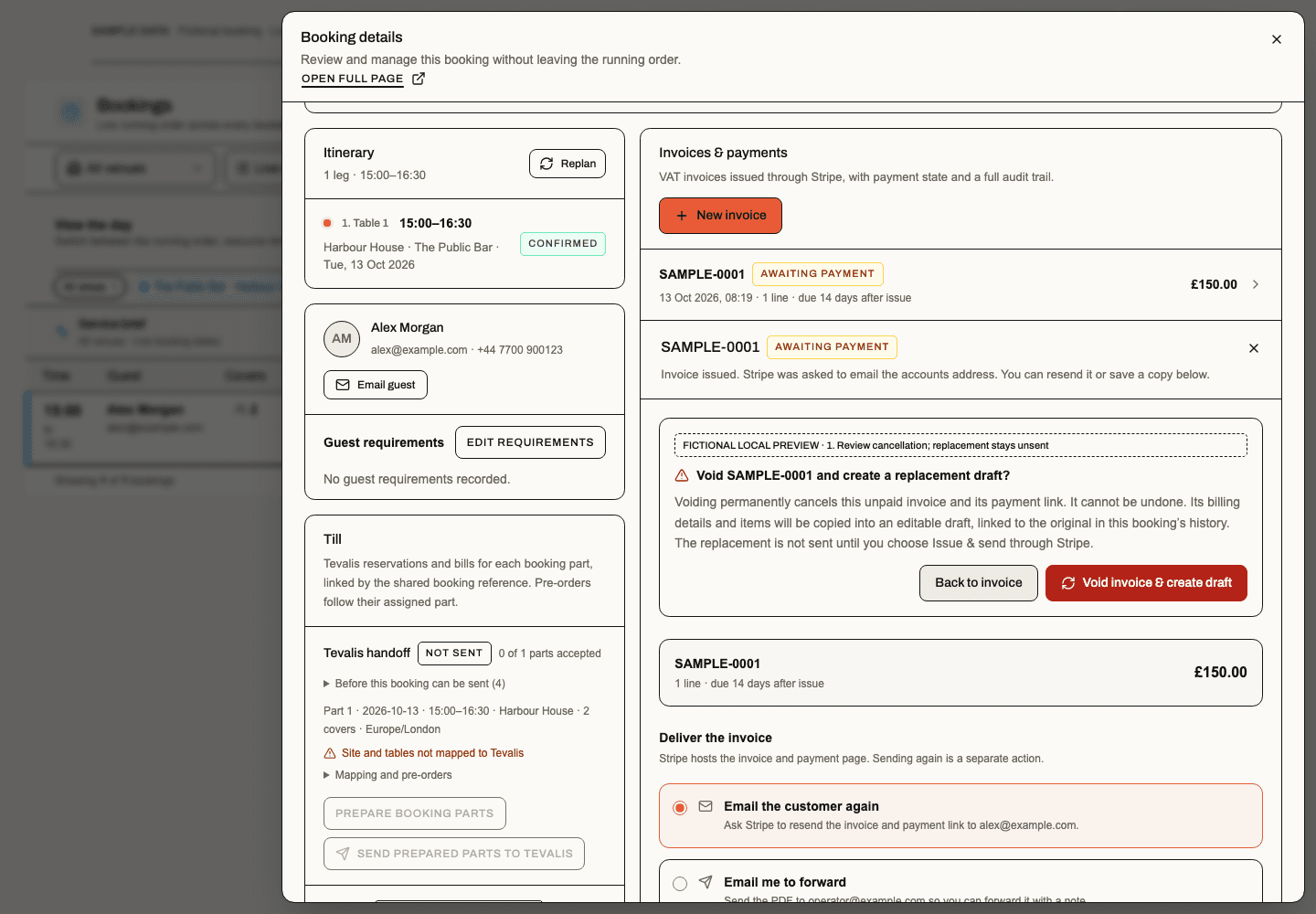
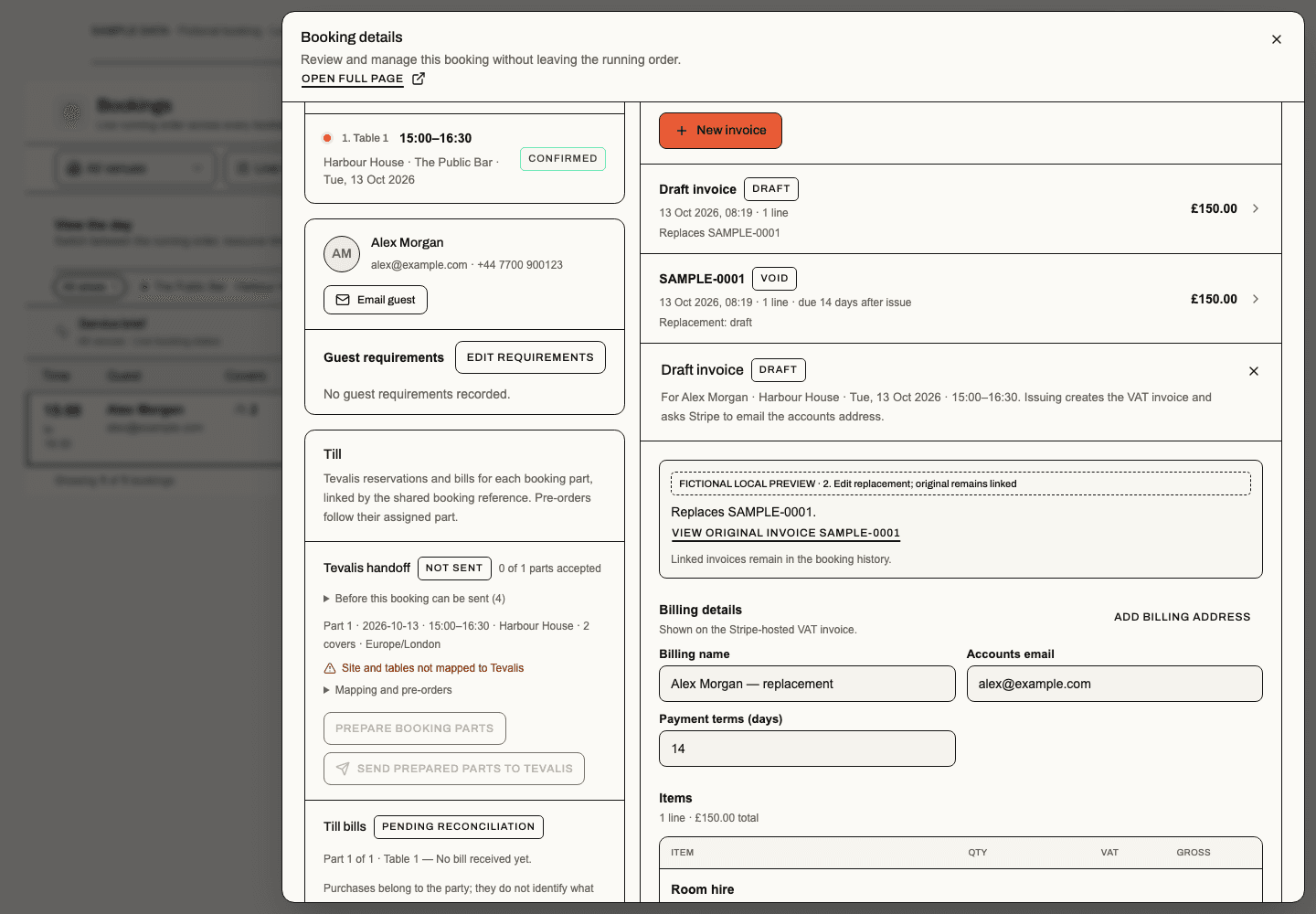
Invoice issue checks current direct seller finance authority, Bookings availability and the Booking's entitlement and Site/Space ownership before and after each Stripe step, then again before recording or returning the result. Billing, lines, VAT, payment terms and original live seller account remain bound to the reviewed operation. An unchanged retry keeps its original Stripe keys; an edited provider-bound invoice or older pending operation without a reviewed claim requires reconciliation in Stripe. Changed source or withdrawn authority stops further issue work and retains pending evidence; it cannot recall a request already accepted by Stripe. Issuing alone does not prove email delivery or payment. Source validation here is locally verified; release and provider acceptance are separate evidence.
Invoice delivery requires current direct seller finance authority and the original Booking's current Sites, resource ownership and Bookings entitlement. The server checks again after preparing the PDF and before sending it, then before recording or returning the result. Changed source or authority asks the operator to review again; it cannot recall a send already accepted by a provider. Older invoices whose Booking source evidence is missing remain unavailable for delivery rather than inferring that evidence from the billing address or PDF.
Invoice category reports and exports
Bookings → Invoices contains Issued invoices and Invoice breakdowns
view links. Each appears only with its existing source authority. A report-only
finance user enters breakdowns from the single Invoices sidebar item. Existing
/app/[orgSlug]/bookings/invoice-reports links remain valid; the report retains
its separate data and authority from issued history. Its organisation finance check reads
payments.view or payments.manage from the Bookings module. Core or another
work area's finance permission is insufficient; journey and guest access are
not additional requirements for this organisation-wide report.
Implemented for web; production release and signed-in report acceptance are pending. The screenshot below is a fictional local preview.
Open Bookings → Invoices → Invoice breakdowns, or Invoice breakdowns beside a Booking's
Invoices & payments card, to report saved Soupy Booking invoice lines across
the business. Current direct organisation payments.view or payments.manage
and Bookings availability are required; the server also checks each invoice's
current Booking, seller and Site/Space source. No new permission is introduced.
Choose an inclusive From / To date range in the displayed business timezone. Booking/service date is the default: it follows the linked Booking's current date, including later moves. Issue date uses Soupy's recorded invoice issue date. Fully paid date uses a verified Stripe invoice-paid transition when available. Older invoices without that verified date are identified as a coverage gap; the report does not substitute their draft creation date or a later webhook timestamp. A paid invoice is its original invoiced value, not a cash-receipts ledger: partial payments, credits, refunds and payments recorded outside Stripe need separate reconciliation.
The default status selection includes awaiting-payment and paid invoices. Use the visible Invoice status choices immediately above the breakdown to show Paid, Awaiting payment, both together, or Uncollectible. Changing status immediately refreshes the category totals, invoice line detail and both CSV exports for the selected period; no extra Update report click is needed. These choices remain available for empty or unavailable results. Fully paid date fixes the status to Paid and explains how to return to another date basis for awaiting-payment invoices. This filter placement is implemented in source; its production rollout is not yet verified. Draft, issuing, failed and void invoices are excluded. Status is the current recorded status, not a reconstruction of status at the range's end.
Category rows show invoice/line counts and saved Net, VAT and Gross amounts. Totals remain separate by currency. Stable category identity/code keeps renamed categories together while retaining their saved labels; older or explicitly unclassified lines appear as Uncategorised. Line detail retains the invoice reference, Booking/service date, category, quantity and saved VAT split. Expanding detail does not edit or issue an invoice.
Summary CSV exports category totals; Line detail CSV exports the matching individual lines. Both include the selected dates, date basis, status and timezone, and recheck current source authority before download. Reports are complete within their stated bounds; oversized ranges request a narrower range instead of returning partial totals. Failed reads retain the filters for retry. Changing business or identity retires the prior report and pending downloads.
This is a web reporting screen using Soupy's saved Booking invoices. It requires no Sigma subscription and does not import every invoice from the Stripe account. It adds no native invoice-report screen, provider backfill or refund allocation. Stripe report setup remains separate; see the Sigma setup note.
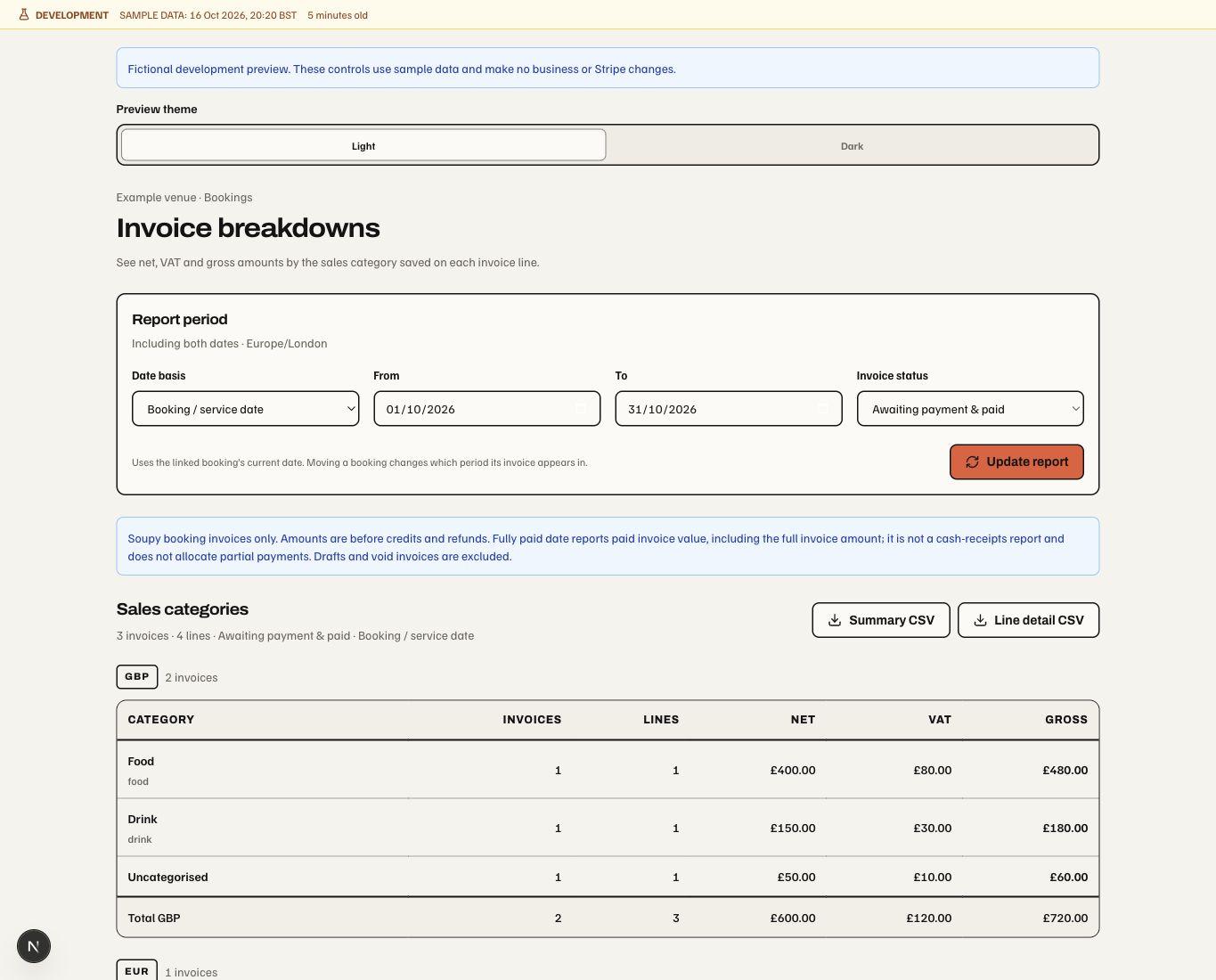
Fictional local web preview, 16 October 2026; no live Stripe report or customer data. Date basis selects the reporting period. Net / VAT / Gross uses saved invoice lines; each currency has its own total. Summary CSV / Line detail CSV selects the export detail. Native and live account acceptance are separate.
Private-event bookings, requirements and calendar
The normal New booking form includes Private event. It keeps the same guest details, date, duration, availability grid, allocation, notes and accessibility controls. Private mode adds an event title and optional requirements, and offers explicitly event-bookable whole Spaces, Areas and sub-areas, plus an opted-in whole Venue. Selecting a target reserves its entire active Resource subtree through the normal Booking and Order transaction; a conflict anywhere in that subtree blocks it. Private bookings currently have one part and at most 32 allocated Resources.
New private booking in Private events opens that same form. The saved normal Booking also appears in Private events, with its real status, allocation and occurrence date. List and Calendar switch the dashboard view. List pages include all reachable events, with page-local filtering and counts. Calendar shows a month grid on desktop and a dated agenda on narrow screens; its month query reads occurrences directly rather than filtering the recent enquiry list. Each entry opens the existing detail. Times use each Site's timezone. More than 500 occurrences in a month returns an explicit unavailable state.
Common requirements include DJ, band, sound technician and AV setup. Add custom requirement stores a label, optional notes and an optional supported Talent role. Requirements can be added at creation or later in detail (20 per save, 100 per event). Ordinary requirements can be completed or waived; Talent requirements follow the linked engagement state. An unfilled requirement does not reserve a performer, send an offer or imply confirmed Talent. See Talent fulfilment.
Whole-venue bookings reserve first, invoice later: creating the reservation adds no hire or food charge. Add agreed charges through the existing Booking invoice workflow. The canonical Booking reserves the whole Venue, including Resources added later, and excludes overlapping Resource or shared-capacity bookings. Existing holds, confirmed allocations and their setup/cleanup times also prevent whole-venue hire. Saving rechecks availability, capacity and access atomically; expired holds and canonical cancellation release the reservation. A whole-venue operator needs management and guest access at the Venue and every child Space. Provider-owned inventory is not offered for whole-venue hire; conflicting later provider observations are retained for reconciliation instead of allocating overlapping inventory. Whole-venue time moves use the existing venue-managed change boundary. Inbox enquiry proposals retain their existing Space/Area workflow. This update is web-only; fictional screen evidence is not signed-in or production acceptance.
Direct private bookings retain normal pricing, card-security continuation and supported pay-on-arrival rules. Full prepayment still uses its established checkout route. Their cancellation uses the normal journey checks: collected money can require its separate refund workflow, and provider reconciliation can keep inventory held. Completion requires requirements to be resolved and never clears outstanding Booking debt. Legacy enquiry proposals, contract deposits and guaranteed-count repricing do not apply to these direct bookings. Their status follows the canonical Booking, including cancellation and completion. Supported single-resource time moves retain the same private location and update the calendar; larger plans keep the existing venue-managed change boundary.
Creating and editing requires current Booking management and guest access at all
participating Sites and Spaces. Calendar/details retain private-event source
admission. Requirements do not grant access to Talent's private fees or agreements.
This update is web-only; existing native forms retain their current behaviour.
The development-only /private-event-booking-preview uses fictional local data,
returns 404 in production and cannot save or send.
Private-event enquiries and function sheets
Private events handles multi-stage venue sales. Create an enquiry with contact snapshot, event type, guest estimate and initial date/space. Review availability and construct a capacity plan containing the actual occurrences. New event availability requires explicit event-bookable settings. The existing Private events creation screen selects whole Spaces. Inbox's Venue enquiry picker additionally selects marked Areas and sub-areas, checking each option's entire Resource subtree. A free table or table join does not imply that the requested Space or Area is available. Existing held and confirmed events retain their commercial lifecycle when this setting is later turned off.
The detail screen exposes valid next steps: qualify, hold a time-limited option, issue a priced proposal, accept it, issue a contract, record the signature and required deposit evidence, confirm, set guaranteed counts, publish a function sheet/BEO, complete or cancel. It keeps capacity plan, commercial evidence, operational milestones and audit trail together.
Record signature offers hand drawing and typing, with explicit electronic signature consent. It remains a manager-recorded attestation against that exact contract version. The shared signing options describe draft retention and captured evidence.
The web proposal editor can assign a sales category to its package line. The proposal, canonical Order and function sheet retain the category snapshot; component amounts contribute once to the package total. Later catalogue renames or archives do not rewrite that commercial evidence. This uses the existing private-event management permission and explicit Issue proposal action.
Private-event access covers the current plan and all known earlier Sites and Spaces. Opening its workspace detail route requires the same current Bookings entitlement, read and guest access as the detail itself; operational management is checked separately across the current plan. A legacy allocation missing its added Space field can use the same canonical resource’s current parent after normal ownership and scope checks. Missing added plan metadata alone does not block an otherwise authorized record. Explicit original locations remain additional checks; moving a resource or replacing a plan cannot override a known denied original scope.
Setup, AV, furniture, staffing and communication milestones can contribute to operational demand. Each published function sheet is an immutable snapshot with its predecessor; later edits produce another version. A proposal, signature or payment record alone does not bypass the required lifecycle state. Cancellation records the reason and governs the associated inventory/money consequences. CRM Sales can project this pipeline without becoming a second booking database.
Settings, providers and migration
Bookings Settings groups organisation defaults, weekly service hours, venue inventory, widgets/customer journey, communications, menus, payment connections, provider distribution and migration. Providers & distribution can register webhook, poll or import connections with freshness targets, map external identity and status to Soupy, set the exact resource's authority owner with a reason, and create distribution channels. Channel policy includes owned/embed/QR/approved partner kind, party/advance limits and attribution. It shows received/reconciled timestamps and health separately from configured state. Every channel still uses the canonical quote/hold checks. Provider setup and cutover do not follow from merely importing records.
The ResDiary migration studio at Settings → Bookings → Move from ResDiary defaults to Build plans manually. Create Sites, Spaces, Areas, tables and floor plans in the normal Bookings inventory first, including the combinations you want to offer. Map each old ResDiary table to its existing Soupy table once. A source room can map tables into different new Spaces or Sites. Manual links use each selected table's existing Site rather than the source part's default. Applying these mappings leaves the manual plan, table positions, capacities and Areas unchanged. Old multi-table allocations stay historical evidence; they do not create current permitted joins. Dated aliases handle table labels reused over time.
Manual imports show Map imported tables. Drag an old label onto an existing table, or select the label and activate its destination using keyboard or touch. Each link remains an unsaved draft until Save mapping; Undo change restores the saved decision. Detailed decisions retain Space routing and inclusive dated aliases. Historical only · no current table keeps a retired label on imported history without creating a Resource or floor-plan item. A mixed booking keeps its mapped allocations; an entirely retired booking has no current table allocation. This disposition cannot allocate a current or future booking. Historical combinations resolve from saved individual mappings; distinct active mapped members offer Review suggested join in Booking settings. Creating a current join remains an explicit inventory action. Existing import permissions, preview and apply checks still govern these decisions. Native verification and signed-in development import acceptance are outstanding. Fictional mapping examples and verification show the interaction.
Keep one migration workspace for each ResDiary account. Import another export opens the next batch after the previous batch finishes, retaining table, status and reviewed customer decisions. New or invalidated mappings need review. Enter the export's creation date and time for subsequent booking exports. Bookings are matched by account and Booking Reference; overlapping unchanged rows do not create another booking. Missing rows never automatically imply cancellation. A Soupy booking that staff also entered in ResDiary can be linked explicitly during review.
Staff may edit in both systems and keep ResDiary updated manually. Soupy reviews each changed export against the last imported version and the current booking. The review shows source-only changes, Soupy-only changes and conflicts, with a choice for each changed field. Keeping Soupy edits is the default for local changes and conflicts. Older or unsequenced exports carry an additional warning. Saving the decision does not apply it; prepare the import preview, then review and apply the exact revision. A booking, mapping or access change after review requires another review. The rehearsed preview shows Source rows to import or update and Previously applied source rows across retained imports. A row may update an existing booking or create a new one; these counters describe source observations rather than unique bookings. CSV import does not send changes back to ResDiary.
Current and future bookings require explicit operational confirmation and valid table allocation, availability and inventory authority. Historical allocations remain released. Import does not switch provider authority or bypass capacity, closure or access checks. Failed batches retain applied rows and expose the remaining failure for review or resumption.
The expanded source fields, individual customer links, final-import review and historical dashboards described below are available on the web. Authenticated production acceptance is not recorded. The screenshots use fictional records.
After the latest batch finishes, Final import review can reconcile bookings missing from a declared complete export. Select the exact source venue labels, Soupy Sites and inclusive visit-date range, confirm complete coverage and record a reason. Soupy checks previously linked references in that account against the latest batch; bookings outside that scope and bookings created only in Soupy are left alone. Multiple files in the final batch need matching export timestamps. Each missing booking requires Retain or Cancel booking, keep history with a reason. The final confirmation names the cancellation count and requires its exact displayed phrase. Cancellation releases allocations and retains the booking, notes, original observations and source amounts. Protected Order-backed bookings require their ordinary cancellation/refund workflow. This review does not refund money, delete history or change inventory/provider authority.
Final review and apply use bounded pages and resumable batches. A newer import, replacement coverage, changed booking, customer link, source or access invalidates the affected review. Applied outcomes remain retained; reopen only the remaining decisions when necessary. Permission refusal retires copied private details.
 Component preview, 20 October 2026: explicit retain/cancel decisions precede the
count-bound confirmation. Original history remains retained after cancellation.
Original export files, all supplied columns and full booking/customer notes are retained, including line breaks and unknown columns. Source notes shows booking notes separately from customer comments and the original row. CRM booking history offers Source notes behind current CRM and booking guest permissions; an active CRM restriction to a Site or Series prevents this business-wide history and its source notes, even when booking guest access remains available. Source comments do not overwrite a Soupy customer profile. For exports staged by the older parser, recover full notes from the retained original file before applying in manual mode. If that file was purged, upload the same original again. A completed legacy import must restore and recover its original notes before opening another export batch. An explicit original-source recovery intent binds its exact checksum and source identity, including an older batch, while history is completed; this does not reopen booking decisions or change the frozen apply. In Source evidence, choose Recover full source notes when the original is retained, or use that source's Restore original CSV picker when it is missing. Restoration checks the original checksum before upload and recovers the same source identity. These recovery actions remain unavailable in the isolated development runtime, whose acceptance fixture already retains complete fields. Oversized individual records fail visibly with the original file retained; fields are never silently shortened. Repeat-import workspaces cannot purge their source files while this recovery and migration workflow remains open.
Imported Booking Notes populate the Soupy booking's Notes field and appear in the diary Notes column with line breaks retained. Local edits use the same three-way review before later CSV changes can replace them. The diary also shows the original booking-created date, booking-taker label, phone and customer type when supplied and authorised. Booking detail's Imported ResDiary details keeps guest comments separate from booking notes and shows source reference, channel, service, promotion, company, confirmation, pre-order reference and additional supplied details. Source spend and deposits require booking finance access and stay separate from invoice/payment states. Payment-card fields are not projected into this general diary/detail panel. All other supplied columns remain available through the protected source record.
 Development preview, 13 October 2026: open one booking's notes on demand;
customer comments and original source columns remain separately labelled.
Exact normalised email may identify an existing customer; shared-address/name conflicts require explicit decisions. Imported contacts remain unverified and gain neither consent nor purchase totals. Imported confirmed visits remain labelled separately from verified attendance. Customer links for individual bookings explicitly links a source Booking Reference to a reviewed customer profile, including a booking with no email or a changed email. Review the source contact and chosen profile, confirm the identity and record a reason. Saving stages the link; preview and apply still own the change. The account/reference decision survives later batches; changed contact/profile evidence requires a fresh review. Original contact snapshots and earlier decisions remain retained. Names or phone numbers alone never trigger an automatic merge, and linking history does not merge customer records or transfer purchases or consent. The advanced source-created inventory path remains available for deliberate use. This migration studio is a web operator workflow; no equivalent native migration wizard is provided.
Historical booking dashboards
Bookings → Reporting at /app/[orgSlug]/bookings/history defaults to
All bookings: past, current and future canonical Soupy bookings, including
retained ResDiary imports. This all-bookings update awaits production release.
An optional ResDiary account filter limits the report
to that account. Each canonical Booking contributes once, including repeat
imports and equal references from different accounts. Choose Sites, an inclusive date range
and Visit date or Date booking was taken, then Generate report. The
dashboard scans every required page at one checked revision before showing
totals; it never presents a page sample as the complete count. A concurrent
import, relevant booking edit or authority change requires refreshed results.
Changing a report filter clears the previous totals while preserving keyboard
focus in the date and other filter controls.
The filters also offer cancelled/not-cancelled history and customer/staff/reference
search. Staff, customer, month and channel breakdowns share those same results.
Original User Full Name labels remain source attribution, including Guest;
they do not grant access or silently map onto a current Soupy staff account.
Soupy-created bookings use their recorded creation date and channel; missing staff attribution and unknown covers remain explicit. Source breakdowns show Soupy and ResDiary contributions separately. Soupy booking totals do not populate ResDiary source-spend or deposit columns. Repeat imports replace their current structured contribution. Current Soupy customer links, visit dates, covers and booking statuses feed reports; original booking-created date, staff, channel and reported money remain attributed to the accepted export. Source spend, deposit paid, deposit amount, processed flag and minimum spend retain their source meaning. Reported spend and deposits are never added together, never create a payment, and never increase canonical customer purchase totals. Currencies remain separate; missing, invalid and zero amounts remain distinct. An explicit source currency or recognised symbol takes precedence; otherwise the business currency recorded when the source was accepted is labelled as the fallback. Conflicting source currency evidence requires review. Booking/party spend does not prove individual consumption.
For older imports, a migration administrator can Prepare retained history in resumable batches before reporting. It rebuilds structured facts from retained source records without recreating bookings or discarding original files. Missing complete source evidence stays unavailable and needs recovery. Stop history preparation ends a stuck preparation job while retaining originals and prepared fields, so the missing source can be recovered before another attempt. Imported-confirmed evidence and customer counts are corrected for later cancellations, date changes and customer relinking. CRM customer history shows imported bookings/covers and source spend/deposits separately; totals are labelled partial until its complete history is loaded. Unlinked bookings remain separate until identity review.
This dashboard requires unrestricted business-wide CRM, Bookings guest and booking finance access, with current access to every scanned source Site and Space, including records outside the selected date, Site or customer filters. Both direct business responsibilities and current Group responsibilities can open the report when those source checks allow it. A Group responsibility does not need a duplicate direct business assignment to enter the dashboard. The all-bookings view also checks retained import readiness; incomplete source history cannot silently become a complete report. A restricted or unavailable source makes the report unavailable rather than silently removing records from its totals. It is a web workflow; no equivalent native dashboard or final-import wizard is provided.
 Development preview, 13 October 2026, fictional records: each field compares
both versions; the saved decision is separate from final import apply.
 Development preview, 13 October 2026: field choices stack at narrow widths.
These images demonstrate the review component, not a completed production import.
 Component preview, 20 October 2026. All bookings includes
Soupy and imported records in the same complete report. Staff/customer, month,
channel and source totals use those records. Missing source amounts remain
visible. This isolated render does not prove an authenticated import or report.
The provider-gated media implementation uploads floor-plan screenshots directly to private storage while retaining the exact migration intent and current operator authority. AI extraction reads bounded original bytes only for its current extraction attempt. Purging a source blocks later reads and completion callbacks; screenshot receipt and extraction do not apply the migration.
| Responsibility | Capability |
|---|---|
| Operational visibility | bookings.view |
| General management / menus / communications | bookings.manage |
| Guest identity and requirements | bookings.guests.view |
| Edit guest requirements | bookings.reservations.manage or compatibility bookings.manage, plus bookings.guests.view across the Booking or event sources |
| View booking card security | bookings.security.view |
| Publish card-security terms | bookings.security.manage |
| Review, charge, waive or refund no-show and late-cancellation fees | bookings.security.charge, original agreement and current source evidence |
| Visit feedback reports / configuration / invitations | bookings.feedback.view / bookings.feedback.manage / bookings.feedback.issue |
| Released anonymous answers / private recovery | bookings.feedback.answers.view / bookings.feedback.recover |
| Resources, closures and inventory | bookings.inventory.manage |
| Prices | bookings.pricing.manage |
| Reservation operations | bookings.reservations.manage |
| Settings / widget publication | bookings.settings.view / bookings.settings.manage |
| Orders and refunds | Separate commerce.orders.view / commerce.refunds.manage |