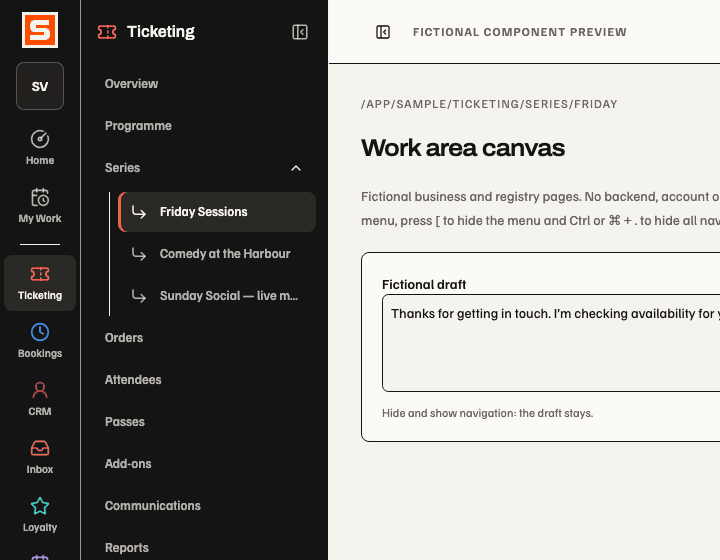
Series appears after Overview and Programme in the Ticketing area menu. Expand Series with its separate chevron to show the current business’s permitted Series names. The Series label still opens the overview; a name opens that Series and closes narrow navigation. A Series page opens its branch and marks the current name. Names load on expansion, with explicit loading, empty and unavailable states; retry or use the overview if the list is unavailable. This does not grant access or change local Series tabs. Native mobile navigation remains separate.
Ticketing owns the public programme, admission products, ticket inventory, attendees, door admission and event aftercare. A business needs the module enabled and each operator needs access to the particular organisation, Site, Space, Brand, Series or Event being served. Administrator reads keep organization, workspace and Series Event lists within the supported read budgets by reusing identical authority reads within a request. Each Event and its financial fields retain their own permission checks. Talent schedule and retained lists use the same read-only mechanism; permissions and expiry are rechecked on every request. Validation.
Screens and navigation
The workspace lives at /app/[orgSlug]/ticketing. The primary destinations are
Programme, Orders, Attendees, Passes, Add-ons, Communications, Reports and
Settings. Series opens the business overview from the sidebar or Manage series
on the Ticketing home board; exact route and source permissions remain authoritative.
| Screen | What the operator can do |
|---|---|
| Programme | Web month/list calendar with All, Live, Draft and Past & cancelled filters, Series selection, source-authorised Event actions and retained bulk publication/edit/delete. Open saved recurring slots create one private draft. |
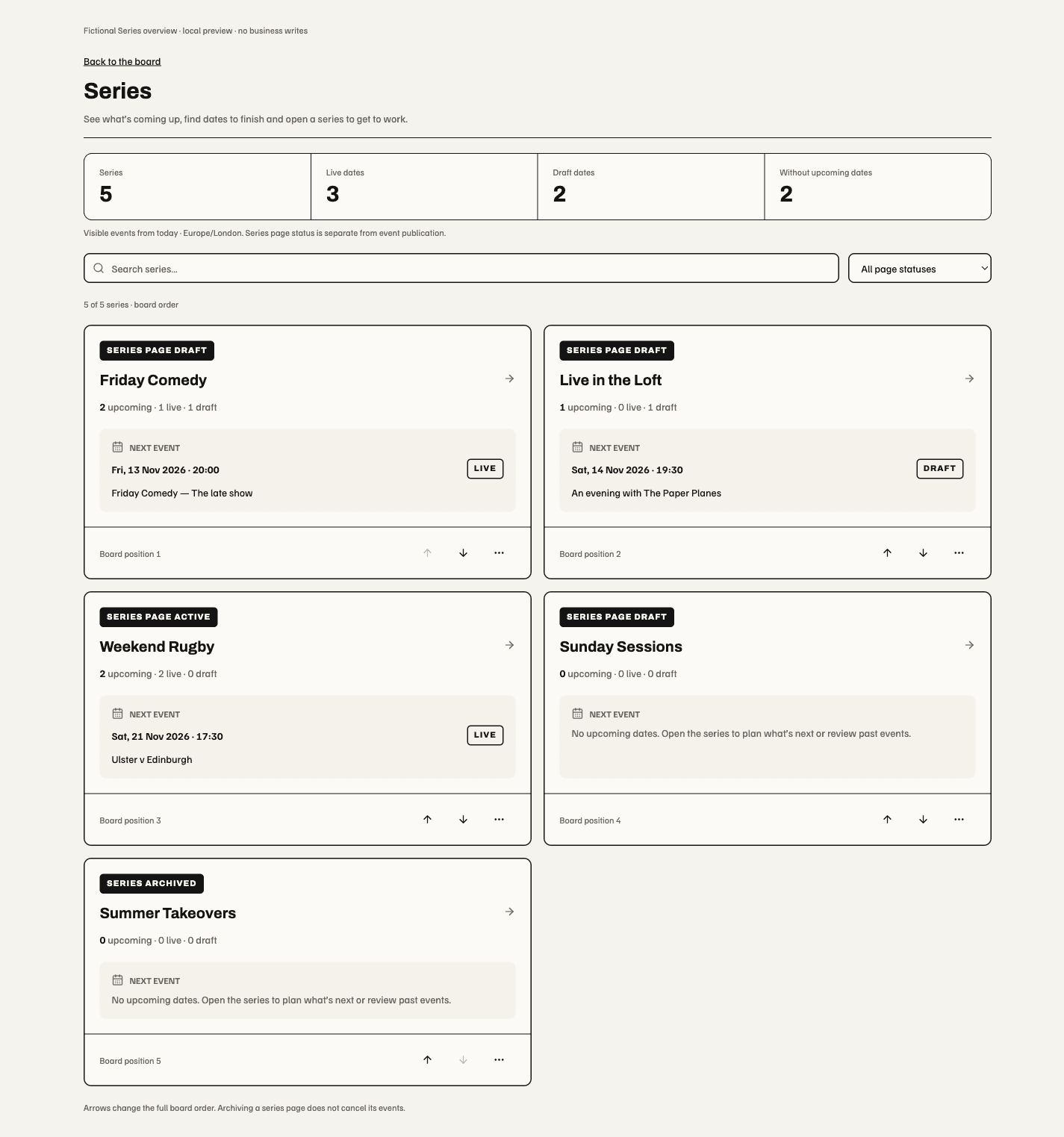
| Series overview / Manage series | Searchable overview with page-status filters, visible live/draft date totals and each Series’ next Event. Names open the Series dashboard directly. Authorised operators retain board order, archive/restore and typed deletion for eligible draft/archived Series. Archiving a page does not cancel its Events. |
| Ticketing → Orders | Browse all purchase states, newest first, in pages of 20; search and filter across permitted Orders (search starts after a short typing pause and scans larger source pages), open purchase details in place, resend a confirmation, spot Email bounced Orders, correct a mistyped customer and send them their Tickets, and open visible Refund / Review refunds or policy-gated Swap date reviews. |
| Ticketing → Attendees | Find permitted holders by name, email, reference or Event; filter active and inactive ticket states, sort columns, open and edit permitted attendee details in place, inspect timestamps, resend the selected Ticket and open an eligible whole-Order swap review. Export remains a separate permission. |
| Ticketing → Settings → Checkout health | Average measured checkout time is shared with the Series/Event dashboards under exact Order authority. Reports captured-payment checkout incidents, refund outcomes and monitor freshness; Checkout activity adds separate before-payment browser evidence; personal alert preferences require current seller-wide Order authority. Eligible failed Orders offer a reviewed customer recovery email. Email depends on its resolved sender and delivery evidence. |
| Event workspace → Overview; Setup → Details | Read sales readiness, guest picture and next actions. Reporting lives in Insights → Reports. Details retains explicit Save/Discard controls. |
| Event workspace → Setup → Lineup | Plan a running order of timed slots and fill each from the roster, offer or attach accepted acts, arrange billing roles/order and publish the reviewed lineup when Talent is accessible. |
| Event → Tickets → Ticket types | Configure ticket types and shared capacity pools. Each row shows its own allocated count; with attendee access a non-zero count links to that type's ticket holders. Guest lists and holds has its own Guests page. |
| Event → Tickets → Checkout questions | Add, edit, reorder and remove order-level or attendee-level questions; review stale edits and retain drafts across local menus. |
| Series → Marketing → Discount codes / Email templates / Automatic rules / Series CRM | One section stack lists these under a Promotions heading, below Communications. Maintain reusable discount codes; choose a styled promotion email from the library, edit it in the Email Studio and plan its campaign, including a ranked audience's top share; create automatic rules and Series CRM smart audiences. Drafts survive local menu navigation. Series CRM needs the CRM contribution. |
| Event → Tickets → Extras | Review Included with admission and Optional add-ons as two stacked sections. Included activity entitlements and optional purchases retain their own editors and save boundaries; Optional add-ons retains Event-management access. |
| Event → Sales → Orders / Resale | Service purchases and review official resale as separate pages. With attendee access, Orders lists each Order's ticket types. |
| Event → Tickets → Promotions / Waitlist | Maintain promotion codes and review waiting-list invitations. The contextual promotion planner adds Series CRM, sales recommendations and inherited/custom/off rules. |
| Event → Guests → Ticket holders / Interested / Guest lists & holds | Serve holders with the newest issued Tickets first, showing each Ticket's type, and filter them by ticket type; inspect explicit interest separately and manage promoter holds plus complimentary/accreditation inventory. Guest lists & holds retains the existing Event-management gate and one retained inventory controller. |
| Event → Guests → CRM / Loyalty; Operations → Bookings / Briefing / Automation | View separately authorised connected-module contributions. Loyalty is its own page. |
| Event → Operations → Check-in | Load the exact Event’s existing check-in workspace inline under its separate admission permission. |
| Event → Guests → Communications | Compose scoped event service messages and inspect their delivery context. |
| Event → Insights → Reports / Feedback | Reports contains Activity, Revenue, Ticket Sales, Source Tracking, Embed audience and Commercials for this exact Event. Guest feedback retains its separate permission. |
| Event workspace → Embeds; Series → Embeds | Manage widgets for this exact resource; Series also links to the individual embed for any accessible occurrence. The studio keeps a card library, settings and draft preview together. Its exact-Event Calendar opens that Event’s eligible month, with hover/focus details and clickable entries. |
| Ticketing → Settings → Managed embeds | Manage the business's allowed embed scopes in the same studio, with separate Preview and Install panels. |
| Event workspace → Setup → Team & access; Series → Team & access | Manage exact-resource invitations, user types, grants and blocks. The Event roles below separate Event team authority from business access administration. |
| Event → Sales → Payments / Finance; Series → Payments | Select payment account and VAT treatment or review governed settlement evidence. Event Accounts supports this exact Event without Event editing; Series keeps its existing management permission. |
| Series detail | Events, Orders, Guests, Marketing (Communications, then Promotions: Discount codes/Email templates/Automatic rules/Series CRM), CRM, Insights, Embeds and Setup (Settings/Team & access/Payments/Talent), each filtered by existing authority. |
| Series → Insights | Reporting contains Activity, Revenue, Ticket Sales, Source Tracking, Embed audience and Commercials for this exact Series. The legacy Reports view URL remains valid. Events leads with a compact collection summary and scheduled dates. |
| Series → Setup → Talent | Link or unlink Talent pools; select one eligible act and actual dates, then assign through one action; acts requiring acceptance remain unconfirmed. |
| Ticketing → Reports → Embed audience | Compare views, Event impressions and unique tracked browsers across permitted managed embeds, with Event, Series and embed breakdowns. |
Series names open their dashboards directly, preserving the current business and Group context. This supersedes the inset quick-review panel and its extra Open series dashboard step. The overview shows all permitted Series, a search field and page-status filter, live/draft date totals and each Series' next visible Event. An Event name opens that exact Event. Counts include live and draft dates from today in the business timezone; past and cancelled dates are excluded. Series page publication remains separate from Event publication. Counts reflect the operator's visible records, not hidden dates or sales figures.
Loading or unavailable Event details stay explicit and do not turn into zero counts; Series navigation and existing management remain usable. Empty and no-match states remain distinct. Arrows operate on the complete board order, even while filtering; the menu retains Archive page/Restore draft and eligible Delete series. Native is unchanged. These local previews use fictional records and do not establish deployed or signed-in acceptance.
The current Ticketing Programme retains its month/list layout and existing source-authorised selection and bulk actions. Shared EventSchedule consumers retain bounded selection and protected-history deletion behaviour; those controls do not grant access or override backend deletion restrictions.
The Event workspace header shows the saved Event banner in a compact strip above its title and actions. It uses the primary Event artwork, including a saved inherited Series image; separate listing artwork is used only when the primary image is absent. The header does not preview unsaved image edits or pull a newer Series default before it is applied to the Event. Missing, unavailable or failed artwork shows a decorative stage-and-microphone illustration. The title, status, links and permitted actions stay on an opaque surface, followed by the existing date, time, venue and permitted sales facts. The desktop banner is 176px tall and the narrow banner 128px, keeping it smaller than the public page hero. Saving and publishing remain explicit, and native layouts are unchanged.
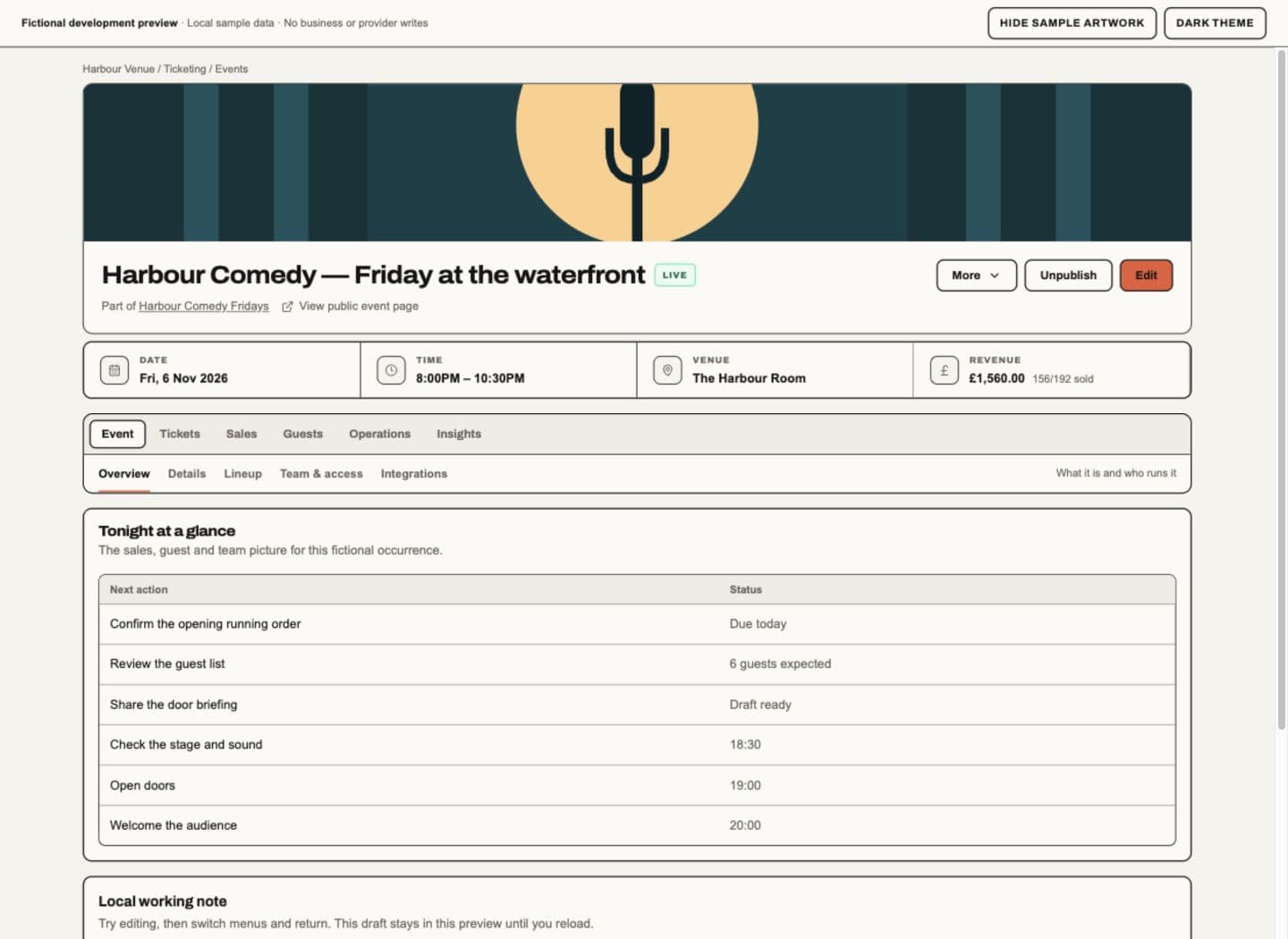
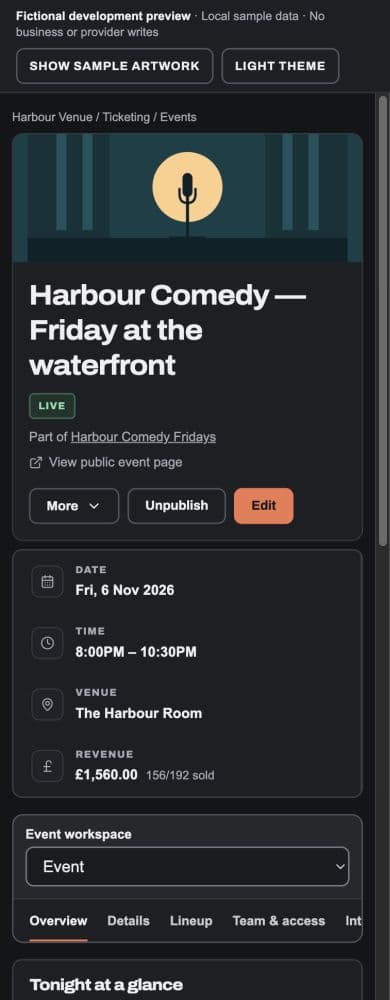
The Event workspace has one horizontal row: Overview, Tickets, Sales, Guests, Operations, Insights, Embeds, Setup. Setup sits at the right with a sliders icon. The row wraps on narrow screens. Other than Overview and Embeds, each tab has a vertical section list beside its content; on narrow screens the list stacks above it. This supersedes the earlier two-row Event menu and mobile group dropdown.
| Tab | Sections, in order |
|---|---|
| Overview | Existing Event dashboard |
| Tickets | Ticket types, Checkout questions, Extras, Promotions, Waitlist |
| Sales | Orders, Resale, Payments, Finance |
| Guests | Ticket holders, Interested, Guest lists & holds, Communications, CRM, Loyalty |
| Operations | Check-in, Tasks, Bookings, Briefing, Automation |
| Insights | Reports, Feedback |
| Embeds | Exact-Event embed library and creation studio |
| Setup | Details, Lineup, Team & access |
Embeds is directly visible in both Event and Series menus. Existing embed URLs still work. Each library and new embed stays scoped to its current record; this does not publish draft Events or install a widget on a website.
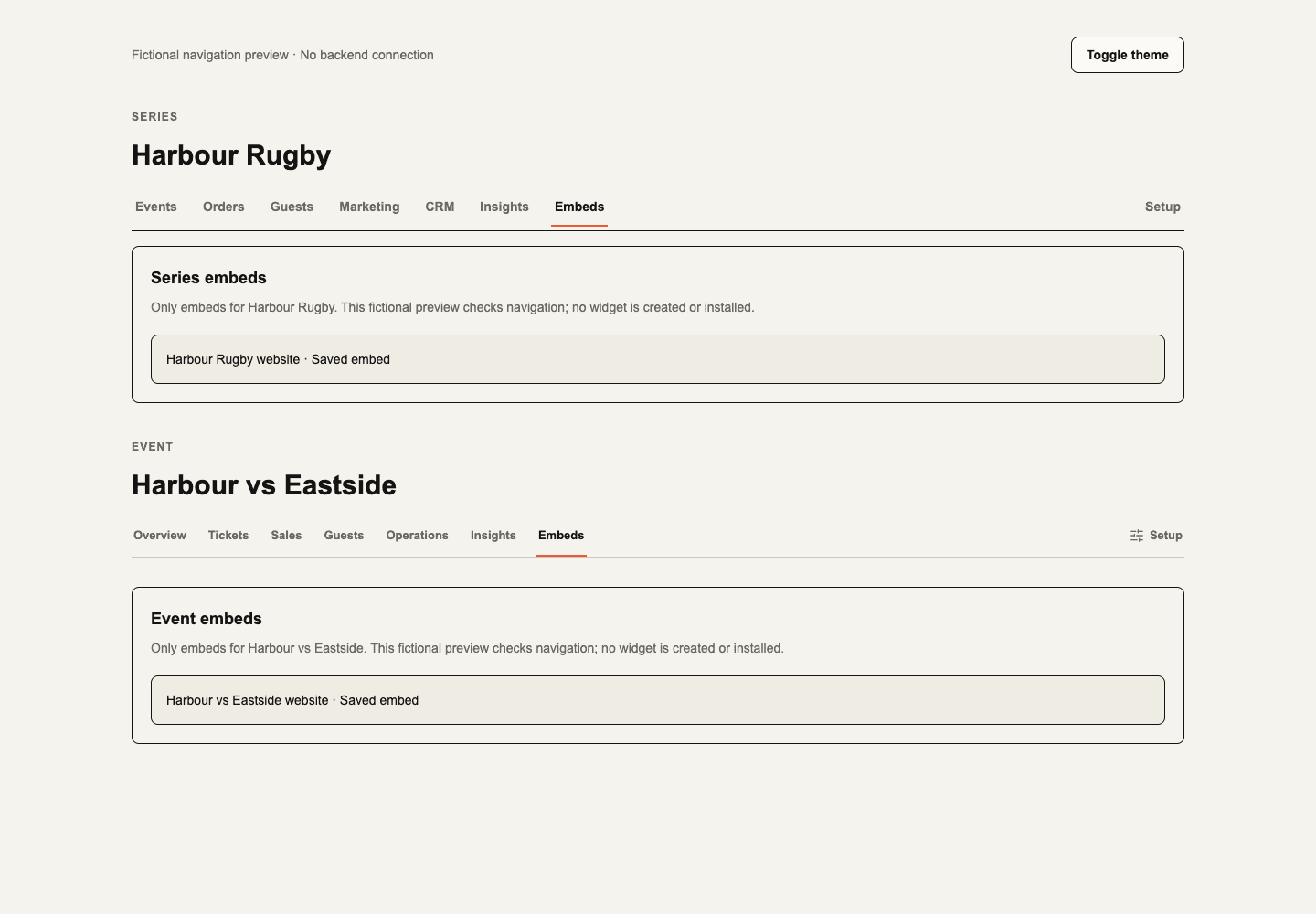
Only permitted sections appear; empty tabs are omitted. Connected-module markers retain their source authority. Known loaded counts stay local to their admitted records; unknown counts are omitted. Details may flag a missing location using saved Event data; this does not add a publication requirement.
Section links are real routes beneath /app/[orgSlug]/ticketing/events/[eventId],
including /setup/details, /setup/lineup, /setup/team, /setup/integrations
and /operations/check-in. The Event root opens Overview; each tab opens its
first permitted section. Old view and edit links, including view=settings,
remain compatible and retain provenance and recurring-setup context.
Editing entry points open Setup → Details, and Set venue targets its venue control. There is no separate header Edit button. Authorised operators edit the existing Details fields directly, with Discard, Save details and the separate apply-to-future action. Other sections retain their own save/publication boundaries. Navigation never saves, publishes, sends or grants access. Event → Operations → Bookings keeps the same responsive page gutters as the other Event sections. The full-height pane layout belongs to the business Bookings, Messages, Inbox and Assistant roots; a connected section sharing one of those names does not change the Event canvas. Section links preserve the selected Group provenance and other context once, including repeated tab changes. Existing links with malformed Group provenance still require a valid workspace link; this repair does not infer or grant Group access. Fictional layout verification records desktop/narrow and both themes. Native layouts are unchanged.
One persistent Event owner retains drafts and uploads across tabs and browser Back/Forward. Identity, organisation and Event changes retire private state; revoked source access remains unavailable. Scanner-only entry retains its independent Check-in authority without loading the Event detail source.
Extras still has Included with admission and authorised Optional add-ons in one
retained page. Existing activities and addons links reveal the corresponding
section. Guest lists & holds retains the single inventory controller. Native and
Series navigation keep their existing structure.
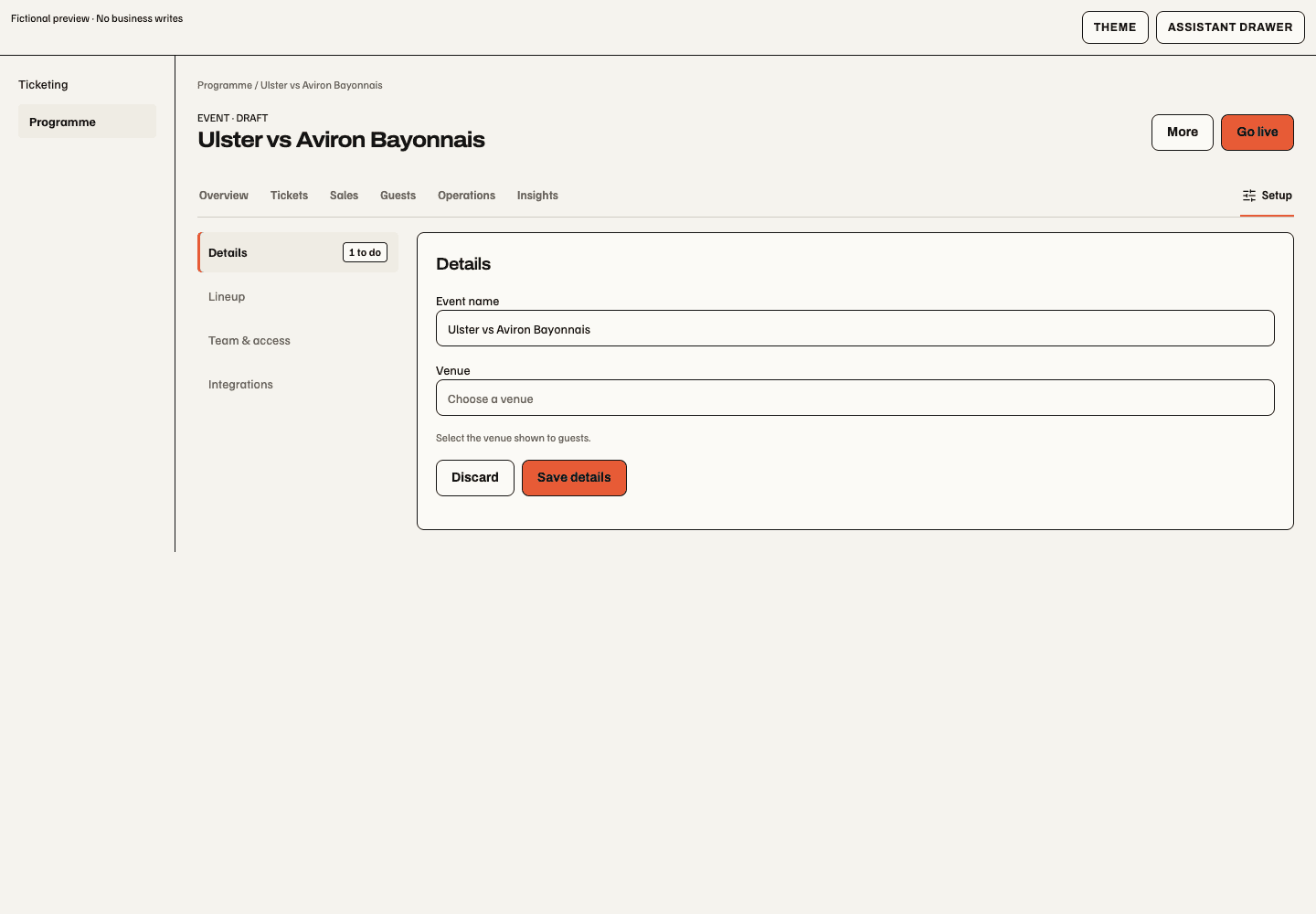

Tabs are permission-dependent. An Event route does not automatically grant attendee identities, finance, feedback recovery or a connected module's data.
The Series header's Edit action opens that Series' Settings view beside Create event. It uses the same management permission and retained local navigation as the Settings menu; opening it does not save or publish anything.
Compact Series overview. The saved Series artwork identifies a shorter header with the title, page publication state, address and permitted actions. Page draft describes the Series page; its Events may already be live. Every draft Series Events page shows its page-publication notice, including a Series with only draft Events or no Events. View page opens the public address; it is not a private draft preview. Publish page retains its existing Series-management and publication permissions and review. Publishing the page does not publish its draft Events. Missing artwork keeps the brand-colour background and readable title. The existing protected artwork reader and explicit address Save remain.
One bordered ledger puts Total events, Gross revenue, Tickets sold and Sell-through together. Total events includes every admitted status; the sales figures retain the next-four live Event window and label the actual selected count. The nearest date's capacity stays visible; More upcoming dates reveals the remaining actual occurrences. Each name and local date opens its exact Event. No ticketed contributors means no sales block; unknown money or capacity stays unavailable rather than becoming zero. Exact Order/report permissions still govern sales. Average measured checkout time, when permitted, appears in Reports → Activity with its separate 30-day sample and method. The nearest date now shares the summary strip on wide screens; its explicit extra-dates control retains navigation to the remaining selected occurrences.
The shared compact artwork header also applies to an individual Event, whether it belongs to a Series or stands alone. Event status, actions, Series link and exact Event report scope remain its own. Its date/time/venue/revenue facts retain their existing permissions. Checkout timing moves to Reports → Activity.
The saved image occupies a compact thumbnail beside the title; commands and Event facts remain in the same identity frame. The later 27 October request supersedes the always-visible Activity card: Series → Reports and Event → Insights → Reports now contain all six reporting views. Opening Reports defaults to Activity; Revenue, Ticket Sales, Source Tracking, Embed audience and Commercials use the same shared reporting composition as business Reports. The full report controller mounts only while Reports is selected; the audience/provider and Commercials readers mount only for their selected report view. No reporting query is started by the compact identity header. The 29 October daily briefing adds a separate scoped gross-history strip only on active Overview/Events, without mounting it alongside the full Reports reader.
Every report states the exact Event or Series. Sales and saved sources retain the admitted purchase history, currencies, Ticket and check-in semantics; their summary never falls back to business totals. Commercials retains direct-seller finance authority, one UTC month and currency, posted journal scope, paginated PII-free rows and freshly validated exact CSV export. Series ledger scope is frozen at posting: a later Event move does not rewrite its historical statement. Rows without recorded Series membership are not guessed from current Events. More than 250 scoped journals or 1,500 lines withholds monthly totals as incomplete; statement rows remain paginated. Current business contract terms remain in business Reports. Refused sources clear old figures and exports; loading is not zero.
Within Reports → Activity, the themed Activity card shows Page views, Embed views and Event impressions retain the selected UTC observation dates. Compact 7 / 30 / 90 days, custom-date and refresh controls sit above the card. Average checkout time keeps its separate 30-day/sample scope.
Each day aligns a view/source plot above a smaller Completed-order sales strip. Each plot has its own labelled scale: sales are recognized Order counts, not revenue, Tickets or conversion. Hover, tap or focus a day for the floating view and Order-source breakdown; arrow keys move between days, Escape dismisses it, and Tab reaches its scrollable detail. Daily figures exposes the table; Measurement explains coverage and units. On narrow screens both plots scroll together within the card. Desktop and narrow Reports layouts use fictional data; signed-in production acceptance remains separate.
Views shown → Consented views by source switches only the view series to separately consented, canonically identified Event/Series visits. The view plot stacks source counts with consistent colours and a named legend. The smaller ink sales strip shows total Orders; its floating detail retains named saved Order-source counts. Unknown source is neutral: no usable saved UTM source, not proof of a direct visit. Basic counts deliberately have no UTM dimension and are never subtracted from or mixed into consented stacks. Earlier visits without canonical identity are excluded rather than mapped from historical URLs. New identity enrichment resolves the actual public route, tenant and publication before adding fields to an already-consented visit.
Orders use recognized completed/partially refunded purchases and their saved source, grouped by creation day. They can include resale; they do not claim retained-primary-Ticket semantics. The chart supports 1–90 UTC days and up to 64 known sources plus Unknown. Incomplete, failed or refused evidence remains unavailable; independently available metrics remain readable. Source-attributed views need the existing PostHog query connection; basic views and Order activity do not. Refresh tracked sources retries under current authority. Counts are not joined to customer purchases or added together as people. The Embed audience report retains its separate consented embed analytics. On narrow screens the title/actions wrap, the sales ledger becomes two columns, and the workspace tabs scroll within their own row. Native layouts are unchanged.
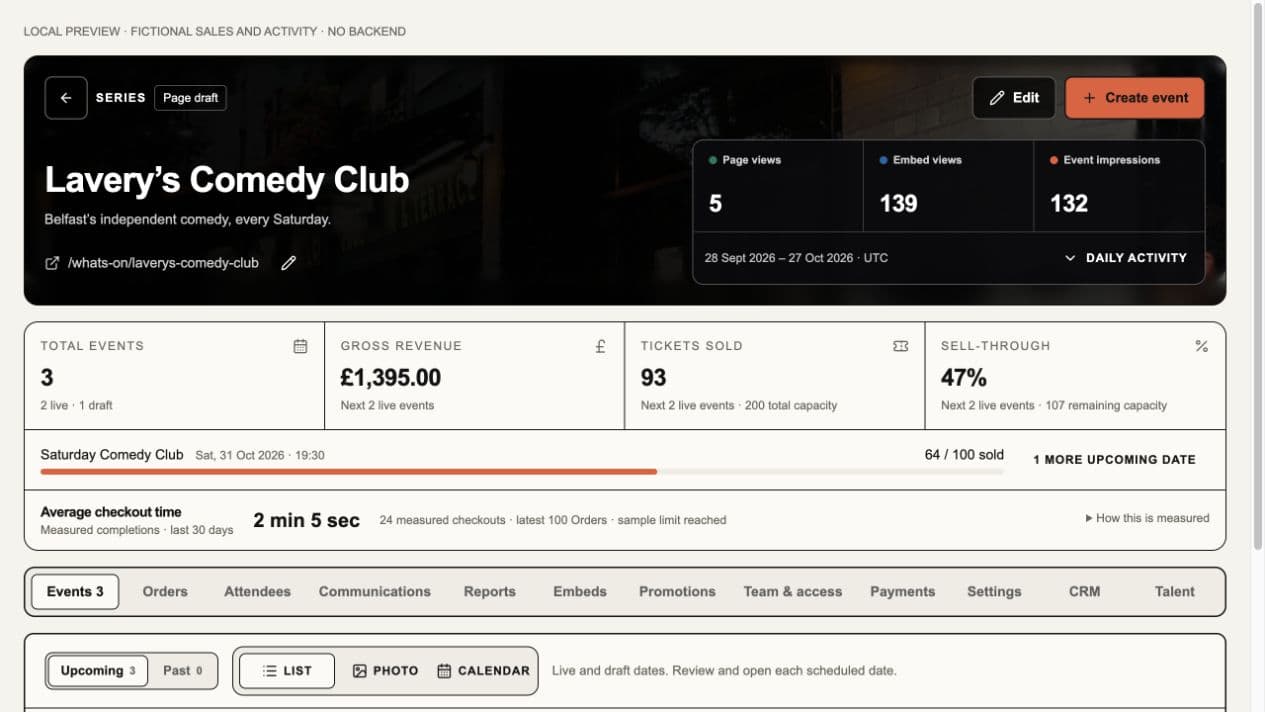
Fictional Series Reports screenshot with saved artwork above the six source-specific report views
Local composition: artwork and near-term sales stay above the workspace tabs; Reports groups Activity, Revenue, Ticket Sales, Source Tracking, Embed audience and Commercials for this Series. The five cards describe admitted report history, separately from the next-four summary. Event Insights → Reports uses the same composition. Fictional values do not certify deployed or authenticated outcomes.
Embed Calendar. An exact-Event studio starts on the eligible Event's month rather than an empty current month. Series, business and Group calendars retain bounded monthly reads. Desktop entries reveal date, time, venue and ticket context on hover or keyboard focus; clicking selects the Event. Narrow calendars keep full entries. Explicit month navigation is retained during refreshes. Preview uses public eligibility and never publishes a draft or starts checkout.

Manage series. The Series overview is reachable from the sidebar and Ticketing home board. Its searchable cards supersede the compact administration list. Names open the full Series directly; upcoming dates provide operational context. Reordering checks the complete current business list and every affected Series; a partial scope cannot reorder unseen Series. An archive changes the Series page, not its dated Events.
Series deletion. In the Series overview, open More actions → Delete series on a draft or archived Series and type its exact name. The command requires organisation administrator authority and rechecks current Ticketing Event management access on that Series. Active pages must be archived first. Any linked Event, Order or issued Ticket blocks the action, regardless of status. The dialog explains a refusal without changing the record. Successful deletion removes the Series from Ticketing lists, navigation, search and Event creation, and stops recurring generation. Soupy retains its identity, address and references. There is no restore action for a deleted Series. The web control still needs signed-in production acceptance.
The shared artwork components remain available for their existing callers; this update creates no artwork, changes no Event artwork or public eligibility, and does not modify native screens.
Series rows label Series page draft, Series page active, or Series archived. This is the Series page's publication state, independent of each dated Event. A draft Series page can contain live Events; a Series page remains active when it has no upcoming live Events. Opening a row does not publish either record; the explicit archive/restore actions change only the Series page state. These are web changes; native publication and presentation are unchanged.

Business Attendees → Ticket status starts with active attendees. Voids & archived groups void, refunded and resold Tickets; each status, Reserved and All ticket records are also available. These are display filters over the same permitted records; they do not archive, restore or change any Ticket. Original statuses and existing contact redaction remain visible. Export-only operators still have no directory or filter access; CSV exports keep their own governed scope and do not silently follow this display filter.
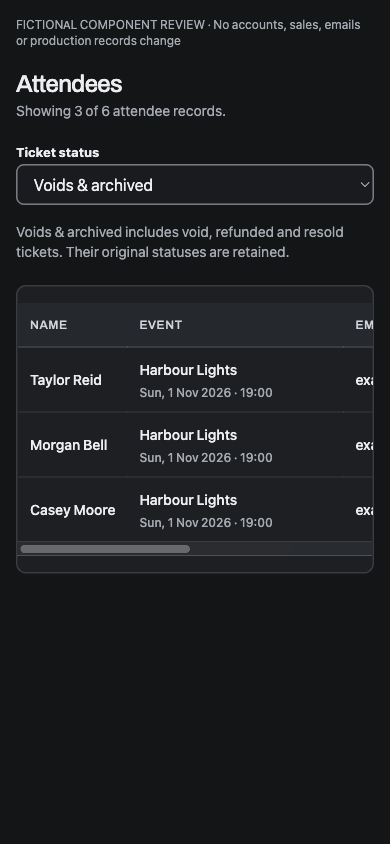
The Event Attendees list and its CSV export put the newest issued Tickets first, including valid, checked-in and refunded records in the same creation order. Refunding or editing an older Ticket does not move it to the top. Per-Ticket access, contact-field permissions and export authority remain unchanged. The custom export editor adds shared CSV layouts at the supported Ticketing export entry points; its release and source limits are described separately.
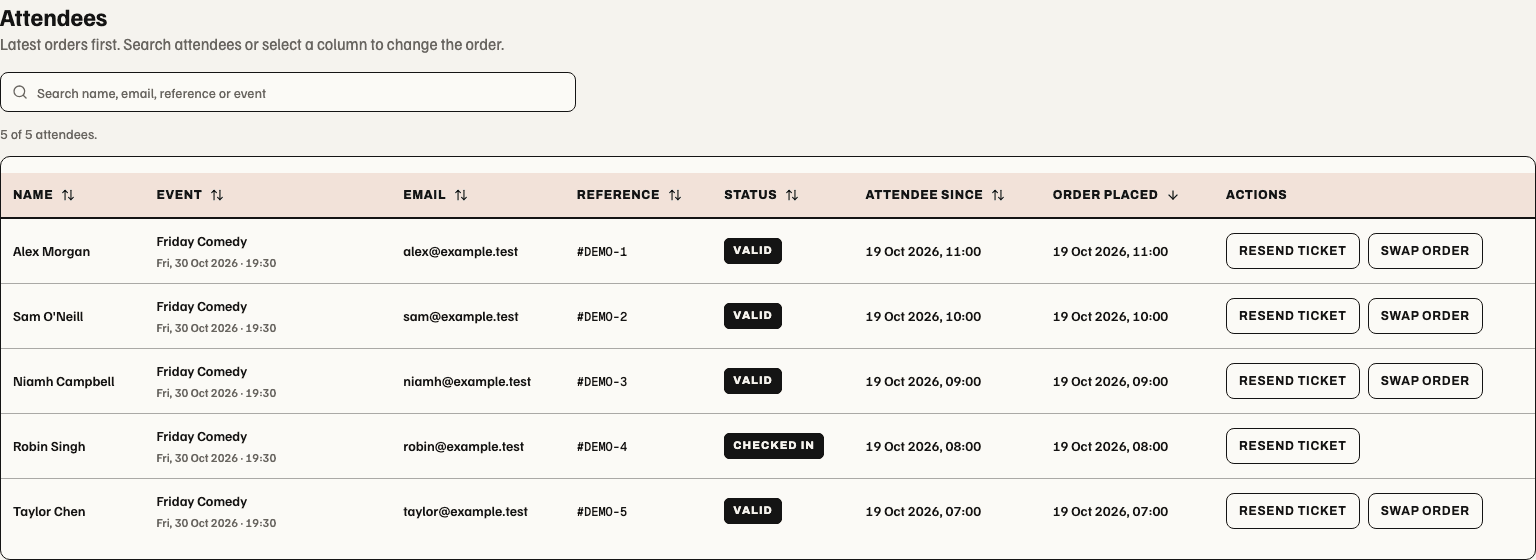
Ticketing → Attendees sits directly after Orders in the web sidebar. The directory defaults to newest original Order first; an older Order's replacement Ticket does not move ahead of a newer purchase. Attendee since is the recorded Ticket creation time, while Order placed is the original purchase timestamp when the operator can read that Order. Existing records retain their saved times; no historical attendee timestamp is invented. Each column heading toggles ascending or descending order. Search matches authorised names, emails, Ticket references, status and Event context across the permitted directory; withheld identity remains hidden. Void and refunded Tickets remain excluded from the working list.
Resend ticket queues the selected current Ticket to its recorded holder. Resend confirmation on an Order queues the purchaser's confirmation and only Tickets still in that purchaser's custody. These are transactional confirmations, separate from the existing reminder commands. A queued message is not delivery proof; unavailable routes and ineligible recipients remain errors. Both actions retain Ticketing communications authority and the current source checks.
When Series policy and current Order authority allow it, Swap order opens the existing date-swap review from an attendee row. The review names all Tickets in that Order and asks for explicit confirmation before moving them to an eligible Event in the same Series. It is an Order-wide operation. These directory controls are web changes; native screens retain their existing layout.
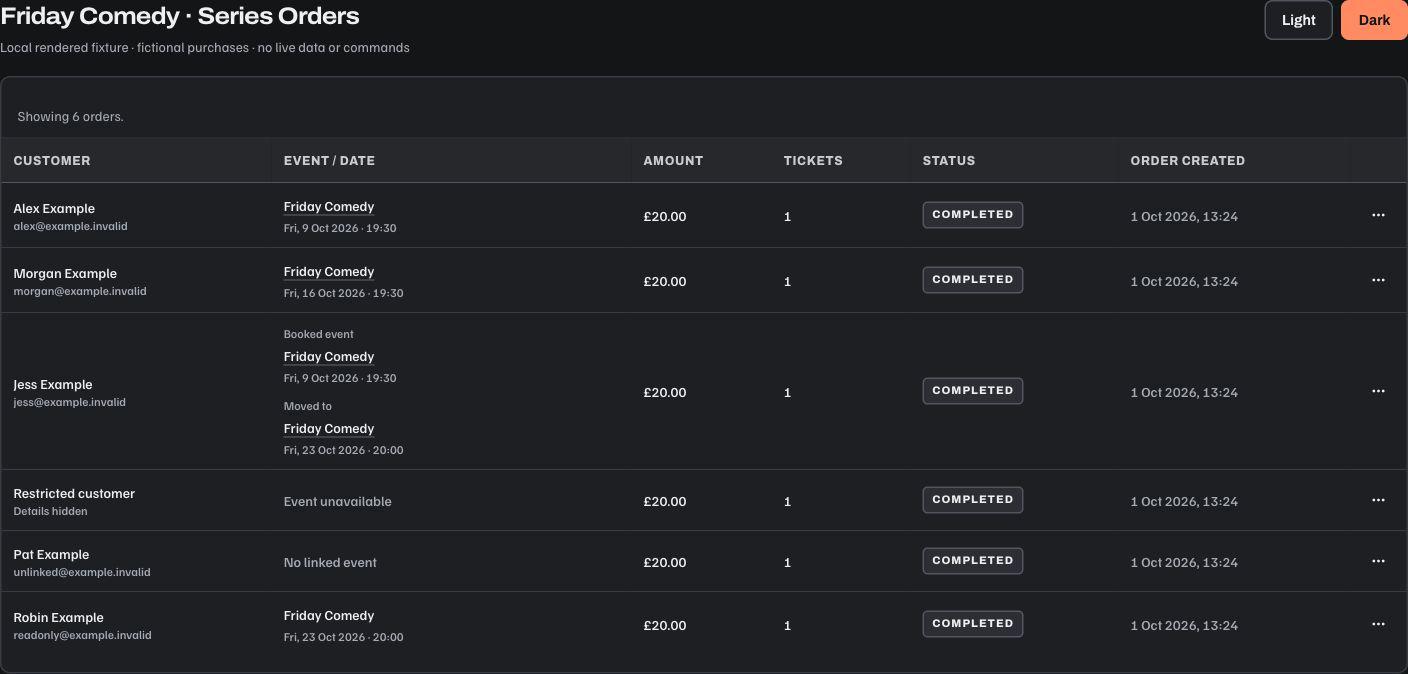
Series → Orders identifies each purchase with an Event / date column: the linked Event name, calendar date and local start time. Order created is the separate purchase timestamp. A date swap labels the original Booked event and current Moved to occurrence. Restricted or missing Event context is shown as unavailable; readable context links to the Event only when the operator can open it. This is a web Series table change; native screens retain their current layout and permissions.
Ticketing home operations
Ticketing opens with a daily briefing sentence about the next accessible live Event. Its inventory percentage appears only for finite configured capacity; unticketed and unknown-capacity Events have factual alternatives. The business/date and venue-timezone countdown remain explicit. Separately permitted Create series / Create event commands stay in the header, with Delivery status in More and Pass Center in the sidebar.
Next doors shows the exact Event and its allocated inventory. Allocations include reservations and inventory retained off sale; they are not a retained-paid Ticket count or a promise of currently purchasable places. Its same-day count covers accessible live Events on that venue day. The small upcoming ledger and Gross sales total retain the canonical next four live Events, including unticketed slots before ticketed contributors are summed. Missing revenue stays unavailable; unlimited or incomplete capacity has no aggregate percentage. Repeated titles include date/time and link to the exact occurrence in the current workspace.
Next doors. The next Event leads with days, hours and minutes until its venue-local start. A live Event has Share link (copies its public page address) and Open event (staff workspace). Other accessible live Events on that venue day are named below it. The next-four capacity ledger stays available in an expandable section.
With report access, the card shows this exact Event's recorded cumulative gross sales over 28 UTC days, carrying earlier sales into the opening balance. Daily figures are keyboard accessible; currencies stay separate. Last 7 days compares those inclusive UTC purchase days with the preceding seven; today is partial. These are gross sales after recorded refunds, not settlement, retained Ticket counts or a prediction. At doors remains unavailable without verified forecast evidence. No previous-run line or rush estimate is fabricated.
The Event report uses the existing manual snapshot admission: opening, returning, reconnecting or Refresh rechecks access; the countdown is local timekeeping and does not request new sales. Allocation figures remain available while a report loads or is refused. Report-restricted staff see inventory without the money chart or report navigation. Unticketed Events have no sales read. Empty programmes have no Event actions. This web change does not certify native/device acceptance; production and signed-in verification remain separate.
 Actual-component local fixture, 3 November 2026. Fictional records and local
links; report values are supplied directly. This is visual evidence, not a live
financial report or signed-in acceptance.
Needs you shows up to two publishing drafts and two draft Series pages, with additional counts. Event Publish uses the existing publication command, current publishing authority, pending state and readiness errors. A draft Series page is separate from its Events' live/draft status. The band flags drafts dated before the business's current day and opens the full publishing queue.
Board is the Ticketing home workspace. Each Series has up to five future live/draft date tiles ordered by actual venue start time, with inventory bars only where capacity is finite. Drafts have a named status and dashed border. Series totals still use four live Events, so scheduled tiles and financial scope are labelled separately. Empty Series and standalone Events remain visible. The web board shows saved Series artwork beside its name even before the first Event exists. Primary artwork takes precedence over listing artwork. Protected images load and renew access only while their row is visible in a foreground tab. Returning to the row rechecks exact Series access; unavailable or refused artwork keeps the repeat icon. Legacy artwork uses the Series' own business, without requiring an Event to supply that context. Release and signed-in acceptance remain separate from local fixture evidence.
 Local actual-component fixture, 3 November 2026. The first two empty draft
Series show saved artwork. The last two retain placeholders for missing or
refused images. Fictional sources and simulated media admission; this does not
prove authenticated production access.
Each row's Next action prioritises an accessible draft to publish, an open
saved recurring slot to fill, a permitted promotion link, page-publication review
or its existing dates. A promotion suggestion uses low allocated inventory and
communication access; it is not a sales forecast or a message being sent.
Open dates shows available slots from saved active recurring setups over the next two months, run end dates and Series with neither an active saved schedule nor an upcoming live/draft Event. Add date creates exactly one draft from that setup's saved time, product prices, capacity and related defaults. It never publishes. The server requires exact Series management and, when checkout defaults exist, payment-configuration management; it rechecks ownership, future eligibility, exceptions, deliberately removed occurrences and occupied slots, including hidden/cancelled Events. A safe retry reuses the same draft. Incomplete or over-limit schedule reads refuse rather than inventing open nights. No recurrence is inferred from Event titles. Manage series opens the Series overview with upcoming dates, direct dashboard links, board ordering and page archive/restore.
Programme is the dedicated sidebar calendar described below. Select uses the existing bulk controller; the previous separate Publishing queue workspace is replaced by that in-place selection flow. A publication-only operator sees only the admitted publication projection, without financial or Event-detail access. Losing source access removes the corresponding actions and data.
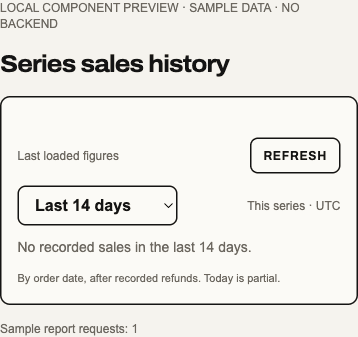
For report-authorised operators, the compact sales-history card offers Last 7, 14, 28 or 90 days, with 14 days selected initially. Changing its labelled period selector immediately updates the total, daily bars and expanded daily figures from the already admitted history. The choice lasts while that card is mounted and makes no additional report request. It is separate from upcoming Event totals: UTC Order creation dates, after recorded refunds, with today partial and currencies kept separate. Daily figures are keyboard-accessible. Empty successful results, loading and unavailable reports have distinct states; no failed or incomplete read becomes zero. No last-run comparison, ticket-sales pace, remaining-value estimate or projection is inferred from inventory counters. This web interaction applies to the shared business, Series and Event history card.
The history card is an explicit-refresh snapshot. It loads once when opened and shows a stable Last loaded figures label; it does not repeatedly request new sales in the background. Refresh obtains a new authorised report and is disabled while the card waits for a response or the connection is unavailable. Existing figures and the selected period stay visible during a slow same-scope refresh. The card reads the same authorised Order revenue without loading unrelated Ticket/check-in statistics. After 20 seconds without a response, the card explains the delay and enables Refresh again; it keeps prior figures and ignores a timed-out request's late success. This is a display deadline, not cancellation of the server request. A same-source access refusal still removes figures unless a newer request has already admitted them. Returning to the browser tab or reconnecting obtains one fresh read. Changing the signed-in actor, business, Event or Series removes the previous figures; an explicit source refusal shows unavailable rather than zero. Snapshot display does not extend a continuation's access receipt. Reports retains its separate existing refresh behaviour.
Series uses the same compact artwork/identity frame. Its Events tab leads with a sentence, five scheduled date tiles and the unchanged next-four-live sales scope; the gross-history strip is admitted only while that tab is active. The existing date list/photo/calendar and bulk actions remain beneath it. Event The Event Overview uses a compact identity/action row and a facts strip with separate allocated-inventory and revenue cells when report access permits. Overview and Details label a missing or invalid saved calendar date Date unavailable, keeping the Event open so an authorised operator can correct it. The edit summary keeps malformed dates visible as unavailable and prompts Choose a date when blank; the existing save permissions and rules still apply. Valid calendar dates retain the venue's day in every browser timezone. This display fallback does not repair data or bypass publication validation. Before you go live (or Event setup) lists ticket configuration, venue, ticket visibility and publication. The checkout step checks paid ticket types, including paused ones. It distinguishes a missing or unavailable seller account, unpublished checkout and a saved change that needs republishing. A current checkout and an eligible account complete the step. Operators without the relevant Event permissions see whom to ask and cannot open restricted settings. Free-only Events need no payment step. Payment-read failures stay in the checklist and recover when the source changes without closing the Event or losing local edits. This checklist is guidance: paused tickets stay paused after publication, and Go live retains the authoritative readiness check, permission, pending state and blocker message. Unticketed Events are not required to add tickets.
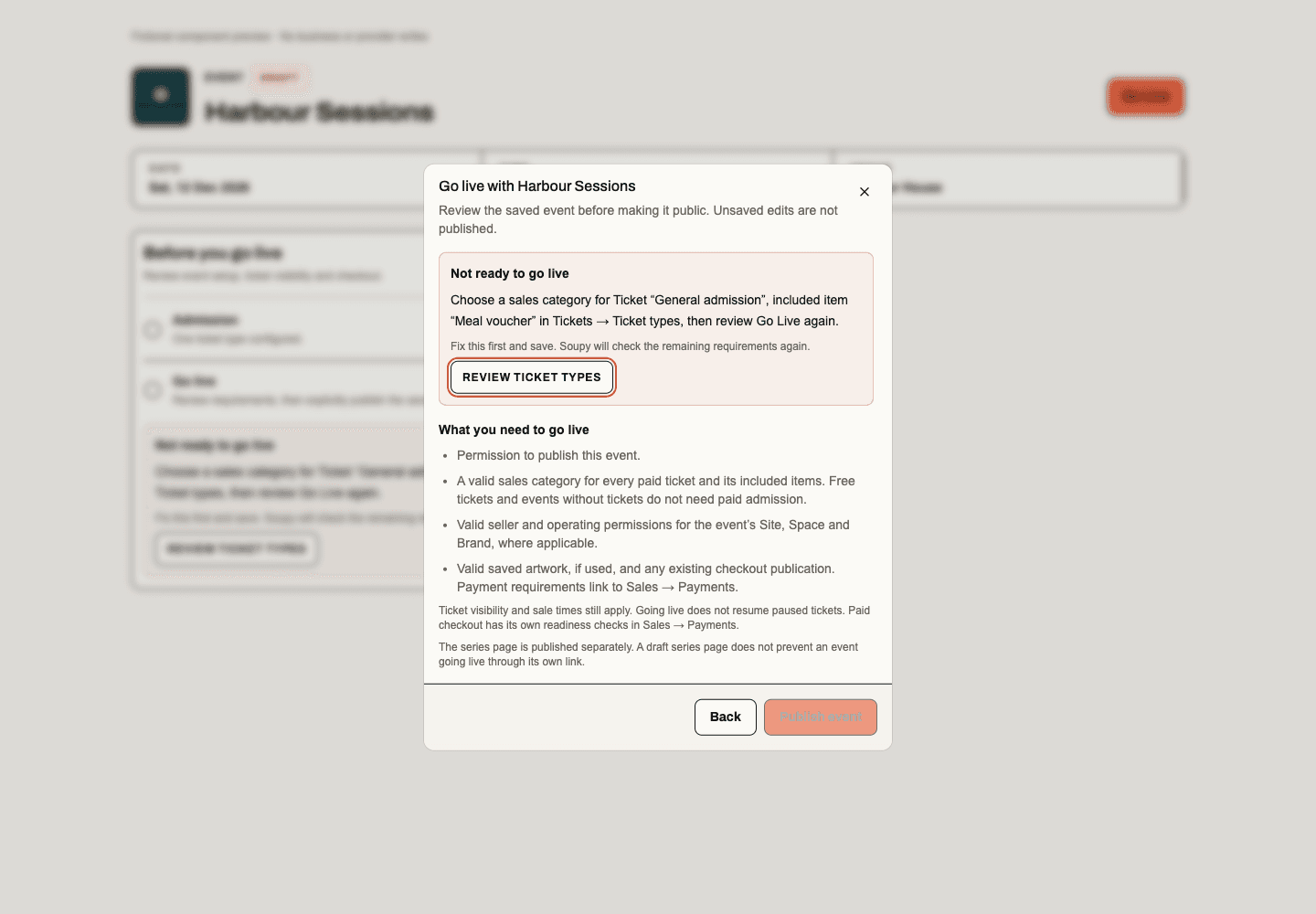
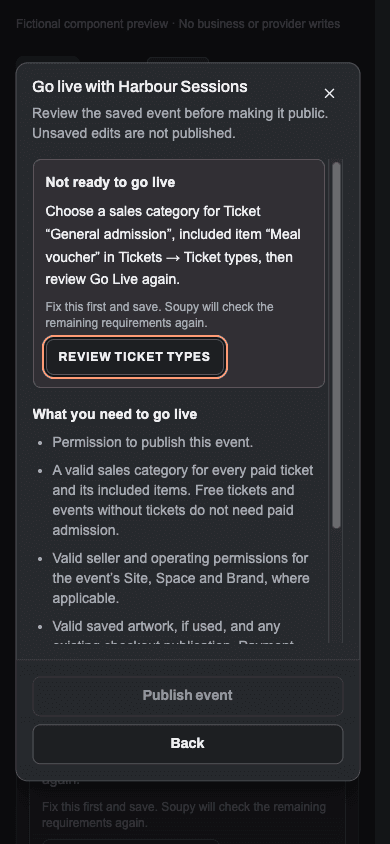
Go-live review. Go Live in the Event header and Review and go live in the checklist open the same review from any Event section. It checks the saved Event; unsaved edits are not published. Publish event stays unavailable until the current authoritative check passes and while publishing is pending. A blocked review stays open and names the correction. Missing or invalid sales categories identify the exact Ticket or included item and offer Review ticket types. So does a ticket on sale whose included items go to more payment accounts than one checkout can pay; a paused ticket does not block. Payment blockers offer Open payment settings only to permitted operators; other publishers see whom to ask. Event-context and artwork blockers open Details. The same result is visible in Overview. Correct the named issue and save; the next authoritative check may identify another requirement. Failed attempts remain visible in the review, and unknown server failures do not disclose internal error details.
The publication check and final command use the same paid-ticket category rules, including donation/tiered products and retained included items. Existing seller, Site/Space/Brand authority, artwork and immutable-checkout requirements still apply. Venue setup and paused-ticket guidance are advisory; publishing does not resume paused products or establish paid-checkout readiness. A draft Series page is independent of Event publication, so an Event can go live through its own link before the Series page is published. This web review does not change native mobile publishing.
Setup, Ticket types, Sales and Recent sales form one continuous column beside Capacity, Guests and permitted On the day tools. Cards use consistent spacing and stack when the available canvas narrows, including beside the Assistant drawer. Ticket summaries show name, price, visibility and each type's own allocated count; a shared pool is described once. With attendee access, a non-zero count links to that type's ticket holders. The Sales panel reserves space for admitted figures while keeping loading, unavailable and no-sales states distinct. Capacity leads with allocated tickets over total places (for example 13 / 74) and, with report access, gross revenue beside it at the same size. Allocated tickets include reservations; separate holds still affect checkout availability. Reserved/held figures are not invented from Orders or Tickets.
Guests exposes completed Orders, active Tickets and waiting entries only under corresponding source access. Recent sales shows up to five already-admitted completed Orders with the existing detail opener and All orders. Loading stays distinct from no completed Orders; partially accessible purchases identify accessible parts only. Check-in, guest-list, communication and publication permissions remain intact. This composition adds no forecast, comparison or report calculation. The after-purchase editor stays under Details, retaining its draft across workspace tabs and requiring explicit Save. Native presentation and backend/report calculations are unchanged.


Order source coverage
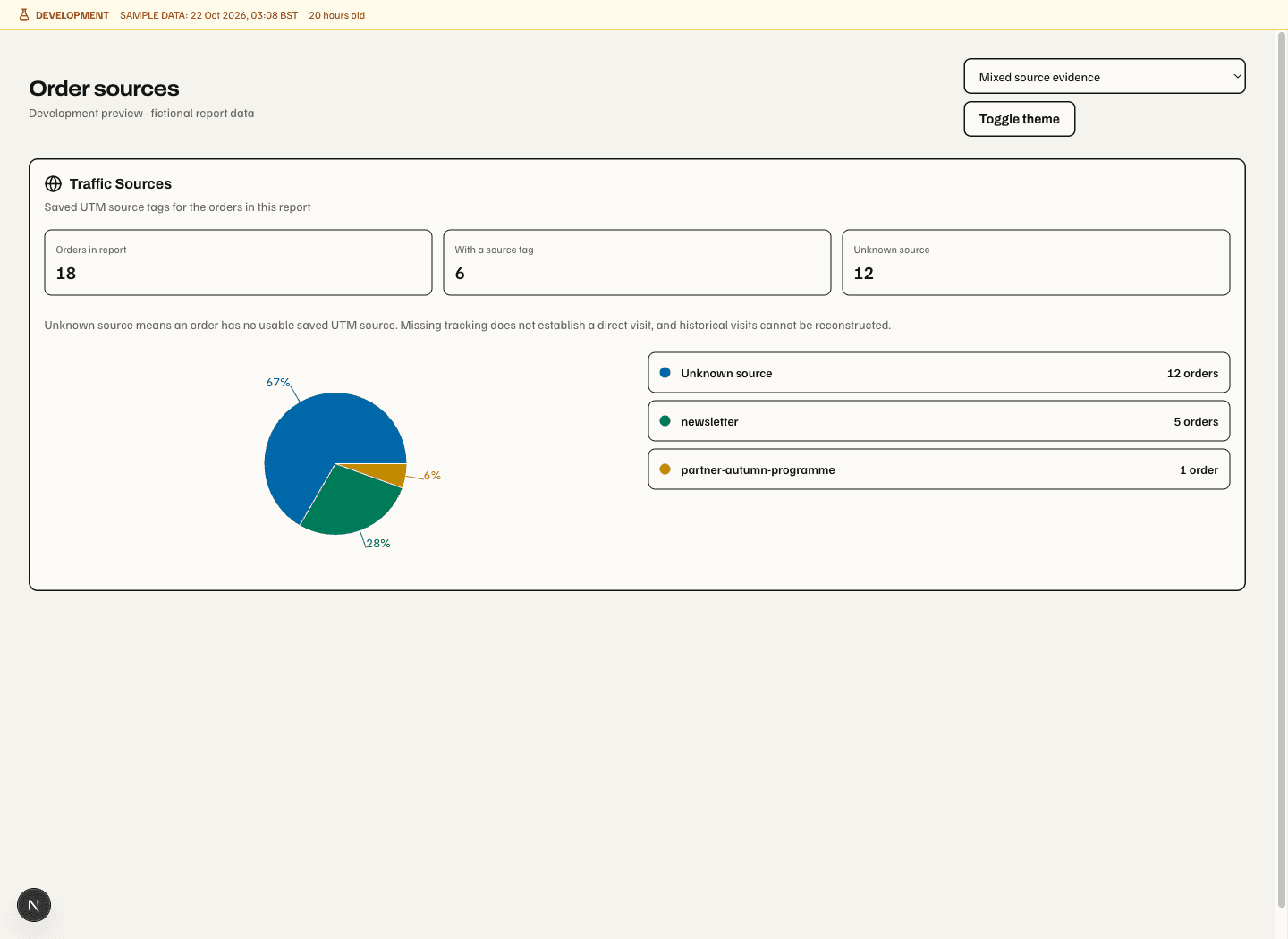
In Ticketing → Reports → Source Tracking, Traffic Sources groups the report’s recognised Orders by their saved, normalised UTM source. Orders in report, With a source tag and Unknown source use that same permitted Order set. The tagged and unknown counts add up to the total; changing Site, Series or Event access cannot disclose excluded Orders through coverage totals.
Missing or invalid saved source tags display as Unknown source. A referrer hostname without a usable source tag stays unknown in this report. Neither absence nor an empty historical field proves a direct visit, declined consent or disabled tracking; historical visits are not reconstructed. This corrects the earlier fallback that labelled missing source data Direct. These are Order counts and saved tags, not unique visitors, QR scans or a complete customer journey. A loaded report with no eligible Orders shows zero coverage; loading shows no counts. The current chart and source list remain available without a PostHog connection. Native has no new source-report screen in this update.
Where saved sources come from. An Order
saves a normalised utm_source, utm_medium and utm_campaign, nothing else,
from one of two places. First, the checkout link's own campaign tags: Checkout
on an Event page (/org/{business}/{event} and /{event}), an embedded ticket
widget or a customer-website page keeps the page's tags, and checkout sends
them with the Order. This works for every visitor in that
visit, with no consent, because nothing is stored on the device and the Order
keeps only campaign tokens. Without a valid utm_source the tags are dropped.
Second, when the checkout link has no tags, the buyer's consented CRM tracking
visit fills the source: if the buyer chose Allow analytics on a Soupy public
page, checkout uses that browser's last campaign-tagged visit within 90 days.
Explicit link tags always win; the consented visit fills only an Order that has
none. Consent collection needs the same conditions as other customer-linked
analytics: CRM Growth and CRM tracking on, a current CRM entitlement, an active
website registration and the visitor's current consent. Declined, withdrawn or
expired consent, or tracking switched off before the Order, stops that second
path only. Series pages do not yet carry tags to the Event page, so a tagged
Series visit reaches the Order only through consent. Referrer, content, term and
campaign-link detail stay in CRM attribution. Earlier Orders keep their missing
source. Multi-seller basket checkout, ticket bundles and native apps save no
source. The Order keeps its saved source after later consent changes and
never holds browser or customer identity. The Ticketing Analytics consent
setting governs only the separate checkout opt-in, which web checkout no longer
shows, so setting it to disabled stops neither path.
Series sales window
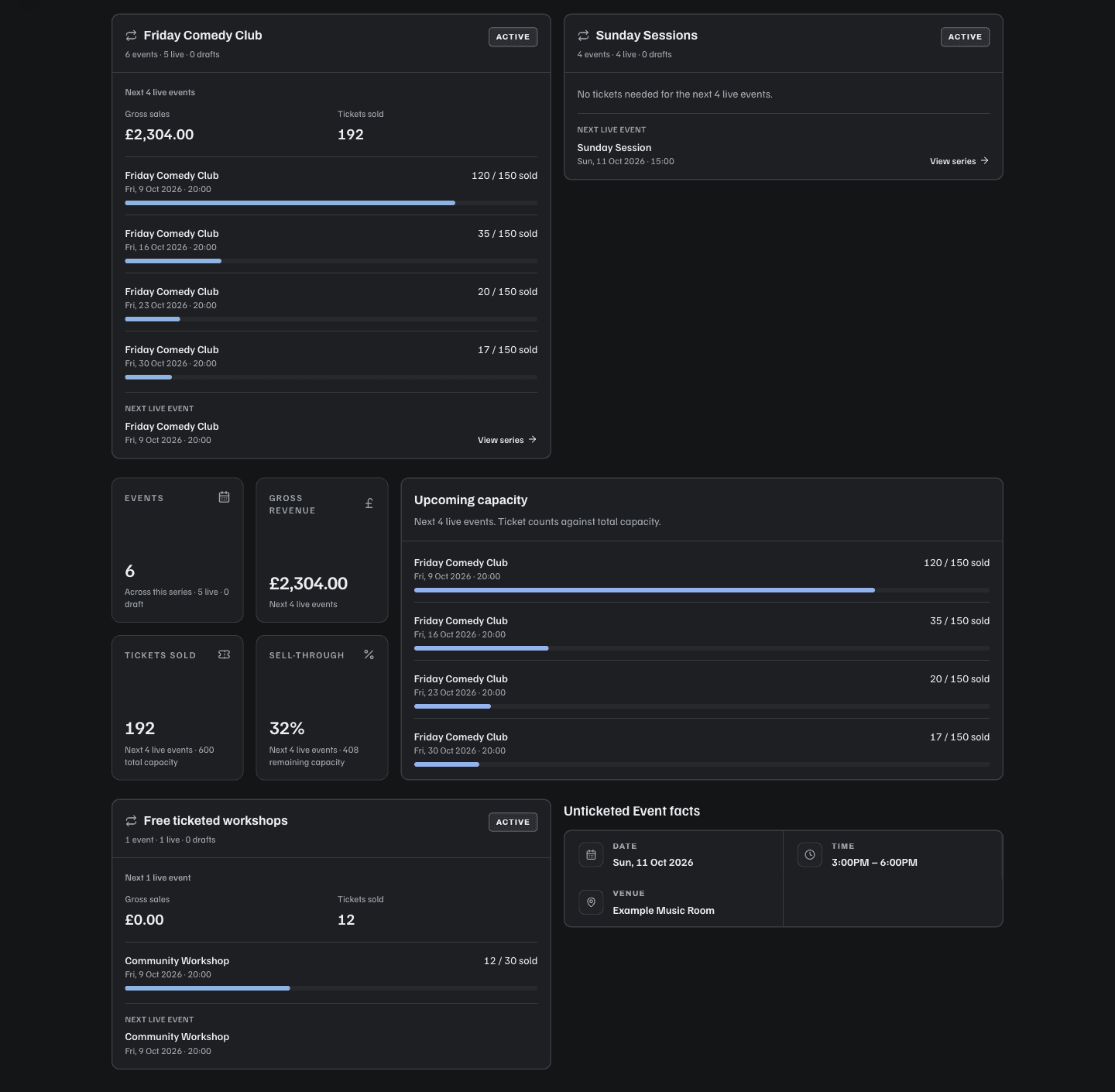
The web Series cards and Series detail performance use the next four upcoming live Events in that Series. Gross sales, Tickets sold and capacity share that window; the caption states the actual number when fewer than four remain. Dates must be live and have a scheduled start still ahead in the Event's timezone. Draft, past and cancelled Events never contribute. The window refreshes while the page stays open. Overall Event counts remain programme counts, separate from these sales figures. Their breakdown includes live, draft, past and cancelled statuses, so a total of three with one live, one draft and one past Event is explicit. The Series card and detail use the same breakdown; these counts do not infer a status from the date or change the sales window.
Select the four dates before excluding unticketed Events from sales totals. A No tickets needed date occupies one of the four places; it does not pull a later ticketed Event into the window. When none of those dates uses tickets, the Series keeps its identity, dates and navigation without sales metrics. With no upcoming dates it says No upcoming live events, without historical sales. Free tickets still have real inventory and retain their counts; a paid Event with no sales still shows zero. Sell-through is total sold divided by combined finite capacity, not an average of Event percentages. Unlimited or unconfigured capacity has no percentage or progress bar. Restricted revenue is unavailable, never a zero or a partial aggregate. Existing report permissions still apply. Programme and Series summaries use the same Event report authority as each Event's detail, including businesses that have not activated secure access. An authorised zero remains zero; a report role limited to one Site or Series cannot reveal another Event's revenue or grant access to that Event itself.
The Series listing's Upcoming capacity lists the same four live dates with their own admission and inventory. The Series detail briefing also shows upcoming drafts, labelled separately from its four-live-Event totals. Unticketed Event facts, Overview and Photo cards omit revenue and capacity metrics. Series Photo and Calendar cards show Admission: No tickets needed, without Sold or Revenue metrics. Event and Series tables omit Revenue when all displayed dates are unticketed, or show a dash in an unticketed row of a mixed table. The module's Upcoming sales replaces the overall All sales summary and uses the next four live Events across the accessible programme. It shows no lifetime sell-through percentage or draft capacity. With no ticketed contributors it shows no sales metrics. These web summaries leave reporting calculations unchanged. The Ticketing home ledger above keeps its operational facts when no ticketed dates remain.
Series cards show each selected Event's name, date/time and inventory rather than a lifetime progress bar. Upcoming capacity uses real Events only: a single eligible Event produces one row, while two live shows on one date remain distinguishable by their names and start times. No dates are fabricated to fill the four places. Each dated Event name in a Series card, its Next live event reference and the detail's Upcoming capacity opens that exact Event in the current workspace, retaining any portfolio context. The Series heading and View series still open the Series. Links do not change Event or report access.
Event schedule views
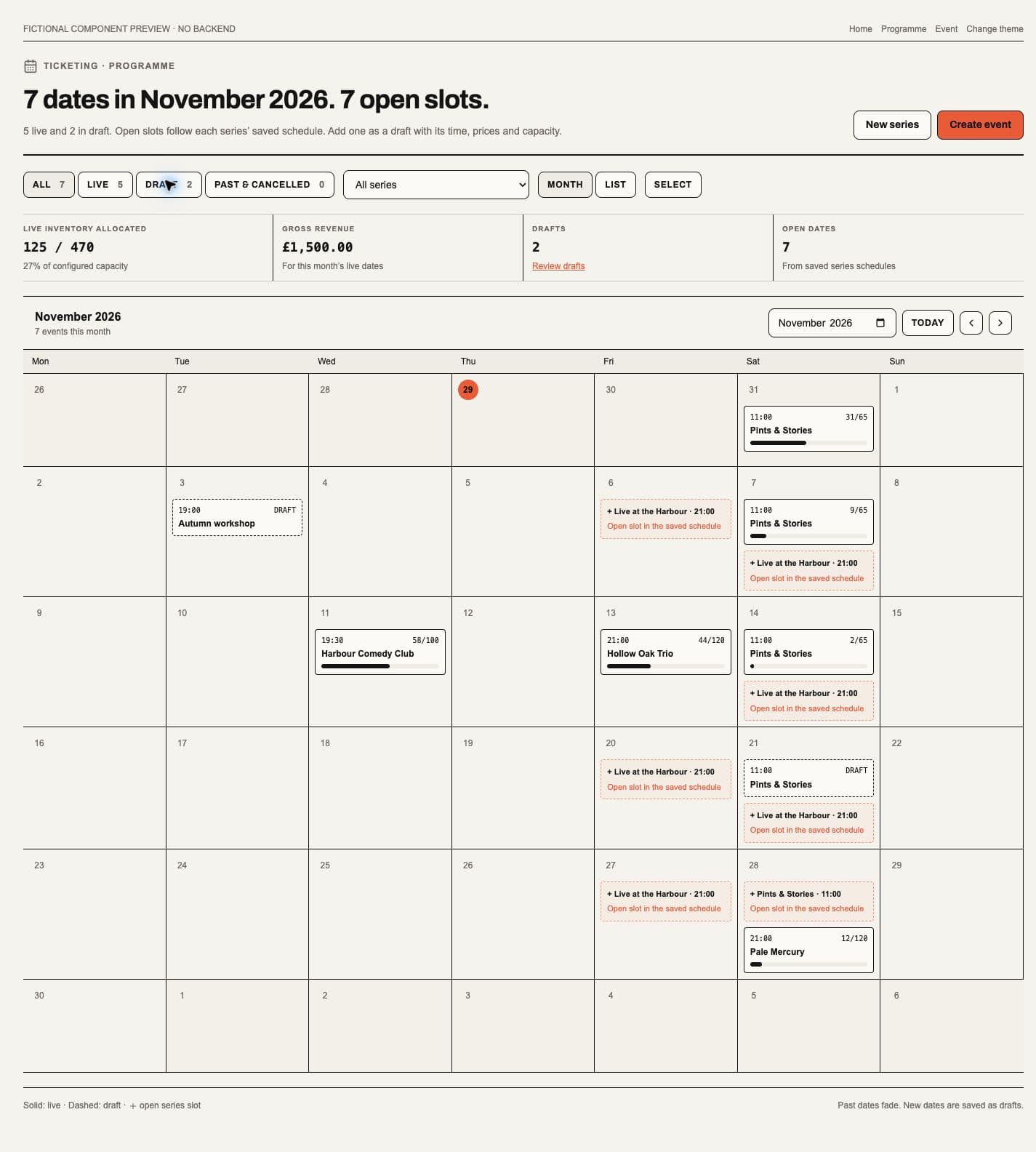
Ticketing → Programme replaces the business Events index with Month and List views. All includes mixed source statuses; Live shows live dates on/after the business's current day; Draft shows draft records; Past & cancelled includes those source statuses and earlier live dates. This supersedes the business index's former Live-only initial view and List/Photo/Calendar menu. A Series filter narrows the same admitted collection. Layout/filter selection is local to the mounted Programme; it does not change Event records or overwrite the separate Series Events layout preference.
The month calendar uses scheduled calendar dates and chronological start times, with previous/next, month input and Today controls. Narrow layouts keep date buttons and a selected-day agenda. Solid entries identify live dates; drafts use dashed outlines; past/cancelled entries are muted. Unticketed entries say No tickets. Finite live inventory shows allocated/configured capacity and a progress bar; it does not establish retained paid Ticket sales. Unknown data remains unavailable and gross revenue requires reporting authority.
Dashed Open slot in the saved schedule entries appear under All/Live and follow only saved active recurrence. They retain their exact Series, date and show time. Adding one saves a draft with pinned setup defaults, never a live Event. Exceptions and manually removed dates stay excluded; an existing hidden or cancelled occurrence is not presented as an empty slot. Month totals identify live allocated inventory, permitted gross revenue, drafts and saved open slots. No remaining monetary value, historical pace or sales projection is inferred.
Select opens retained publication actions within Programme. Eligible IDs stay selected through month, Series, status and layout changes; the controller counts selections outside the visible results. Select-all applies to eligible visible-month results. Quick edit, Publish, Move to draft and typed bulk Delete retain their existing commands, source permissions, per-record failure handling and protected-Order/Ticket/Booking refusals. Publication-only entries cannot open Event detail or reveal redacted financial data. Individual Duplicate/Delete keep their existing management and confirmation boundaries.
Series Events retains its own Upcoming/Past collection, searchable List/Calendar choices and bulk-selection rules. A previously saved Photo preference opens List without changing the preference used elsewhere. Public discovery and embed calendars keep their source eligibility and pagination contracts. Native schedules are unchanged.
An unavailable or invalid saved calendar date displays Date unavailable in the schedule and Publishing queue. The Event remains accessible with its existing actions and status. Calendar lists it below the month rather than assigning it a day or counting it in that month; queue summaries do not assume it is in the past. The presentation does not repair the stored date. See the 28 October validation.
This is a web schedule presentation; native schedules are unchanged. The source and synthetic evidence below describe the implemented view.
Local component preview, 29 October 2026; fictional data and no backend. Status and Series filters sit above the real month grid. Dashed drafts remain distinct from dashed orange open-slot actions. The 11:00 suggested slot precedes the 21:00 Event on the 28th; selecting it creates a draft, not a live date.
Create and publish an event
- Choose Add an event and build its card: optional header image, name, description, date/time and a saved Site. Choose a Series when relevant.
- Choose No tickets needed, Free tickets or Paid tickets. The default is a listing without tickets. Optional presentation and FAQs can be expanded without entering ticketing settings.
- For a ticketed event, configure its products and any shared capacity pool. Switching admission mode preserves the editor draft, but inactive settings are removed on submission; free ticket prices are normalised to zero.
- Save the draft, review its details and use the explicit publication action. A failed ticket setup remains private.
- For paid sales, open the Event’s Payments tab to check its effective Payment Profile and whether its checkout configuration is current.
The web editor is one contextual event canvas. The optional event image sits at the top, followed by the name, category, description and date/venue facts. These are editable controls in the event itself; there is no duplicate preview sidebar. The attendance choice and its fee/readiness explanation sit below those facts. The narrow layout stacks fields while keeping the same order and options.
Guide beside the title opens optional, unnumbered explanations for describing the event, time/place, attendance, extras and saving. Copy follows listing, free or paid admission, recurrence and available publication permissions. Go to… reveals the relevant section, scrolls and focuses its control without changing values, turning on recurrence, opening a file picker or saving. Paid-sales readiness, timezone, errors and publication consequences remain by the controls. Full help opens in a new tab so the working form stays available.
The guide defaults open beside the form when the content container is at least 896px wide; otherwise it starts collapsed and expands above the fields. Explicit Show/Hide choices are remembered in this browser per signed-in user and editor, including reopening. Only that presentation preference is stored, never form values or business details. If browser storage is unavailable, the choice lasts while this app page remains open, including reopening the editor. Resizing and toggling preserve mounted fields; closing focused guidance returns focus to Guide. Native is unchanged.
Repeat this event reveals the existing weekly schedule. FAQs & extra details keeps the Series, reusable FAQ bank, event-specific FAQs and separate public page banner available. Ticket products appear for free or paid admission; ticket options and advanced capacity/resale settings remain expandable. Closing a section keeps its values. The event image accepts JPEG, PNG or WebP up to 5 MB through the existing picker or drop target; a failed replacement keeps the prior image. Uploading an image does not create or publish an event.
Save draft remains the default. Only operators with publication permission see Publish this event now. Creation first saves a private event, then creates its tickets before requested publication and recurrence setup. Failures after event creation direct the operator to the saved event with the failed stage identified; a failure before creation keeps the form available. Paid publication does not establish payment readiness. Native creation screens are unchanged.
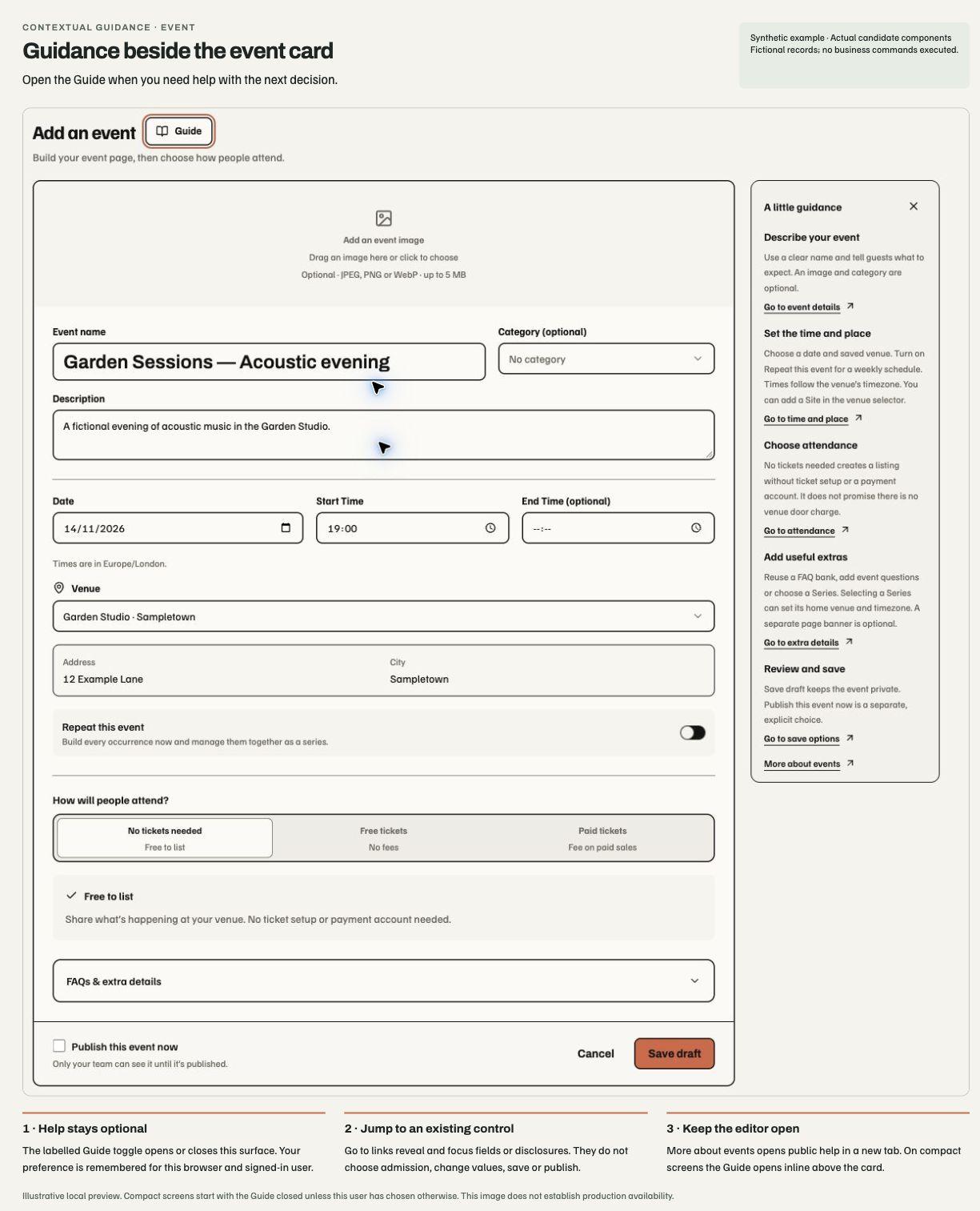
The public page says No tickets needed for a listing; this does not promise that there is no venue door charge. Hidden, paused and sold-out ticket products still make an event ticketed, even if its current public selector is empty. Operator lists use Free entry for listings and Free tickets when every product is free. Positive-price and donation products remain paid admission.
A published event freezes public configuration. Draft edits require publication; changes to an already-published Payment Profile can refresh its payment evidence without publishing an unreviewed lineup or event draft. Stale legal, tax or payment evidence can close checkout while the last valid presentation remains readable.
The Belfast Guide event feed
Soupy's public catalogue gives The Belfast Guide upcoming published Events with an eligible Belfast venue address. Each Event uses its own Site or explicit event address. An account can publish at several venues. A shared Site still requires Soupy's current host and seller publication authority. The feed exposes listing information and links to the Soupy event page for tickets. It has no access to orders, attendees, staff or draft Events. An incomplete venue address may require correction before the Guide can place the listing. The feed uses Lavery's documented ticket pickup point for its legacy Ulster Rugby packages when the assigned active Lavery's Site has no address and the Event has no explicit location. The Guide imports on its own schedule. There are no new staff screens or permission keys.
The Guide ticketing integration opens Soupy's ticket chooser for the exact published Event inside the Guide notice. The iframe is limited to the Guide's public domains. Ticket selection stays in the notice and continuation opens Soupy checkout in a new tab. The Guide can still link to the Event on Soupy. This also requires the Guide's updated web deployment.
The Guide chooser keeps its subtotal and continuation in normal flow below the ticket options. The control does not follow the last selected row or animate while the Guide resizes the iframe. With tickets selected, continuation is a native link that opens checkout in a new tab with the current quantities. It rechecks sale eligibility when activated; opening checkout does not reserve tickets or start payment. Other Soupy chooser surfaces retain their existing floating summary.
Edit an existing event
Opening an existing Event through Edit, including a direct edit link, loads its saved details before showing the editable fields. Background refreshes keep the current unsaved draft. Cancel discards local edits; reopening starts from the latest saved Event. Opening another Event starts its own draft. Loading or cancelling performs no save or publication. This behavior applies to the web Event details editor; native editing is unchanged.
Event Details renders the saved description as safe Markdown and shows actual Event timing/timezone, location, Series, status, ticket-type names and guest FAQs. Missing information stays explicit. Talent’s featured-artwork choice is also in Details. It uses only the exact saved lineup’s promotional photos; its separate Save artwork draft checks the current revision and preserves billing order, roles and approved-photo selection. The existing lineup publication step still controls public artwork. Same-Event navigation and opening/cancelling the Event editor preserve unsaved artwork and lineup choices; changing actor or Event retires them. Native editing and menus are unchanged.
Operations opens Check-in, the existing Tasks contribution, Bookings and Briefing below the Event menu. Check-in reuses the canonical door controller; the standalone route remains available for existing direct links. Its roster, list/device setup, undo and offline-conflict commands retain their existing permissions and confirmation boundaries. Bookings shows only admitted same-Site bookings on the Site trading day derived from the Event’s saved date, start time and timezone plus the Site/business rollover. After- midnight Events keep the correct service night. This is explicitly labelled as context rather than asserted Event links; View booking opens the shared inline journey panel. Missing journey access remains restricted. Briefing shows current exact-Event Messages channels and published Event knowledge with independent Messages admission; effective knowledge refreshes within 30 seconds while open and in use, and cannot be disclosed early by a client clock. It is a bounded read view, not a new send or acknowledgement action. Missing connected access or unavailable sources remain visible as unavailable, and cannot be unlocked by Event access alone.
Ticket products, inventory and checkout questions
Reviewed Event setup can retain individual product descriptions, inclusions, attendee instructions and purchase minimum/default/maximum. Existing Events retain the normal 20-per-type and 50-per-Order defaults. An explicitly configured Event can permit up to 74 people per Order, with each product retaining its own maximum. A minimum of eight means 8, 9, 10 and so on; other products do not contribute to that minimum. A product is unavailable while fewer than its minimum remain in its own shared pool. Independent finite pools of 65 and nine yield 74 combined places; capacity does not transfer between pools.
The same setup stores a pricing band and competition separately from accounting sales categories. Optional relative schedule entries follow the Event's primary date/time and IANA timezone, or another entry such as outbound departure. Kick-off edits recalculate the schedule, including local-date and seasonal-clock changes. Entries may target named ticket types; pool access can apply only to The Team and Hitchhiker check-in need not imply match admission. A return estimate requiring an unconfigured journey allowance remains explicitly unset. Public information and future ticket confirmations use the same resolver; already-sent messages remain historical. Timings and descriptive inclusions do not themselves reserve tables, pool resources or transport. Schedule amendments with committed Orders use the existing protected cancellation/rebooking boundary.
Ticket type controls include a name and description; free, fixed, donation or quantity-break pricing; finite or unlimited inventory; shared capacity; sale windows; public, secret-link, paused or scheduled visibility; minimum and maximum order quantities; release after another product sells out; product ordering; included benefits; attendee instructions; digital credential promise; self-service name, transfer and cancellation/refund policy; resale policy; and bounded integration metadata.
Web sales controls. In an Event's Tickets → Ticket types, the Pause and Clock icons sit beside Add ticket type. Select Pause all ticket sales to stop new reservations across the Event, including secret links and ticket types with their own cutoff. The button switches to Play when the Event is paused or all manually controlled ticket types are paused. Make all ticket sales live lifts the Event pause and reopens individually paused products where their sales windows and stock allow. Secret links and automatic tier release still apply. These controls require Event management access. A draft Event still needs publication before public checkout can open.
Open Ticket sales schedule with the Clock icon. Enter the default cutoff in minutes before the Event starts. For example, enter 60 to close one hour before the start, or 0 to close at the start. Blank turns off the default. The saved date and time are shown in the Event's timezone. The cutoff follows the Event if its scheduled start changes. Ticket types use this default unless Advanced → Automatic sales cutoff sets a different offset or skips the Event cutoff. Overrides apply to the current occurrence. Existing sale dates continue to apply and can close sales earlier. Checkout stops accepting new reservations at the cutoff. Active reservations keep their existing expiry and issued tickets remain valid. Native has no authoring controls for this setting.
Each ticket type can set Only show remaining tickets when at or below a non-negative whole number. The public ticket chooser and checkout show their existing available count only when it is at or below that value. Blank restores the existing display; zero hides positive counts. Sold-out status, unlimited inventory, capacity, holds and order limits retain their existing meanings. Event List cards omit their aggregate remaining count when a disclosed product has a threshold, because one Event total cannot represent different product settings. Photo and Calendar views remain unchanged. Create, edit, duplication and recurring defaults retain the setting; an explicit Series refresh still preserves local occurrence exceptions. Existing Event and Series permissions and Save commands apply. Native authoring is unchanged. See the validation and rendered examples.
Multi-person table packages. In the web ticket editor, People included defaults to one. A table-for-two product uses two people and one total package price. Meal · 1 per person includes one meal allowance for each admission; included-item amounts still allocate the original price rather than adding another charge. Enable Table booking included and set its Site/Space, date, time and duration. The package summary shows the number of admissions, meals and the table promise before saving.
The buyer purchases one package and receives separate admission Tickets with individual QR codes. Both initially use the purchaser's details; after successful confirmation, Assign & send can assign the guest's Ticket. The purchaser's receipt retains the single package purchase. Each guest's attendance remains separate from the purchase and the other guest's check-in. When meals are included, each admission has its own allowance, without duplicating revenue.
An included-table package is limited to one per checkout. Its table is selected for the included people; two packages cannot silently become one larger table. Own package stock is displayed in packages, while shared admission capacity and event totals count people. A stock of 20 two-person packages therefore represents 40 places. Public Event pages count complete packages after holds and activity limits, including shared pools; an incomplete remaining pair cannot be purchased. Their quantity controls retain the same one-table limit as checkout. Product edits do not rewrite sold package promises. An optional published pre-order menu collects meal choices under the included Booking; meal allowances do not themselves create additional paid Orders or EPOS orders. Assign a guest's Ticket before inviting the same email to submit meal choices. An invited diner or redeemed allowance blocks holder changes until resolved by the organiser, preserving the original guest's choices. In Attendee details, an authorised Event manager can see the included meal and choose Redeem included meal once. Redemption is separate from admission check-in and never adds a charge. Packages are Event-specific and cannot be copied into recurring Series defaults or propagated with Save to future Events. This first version supports normal checkout with one seller. Packages cannot redeem waiting-list offers or reserved inventory allocations, or split the purchase across seller accounts.
Package admissions cannot be individually refunded, resold or swapped using single-ticket actions. Existing combined Ticketing-and-Booking refund limitations still apply. A package without an included Booking can use the existing whole-Order refund when all admissions and unused allowances can be cancelled together; this never creates a half-package refund. The web authoring controls and private Ticket operations retain their existing source permissions. Native publication and device acceptance are separate. See the implementation and verification record for the tested source and remaining acceptance boundaries.
In this fictional preview, 2 people × 20 packages = 40 admission places. The £80 price is charged once per package. This image demonstrates the web editor, not a live Event or production acceptance.
Sales categories classify revenue independently of the ticket's display category, VAT and Payment Profile. Web ticket editors and recurring defaults can select an organisation-owned sales category. New and revised priced definitions require a category; included items may inherit the ticket category when it resolves to a named category or choose their own. Create a sales category opens the shared inline creator for existing Payments managers without saving the ticket or changing its seller. Other operators are directed to a Payments manager. Historical sales remain unchanged; see the required-category boundary. A paid quote freezes those categories on the exact discounted and taxed components, including any customer fee and optional add-ons. An inclusion is part of its ticket price, not a second sale. Recurring generation retains the configured classification; archiving or renaming a category does not rewrite an existing sale. Official resale uses the original sold classification, with its amounts attributed to the resale price. Legacy sales without category evidence remain unclassified. These controls retain existing source permissions and do not change seller routing. Talent performer invoicing is outside organisation sales-category coverage.
On web, Ticketing → Tickets presents the Ticket types card with its tier
editor and table; Capacity pools is its footer, with an Add pool form
that opens on demand. Pools show sold/capacity and assigned products, and retain
editing and the refusal to delete an assigned pool. Each ticket type row shows its
own count (13 sold for a pooled type, sold/capacity for its own limit), not
the pool total. With attendee access, a non-zero count opens Guests → Ticket
holders filtered to that type (?ticketType=). The holder list shows each
Ticket's type and offers an All ticket types filter; export still covers every
permitted holder. Sales → Orders adds a Ticket type column derived from the
Event's already-loaded Tickets, so it appears only with attendee access. An Order
lists the types it currently holds; a fully refunded or voided Order shows what
it bought, and an Order without readable Tickets shows a dash. Invalid or failed pool
changes show an inline error and keep the draft. The Event header groups Make
recurring (or recurring setup actions), Duplicate and eligible Cancel event actions under More, beside
publication and Edit. Date, time, venue and permitted revenue share one compact
facts strip. Editing and publication remain separate actions.
The redesigned web ticket editor requires a deployment containing this release. Its validation record describes the local checks; authenticated save acceptance is recorded separately from rollout.
The web ticket editor sits below the ticket table, with the selected saved row still visible. Basics, Price & capacity, What's included, Ticket options and Advanced group the existing controls. Included items share a compact table. The editor shows saved benefit labels, including those from Assistant drafts, when there are no structured included items. The table starts as a list of benefits with no required amounts. Itemise amounts reveals optional amounts, sales categories for configured allocations, and seller-account choices. Existing allocations open automatically; hiding the controls never removes them. A £20 ticket can list four unpriced benefits, or allocate £5 to a food vendor while £15 remains on the Event's default account. A routed item needs a positive amount; the editor explains a missing amount before saving and preserves the draft. Server validation also returns that correction as a readable error. Seller-account choices retain the additional Payments permission and published-account availability checks. The default remains the Event's effective Payment Profile; optional allocations do not add to the ticket price. The default names that profile, for example Event seller account (Comedy Club), and the What's included guidance names it too. While the Event's published checkout can take payments, that is the checkout's profile. Otherwise (not yet on sale, or the checkout must be republished) it is the profile the Event would publish with now, from its own, Series, Brand or Business assignment. That profile is not offered again as another seller, and an included item already routed to it counts as the Event's own. Only people who can manage the Event's payments see the name, and only while seller routing is available. One checkout can pay only as many payment accounts as the platform's seller limit allows (three in production), counting the Event's own account; an item routed to the Event's own account adds none. For people who can manage the Event's payments, What's included states the limit and warns while the items go to more accounts than that. Saving such a ticket is refused with the same explanation unless the save leaves it paused: a paused ticket keeps its routing, but cannot go back on sale until its items use fewer accounts. Overview and Tickets mark a ticket over the limit Hidden from buyers in red under its name: buyers do not see it, as if it were paused, though the ticket itself is unchanged. See the payment account limit. See the fictional inclusion preview and validation. Table booking, pass and cancellation details expand in place. Advanced discloses confirmation-email information and integration metadata, with badges when either already contains a value. Narrow screens stack section labels above their fields; only the included-item table scrolls horizontally when needed. The layout supports light and dark themes.
An unsaved indicator distinguishes the local draft from saved values. Validation or save failures remain inline and retain the draft. Save this event updates only the selected ticket type; eligible existing tickets in a Series also offer Save & apply to all future, preserving the existing restrictions on shared updates. Creating a new ticket remains an Event-only action. Cancel or closing the selected row discards the editor's local changes. These web changes do not alter native ticket editing, checkout rules, publication or permissions.
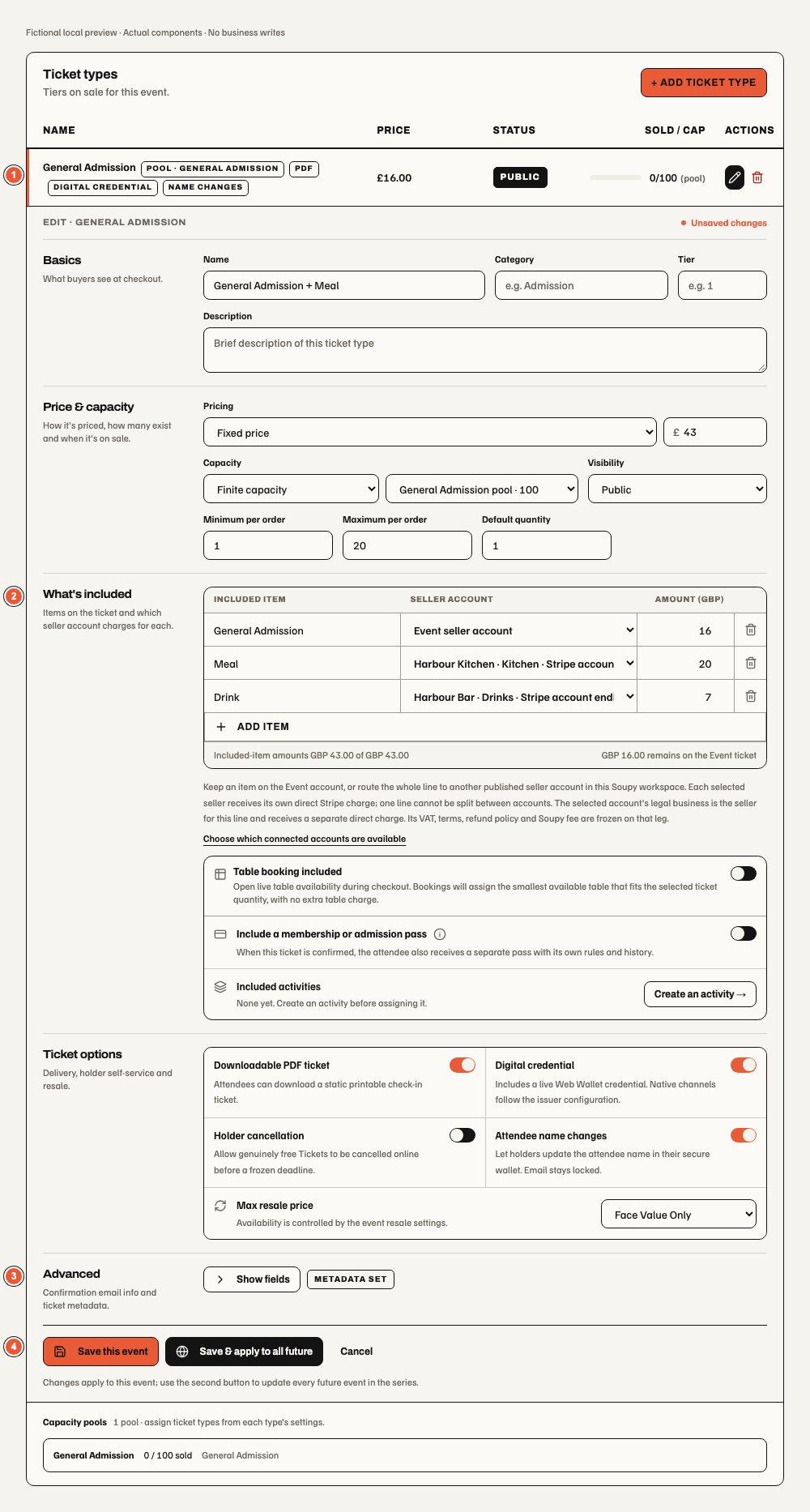
Local fictional preview: 1 keeps the saved row visible, 2 groups included items and add-ons, 3 marks populated Advanced data, and 4 preserves the Event and future-Series save actions. See also the narrow dark layout.
The web Add a ticket type form follows the Event's published VAT treatment; it does not select or save a legacy per-ticket VAT rate. Authorized operators configure VAT in Event → Sales → Payments, available in a Group workspace, using the seller's published tax policy. Absence of a per-ticket rate does not mean no VAT. Existing tickets with legacy VAT configuration still require deliberate reconciliation before canonical checkout or recurring setup capture can proceed.
Event → Guests → Guest lists & holds switches between Promoter holds and Complimentary & accreditation, with active counts. Management permission retains the existing workspace gate; named access-list reads retain their check-in permission. After Ticket types or Guest lists & holds is first opened, both inventory views stay loaded. New hold and Issue tickets reveal separate forms; switching views or hiding a form retains its values without submitting anything. The inventory workspace stays mounted across local Event menus. A different Event starts a fresh workspace and removes the previous one-time link disclosure. Successful creation resets the existing fields and closes the form; failures remain inline with the draft. Native screens keep their existing navigation.
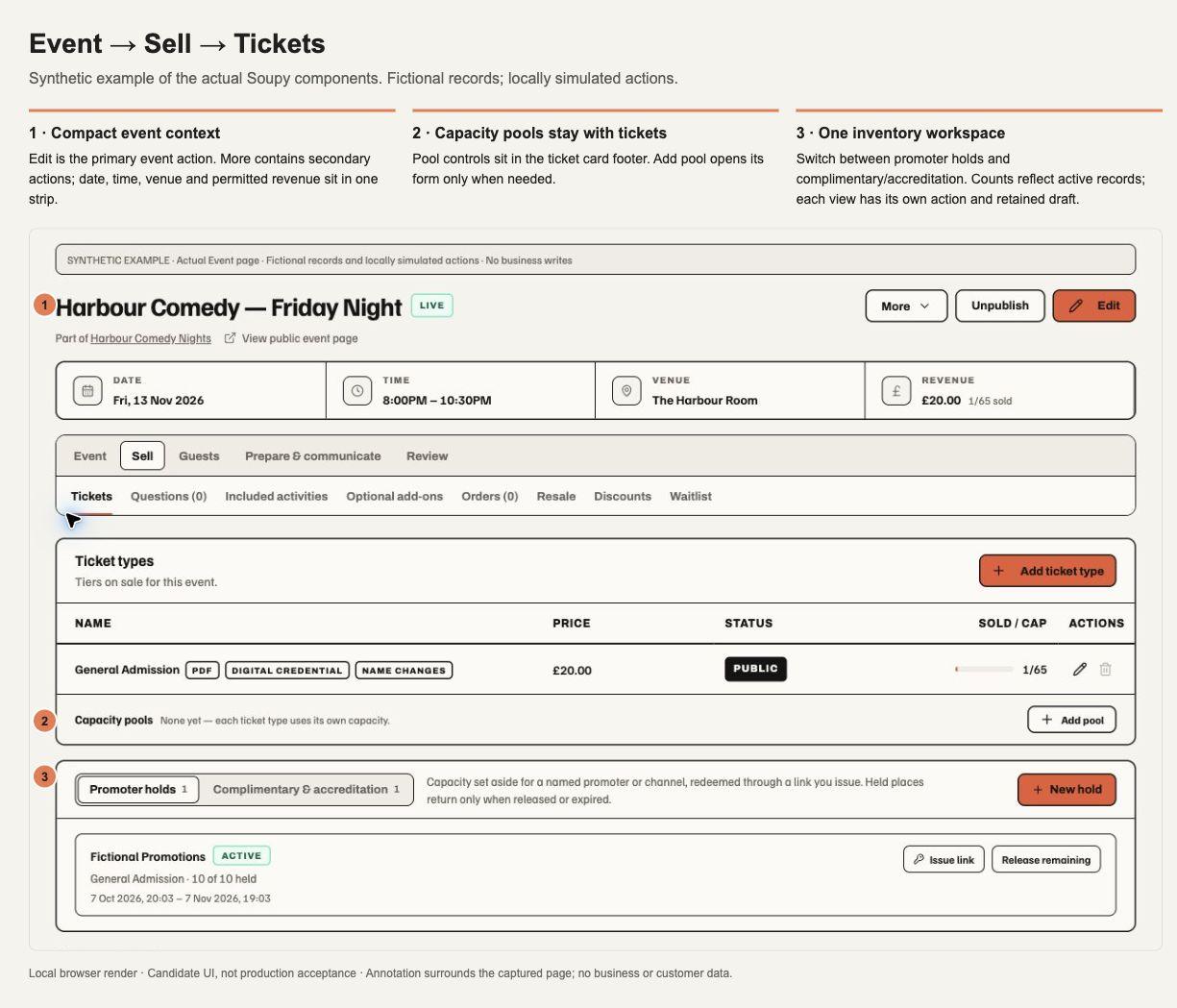
Earlier local preview using actual components and fictional records. The image shows the inventory composition before it moved to the dedicated Guest lists & holds page; it does not show the current menu location or prove production rollout or live issuance.
A finite shared pool constrains its member products together. Unlimited products retain sold counts and order limits but have no sell-out threshold. Holds count against capacity; released and expired reservations return it through the Order lifecycle. A displayed availability count is rechecked at the final reservation.
Checkout questions can collect answers once per Order or once per ticket holder. Their scope is consequential: attendee-scoped answers prevent self-service transfer because Soupy cannot silently give the answers to another person. On web, Event → Tickets → Checkout questions supports text, select-list and checkbox questions, required answers, answer scope, editing, up/down ordering and reviewed removal. A question can target one ticket type when created; editing keeps that target. Drafts survive hiding the form or changing local menus. Failed saves retain the draft; a question changed by another operator must be reopened before saving. Edits affect future checkouts and preserve previously saved question/answer snapshots. Duplicate copies question configuration and maps any ticket-type target to the copied product; it does not copy answers or customers. Events support up to 50 questions; duplication refuses oversized configurations atomically. Management remains scoped to the Event, live changes require publication access, and cancelled Event configuration is frozen. Native operator screens retain their existing controls.
Event → Tickets → Promotions manages codes for one occurrence. Series → Promotions manages codes reusable across current and future dates in that Series. Each list shows its own codes; inherited Series offers are managed at the Series. Percentage and fixed-amount offers support an optional maximum-use count and start/end times in the Event timezone, or the business timezone for Series offers. The Series limit is shared across dates. Automatically issued Event codes also display their maximum discount per Order, using the currency stored with the code. Their percentage never removes more than that ceiling. Automatic Event offers and milestone journeys can also issue Buy one get one free codes, shown with the most a free ticket can be worth; they cannot be created here. Scheduled, active, expired, fully-used and inactive states are labelled; deactivate stops future use without altering purchases. Management and live publication checks apply at the source. Creating a code makes it usable during its window; there is no separate promotional draft publication step.
Copy offer link is available for active or scheduled codes. An Event link
opens checkout; a Series link opens the programme chooser. A bounded discount
parameter survives public Event selection and Soupy widgets into checkout, where
the server checks current eligibility and usage. This is a shareable offer, not a
private allocation. Secret products still require their scoped link; a hidden
product is not general public inventory.
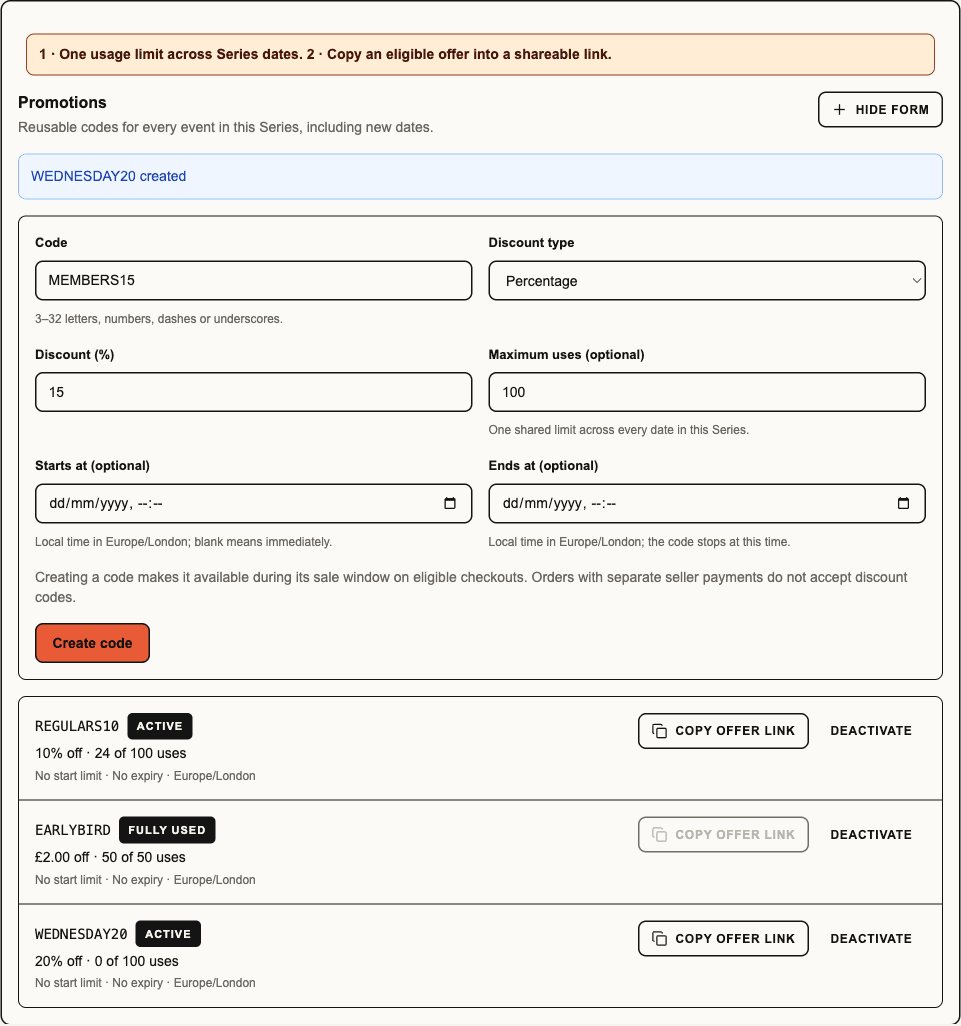
Local component preview, 13 October 2026, with fictional records and local callbacks. Annotation 1 identifies the Series-wide usage budget; annotation 2 identifies shareable offers. This is layout evidence, not authenticated acceptance or a live promotion. The form components were also inspected at narrow width in both themes.
A ticket can include an activity or one table booking without extra charge. For an included table, the operator chooses the Site or Space, fixed time and duration; Bookings allocates an appropriate table from live inventory. An optional Require a pre-order setting freezes a published menu and deadline. It is off by default. The admission ticket, table hold and payment remain one coherent purchase; failed availability does not leave a partial reservation.
Series, recurrence and distribution
One Series can contain named recurring setups, such as Wednesday comedy and Thursday comedy. Each setup holds its own weekly schedule and show times, source Event, saved checkout Payment Profile and ticket defaults, including the selected promoter Payment Profiles and included amounts. Shared capacity pools and each product's pool membership follow the setup: two ticket products using one 100-seat room still share 100 seats on every generated date. Future dates carry that setup's defaults. A new setup or refresh leaves sibling setup pins and historical purchase evidence intact.
On web, configure one occurrence first:
- Save its payment account in Event → Sales → Payments and its promoter allocations in Guests → Guest lists & holds → Promoter holds. Allocations use published seller Payment Profiles.
- Choose More → Make recurring, name the setup, select its weekdays and inclusive end date, and use Add show time for another performance on each selected day. For example, Sunday at 15:00 and 19:30 creates two separate Events every Sunday, including the first date. Each show has its own inventory and uses the setup’s ticket and checkout defaults. Start times must be distinct; an optional end before the start runs into the next day. The preview lists each date and time. Excluded dates and ranges skip every show on those days. An Event already in a setup shows Create recurring setup from this event and can split selected weekdays into another setup in the same Series.
- Repeat for the other night. Series → Settings → Recurring setups selects each setup independently and links back to its source Event. Separate drafts survive switching setups and local Series menus.
- To change future checkout defaults, save the source Event's account and ticket settings, then choose Update recurring setup from its More menu. This explicitly saves a new setup snapshot and applies it to eligible future occurrences belonging to that setup. Ordinary Event edits alone do not change the recurring defaults.
A weekday split retains all of that setup’s show times, removes those weekdays from the old schedule and transfers its eligible existing performances. Change the show times in Series Settings before splitting if the new setup needs fewer performances. On the first split of an older unpinned schedule, Soupy records its unchanged defaults before capturing the configured source Event separately. Equivalent old schedules retain that baseline; conflicting old defaults or incomplete blueprint history require reconciliation and refuse the whole change. Other existing dates keep their current checkout while the operator configures the remaining setup. Eligible legacy dates are adopted only when their current products still match the old defaults. Updates preserve dates with Orders, issued Tickets or sold inventory, as well as individual payment overrides and product changes. The result reports created, updated, protected and skipped counts. Existing Series date-and-time slots prevent duplicate generation. An individual Event time edit retains its original recurring slot, so generation does not recreate that show. Deleting one performance suppresses only its slot; older whole-date suppressions remain whole-date exclusions. Individual capacity-pool changes also remain exceptions when refreshing a setup. Active setups with the same date and start time are refused so generation order cannot decide which promoter receives a performance. Setups in different timezones cannot cover the same date. Separate show times can share a date. Past, completed and cancelled dates retain their history; manually suppressed dates are not recreated. A standalone Event with existing purchases must be duplicated before becoming a setup source; its booked operating context cannot be moved into a new Series.
Creating or changing routed defaults requires Event management and Payments management at both the source Event and Series. Live changes also require publication authority. Payment readers alone cannot change routing, and readers without Payments access do not receive saved account identifiers. Profiles must remain active, published and ready when adopted. Promoter routing also requires enabled multi-seller checkout, matching currency and country, positive allocations within the ticket price, and sellers in the same Group. Individual Event ticket references and legacy direct Stripe routing cannot be repeated. Unsupported source product settings fail before any write.
Save Changes in Series Settings can add or remove show times. Removed unbooked performances are cancelled; booked performances retain their times and history. Restoring a time restores only schedule-cancelled performances, while manually deleted or cancelled performances remain suppressed. End-time changes apply to newly generated performances; existing Event times remain local. Update recurring setup refreshes checkout defaults without replacing an explicit show-time schedule.
The bounded workflow supports up to ten setups per Series, ten show times per setup, 366 performances per schedule, fifty ticket products per setup and one hundred existing occurrences per application. An already-published live checkout is refreshed after an eligible update; initial checkout publication and provider readiness remain separate. Named setup controls are web-only; native retains its existing Event workflow. This describes the implementation; release and authenticated production acceptance remain separate evidence.
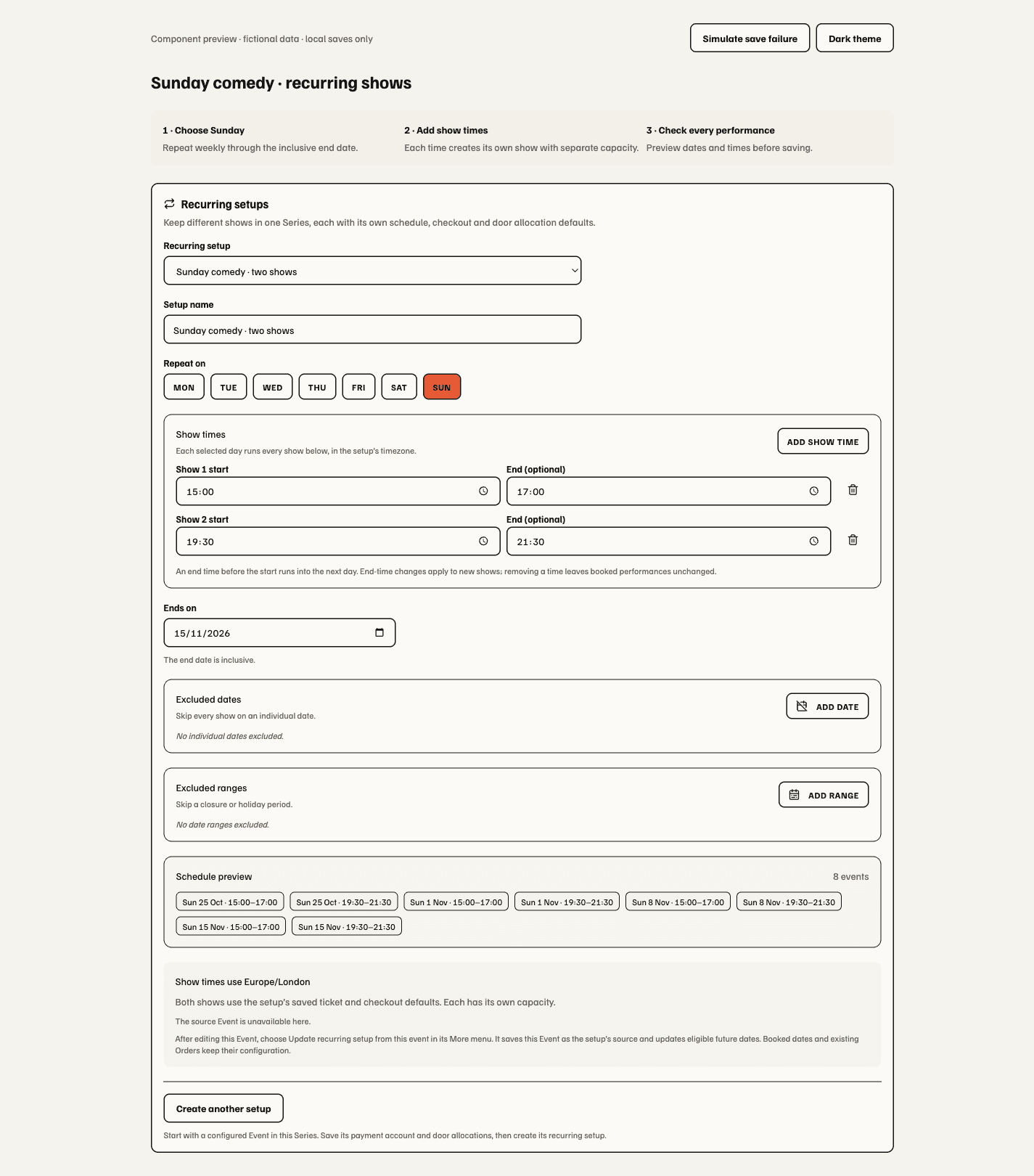
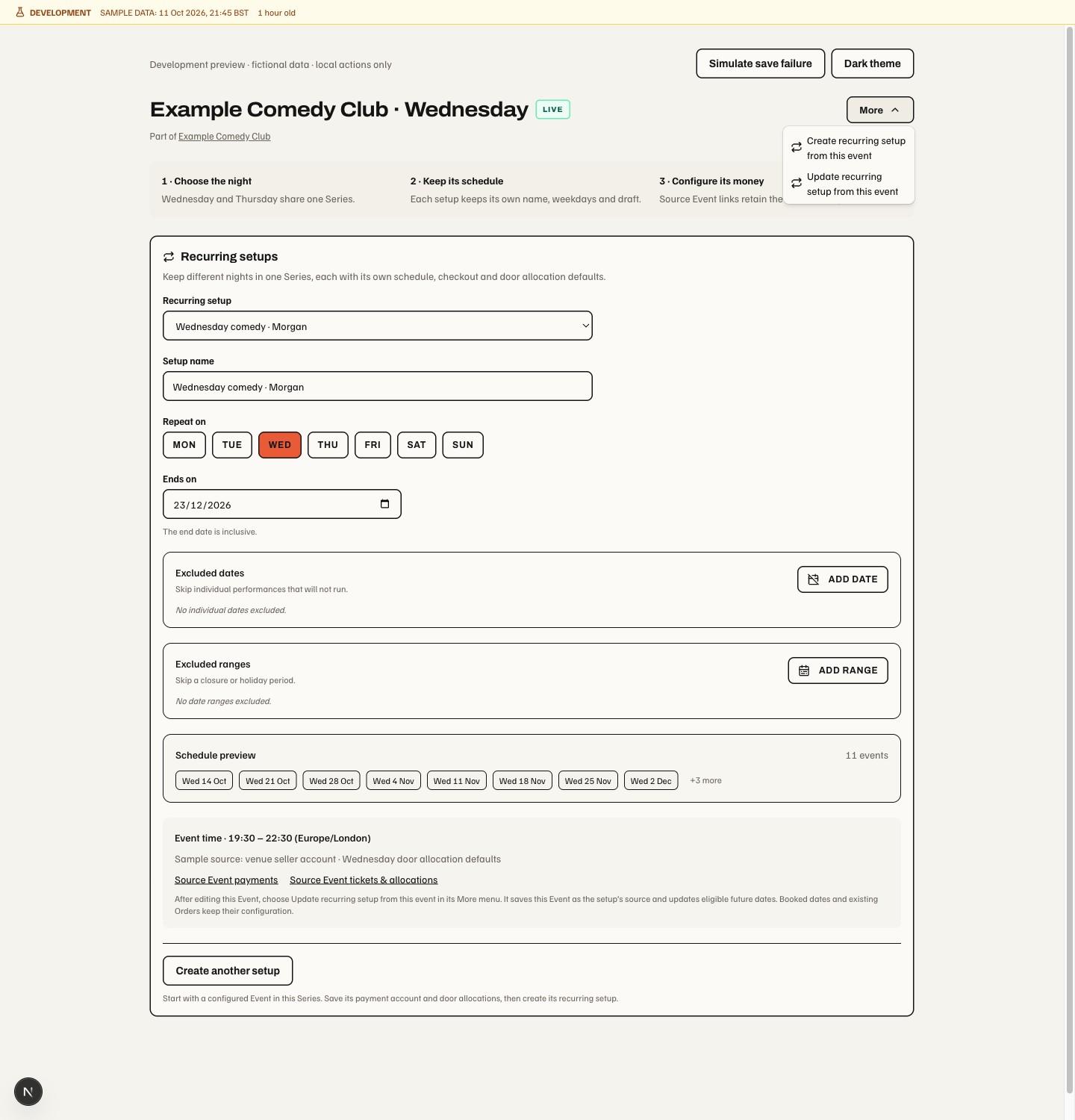
Series Embeds opens its scoped library directly from the main menu. Series Setup contains Settings, Team & access, Payments and Talent, filtered by their existing permissions. Settings provides cover artwork, image propagation and ticket-swap policy. Payments groups the inherited payment account and ticket VAT treatment; saving these controls retains their existing publication and seller checks. Clean recurrence and Series address fields follow saved refreshes; unsaved edits survive refreshes and local Series menu navigation. Recurrence Save requires an end date and keeps any later edits made while saving.
The Series workspace uses one row: Events, Orders, Guests,
Marketing, CRM, Insights and right-aligned Setup. Marketing lists
its sections in one stack: Communications, then Discount codes, Email templates,
Automatic rules and Series CRM under a Promotions heading. Narrow screens show
the stack as a scrolling row without the heading. Setup holds the permitted
sections above. Existing view= URLs still open their original editor; the
retired view=promotions opens Email templates. Navigation never saves a draft.
The compact header retains the Series address editor, adds Copy page link, and
keeps Edit series and Create event. A draft page with published Events shows a
notice and an explicitly confirmed Publish page command under existing Series
management/publication checks. Viewing a public URL does not preview unpublished
content or prove a draft page is accessible.
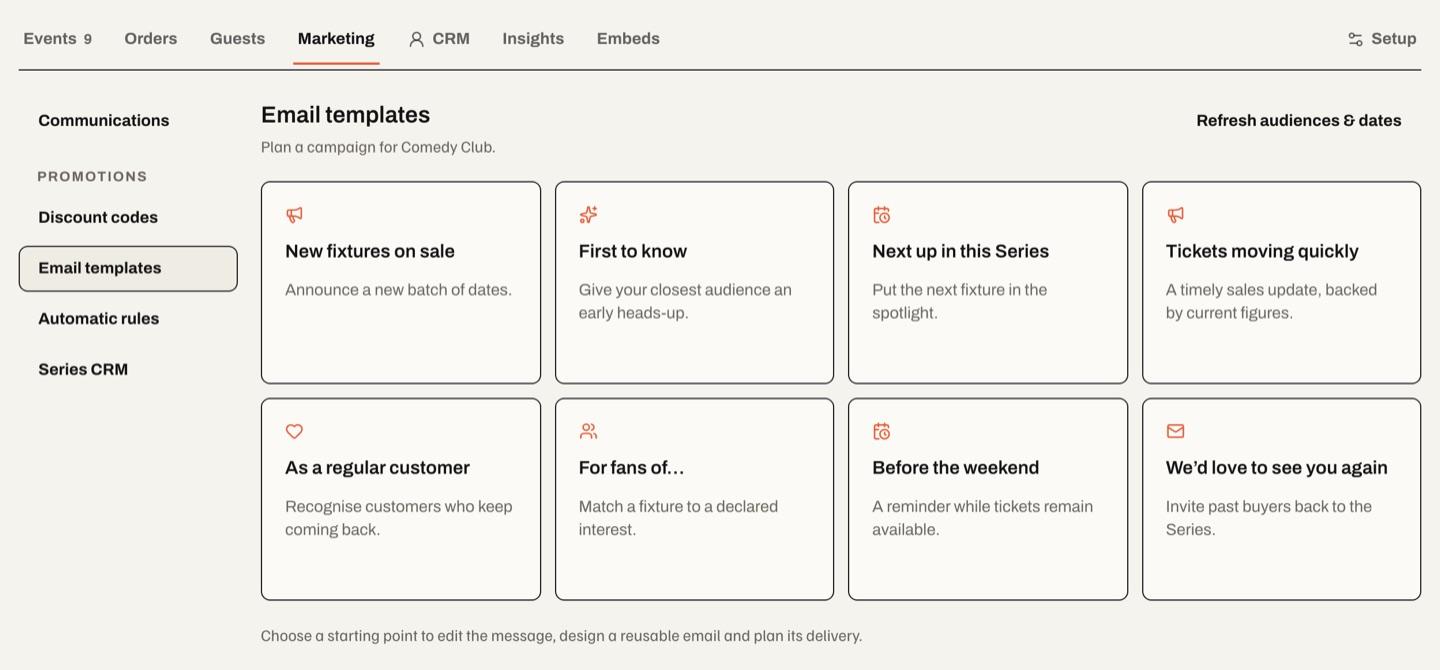
Upcoming and Past retain live/draft and past/cancelled source status groups. Search persists across both groups and List/Calendar. Upcoming List groups saved dates by month with a date badge, time (or Time TBC), source status, allocated inventory and permitted gross revenue. Past groups use September–August seasons. Unknown dates remain visible. All amounts keep their source permissions; allocations include holds and are not relabelled completed sales. The four-cell summary covers visible live/draft Events, with imported and Soupy previous-season averages kept separate. No imported capacity or attendance is invented.
The Past panel also offers season tables for admitted imported shows, newest season expanded. Each keeps buyers, valid tickets, imported ticket value, source and expandable original ticket-type detail. Import tickets & build CRM opens CRM; older pages remain loadable. Counts and season totals explicitly identify loaded records; a complete previous-season average waits for all import pages. Imported records do not create Events or issue Tickets. The imported show list loads when Events opens and refreshes on returning to the tab or reconnecting; it does not update live while the page stays open.
Sales history refreshes once per minute while Events is visible and in use. Its displayed age measures this reader's last response, not a provider freshness guarantee. A no-sales notice requires an admitted Series report with no recorded tickets in the last 14 UTC calendar days; it does not infer zero from unavailable data or claim that the report isolates upcoming Events. The original period controls and manual refresh remain in Insights. Native and provider behavior is unchanged.
The header checkbox selects only the searched source group. Select drafts replaces the selection with upcoming drafts. A counted control reveals selected rows hidden by search; imported history is never a bulk-mutation target. Existing Edit/Publish/Unpublish/Delete commands are retained: this design does not add an unsupported multi-event price editor or change unpublication into sales pausing.
Selections survive changing layouts, calendar months, segments and local Series menus. Calendar retains separate Upcoming/Past months; a counted control reveals selections outside the visible month. Select all names its Upcoming/Past group and includes all months in that group. A chip such as 2 in Upcoming reveals selected dates in the other segment. Opening another Series starts a new selection. The compact action row shows eligible Publish and Unpublish counts: publication applies only to drafts, unpublication only to live Events; past/cancelled Events keep their status. Management enables Edit and Delete; publication authority separately enables Publish and Unpublish. Sold totals require Orders or Reports access, and revenue requires Reports.
Edit and Delete review the dates captured when the dialog opens; Delete requires the exact displayed confirmation phrase and retains protected-record checks. Selection changes pause while an action runs. Successful dates leave the selection; failures remain selected with named errors. The result stays visible after selection clears, including after deleting the final date. Navigation alone never edits, publishes or deletes. These controls reuse the existing Event commands; native screens keep their existing flows.
Series Events redesign validation contains fictional desktop/narrow light/dark renders. They are not proof of signed-in production acceptance.
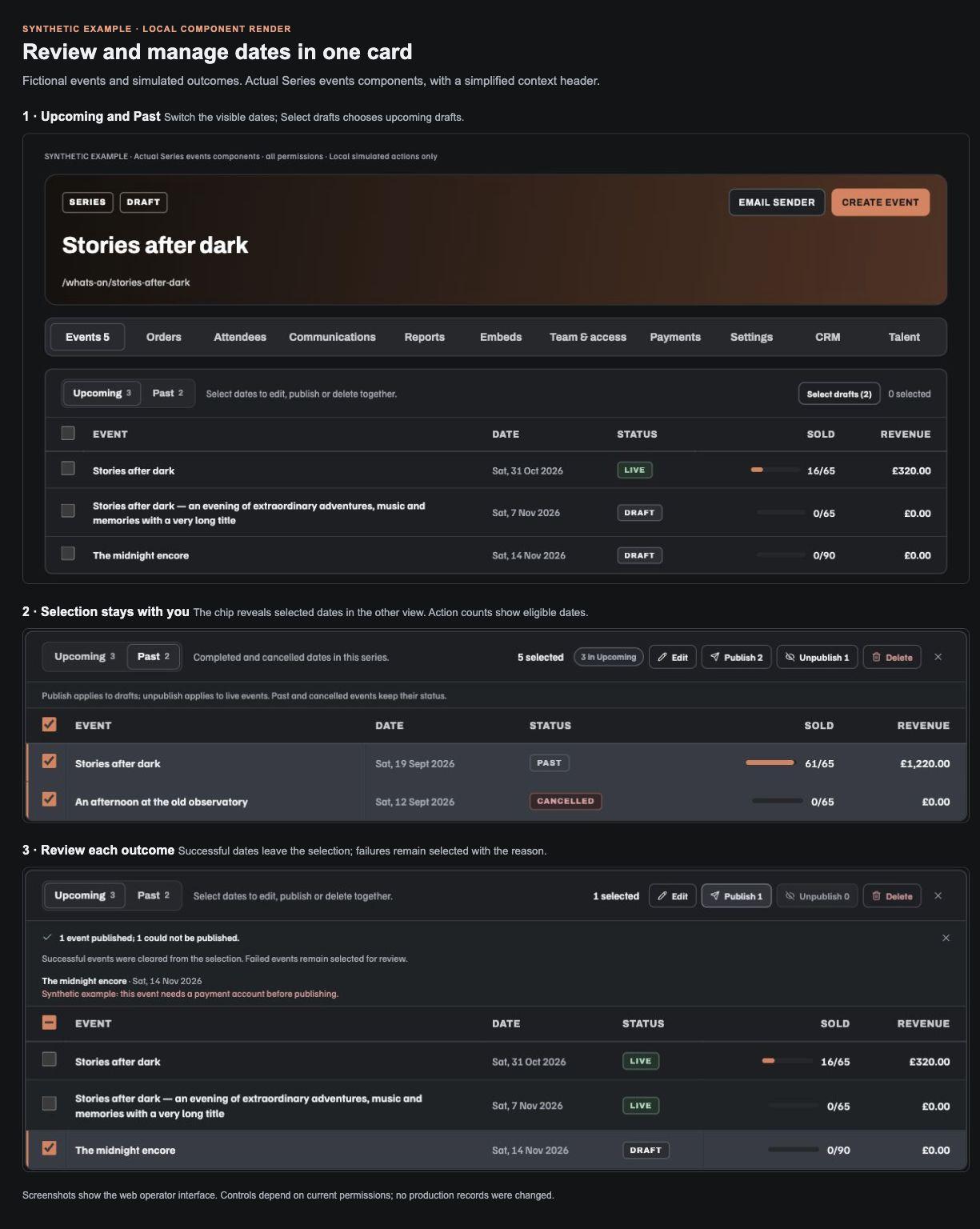
Talent is a Series Setup section; CRM remains a top-level Series tab. Its assignment panel asks for 1. Select act, 2. Select dates, then Assign to selected dates. Dates show their Event title, local start–finish time and timezone in chronological order. A summary names the act and selected date count. The act selection applies to those Events without saving or changing Series defaults. One existing saved default may preselect the act; it is still visible in the chooser.
Venue-created acts that permit direct assignment are confirmed immediately and reserve the diary. Other acts receive an offer requiring acceptance; the panel explains this beside the single action and the result stays explicitly unconfirmed. Saved rates/payee come from My roster. Missing times/rates/payee, overlapping dates, an existing booking or unavailable diary produce an actionable message. Failures retain the selection and retry identity; confirmed bookings are not changed by selecting another act. A run supports up to 26 selected actual dates.
The Talent entry requires the enabled module and current talent.view authority
through its registered Series contribution. An unavailable ?view=talent falls
back to Events. Assignment requires Talent and Series management, and rechecks
each Event and the act's current relationship/programme authority. Broader
workspace rights do not restore revoked or retired source access. An admitted
reader keeps disabled choices and no assignment action. Switching tabs retains
an unsent selection; opening another Series starts a separate editor. These are
web controls; native Ticketing navigation is unchanged.
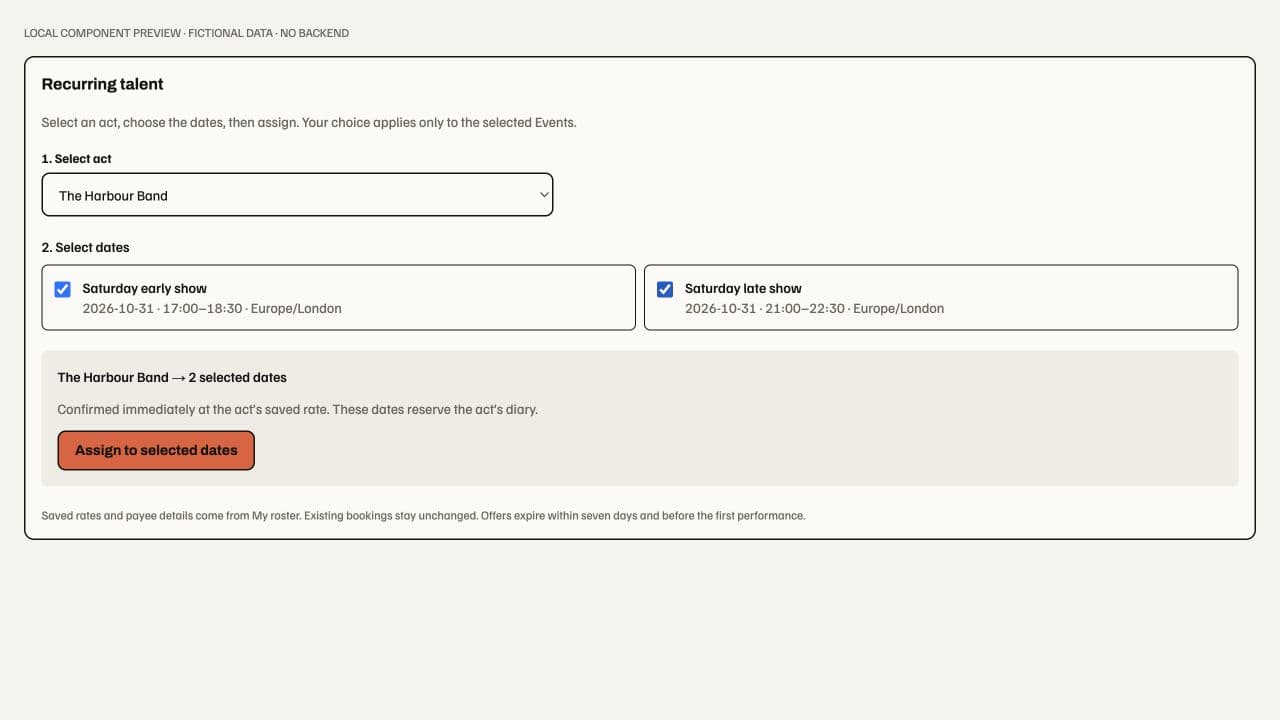
Public artwork must come from an authenticated upload for the owning business and its intended use. The production Event save enforces this ownership check. Private, foreign or unverified older artwork is hidden until a trusted original is uploaded and assigned through the normal editor. A stored file reference or older public Event does not establish trust.
Make an Event recurring
Open the source Event and choose More → Make recurring. Name the setup, select the weekdays and end date, then preview the dates before saving. Use Add show time for multiple performances on each selected day. Future dates follow the saved setup's ticket and checkout defaults.
Series banners and Event overrides
The Series banner is the default artwork for Events in that Series. A linked Event can use that banner or have a unique Event banner upload. Use Series banner removes the local override and reconnects the Event to the latest saved default. The optional Separate listing image has its own source choice; changing it does not replace the primary Event banner. Standalone Events retain their own artwork. Selecting or uploading an image changes the editor draft; the Event save applies it.
Public artwork uses these saved Event images for public Event pages and Photo embeds when checkout uses its default artwork setting. Series-inherited artwork supplies the default; a unique Event banner takes priority over an inherited listing image. An explicitly chosen separate Event listing image takes priority in Photo views. Use Series banner restores the saved default, and removing the saved artwork removes it from those views. An explicitly published presentation image or image removal, and an adopted featured Talent photo, keep their separate presentation choice. Unverified, private or foreign images remain unavailable; existing Orders, Tickets and their immutable artwork snapshots are unchanged. The shared public presentation resolver owns this lookup for Event pages, discovery and embeds.
Save artwork on the Series refreshes inherited artwork on its editable occurrences and recurrence defaults. Unique Event overrides stay in place. Past/cancelled occurrences and immutable published presentations keep their historical artwork; changing a frozen presentation requires its normal new configuration workflow. Saving other Event details does not turn an unchanged inherited image into an override. New occurrences use the saved Series defaults.
Saving only artwork leaves untouched Event details and recurring defaults alone. Empty FAQ controls and inferred resale defaults do not become saved changes merely because the editor was opened. Only changed fields are submitted, and resubmitting an identical stored value does not create a local recurring override. Artwork-only saves preserve checkout readiness through the existing compatible-revision checks; real FAQ, resale, payment or operating-context changes still require their normal validation and publication. Older checkout drift remains blocked until explicitly republished. Native editing is unchanged. Source: Event edit changes and Event mutation.
Older, distinct Event images remain explicit recovery choices; they are not silently reclassified or verified. Choose Use Series banner to replace a retained local reference with the Series default, or upload a trusted original to keep a unique banner. A refused image reveals its control and retains the draft. An unchanged older image can remain on a draft without becoming public or being copied. New occurrences resolve the current verified Series default; stale template artwork is not adopted as that default.
Sync images now refreshes inherited fields from saved Series artwork and preserves Event overrides. It never adopts an image from a child Event. Save the Series artwork first: uploads, unsaved selections and saving disable Sync. An empty source cannot resurrect a previously cleared Series image. Changed live Events require their exact management and publication permissions even when the Series is Draft. Series changes and sync validate the affected artwork atomically; refusal leaves the Series, templates and Events unchanged. Operations over the supported Event/template bound fail visibly instead of partly applying. This inheritance editor is a web change; native UI delivery is separate.

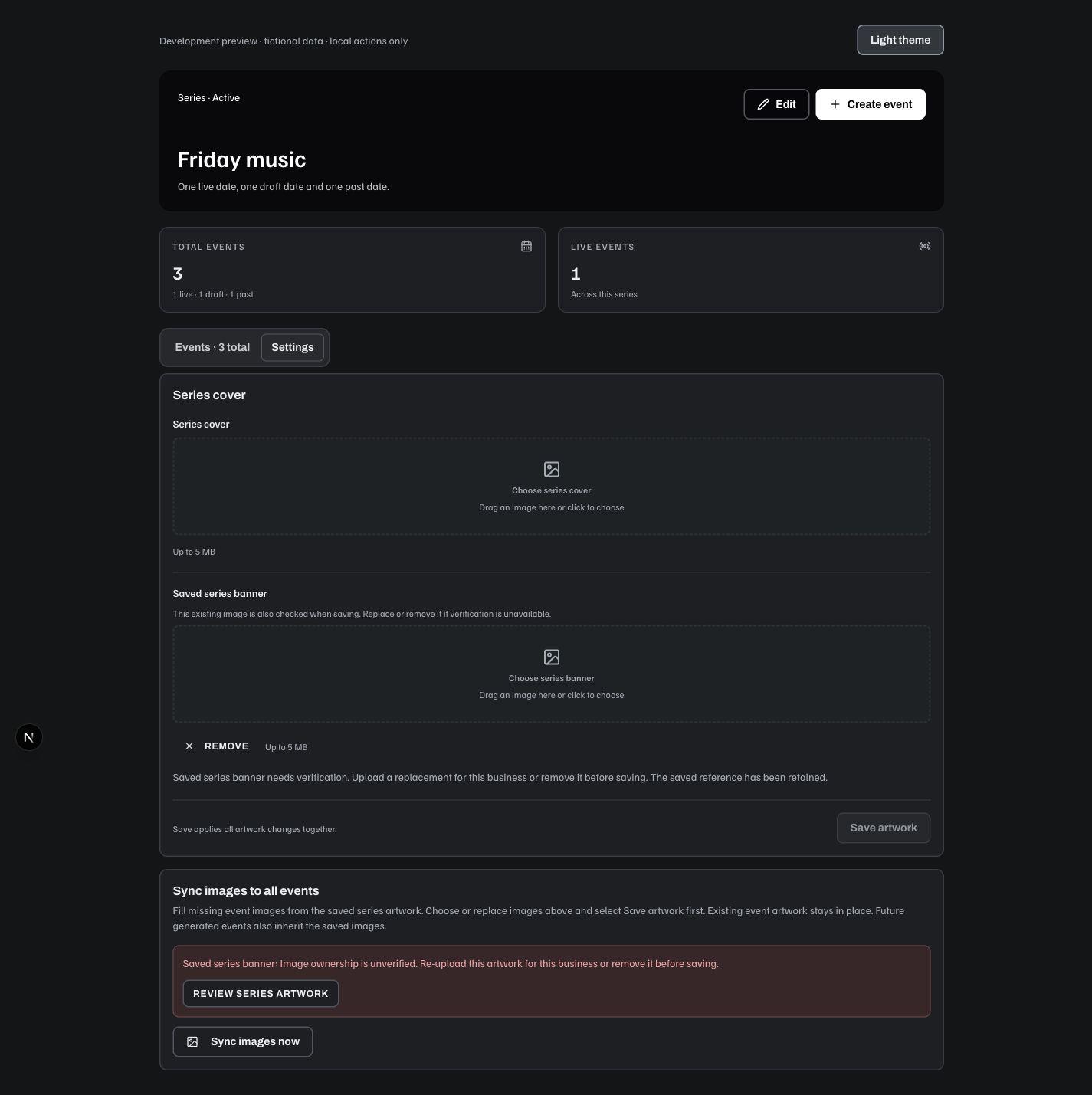
Save & apply to all future shares the edited Event details, while its unique artwork stays on that Event. Change the shared banner in Series → Settings. Stored references and other draft fields remain available for supported replacement. The artwork editor distinguishes a pending preview from a refused preview. A refused saved image shows replacement guidance and retains the explicit Remove action; the cover layout keeps those controls clear of upload instructions on narrow screens.
The image recovery update keeps image failures visible in the editor, identifies the affected Event banner, separate listing image or presentation field, and preserves the draft. Upload completion is bound to the signed-in session, business and editor; changing that context cannot attach a late upload to another record. Save waits for an active upload, and Remove explicitly clears the saved image when the Event or Series is saved. Replacing only one image can still require replacing or resetting another unverified field. In Series → Settings, Series banner, any Saved series banner and Saved brand cover are edited as one draft. Save artwork applies all replacements and removals together, so two older images cannot block each other from being repaired. These controls retain the existing Series management permission. Other embedded brand settings are preserved. Published presentation snapshots keep their own references. A current canonical source or verified immutable source version can retain its existing image after organization and private-media checks. Unchanged artwork can survive ordinary saves, publication and recurrence; a newly assigned file still needs verified ownership. Explicit removal and replacement remain available for a refused private or foreign image. Saving unchanged date/time and venue values with an image edit does not constitute rescheduling; actual changes to booked fulfilment still require the protected workflow. If active or completed Orders protect an Event, Save explains that date, time, venue or capacity changes need cancellation or rebooking. The refused save keeps the draft open and leaves the saved Event unchanged. This recovery update is on the web; native acceptance is separate.
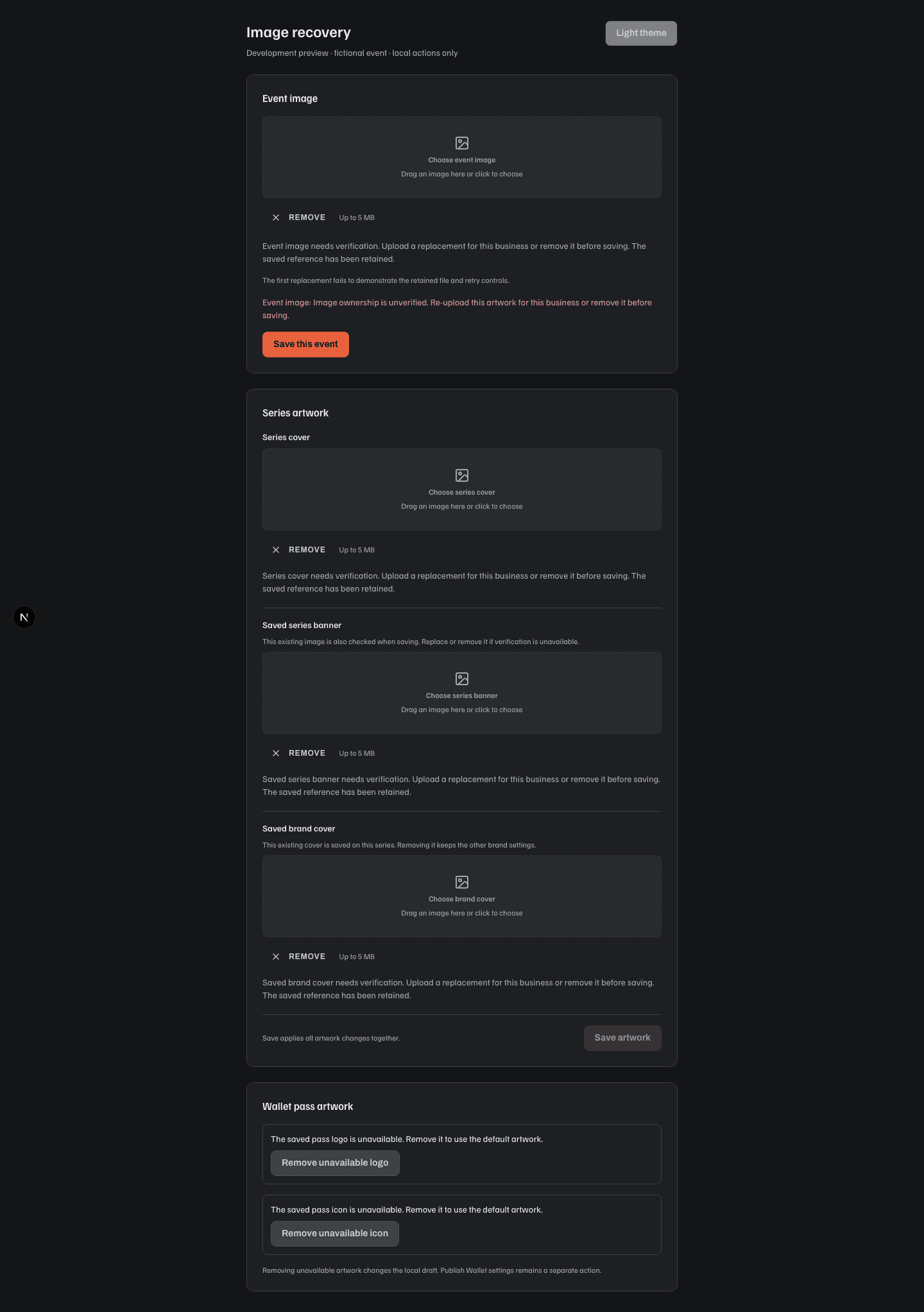
Changing a schedule cancels only eligible future generated occurrences. Occurrences with protected Orders remain visible for explicit cancellation or rebooking. Removing an exclusion can restore recurrence-suppressed occurrences; it does not restore manually cancelled events. A Series is optional for a one-off event and does not replace each occurrence's actual location.
Public programmes on Soupy use /<business>/whats-on; a Series uses
/<business>/whats-on/<series>, for example
/laverys/whats-on/ulster-rugby. The business prefix is the owning Legal Entity's
Soupy address, not its Portfolio. Different businesses may use the same Series
address. Both the initial page and subsequent pages remain scoped to that business
and Series. Only active Series publish a Series page; draft or archived Series
return not found without hiding their independently live Events. Series shows this full public address beside its name; changing
its last segment retains the existing Series address save boundary.
Older /whats-on/<address> links redirect permanently when they resolve to one
business or one unambiguous Series, retaining their query parameters. A real
business address takes precedence over a same-named legacy Series. Ambiguous or
missing Series aliases show not found; Soupy never chooses another tenant's first
matching Series. Businesses whose address overlaps an application route, such as
help, use /whats-on/help and /whats-on/help/series/<series> instead. The
wordpress application root is reserved too: a business with that address uses
/whats-on/wordpress and /whats-on/wordpress/series/<series>, keeping the
WordPress connection page at /wordpress/connect separate. The vouchers and
vouchers-preview roots are also reserved; businesses with either address use
the same scoped fallback, preserving voucher purchase and recipient routes. Existing
custom domains, website sections and installed embed identities retain their
separate routing. See the fictional responsive route preview for local layout evidence.
Soupy also keeps some names for its own *.soupy.ai hosts, such as admin,
dashboard, login, billing and help. Unlike the route overlaps above, a
new business cannot take one: the Portfolio address fields say the name is
reserved for Soupy and keep its create, prepare and save buttons unavailable.
A business that already holds one keeps its address and Soupy pages, but its
<name>.soupy.ai host shows nothing. A new Clerk organisation whose slug is
reserved starts with a clerk-… address that its administrator can change.
If Soupy refuses an address on save, the notification states the reason
(format, already in use, reserved, or changed while you were editing) instead
of a generic server error, and the dialog stays open.
Public discovery includes /whats-on, organisation event pages at
/org/[orgSlug]/[eventSlug], Series embeds and configured website sections.
Public Series pages list upcoming published Events by calendar date, including
dates added after later occurrences. Loading another page continues that order.
List and Photo show each Event’s published listing image. Media Library artwork uses the card-sized version of
the same published selection the Event page uses. Draft images stay private
and unavailable images use the existing placeholder.
In Series → Embeds, Embed the series manages a widget of the Series’
published upcoming Events. New published dates appear automatically and exclusions
can omit particular Events. Embed a single event selects an accessible
occurrence and opens its own Event → Embeds menu. Every Event, including standalone
Events, has Event → Embeds with a builder permanently limited to that Event.
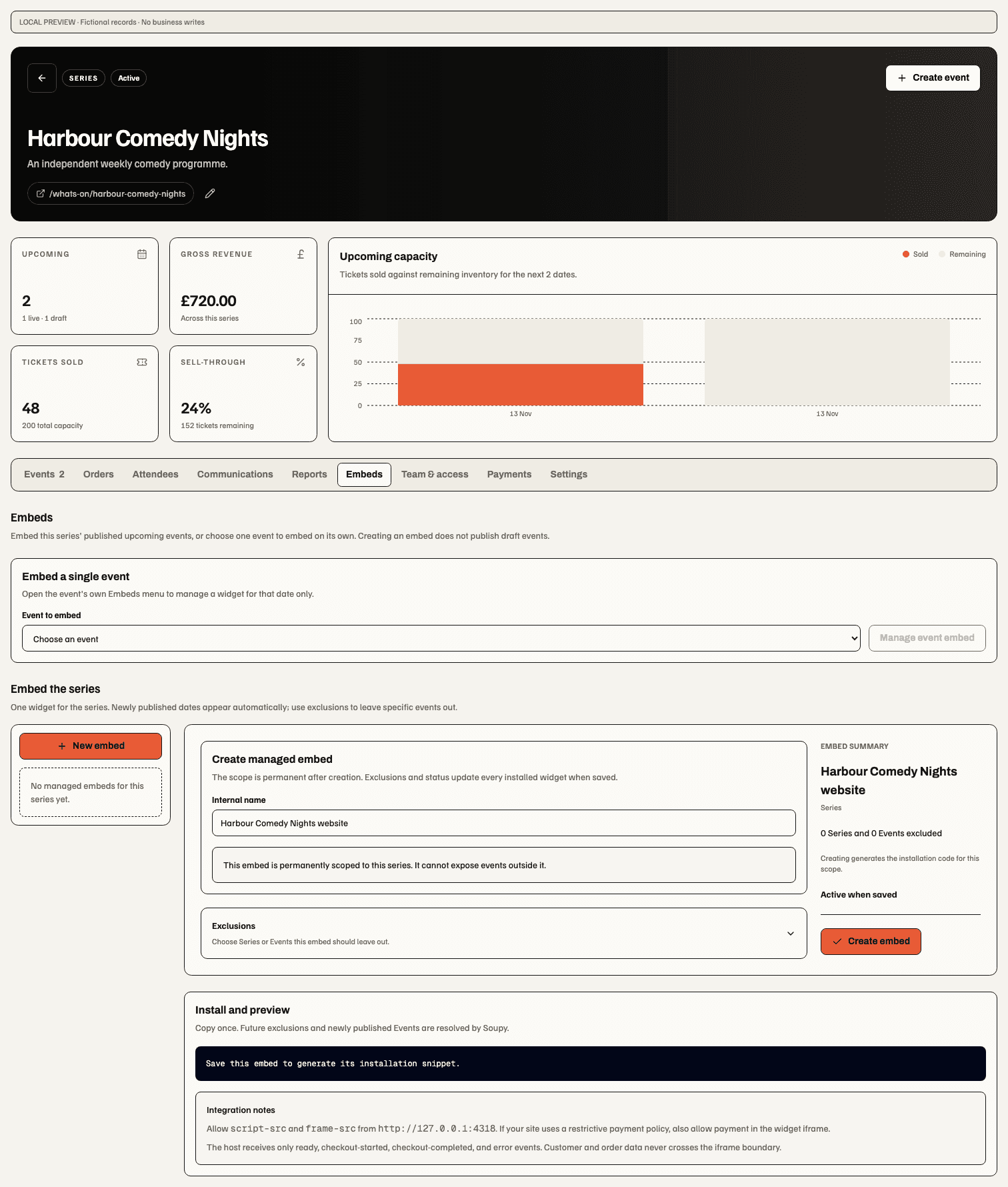
WordPress experiences
Plugin 1.1.0, 5 November 2026. Install the Soupy Experiences ZIP in WordPress through Plugins → Add New → Upload Plugin, then activate it. Requires WordPress 6.5+, PHP 8.0+ with OpenSSL, an HTTPS WordPress home address, and a Soupy deployment containing the matching connection service. Pairing, selection and connection lifecycle checks use real development identities and an isolated hosted preview. Production acceptance and the production website’s TLS/domain configuration remain separate.
In the Soupy sidebar menu (also reachable at Settings → Soupy), choose Connect Soupy, then Open Soupy to connect. Sign in to Soupy, compare the website address and eight-character code with WordPress, choose a business workspace and confirm Connect WordPress. Return to WordPress and choose Refresh experiences. Requests expire after ten minutes; an approved connection lasts 180 days. Reconnection requires fresh approval. Current capability-mode workspaces are supported; legacy access-mode workspaces and Group-owned embeds are not included in this version.
Add a Soupy Experience block to a page and choose from the visual experience library. The Soupy mark identifies the block in the inserter and the plugin in WordPress’s sidebar. Cards label Single event, Series or All events, saved List/Photo/Calendar layouts and a short embed ID to distinguish repeated names. Category buttons show All embeds, Tickets, Bookings, Inbox forms and Lost property, with counts of the loaded catalogue. Within Tickets, filter by Organisation, Series or Single event. Search matches name, scope, layout or full ID within the selected category. The loaded catalogue is paginated in groups of twelve without background polling.
Card thumbnails are labelled layout illustrations. Preview loads one saved public experience on demand, with Desktop/Mobile width controls. Closing the preview, refreshing its authority or opening another preview removes its iframe. Previews are noninteractive; Open live experience opens a separate public page. An unpublished source or website restriction may make that public preview unavailable. Previewing never selects or publishes a block.
Refresh experiences rechecks current access and publication. Elementor, Divi, Classic Editor and other shortcode-capable editors can use Copy shortcode in Soupy’s library. If clipboard access fails, the code is selected for manual copying. A page may contain several experiences; their loaders are included once per type. Use this experience changes the Gutenberg block’s selection; WordPress’s own save/publish action still controls when visitors see it. Clear selection empties the saved experience without removing the block, including unavailable selections. Older plugin versions ignore the optional layout hints; a 1.1.0 plugin talking to an older catalogue shows Saved layout until the matching service is deployed.
| Experience | Available selection and source authority |
|---|---|
| Tickets | Active organisation-owned Event, Series and business embeds; current organisation-wide ticketing.settings.view. |
| Bookings | Active published widgets in the current entitlement incarnation; bookings.settings.manage, current public widget validity and live publication mode. |
| Inbox forms | Published active forms with valid public fields and current capture availability; inbox.manage and current Inbox entitlement. |
| Lost Property | Active form in the current entitlement incarnation; lost_found.settings.view. |
The approving account must retain organization.view, its source permissions,
and active module access. The catalogue shows up to the latest 200 records per
experience type within a bounded read budget and explicitly labels incomplete
lists, including unusually large publications that could not be checked. Empty results explain
that an experience may need activation or current source access. Network errors
retain the saved block selection and offer refresh; disabled, revoked or
unavailable selections are not silently replaced. An unavailable connection does
not return a cached successful catalogue. Changing WordPress workspace retires
its cached settings list. A copied site with a different home URL must clear its
local connection and approve a new one.
WordPress administrators connect and disconnect; WordPress page/post editors can select experiences available to the connection owner. The service returns names, types, scope labels, saved Ticketing layout hints and public embed IDs. It grants no customer, Order, staff, setting-change or payment authority. The encrypted connection credential stays on the WordPress server. Changing WordPress authentication salts requires reconnection. Soupy remains responsible for widget design, responsive sizing, publication, customer consent, availability and checkout. The website theme can still constrain width; restrictive host policies must allow Soupy scripts, iframes and iframe payments as applicable.
Use Disconnect in WordPress or Revoke connection at
/wordpress/connect in Soupy to stop catalogue access. Failed remote disconnects
retain the connection for retry. Disconnecting does not unpublish existing public
embeds: remove their blocks/shortcodes or disable the source experience in Soupy.
Disconnect before uninstalling; uninstall clears local credentials, including
per-site options on multisite, but does not certify remote revocation. These are
web/WordPress controls; native app capabilities are unchanged.
Managed embed studio
The library uses compact horizontal icon/name cards. Each saved card has Copy saved embed code without opening its editor, saving local changes or publishing an Event. It always copies that card’s saved public embed identity. Drafts have no installation code. If clipboard access fails, that card reveals its saved code for manual copying; other selections and drafts stay intact.
An admitted Statistics pane sits beside Preview and Install. It opens
the existing audience report for the current Event, Series or business, starting
with By embed. Changing cards does not change that reporting scope or start
another report. Reports retain observation-date controls, current
ticketing.reports.view and source authority; unavailable, incomplete and failed
reads never become zeroes. Basic aggregate views/impressions remain separate
from the optional Consented analytics disclosure and its provider-retained
browser counts. Group-owned embeds have no new collection or report. Native
embed management is unchanged.
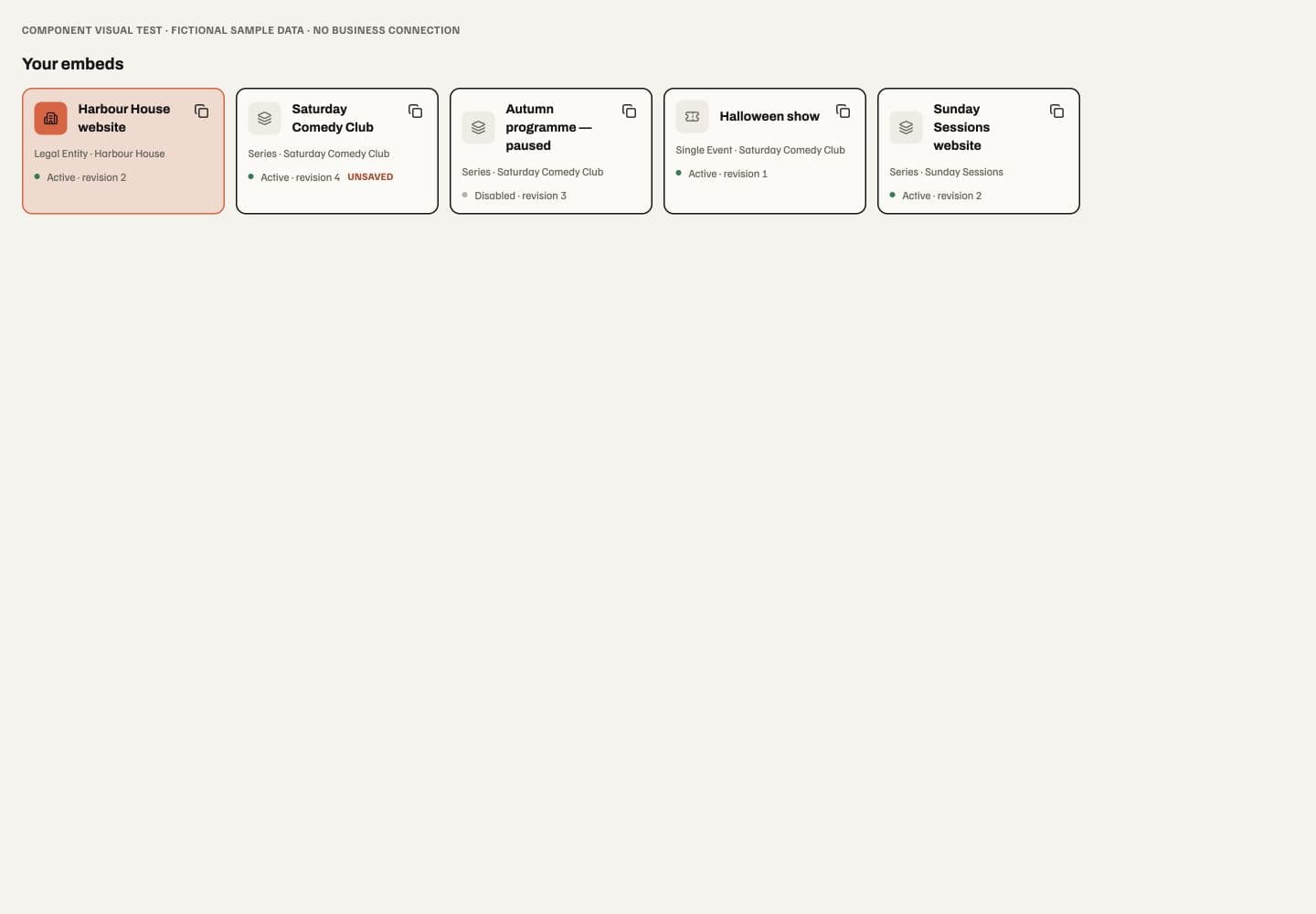
Availability: requires a web deployment containing the studio release. Open Ticketing → Settings → Managed embeds, or the exact Event/Series Embeds menu. Your embeds is a card library above a studio: settings sit beside the preview on wider screens and stack on narrow screens. Cards show scope, saved Active/Disabled status and revision. Unsaved identifies an edited local draft. These labels do not confirm that a website has installed the snippet.
Choose a card to edit its internal name, Event display and exclusions. Each embed keeps its own unsaved draft while switching cards or Preview/Install; returning to a card restores those edits. Disable and Re-enable stage a status change; only Save changes applies it to installed copies. The saved scope is permanent. A single-Event embed has nothing to exclude; Series embeds can exclude Events, while broader scopes can also exclude Series.
New embed uses the same studio. Choose an allowed scope and target, enter an internal name of 2–100 characters, and preview before choosing Create embed. Resource-local entry keeps its Event or Series scope locked. Creation opens Install, where Copy provides the full installation snippet and integration notes. An unsaved new embed has no install code. Discard removes the new local draft without creating an embed.
Preview follows unsaved display and exclusion choices and identifies whether it represents the saved settings or an unsaved draft. Desktop/mobile controls change its available width. This authenticated, read-only catalogue uses the same eligible published Events and display layouts as the public widget; it does not reserve tickets or start checkout. Disabled embeds retain a labelled design preview so they can be edited. Open saved preview opens the saved public version, including its current status and checkout behaviour; it never includes unsaved changes. Changing preview layouts does not change the configured primary view or save a draft.
Photo view adapts to the available Event grid width in both the studio and installed widgets: one column below 520px, two from 520px, and three from 840px. It responds to its website section or preview column, not the whole screen. Desktop preview fills its available column; the mobile preview stays at 390px or fits the smaller screen. Installed Photo widgets fill their host width.
Selecting a List event opens its tickets immediately below that event. In Photo, the ticket panel spans the available width directly beneath the selected card's row, ahead of the next row; Calendar retains its panel below the calendar. The Calendar behaviour applies to Embed Studio and the installed web embed. Selecting a date shows that day's Events and closes ticket details from another day. Select an Event on the new date to see its tickets. Selecting the open Event's own date keeps its ticket choices. Photo cards have aligned row heights by default. Photo cards & title artwork adds Photo only, Photo with title, framed Editorial serif, Graphic paper-and-disc, and bold Poster treatments. Designed artwork uses the Event's current title and date, plus an optional event image beneath. Artwork colour sets the accent/field; foreground ink adjusts for contrast. Photo overlay uses white lettering over a shaded cover image. Under Photo with title, Title font offers Editorial serif (Playfair), Bold sans (Archivo), Condensed (Oswald) and Handwritten (Caveat). Title angle keeps the title/date straight or tilts them up/down; Title placement puts that block at the top, centre or bottom. These choices preview immediately and apply to the installed embed only after Save. Switching artwork styles retains them but only Photo with title uses them. Existing saved overlays remain serif, straight and bottom-aligned. The selected Photo overlay keeps its proportions in Studio and the installed web embed. Long titles wrap and resize within the crop, with a softer tilt where needed. Shallow photos can drop decorative labels to make room. If the title and date still cannot fit at a readable size, the full caption below the photo carries both.
Artwork remains decorative; the full accessible title, price and date remain in the selectable card caption.
Choose Automatic (follows spacing), Square 1:1, Landscape 4:3, Portrait 4:5 or Wide 16:9 proportions. Images cover their frames without distortion. Masonry staggers cards and also offers Original image proportions (square if missing). Cards retain chronological keyboard order. Its ticket panel clears the selected group of cards across the widget before later Events. At one column it uses ordinary document flow. Titles wrap at word boundaries and shrink to fit. A token too wide at the readable minimum can break within the word. The framed Editorial, Graphic and Poster treatments can grow for unusually long text. A broken or absent image keeps a designed title treatment, or the existing Photo placeholder. These artwork controls affect Photo view; List and Calendar remain unchanged. The configured primary view is selected on every fresh load and appears first in the visitor view choices, followed by the other views in their normal order. Choosing another view does not reshuffle the choices or save a new default. Artwork settings follow the same draft/save boundary and permission checks as other embed settings. Existing records keep Photo only until edited.
Opening or switching an Event shows its ticket panel immediately, without a fade or sliding motion. The selected card keeps an outline and Selected label. This static behavior applies with either motion preference. Opening, switching or closing tickets transfers keyboard focus without automatically scrolling the iframe or its surrounding website. A host's smooth-scroll styling must not turn that focus transfer into a drawer-like movement. The separate floating checkout summary keeps its existing movement and reduced-motion behavior. Only one event is expanded. Changing view or resizing retains that event's selected quantities; closing it or choosing a different event starts a fresh selection. The Studio preview now displays public ticket details, prices and What's included without quantity or checkout actions. Sold-out, paused and unavailable sales retain their existing disclosure and purchase rules.
Floating checkout summary. Adding a public ticket lifts the existing subtotal and continuation bar from its bottom slot to just below the latest ticket selection. It overlays later rows without moving the quantity controls. The Event panel shrinks to remove the vacated footer space and expands as the bar docks again. Near the final row it keeps enough height for the complete bar; responsive size changes fit immediately. The black bar also narrows around its summary and checkout controls while floating, aligned below the quantity controls, then expands to the full footer width on return. Phone layouts clamp it to the available width. This replaces the separate Checkout now shortcut. There is one summary and one checkout action, carrying the full selection and existing promotion/embed context. Keep choosing returns the summary to the bottom and focuses an enabled quantity control. Moving keyboard focus into another ticket also docks the summary immediately so its controls stay visible. When the latest selection reaches zero or becomes unavailable, the summary returns to the bottom. Reduced motion removes the visible travel.
Read-only Studio has no purchase summary. Failed or blocked reads hide it; a recovered, valid retained selection can float again. The existing click-time availability check still owns checkout. Group uses its own basket. Event panel opening remains static.
Compact ticket embeds. Photo, List and Calendar use the same compact ticket chooser. Prices, minimum quantities and ticket controls sit together, with short summaries where the organiser's copy fits. Expand What's included or Ticket details for longer descriptions, benefits and ticket-specific times. The shared match-day schedule appears once. The selected ticket keeps its quantity controls in place. The single summary can float over the following rows while the outer panel fits its visible content. The embedded checkout shows its progress labels on narrow screens and places the order summary above the details and payment forms. Buyers can edit their selection from the details step. Stripe displays the eligible payment methods.
Calendar uses neutral surfaces and a contrasting date marker. A wide widget adds a monthly event list beside the grid. Narrow widgets show the chosen day's events below the dates. Calendar uses neutral event cards independently of Photo artwork colours. Studio displays the same catalogue layout in read-only mode. This update applies when its web release is deployed.
Photo ticket preview shows the native disclosure below short package summaries. The floating summary preview shows the single subtotal and continuation bar overlaying later rows. Calendar preview shows neutral event cards and the wide monthly agenda. Both use fictional Events.
Ticket choices use compact rows with fine rules, bolder package names and aligned price pills. An ink summary bar shows the selected tickets and subtotal, with one continuation action; phones stack the summary and action. Existing checkout fees and offers are resolved in checkout. The selected Event header adds a date stamp, a stronger title, actual presentation/venue metadata when supplied, and Close. Closing returns focus to the Event card. The shared chooser keeps its inclusions disclosure and quantity controls. These changes retain the configured ticket types and apply with the refinement's web release.
The refined ticket panel shows the date/title hierarchy, ruled rows and separate subtotal with fictional Events. Phone preview shows the stacked summary.
Photo date badges. Photo cards also show the compact month-and-day badge used by List, vertically centred beside the event details below the artwork. The full date remains in the text; unavailable dates show TBC and a dash in the badge. Prices and actions wrap below the details within narrow Photo cards. This shared web/Studio presentation applies with its web release. The Photo card preview shows the badges beside event titles using fictional Events and repository artwork.
Size & appearance configures full width or a centred maximum (320–2400px, with 1200px offered), Comfortable/Compact/Tight card spacing, corner radius, background, card, text and border colours. Compact and Tight shorten photos, padding and gaps while retaining usable ticket controls. Existing embeds without appearance settings keep their original full-width Photo and narrow List/Calendar until appearance is edited. These choices follow the same draft and Save boundary.
Fictional local component preview, 3 November 2026. Left: appearance controls. Right: the selected event and its public ticket benefits. This is not a production release or live checkout receipt.
The saved installation code includes width and follows later saved width changes through the verified iframe connection. A surrounding website section can still limit the available width. Old hand-edited installation snippets retain their host styling; replace them with the current saved snippet to follow managed host-width changes. Other saved appearance changes apply inside the widget.
Advanced · custom CSS accepts simple rules for .embed, .embed-card,
.embed-card-content, .embed-title and .embed-tickets. Supported declarations
are listed beside the editor. They are validated and applied only to those
widget elements; arbitrary selectors, imports, URLs, scripts and nested rules
are rejected. The 5,000-character limit and errors are shown before saving.
CSS on the host website cannot reach the isolated iframe. No new permissions
or native screens are introduced.
Creating an embed does not publish an Event. Draft, cancelled and past Events remain absent; sold-out published Events remain visible. An active widget with no eligible Events shows an empty result. Save failures retain the draft and show an error. A revision conflict requires reviewing the newer saved version; Discard draft and reload saved version explicitly replaces the local draft. Pending commands freeze the controls until they settle. Changing the signed-in actor or source workspace retires that editor's local state; drafts do not survive a page reload.
The studio retains existing authority: ticketing.settings.manage for a
business-wide scope, exact ticketing.events.manage for an Event/Series scope,
and Group administration for a Group-owned embed. Preview uses the same source
management checks and grants no new public access. Installed checkout still
depends on the Event's publication and payment readiness. These are web workspace
controls; native Ticketing screens retain their existing operational flows.
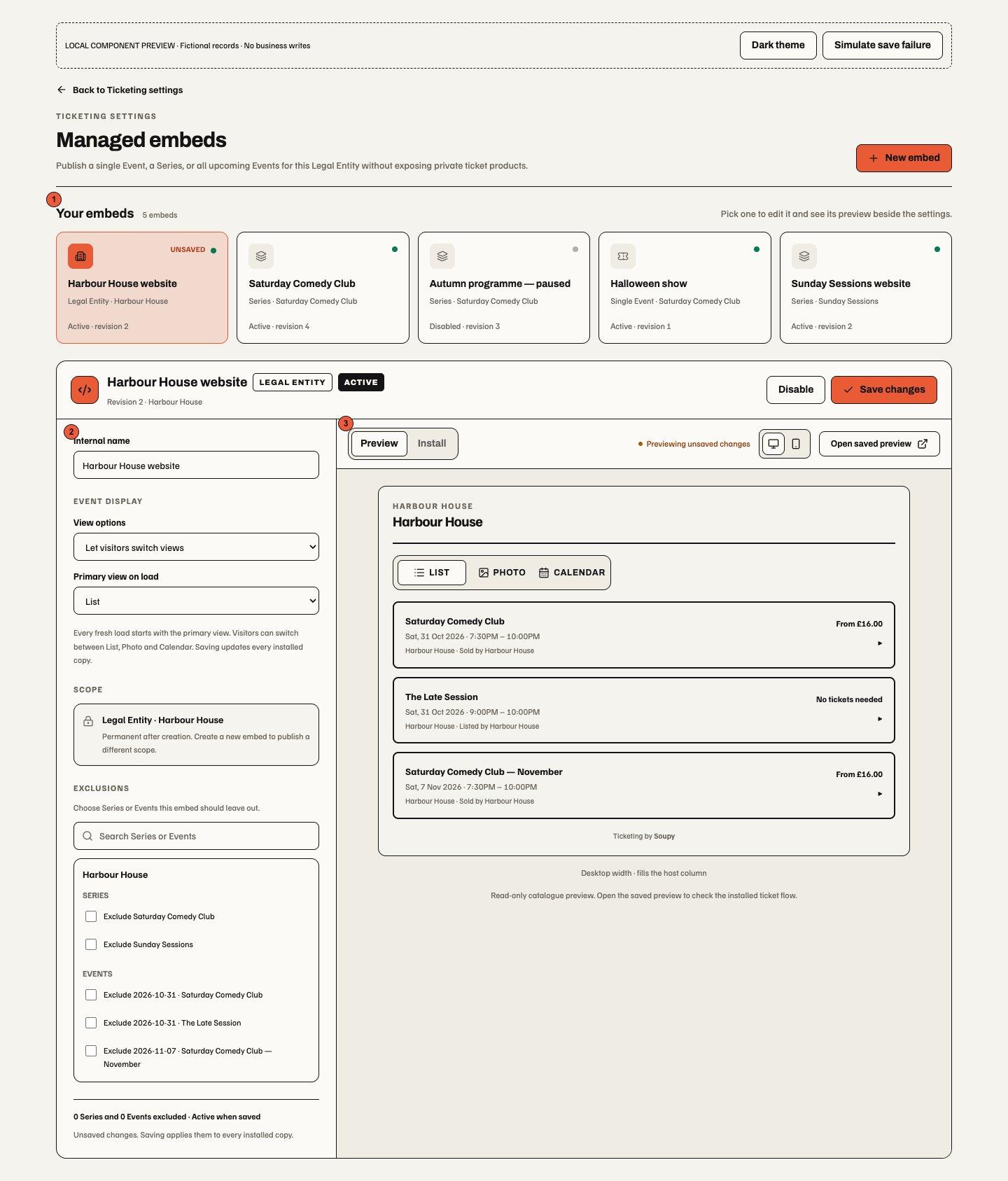
Public Event ticket options, managed and legacy embeds, and web checkout contain failed reads inside a retryable notice. The surrounding embed catalogue stays available; correcting settings restores the subscribed ticket options without discarding selected quantities or buyer details for that Event. A configuration that cannot safely accept new sales shows Ticket sales are temporarily unavailable, rather than the whole-page error screen.
Verified title, description, URL, SEO and artwork edits preserve an already published checkout when seller, payment and operating context still match. Commercial or operating changes and older unverified revision drift still need current publication evidence. In Event → Sales → Payments, review the effective settings and use Republish checkout when required. Presentation edits never approve a payment change or rewrite an existing Order. These safeguards apply to the web buyer journey; native checkout acceptance remains separate.
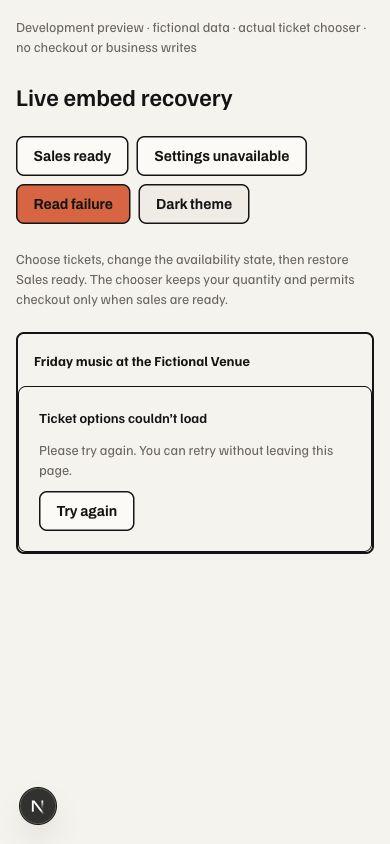
The public embed health check loads configured live widgets and their initial checkout screens hourly and after production deployment. It checks hydrated ticket options and prices, retains failure evidence and marks the GitHub Actions run failed. This sampled, read-only check makes no purchases; notification delivery depends on GitHub preferences and scheduled runs can be delayed. It supplements checkout regression tests, not completed-payment evidence.
The embed builder controls the allowed listing and checkout presentation; website/domain setup must be published for its exact organisation scope. FAQs can combine event-specific answers and a reusable FAQ bank. A post-purchase button may link to a guide or other approved destination after confirmed purchase.
Return from checkout. On an installed managed widget, choose Back to listings above the Event in Tickets, Extras or Details to reopen the original catalogue inside the same frame. The form's Back control moves to the previous checkout step. The listings open in the widget's configured initial view and keep any valid offer from the original link. You can choose another Event or return to the same Event, where an existing reservation may still be available to resume. The link is unavailable while payment setup is running. See the fictional narrow preview.
Under Event display, View options chooses Use one fixed view or Let visitors switch views. Select List, Photo or Calendar as the Fixed view or Primary view on load. A fixed widget omits the selector; a switchable widget starts with its configured primary view on each fresh load. Visitors can then change layouts without losing the active Event or entered ticket quantities. The operator's saved browser preference does not override an embed's primary view. New widgets start as switchable List; older widgets remain fixed List until explicitly edited. Saving updates installed copies. The studio's read-only preview follows the draft; Open saved preview retains the saved public version until that save succeeds.
List presentation. Public ticket
lists use compact connected rows grouped by month and year, with counts for
currently loaded Events and a compact month/day badge beside each Event. The
badge refinement reduces its width to 40px and the day numeral to 20px,
keeping the 16px Event title visually dominant. The weekday,
time, venue/seller and admission price or availability stay visible; narrow
embeds place price and selection below the title. Selecting a row opens its
existing ticket chooser directly below it. This shared layout covers managed
widgets, legacy Series embeds and Studio previews. Saved colours and density
remain available; the corner-radius setting shapes the outer list, while
explicit .embed-card CSS still applies once per Event row. Photo and Calendar
retain their layouts. Native screens, publication and checkout permissions are
unchanged. Desktop example
and narrow example use
fictional data, not production acceptance.
Embed calendars request a bounded, complete six-week window around the selected
month rather than treating the first List page as the whole programme. A window
that exceeds the supported bound is explicitly unavailable, never silently
truncated. Photo requests approved public artwork and retains a placeholder
when it is unavailable. These presentation settings keep existing publication,
scope, exclusion, revision, checkout and iframe boundaries. Legacy Series iframe
URLs remain fixed List by default; view=list|photo|calendar chooses the initial
layout and switchable=true adds the selector. Invalid values use the legacy
default. Rendered view and builder checks
document fictional local acceptance. This is a
web/desktop change; native flows remain separate.
Ticketing settings
Settings groups public identity (Ticketing name, short description, support email, website and primary/accent colours), sender identity (sender name, reply-to and support email), and customer policy (privacy notice, purchase terms, refund policy and data-protection email). Analytics consent and Order/attendee retention have separate controls. Analytics consent applies to the checkout attribution opt-in only; Order sources follow CRM tracking consent (see Order source coverage). The editor shows a factual summary before saving. These settings do not replace provider configuration or customer consent.
Website sections, custom domain/presentation and embed builders have specialist entry points. Event/Series Team & access is a separate resource menu and can administer invitations, user types, local grants and blocks at that exact scope; broader grants remain managed at their originating scope. A local team editor cannot silently widen an Event invitation to the whole organisation.
Set ticket purchase terms
Open Ticketing → Settings → Policies and data → Customer policies. Enter the public terms URL under Ticket purchase terms and save. This field is a business-wide setting. Check the applicable scope before changing terms for just one Event or Series.
Turn the checkout soft opt-in on or off
Open Ticketing → Settings → Policies and data → Checkout marketing. Soft
opt-in at checkout is on for every business until someone turns it off; it
covers the whole business, not one Series or Event. Switch it, then choose
Save. Changing it needs the same authority as publishing Policies and data:
a direct Ticketing administrator holding ticketing.events.manage and
organization.settings.manage (or an organisation administrator before
capability access). Others see the current state read-only. A change applies to
the next checkout; turning it off hides the notice but keeps everyone already
recorded, and their opt-outs. Say in your privacy notice that buyers may get
emails about similar events. See Event emails at checkout.
Event team roles
Event workspace Event → Team & access offers four standard roles alongside saved user types when the business has activated capability access. Each role is locked to the named Event and Ticketing. It never grants its Series, another Event, business settings, or a connected work area's separate permissions.
| Event role | Available responsibility | Excluded responsibility |
|---|---|---|
| Event Admin | Event setup, inventory, publication, guests, check-in, service communications, reports, feedback, Orders/refunds, payment settings, settlement and the local team | Business/Group administration and independently authorised connected work areas |
| Event Accounts | Event Orders, refunds, financial reporting, settlement, payment-account selection and VAT | Event editing/publication, guest communications, private attendee browsing and team administration |
| Ticket Scanner | Admit tickets at this Event; the accepted invitation opens its check-in screen directly | General Event browsing, attendee lists/exports, editing, reports, financial commands and team administration |
| Event Read only | Event details, performance reports and feedback results | Private attendee lists, editing/publication, export, check-in, messaging, financial commands and team administration |
A role choice shows its responsibilities before Send invitation or Add user type. The shared picker groups and searches those choices while preserving their exact stored identities and qualified names. Its advisory level describes the permission set, not the Event's scope: Ticket Scanner includes a check-in action, so it is not classified as Read only. The server checks current delegable authority, exact Event, reason, expiry, restrictions and sensitive permissions. Event Admin invitations have a separate, initially off choice to pass on the received permissions to this Event's team. Holding a role without delegation never permits assigning its permissions to someone else. An organisation administrator may assign the new standard team/finance permissions to a different person only when the existing compound authorities are delegable and cover the full requested lifetime; explicit blocks and scope limits still win.
Opening the page creates no templates or grants. Explicit preparation stores a new immutable standard snapshot, then the normal protected command records the invitation or assignment. Missing or corrupt existing snapshots are refused. Existing user types, versions, invitations and assignments are not upgraded, renamed or widened. Identical saved names remain separate choices, labelled by origin/profile and version; any remaining duplicates receive stable qualifiers. The same picker serves Series Team & access without expanding an assignment beyond that Series or making an Event-only profile eligible there.
The local team lists only exact-Event sources. Wider inherited access remains managed where it originated. An Event-only administrator sees local people, not the organisation roster; email invitations can add another intended person. Accounts can edit the Event's payment configuration, but publishing Checkout still requires Event publication authority. Seller connection and VAT choices are minimal exact-Event references, never an unrelated seller catalogue.
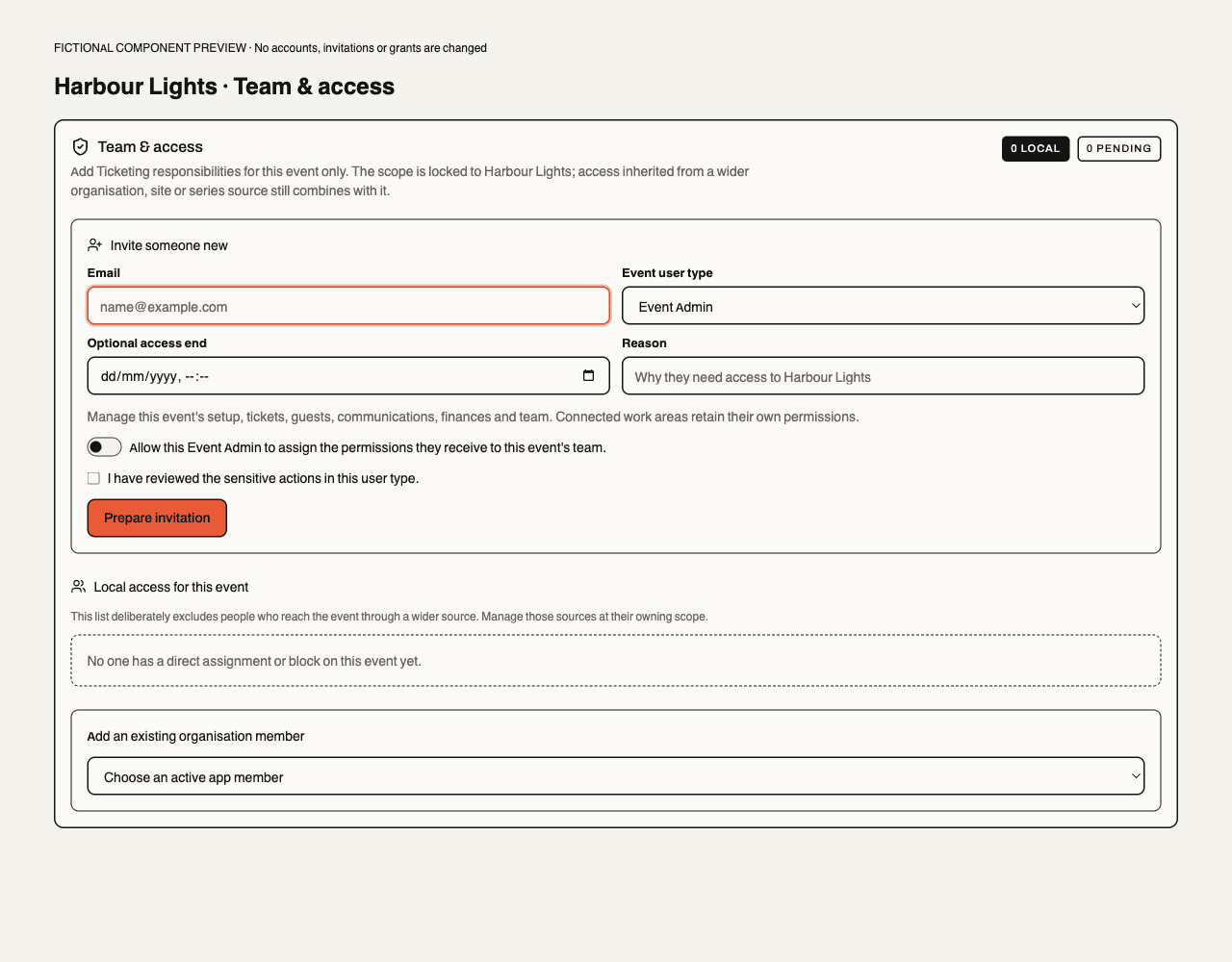
Reading points: 1. Event identity above the form fixes the destination. 2. Role description names the included responsibilities and connected-area boundary. 3. Delegation is separate from the sensitive-action acknowledgement and explicit preparation. This actual-component preview uses fictional records; it is visual evidence, not authenticated or production acceptance. See the role validation record for both themes and narrow screens. Native team workflows are unchanged.
Buyer journey and ticket aftercare
- Open the public event, review venue, programme, ticket price and conditions, and select quantities.
- Enter the buyer's name, delivery email and required answers, then continue without an email-code step or attendee-assignment choice. All tickets start in the purchaser's name and email; the purchaser remains the Order owner if a holder changes later.
- Select any optional add-ons, review each seller, fees and included promises, then complete the supported payment or free confirmation. A booking fee shows its exact amount and VAT in the order summary before payment; see Ticket booking fees.
- Wait for Soupy to confirm the Order. An accepted card payment awaiting its provider confirmation remains in progress, with advice not to pay again.
- Open delivered ticket credentials or the Web Wallet. Available actions depend on the purchased policy and current ticket state: download, native Wallet save, eligible holder changes, transfer, policy-permitted cancellation/refund or official resale.
Privacy controls. Public Ticketing pages and widgets show a small Privacy preferences link below the content. Opening it reveals basic-statistics opt-out and separate optional analytics choices; neither panel interrupts ticket selection. Event pages also show the customer-linking choice inline below the Event, above the Checkout bar, until the visitor decides: one tap on Allow analytics agrees, Decline closes it, and ignoring it changes nothing. It never covers the page or Checkout. Existing preferences remain in force, and hiding the prompt never grants consent. Checkout also omits the separate optional campaign-attribution checkbox and sends no new attribution from that control. Native behaviour is unchanged.
Event emails at checkout (soft opt-in). While the business has Soft opt-in at checkout on (the default), the Your details step on web Event checkout (including embeds) tells the buyer that the business may email them about similar events and that every email has an unsubscribe link. Two unticked boxes follow: Don’t email me about other events from the business and Don’t email me about future Series events (only when the Event belongs to a Series). Leaving a box unticked records a PECR soft opt-in for that scope when the reservation is made, against the purchaser's email only (never other ticket holders), with the time, the Order and the notice version. It is not marketing consent: only checkout reminders use it, and CRM campaigns and Journeys still need consent. Ticking a box records a refusal that a later checkout never undoes, and also withdraws any CRM email-marketing consent the buyer held for that scope. Unsubscribing from any marketing email, the preference centre or a staff withdrawal overrides a soft opt-in. Seller-routed (Basket) checkout, Group catalogues, partner source checkout, test mode and native apps show no notice and record nothing. Pre-ticked boxes and consent bundled with cookies are not used.
Purchaser assignment and after-purchase reassignment. Event and Group catalogue checkout collect buyer details and required Event answers without asking who each ticket is for. Every new ticket uses the purchaser's submitted name and delivery email, including when an older checkout draft contained attendee names. Required Event questions still apply to each ticket. After Order confirmation, buyers can keep those details or choose Reassign ticket for each eligible ticket to name another attendee. The action is also available from each delivered private Ticket Wallet link.
Once the Order is confirmed, Assign tickets opens inline holder fields on Event checkout, the Stripe return confirmation and the completed Group Basket. Buyers keep purchaser details unless they explicitly choose Assign & send for an eligible ticket. Opening, typing or collapsing sends nothing; a failed row retains other drafts. Success confirms an email was queued, not delivered. The optional assignment list starts loading when opened. Parent updates and closing or reopening the panel keep its local drafts. A failed assignment read stays inside the panel with Retry ticket assignments and Your purchase is still confirmed; it must not replace successful checkout with the whole-page error screen. Retrying this list never submits another payment or sends tickets. The inline list requires the browser's private checkout access or the exact completed Basket token. Knowing an Order reference or buyer email is insufficient. Later holders and their private credentials remain hidden from the old checkout. Without that private access, the delivered Ticket Wallet link remains available.
Automatic purchaser confirmation and Tickets. Newly completed ordinary Event Orders, paid or free, queue a purchase confirmation/receipt to the submitted buyer email independently of the automatic Ticket message. The purchase email retains the full purchased quantity, amount, currency, Order reference and product summary even if every Ticket is immediately reassigned. It contains no Ticket access credentials or later holders' names, emails or private links. Receiving this purchase proof does not depend on opening Assign tickets or choosing Assign & send.
The separate Ticket message contains only eligible Tickets still in the purchaser's custody. Assign & send queues the selected Ticket to its named guest; the purchaser does not receive that guest's replacement credentials. Confirming a Ticket already in the purchaser's exact name and email records the attendee choice without rotating its private link or QR and without queuing another individual email. Confirm my ticket explains this before submission. The original purchase confirmation and Ticket bundle continue normally, whether waiting or already accepted. Legacy unassigned Tickets, changed names and assignments to someone else still use the existing assignment and credential rules. Refund, resale, attendee-answer and durable-pass checks remain.
A stale, unsent bundle can be rebuilt for the purchaser's remaining Tickets. Soupy does not replace a send that the email provider may already have accepted. Assigning every Ticket to guests does not remove the buyer's queued purchase confirmation/receipt. Existing seller, recipient, product-delivery and Event-cancellation checks remain in force. Queued or provider-accepted email is not proof of inbox delivery. This correction does not change Group Basket leg delivery or native confirmation screens.
Transactional email presentation. New purchase receipts, built-in Ticket confirmations, assignment, transfer and resend emails use a paper-and-ink layout with orange Wallet actions. Receipts show the seller, purchased products, total and full Order reference without private Ticket links. Ticket messages show the admitted holder and Ticket reference, Event facts and arrival information when available. A purchaser's remaining Ticket bundle does not describe reassigned Tickets as still belonging to that purchaser.
New Series confirmation starters use the matching layout. Existing authored templates keep their saved design; their protected delivery section receives only the currently admitted Tickets. Already frozen messages retain their exact content and validation version. This update does not resend old messages or change payment, assignment, recipient or approval rules.
Each Ticket retains its own private Wallet, permitted PDF/calendar actions and available Apple/Google save options. Missing Event facts are omitted. Email clients may simplify decoration or transform colours; links and readable content remain the fallback. Browser previews do not establish provider delivery, inbox rendering, calendar import or native Wallet acceptance. See the fictional rendered examples and validation record.
Ticket-shaped confirmation. The completed Event checkout and payment-return screen place a compact ticket card below You're going!. It shows the Event, date, local start time and location when available, followed by purchased Ticket quantities, Purchased by and the full Order reference. Assign tickets is the main action; it opens the recipient editor in place. Add to calendar and the Event's configured return link are secondary actions, side by side on desktop and stacked on narrow screens. Embedded checkout uses the same layout within its existing frame.
Purchased by names the original Order purchaser, not every current holder. A guest assigned here count reports only successful assignments made in this open confirmation; it does not recover later holders' names, emails or private links. The optional receipt detail read requires the exact private Order and checkout-request possession. Missing product evidence shows the Order's Ticket count without an invented type. Event details describe the currently permitted fulfilment occurrence; a moved Order does not reuse its old product label.
The assignment panel keeps Me / Someone else, required attendee-answer review and the explicit Assign & send action. Incomplete recipient details leave sending disabled; a successful row reports that its email is queued. Loading, unavailable access and retry messages stay inside the panel. The Group Basket keeps its existing confirmation layout. This presentation change does not establish production rollout, payment or email-provider acceptance, and does not change native confirmation screens.
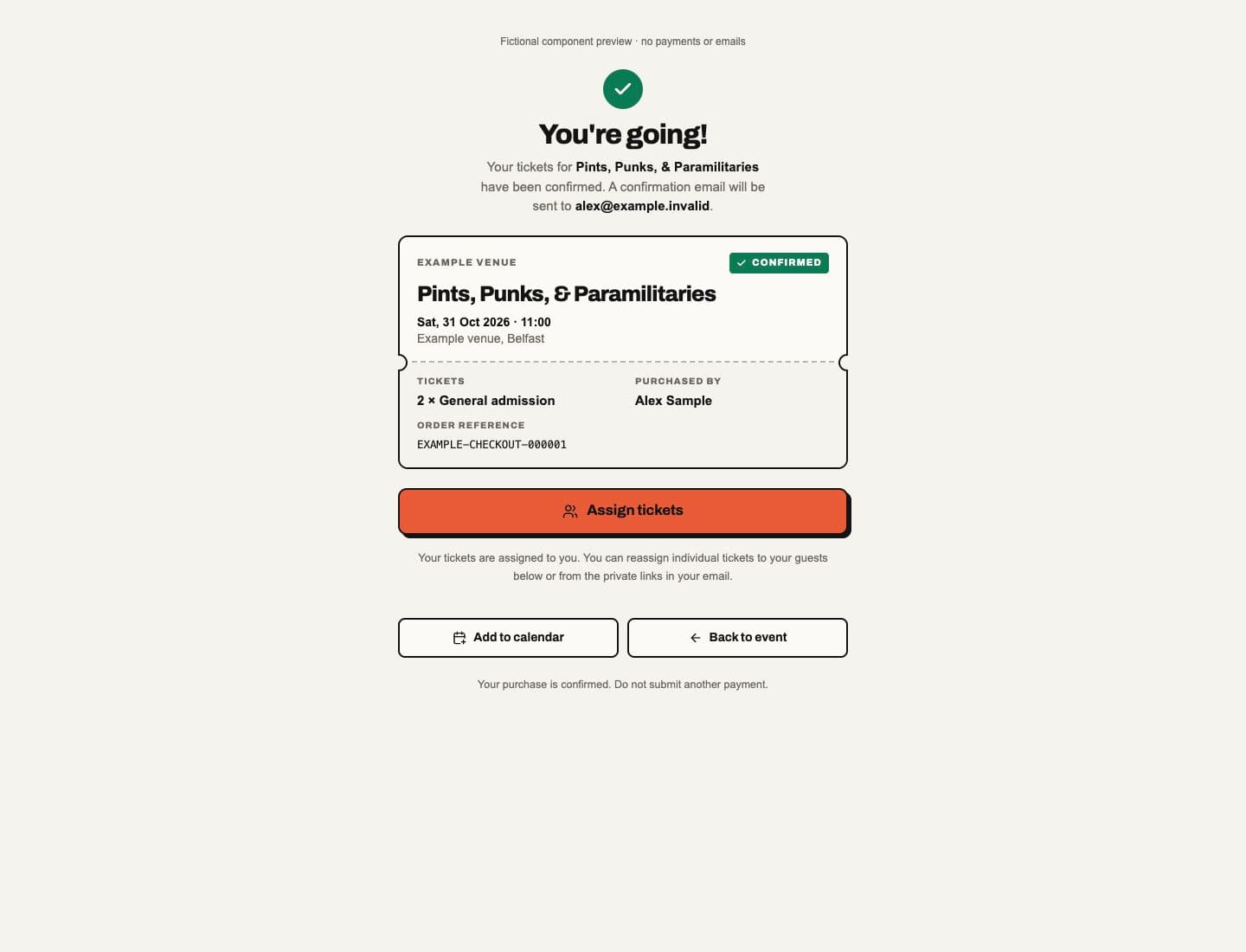
The example above renders the actual components with fictional purchase data. The receipt's purchaser is separate from current holder identities. In the narrow dark example below, the assignment form stays inside the same screen, with two native recipient choices and stacked name/email fields. These renders do not demonstrate a real payment or email delivery.
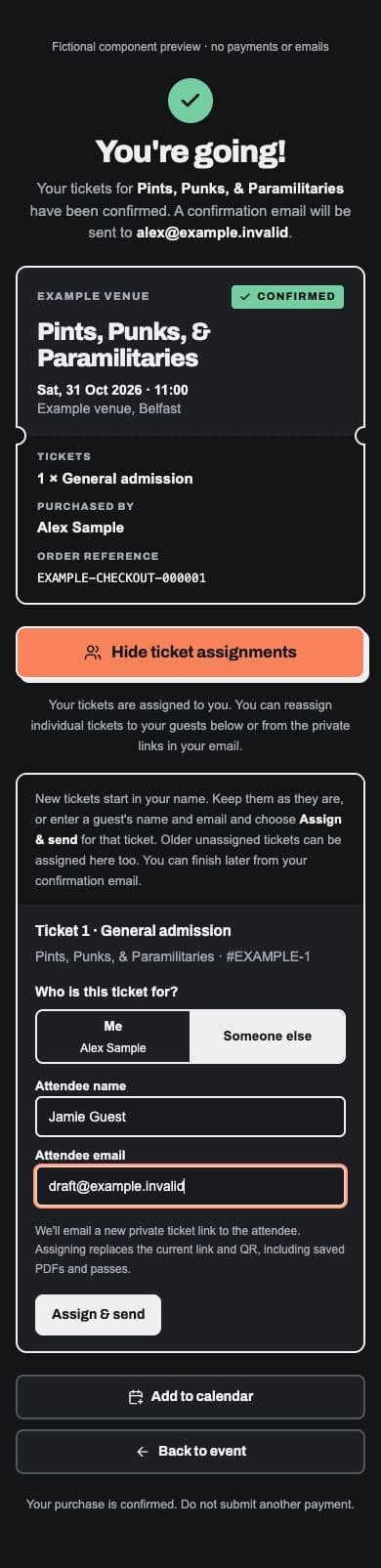
Confirmation resilience. A failure in optional receipt details, ticket assignment, add-on vouchers, calendar options or Event links keeps the confirmed purchase and its reference visible. Each failed section has its own retry; retrying it neither refreshes payment nor sends tickets. A catalogue refresh also cannot hide an already confirmed Event purchase.
Event checkout retains the exact private Order/request proof in the same browser tab. Refreshing or revisiting that Event first reopens a read-only status check for the existing Order. Only Soupy's canonical completed status shows success, including when reopening without a Stripe return secret. Missing, unreadable or uncertain proof/status asks the buyer not to pay again and to check their email or contact the seller; it does not reopen payment. A local reservation timer also rechecks the existing Order rather than starting a new one. Start another purchase is an explicit choice after canonical completion, a recorded full or partial refund, or an ended Order (void, cancelled or expired), and clears only that exact tab's proof. It does not itself reserve or charge. Closing the tab or using another browser does not carry this recovery proof; delivered private Ticket Wallet links remain the durable aftercare route. Native apps and provider/email delivery evidence are separate from this web safeguard.
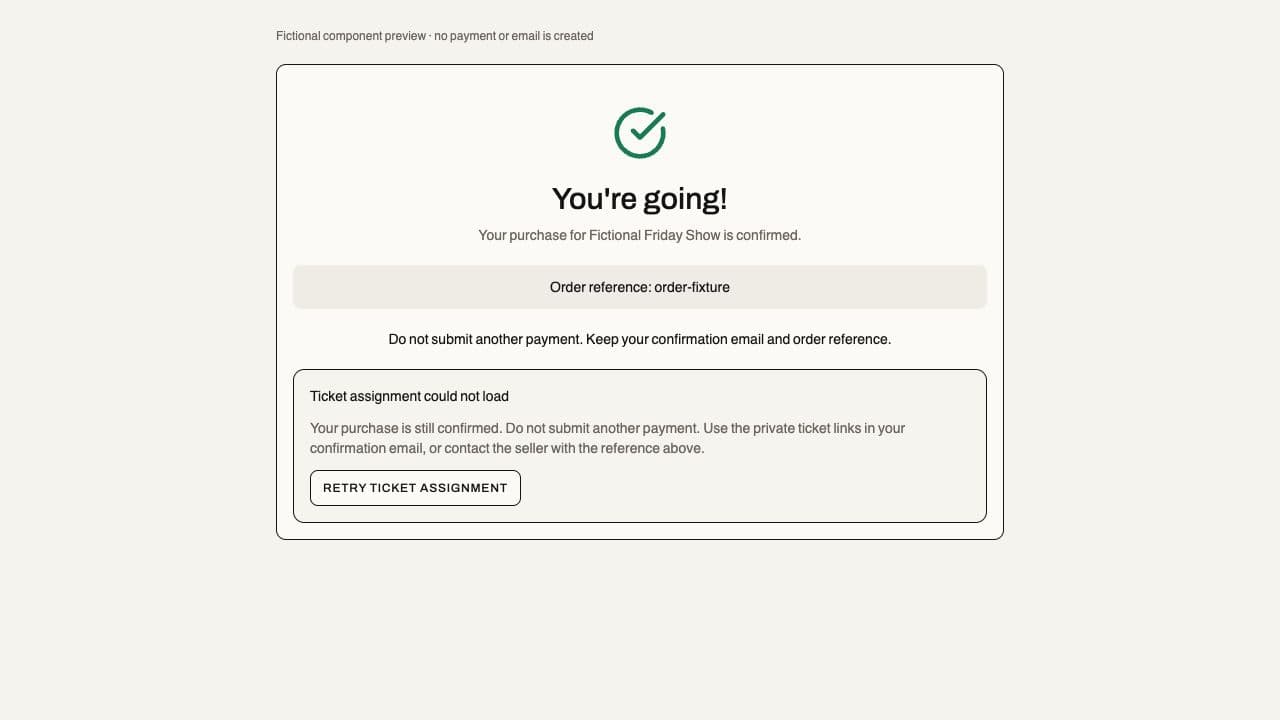
Fictional component preview, 19 October 2026; not a live purchase or provider test. Confirmed heading / Order reference stay outside the failing section. Retry ticket assignment resets that optional section without starting another payment; the receipt remains visible.
For ordinary admission, this initial reassignment is available to the current private Ticket bearer while the ticket is valid and unused, independently of its subsequent name-change/transfer policy. Previously collected attendee answers must be reviewed and confirmed for the named person; changes require the organiser. Reassignment retains the Ticket and original Order purchaser, replaces its private link and admission credentials, and queues a new link to the named attendee. Checked-in, cancelled, refunded or resale-listed tickets cannot be reassigned. A failed or uncertain request retains its draft for a safe retry. Once reassigned, further holder changes follow the purchased name-change and transfer policy. Named durable benefits can issue to the purchaser at confirmation. Tickets carrying those purchaser-linked benefits require the organiser for reassignment; admission and benefits do not silently separate.
Explicitly unassigned older tickets keep their existing custody and admission: they remain labelled Unassigned and can use Assign an attendee. Their named durable benefits wait for assignment without extending the original validity window, and holder-targeted feedback excludes them. Purchase and operational messages still reach the buyer. Initial assignment/reassignment is a web action from confirmed checkout or the private delivery link; Apple/Google passes and PDFs do not add an editor. This update needs the matching checkout, backend and Wallet release; local fixtures and tests do not establish provider delivery, a real payment or native-device acceptance.
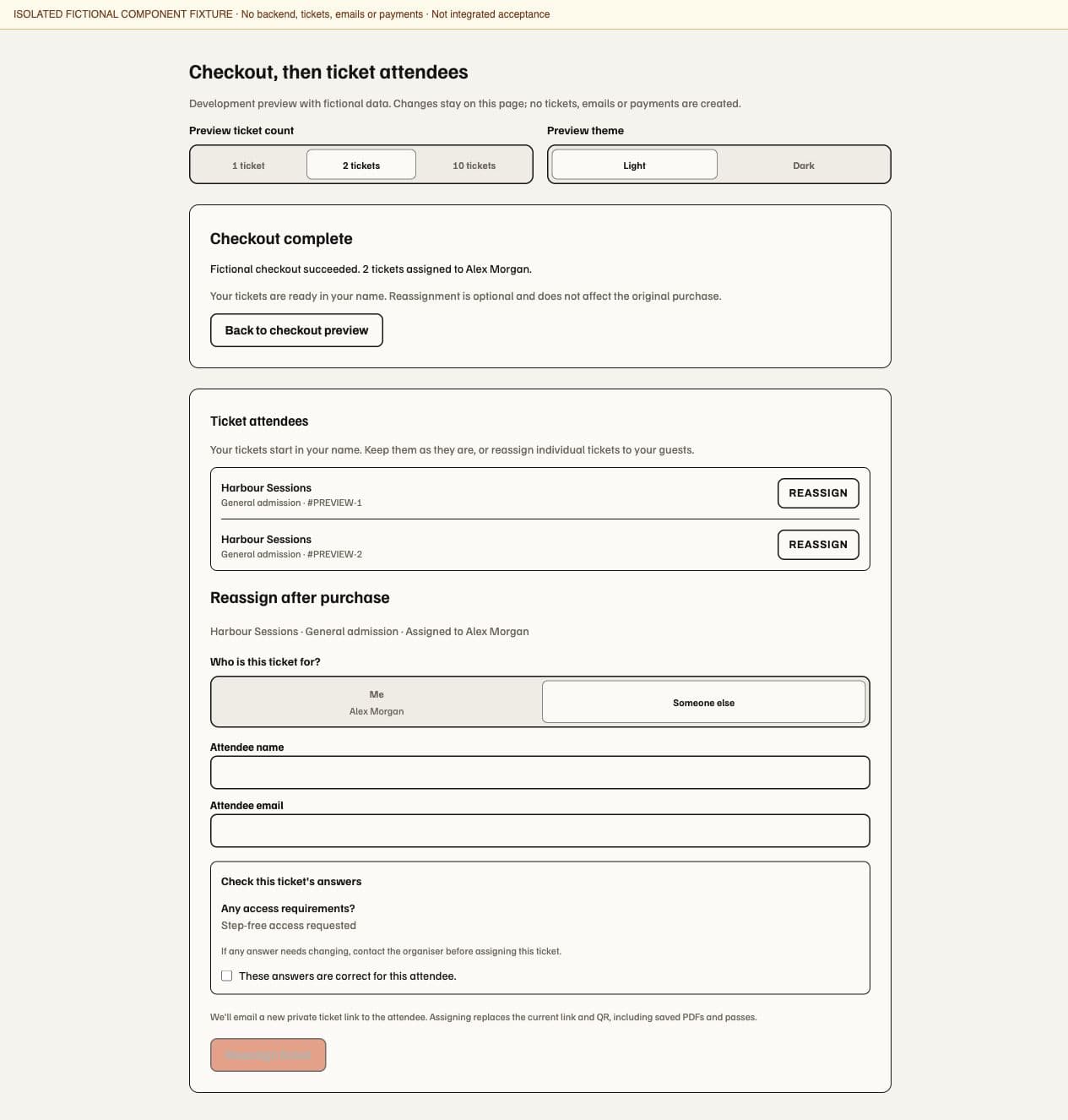
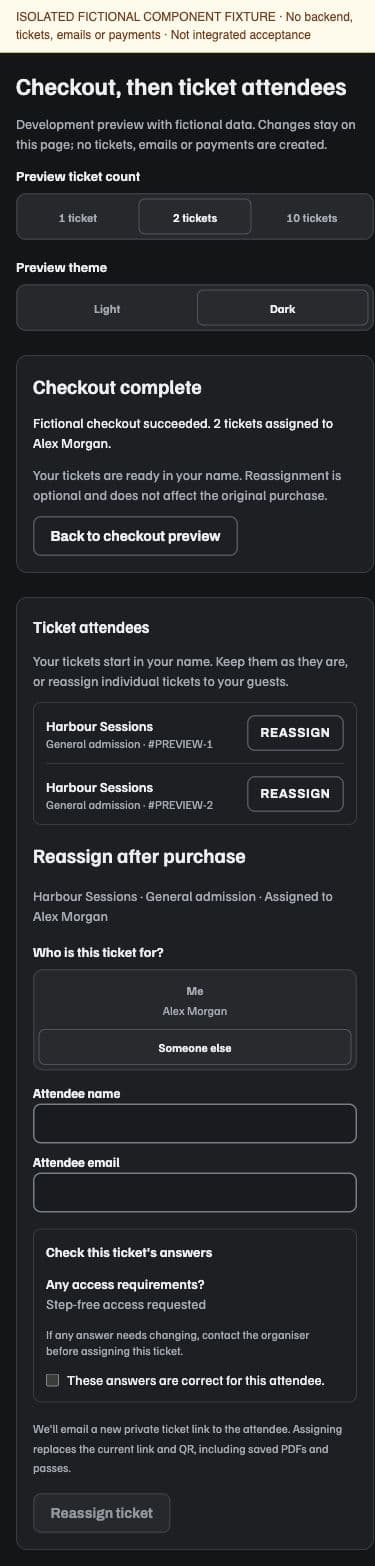
Ordinary Event checkout opens Card fields immediately, with other eligible methods such as Klarna available as alternatives. Stripe chooses availability from the seller account, buyer, currency and transaction. Apple Pay and Google Pay use this same connected seller account: enable the methods in Stripe and register every checkout domain for that account. Their buttons appear only on eligible browsers/devices with a supported wallet configured. This payment setup is separate from saving a purchased Ticket in Apple or Google Wallet; multi-seller Baskets retain their card-only payment flow.
Soupy supplies Stripe's payment permissions policy on Event checkout for clients that require it, including Chrome on Android. For cross-origin Apple Pay, use Safari 17 or later and a host that delegates payment to the frame. Wallet visibility on the installed widget remains a release acceptance check.
Setup references: Stripe connected-account payment methods and payment-method domain registration. Register hosts against the connected account that takes the direct charge, including both hosts for a cross-origin embedded checkout. Stripe handles Apple merchant validation for web Elements; an Apple Merchant ID or certificate for native Ticket passes does not enable Apple Pay here. Configuration and a real eligible-device payment remain separate acceptance checks.
The private ticket screen combines Event details, holder and live QR in one perforated card. Use the pencil beside the holder to edit an eligible attendee name. Transfer, refund/cancellation, Official Resale and durable-pass details open independently below the save options; collapsing a section preserves its draft and does not submit it. Checked-in tickets replace the QR with their admission status. Cancelled Events retain a service record and disable QR and native/PDF delivery. The layout adapts to narrow screens and the selected theme.
New native Ticket saves recheck the current holder, Ticket status, Event/type ownership, enabled Ticketing and native-channel availability immediately before returning a Google Save reference or Apple pass bytes. Apple bundles check every Ticket together after processing other items and recording readiness, then build the archive without further network work. A cancellation, withdrawn module or changed source during preparation refuses that save and keeps the Web Wallet recovery path. Existing provider updates have a separate contract so revoked passes can still receive their barcode-free update and registered Apple passes can update while new native issuance is held. A server refusal cannot recall a pass or barcode already downloaded to a device.
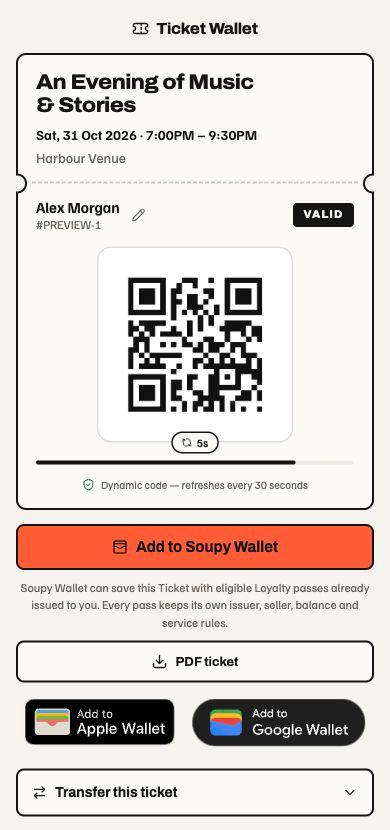
Confirmation and transfer emails include official Apple and Google Wallet badges for the ticket's enabled channels, plus PDF ticket attachments when the purchased product permits PDFs. Delivery rechecks the frozen recipient, current holder and private link before rendering attachments and immediately before sending; a transferred, refunded or cancelled ticket cannot leak a replacement holder's credential through an old email job. Each ticket retains its own save links and PDF in multi-ticket and multi-seller purchases. A long Event title or address is never cut short: the PDF continues onto a second page, which can then hold the QR code. A provider retry resends the exact email and PDFs of the first attempt that reached the provider. A retry that no longer matches it stops at once; one skipped because a Ticket, its Event or the Order changed after that attempt is not sent. Both show as Outcome unknown in notification history when that attempt's answer was unclear, because it may have arrived. An attempt that stopped after checking the Ticket but before reaching the provider sent nothing, so its retry checks and sends the current Ticket instead of skipping it. If a Ticket in a purchaser's bundle has since been transferred, refunded or cancelled, or its private link changed, that retry rebuilds the bundle for the purchaser's remaining Tickets instead. An attempt that runs longer than a minute hands the email to a later attempt instead of failing it. After five attempts the email fails instead, as Outcome unknown when an attempt may have reached the provider. Provider save requires a ready issuer and signer; a browser delivery failure returns to the live Ticket Wallet with an explanation and retry options. Saving a pass on an actual Apple or Android device remains a separate provider acceptance check.
Add to calendar downloads an .ics snapshot from the web Ticket Wallet,
completed single-occurrence checkout and newly prepared ticket emails. It uses
the Event timezone, supports overnight finishes and omits a missing end time.
Invalid or ambiguous daylight-saving times are unavailable instead of guessed.
The download contains Event details and location, with no holder data or private
ticket credentials. It rechecks the current ticket or checkout access, enabled
Ticketing and Event state; revoked, refunded, void or cancelled access is refused.
A grouped purchase uses each ticket's own link. Older frozen email jobs keep their
original content. Downloads are snapshots: changes and cancellations do not update
an imported calendar entry. Calendar-app import and native app UI are separate
acceptance boundaries; these are web/download controls.
Generated confirmation actions use Soupy's orange action colour and ink text, with explicit email background fallbacks. Existing saved designed templates receive the generated Ticket button when a new email is prepared; custom authored button colours remain as designed. Delivered emails and already frozen jobs do not change. Recipient email clients can apply their own dark-mode transformations.
Google event tickets show the Event title and QR together with three detail rows: date/time, ticket type/venue, and ticket holder/reference. These use the current ticket's existing presentation fields; missing values are omitted by Google. Saving an eligible ticket again reconciles its successful Google card layout once per layout generation and class revision, retaining its existing pass identity. Google controls the final rendering and propagation to saved passes. Failed delivery jobs retain their separate recovery requirements; a layout refresh does not reset them.
Each purchase belongs to the business's customer with the exact email entered;
checkout creates a minimal contact when there is none. Ticket, resale and
voucher Orders then count toward that customer's CRM Soupy order spend and
order history, can start their purchase journeys, and earn Loyalty points for
an enrolled member. Their Tickets reach the same customer's Wallet through
ticket delivery, as before. The typed email is not verification. The buyer
sees nothing from the existing profile. The profile's name, phone, tags,
consent and verification stay unchanged. Opening Wallet or an account still
needs its own email verification, and an email match never connects an external
commerce account. Each Order keeps the name and email submitted for it. An
add-on or routed Order sold by another business in a Group basket stays
unlinked. The one-off backfill for earlier Orders
(customers/purchaserBackfill)
records their spend net of refunds. It awards no past Loyalty points and starts
no CRM journeys.
Entering Details focuses the labelled Full Name input. Other checkout steps and terminal states focus their semantic headings.
The discount-code field appears for supported ticket selections. Offer links validate their code when checkout opens. Invalid, expired or unavailable codes must be removed or corrected before continuing; checkout does not silently charge the full price. Removing an offer keeps the buyer's ticket selection and details. A buy one get one free code makes the cheapest paid ticket free once the selection has at least two paid tickets, up to the code's maximum; donation and free tickets do not count. With one paid ticket, checkout asks the buyer to add a second paid ticket or remove the code. A managed widget with an offer keeps buyers in individual Event checkout and explains why its Group-basket shortcut is unavailable. Separate seller payments do not support codes: a supplied offer shows an explicit removal action, and no discounted total. Ordinary multi-seller checkout without an offer keeps its existing card-only flow.
Transfers concern the ticket holder, not the purchaser, purchase totals or marketing consent. A current holder can transfer directly to a named email without asking the recipient to enter a verification code. The transfer emails the private ticket link and immediately rotates the wallet/QR credentials; old wallet links, PDFs and native passes stop authorising admission. Date swaps are restricted to valid same-price matching products and eligible occurrences in the Series. The Order keeps the original sale event and labels a later fulfilment event Moved to; attendees follow their current Ticket event.
A cancelled event exposes a cancellation service queue. Cancellation notices, refunds and rebooking are recorded separately; changing Event status does not claim that money has already been returned or that a performer agreement ended. Waiting-list entries distinguish waiting, notified, purchased and expired. Interest registration is a verified relationship signal, not marketing consent.
Waitlist, promoter allocations and official resale
The public waiting list verifies the recipient and records the ticket product and quantity. When inventory returns, eligible members are offered capacity in FIFO order with an exact 30-minute hold. The invitation link is one-use and checkout consumes that same held capacity. Expiry/release returns the units before the queue advances. Interested People is a separate pre-sale signal: it is off by default, closes when sale starts and is not a queue position.
For a promoter allocation, open Event → Guests → Guest lists & holds → Promoter holds, choose New hold, then select a finite product, name the promoter/channel, set quantity and validity, and choose Create hold. Capacity is held immediately, reducing public stock. Issue its scoped link for bounded partial purchases, or rotate/revoke/release it as permitted. Buyers enter their name and delivery email without an email-code step. Allocation capacity can be used while public stock is sold out; it creates no payment or settlement beneficiary.
Issuing a redemption link reveals it once in the hold row. Copy it before dismissing the panel; dismissing hides the local disclosure and does not revoke the link. Rotation and revocation require their existing confirmation prompts. Release or expiry returns unused places. A link may support bounded partial redemptions; one-time disclosure does not mean single-use redemption.
In Complimentary & accreditation, choose Issue tickets, then select Complimentary or Accreditation, a credential class, product, quantity, named holder, reason code, written reason and exact check-in lists. Changing product clears the list selection. Issuance requires an eligible live Event, available inventory and the existing source authority; it creates zero-revenue tickets and queues normal delivery. It is an explicit action, never a consequence of opening the form. These records do not count as sales or settlement evidence.
An active issuance's Cancel action opens a required reason field; Keep active closes that review without cancelling. Confirmation uses the existing source checks and can refuse checked-in credentials or resale locks. A failed cancellation retains its reason and error; success updates the issuance through its normal inventory and fulfilment lifecycle.
To enable official resale, configure the Event policy: disabled, always,
after sell-out or within a stated time before the event, with applicable product
price limits. An eligible holder opens the Ticket Wallet, enters the asking
price and lists the ticket; the wallet explains locks or unavailable actions.
A buyer opens /resale/[eventId], selects a listing, supplies their name and
delivery email, then reviews and pays without an email-code step. Failed/expired
reservation returns to the list with a recovery explanation. Resale transfers
the admission and included activity entitlement to the replacement credential
without creating extra inventory. Existing resale/refund locks can block holder
edits, transfer, cancellation or a second sale.
A holder cancellation/refund first previews eligibility, deadline, refundable money and reason requirements. Zero-cash cancellation returns admission with no card money to reverse. Paid cancellation follows its frozen supported refund policy and provider-confirmed operation; a button click does not prove return of funds. Operator order/attendee row menus separately expose eligible edit, reminder, reassignment, void and refund actions under current state and authority.
Check-in, named lists and offline door operation
Open an Event's Check-in workspace, choose the appropriate list and scan a credential or find an allowed guest. The admission result is authoritative for that exact event/list. Staff undo is a separate governed action; door-device credentials do not inherit it.
Managers can create named lists, issue revocable QR reader links and reveal a setup QR. The lifetime selector keeps its four-hour default and adds Doesn’t expire for new links. These links stay active until revoked while their Event and named list remain available; existing timed links retain their expiry. Saved links, secure reopening and the setup disclosure show the chosen lifetime. Failed creation retains the label and lifetime choice. Non-expiring setup directs phone cameras to the browser reader; the native app's guest check-in also accepts non-expiring links and says access lasts until revoked; its installed-device acceptance is pending. Downloaded offline rosters remain finite: a non-expiring online link issues a 16-hour offline permit with the existing 24-hour upload grace. Renewing online access never extends a saved roster.
A door operator can choose Set up check-in in the Soupy mobile app before staff sign-in. The setup credential grants only the assigned Event/list and minimal admission roster; it cannot browse CRM, refund or use the phone owner's staff privileges.
 Local fictional preview, 30 October 2026. The lifetime selector adds Doesn’t
expire; saved rows state it and keep Review revoke beside the link. This
image does not establish deployment or a live issued credential.
Reader reliability: the browser camera remains open between scans. While one admission is being checked, other submissions are disabled; a code held in view is not submitted repeatedly. Move the Ticket out of view before presenting it again, or use Stop to end the camera. A server-confirmed admission immediately updates that Ticket’s row and the count. A failed list refresh cannot replace that confirmed result with a failure. Refresh list reads current server status, including changes made on other devices; the screen states its last successful refresh and flags an unavailable refresh. The list is a snapshot, not a live cross-device feed. When an admission response cannot be confirmed, the reader says the attempt may have been saved; refresh or scan the same Ticket again to verify. A duplicate response means the Ticket is already checked in and does not admit it a second time. Offline results remain provisional until server reconciliation, as described below.
Offline preparation downloads a bounded roster protected by a local PIN. Offline scans remain provisional until reconnection, reconciliation and server acknowledgement. Conflicts are reviewed in the operator workspace. A disconnected phone cannot instantly know another phone's scans, a refund or remote revocation. Known access failure is retained across disconnect/restart. Oversized rosters refuse offline preparation; online check-in has its own bounded roster limit.
Embed audience
Availability: separate basic statistics require a deployment containing this release. Basic counters begin collecting after that deployment; historical PostHog counts are not imported into them. The previous PostHog report's live verification record remains separate evidence. Native apps do not gain these charts.
Event → Overview shows an audience summary and daily chart. Event → Reports adds an embed breakdown. Series → Events shows cumulative audience; Series → Reports adds Event and embed breakdowns. Ticketing → Reports → Embed audience covers the business's permitted sources. The primary Page and embed statistics report counts basic traffic without requiring Allow analytics, CRM Growth or a PostHog connection. Consented analytics is a separate optional disclosure for the existing PostHog report; its counts are never added to the basic report.
Both reports offer 7, 30 or 90 days, or an inclusive custom range of 1–90 days. Dates use UTC observation time, independently of when the shows take place. View daily figures exposes the chart's exact counts. Event, Series and embed breakdowns retain the same source scope as the selected report.
| Basic metric | Counting rule |
|---|---|
| Page views | A supported public Event page or business What's on listing becomes visible. Event pages roll into their current Series and business; the business listing belongs only to the business total. |
| Embed views | At least 1% of an installed business-owned managed widget is visible for one continuous second in a visible browser tab. Event reports count that Event's dedicated widgets; Series reports include Series widgets and its Events' dedicated widgets. |
| Event impressions | At least half of an Event card's control or ticket chooser is visible for one continuous second. Loading a Series widget does not give every listed Event an impression. |
The browser attempts each resource/count combination once per page visit. Scrolling back, changing widget layout or remounting the same source does not count it again. Navigating to another source and back, or reloading the document, can add another count. Basic observations are not retried; blocked or failed requests, opt-outs and collection budgets leave gaps. Public requests can include bots or fabricated observations; origin checks are not proof of a human visit. These are approximate browser counts, not unique people, devices, Orders or conversion rates. The three metrics are never added together.
Basic statistics store daily counters against canonical public resources. There is no per-visit record, browser/session/customer identity, IP address, user agent, URL, query, referrer, campaign token or link to a purchase in this statistics store. Counts serve aggregate service improvement, not customer profiling or marketing targeting. The new totals start with collection after release; historical PostHog visits are not imported or reconstructed. Retained daily aggregates have no browser-level deletion key. Report dates select only the chosen range and do not claim a lifetime start date.
Supported Ticketing pages/widgets provide Privacy preferences below their content. Opening it reveals Opt out of basic statistics and the separate optional analytics choices; no statistics notice opens by default. Event pages show only the customer-linking choice inline until the visitor decides. Opting out stops future basic observations and saves only the preference in browser storage. Enable basic statistics reverses it. The choice applies to that browser on that website; embedded storage can be partitioned by the surrounding host. When storage cannot save the choice, the opened preferences state that it lasts until the page closes. Already accumulated totals cannot be attributed to or individually erased for that browser. The public privacy notice explains both choices. Decline / Allow analytics separately control the existing customer-linked flow. Granting one choice never grants the other.
Basic collection requires enabled Ticketing and a live public source, served
from https://soupy.ai or exactly one active website registration for the owning
business and HTTPS origin. Registrations remain in CRM Settings → Data;
Growth, CRM tracking settings and PostHog do not gate these counters. Event page
counts can include a still-public past Event. Installed widget impressions
require a live, upcoming Event included in that saved widget. Management
previews, standalone widget pages, legacy Series widgets, Group-owned widgets,
checkout, private routes and arbitrary external website pages do not contribute
basic counts. The server resolves business, widget and Event; it does not trust
browser-supplied tenant or report dimensions. Source eligibility changes stop
new counts without rewriting retained aggregates.
Reading either report requires ticketing.reports.view and current
ticketing.view access to each contributing source. Shared widget views and
business/Series page totals also require their whole source scope. Access to
one Event admits its own impressions without exposing other Events in a shared
widget. Current Series membership determines Event grouping; a dedicated Series
widget retains its own Series scope. An access change stops fresh disclosure;
temporary connection loss can retain the already admitted display on that screen.
The Consented analytics report keeps Embed views, Event impressions and Unique tracked browsers. Uniques are distinct consented browser contexts, not people; they are calculated across the selected scope rather than summed from daily/Event counts. Collection still needs enabled CRM Growth and analytics, a current CRM entitlement, an exact active origin registration and visitor consent. A connected PostHog project with query access is required for export and reporting. Provider credentials stay server-side. Its Available history is retained data in the current PostHog project, affected by provider retention, deletion, project changes and consent gaps. Raw CRM browser activity keeps its 90-day retention and withdrawal/deletion rules. The basic collector never creates that browser context or associates a customer.
Both reports fail explicitly beyond 500 source Events or 250 managed embeds per business rather than showing partial totals. The basic organization report also bounds its inventory at 500 Series and refuses a selected range above 20,000 daily aggregate cells. Choose a smaller scope/date range when instructed. Basic collection budgets use public resources only: 50,000 observations per source per hour and 250,000 per business per hour. No browser fingerprint is used for these limits. The consented path retains its 50,000 per installation and 600 per browser session hourly budgets. Unavailable, incomplete and stale results do not become zero; a successful empty report is labelled separately.
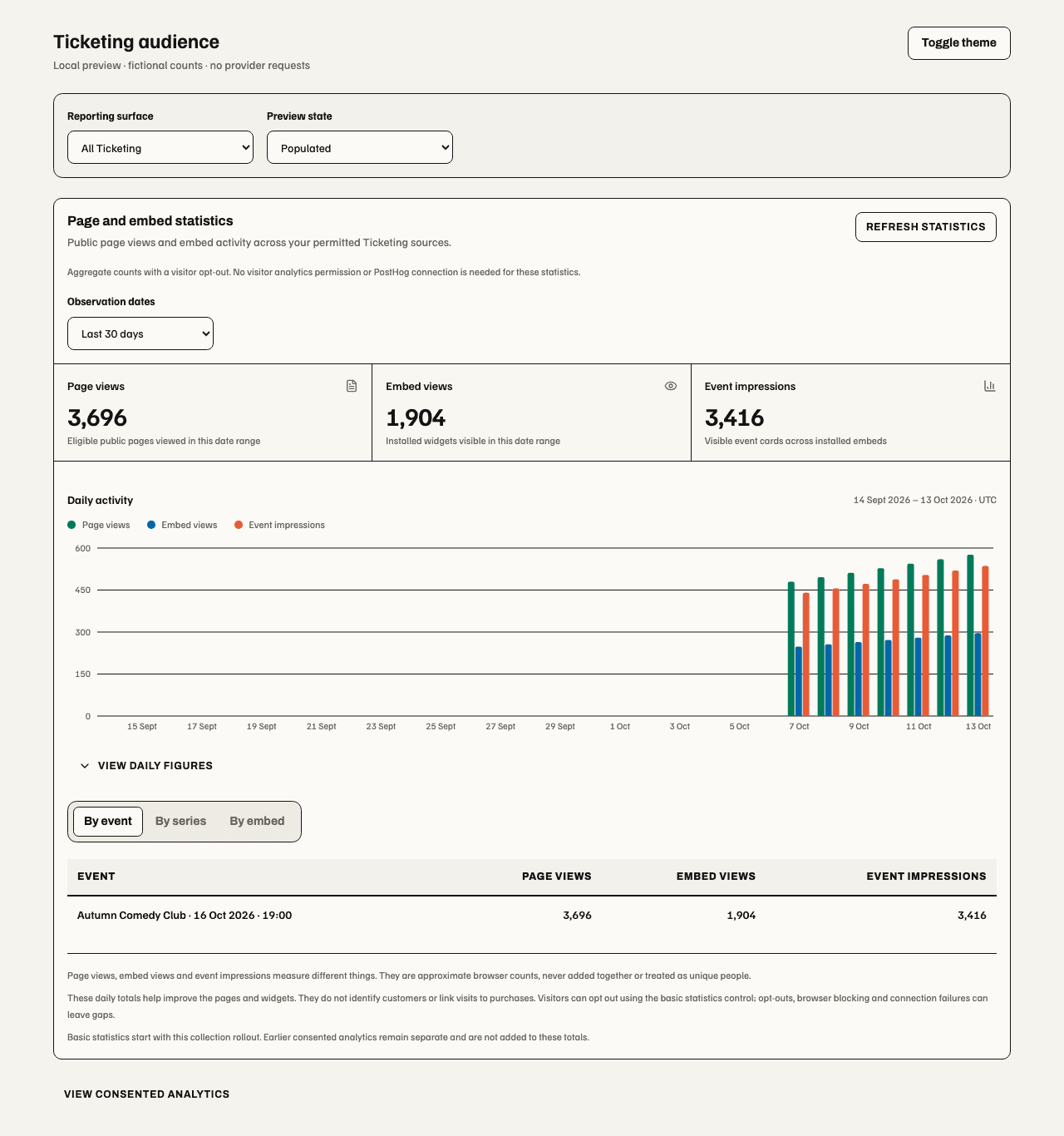
Local actual-component preview with fictional data, 15 October 2026; not a live report. The three cards and chart keep the measurements separate. The disclosure below opens consented analytics without adding it to these totals.

18 October 2026, local real-component preview with fictional Event data and mocked browser clients; no collection or production acceptance. The footer link keeps optional privacy settings out of ticket selection.
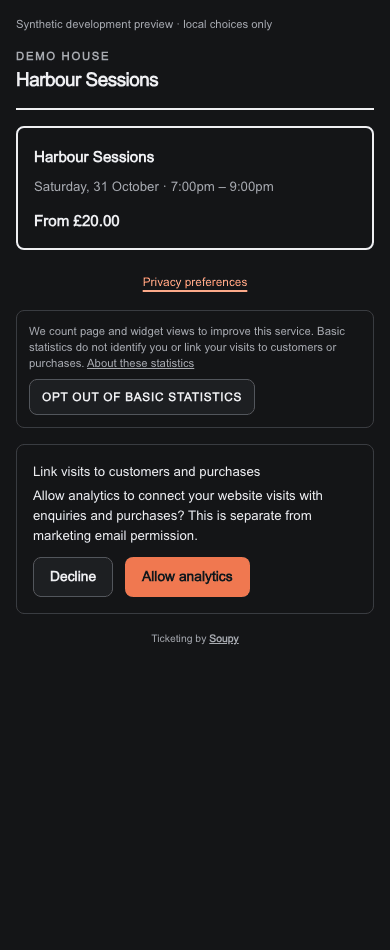
Expanded view of the same fixture. Basic opt-out and customer-linking consent remain independent. Closing the preferences preserves the selected choices.
Reports, communication and feedback
Reports distinguish retained sales, held inventory, finite capacity and unlimited products. Gross sales, tickets sold, sell-through and events selling have separate meanings; a hold is not a retained sale. Exact Event/Series scope and reporting permission apply before aggregation. Currency totals stay separate.
Web Event and Series Reports subscribe to changes in sales, check-in and the contributing records when access depends only on stored changes. Scheduled or expiring access uses fresh checks while Reports is visible. A permission refusal clears the displayed figures. Activity, Embed audience and Commercials retain their separate sources and freshness rules.
Operational communications use a reviewed scope and current sender readiness. Feedback has its own form version, identity policy, minimum response cohort, retention periods, eligible invitation audience, timing and expiry. Publish the form, review the audience and sender, then enable the invitation journey. Anonymous feedback is not secretly tied back to an Order or customer.
Assistant form drafting: on Event → Insights → Feedback, the little Assistant recognises the Event's routed page and offers What worked well?, Welcome and service, and Value and future events. Choosing a starter fills an editable brief without sending it. Describe what you want to learn; Assistant prepares the title, introduction, thank-you message and all questions for review, including answer choices, required/optional status and rating scales. Edit details requests a revised proposal. Confirm and save feedback draft saves a new draft version through the Event's existing feedback management permission. Publication and invitation delivery remain separate.
The draft keeps the saved identity, privacy threshold, retention and recovery settings; a new form uses the normal guest-choice and three-response defaults. Assistant reads form configuration, not guest answers or recipient lists, for this action. A changed form or lost permission requires a fresh review. A newer saved version offers Load saved draft in the Feedback editor, with confirmation before replacing unsaved fields. Assistant requires an enabled workplace and a configured provider. Native shows a web-review handoff; it does not confirm these forms. Local tests and fictional previews do not establish provider or production acceptance. Preview and verification.
The Private recovery panel can assign an owner, record contact attempts and guest replies, and resolve with a recorded outcome. Recovery access is distinct from aggregate feedback access; enabling recovery requires an eligible owner. Publishing a template or enabling a journey is not evidence of delivery.
| Responsibility | Capability |
|---|---|
| Read programme | ticketing.view |
| Edit / publish Events | ticketing.events.manage / ticketing.events.publish |
| Correct an Order's customer details | commerce.orders.view plus ticketing.events.manage at the Order's current fulfilment Event, the same authority as Swap date, and a role that sees the Order's customer details |
| Read / export attendee data | ticketing.attendees.view / ticketing.attendees.export, plus the source's exact seller and scope checks |
| Door admission | ticketing.check_in |
| Operational messages | ticketing.communications.send |
| Sales reports | ticketing.reports.view |
| Embed audience reports | ticketing.reports.view plus ticketing.view at each contributing source; basic statistics use no provider; optional consented provider setup retains CRM settings authority |
| Feedback read / author / send / recovery | ticketing.feedback.view, .manage, .send, .recover |
| Ticketing Settings | ticketing.settings.view / .manage |
| Event / Series Embeds | ticketing.events.manage at the exact resource; this does not grant organisation-wide embed management |
| Event Team & access | ticketing.team.manage at the exact Event, or existing business access.manage; commands also require delegable target permissions, current scope and lifetime |
| Event financial commands / Payments | ticketing.event_finance.manage plus payments.manage, or the existing Event-management plus payment authority; Checkout publication still needs ticketing.events.publish |
| Series Team & access / Payments | Existing resource-management plus access.manage / payments.manage checks |